What Pictally is
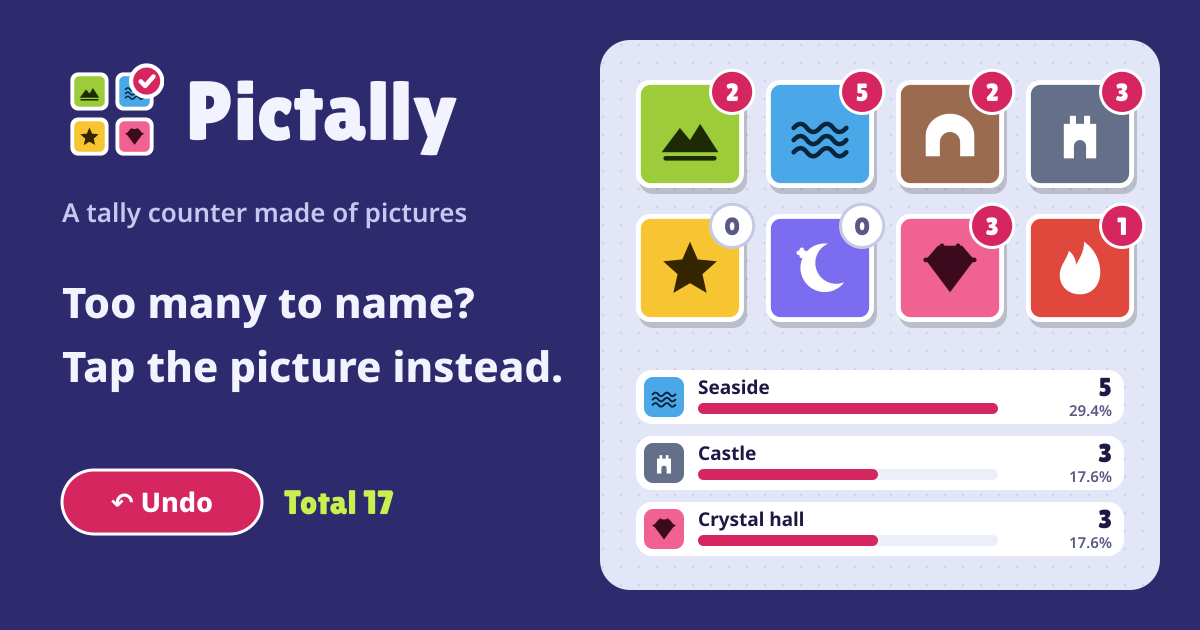
Pictally is a tally counter where every counter is a picture tile. It is made for things with too many kinds to name in text: the stages or maps of a game, gacha drops, card pulls, birds or cars you spot. You import the pictures once, tap the matching tile each time one turns up, and Pictally works out how often each one appeared and what share of the total it takes. It opens in the browser with nothing to install, no account and no payment, and everything stays on this device.
Teamtally pits teams against a weekly number of done days, and Rankpad scores each thing you try against criteria you set; Pictally counts appearances instead. One tile per kind, one tap per sighting, and for each tile its share of the total. There are no scores, no teams and no ranking criteria.
On the first visit an example board opens in your language: twelve drawn tiles for an imaginary game’s stages, with a finished session and a running one, so there is something to tap and some stats to look at. When you are done, press “Remove example”, or “Keep it as my board” to carry on with it. The example never goes into a backup file, and “Show the example board” brings it back later.
Make a board and add many pictures at once
Press “Add pictures”, then “Choose pictures” to select as many as you like in one go, or “Choose a folder” to take a whole folder; 100 or more is fine. On a computer you can also drop pictures or a folder straight onto the page. One board holds up to 2,000 tiles.
Each picture is cut to a square from its middle and shrunk on this device to a small tile picture (256 px at most); the original file is not kept. The same picture picked twice is skipped as a duplicate. Files over 40 MB or files that are not pictures are listed with the reason, and HEIC files this browser can’t read need saving as JPEG first. While the progress bar runs, “Stop” ends the import after the pictures already in progress.
With “Use the file names as tile names” on, a file such as stage_12.png becomes a tile named stage 12. Names are optional: a tile without one shows its number, any name can be changed at any time, and the “Names” switch hides all of them.
Tap to count, and take back a slip
On the “Count” tab, tap a tile each time its thing shows up: the count sticker on the tile goes up by one, and the total in the bar at the bottom follows. “Undo” takes back the last tap, and in the trail of your last taps (up to 30) you can tap any one to take back just that one.
Press and hold a tile, or right-click it on a computer, to open its menu. “−1” takes one away, and there you set a name, a colour, how much one tap adds and an optional target that marks the tile once it is reached. “Adjust crop” moves the square onto the part of the picture that matters, “Move” changes its place, and a tile removed with “Delete tile” can be brought back right after.
“Double-tap guard” on the “More” tab ignores a second tap on the same tile within a short time (250 ms unless you change it), so a slipping finger doesn’t count twice. A click sound and a vibration on each tap are there too, both off until you switch them on, and vibration works only where the device allows it.
Counts, appearance rates and the Stats tab
Every tile shows its count, and its appearance rate is that count divided by the total of all taps: a stage that came up 12 times in 60 shows 20%. You choose the order of the grid: “Import order”, “Most counted”, “Name” or “Last seen”.
The “Stats” tab lists the tiles by count, each with a bar and a thumbnail, as “Top 10”, “Top 25” or “All”. “This session” or “All sessions” sets which taps count, and “Not seen yet” gathers the tiles that have never turned up, handy for spotting the rare ones.
Sessions: start from zero, keep the past
“New session” sets every count back to zero for a fresh run, an event week or a new day, yet nothing is lost: the earlier session stays in “History” with its start and end time and every tap it holds. You can give the new session a name if you like.
In “History”, “Show counts” opens the stats of one session; you can rename or delete a session (with undo right after), and “Count here again” carries on counting in an older one.
Big boards with 100 or more tiles
The “Tile size” slider makes tiles smaller to fit more on the screen, or bigger so they are easier to tap; a two-finger pinch, or Ctrl+wheel on a computer, does the same. “Search tiles” finds a tile by name or number, and switching “Names” off hides the names for a tighter grid.
Press “Arrange” and a tap on a tile edits, crops, moves or deletes it; on a computer you drag tiles into place, on a phone you use “To the front”, “One back”, “One forward” and “To the end”. Press “Done arranging” when you are finished.
Colour tiles for things without a picture
No picture of something? “Add a colour tile” makes a plain tile in one of ten colours, with a word or two on it if you like. It counts exactly like a picture tile, so one board can mix both.
CSV files and the backup file
On the “Stats” tab, “Counts as CSV” saves each tile’s number, name, count, rate, target and when it was last seen, and “Tap log as CSV” saves every tap with its session, time and change. Column names are in your language, the files open in any spreadsheet app, and both follow the choice of this session or all sessions above them.
“Save backup file” on the “More” tab packs every board, tile, session and picture into one ZIP file, free and as often as you like. “Restore from backup” checks the file first, then lets you choose “Add to what's here”, which adds the boards you don’t have and the tiles and sessions yours lack, so the same file twice changes nothing, or “Replace everything here”, which swaps the boards here for the ones in the file while your settings stay. After 150 taps without a backup a reminder suggests saving one.
Several boards
Keep one board per game, event or hobby. From the board name at the top or on the “More” tab, “New board” starts an empty one and “Duplicate” makes a copy with the same tiles and pictures and no taps. Renaming and deleting a board (with undo right after) happen in the same place.
Example uses
- A game with 105 stages: import the stage pictures in one go and tap the stage you get each run, to see which come up most and which never do.
- Gacha or loot drops: one tile per item, a new session per event, and the rates side by side on the Stats tab.
- Opening card packs: with one tile per card, the counts show your doubles at a glance.
- Birds, cars or trains you spot on a walk, with a colour tile for anything you have no picture of.
Privacy: everything stays on this device
Boards, tiles, sessions, taps and pictures are kept only in this browser on this device, and nothing is uploaded. There is no account and no login. Pictures are shrunk to small squares on the device and the originals are not kept. There are no ads in the tool, it never asks for the camera, microphone or location, and it reads only the pictures you pick or drop.
After the first visit Pictally opens offline, and you can add it to your home screen to open it like an app. Clearing this browser’s data deletes your boards, so press “Save backup file” now and then and keep the file somewhere else.
Are my pictures uploaded anywhere?
No. Pictures are shrunk to small squares on this device and kept only in this browser; the originals are not kept. A backup file or a CSV file is made only when you save one, and goes only where you save it.
How many pictures can one board hold?
Up to 2,000 tiles. You can pick 100 or more pictures at once, and on a big board the tile size, the search and hiding the names help.
What happens to my counts when I start a new session?
The earlier session stays in “History” with its times and tap log. The stats can show just this session or all sessions together, and you can carry on counting in an older session.
Can I move a board to another phone or computer?
Yes. On this device press “Save backup file”, send the ZIP file to the other one, then press “Restore from backup” there and pick the file. Boards, tiles, sessions and pictures all come along. There is no automatic sync.