Home
Add to your Home Screen like an app
There is no need to get anything from an app store. Open a tool in your browser and add it to your Home Screen: it then opens like an app from its icon, and no installation file is downloaded.
If you opened the link inside YouTube or a messaging app, the install option does not appear. Open it in Safari on iPhone and iPad, or in Chrome or Samsung Internet on Android, and then continue. It does not work in private browsing either.
iPhone and iPad (Safari)
- Open the tool’s address in Safari.
- Tap Share. If there is a … button next to the address bar, tap it first and then choose Share.
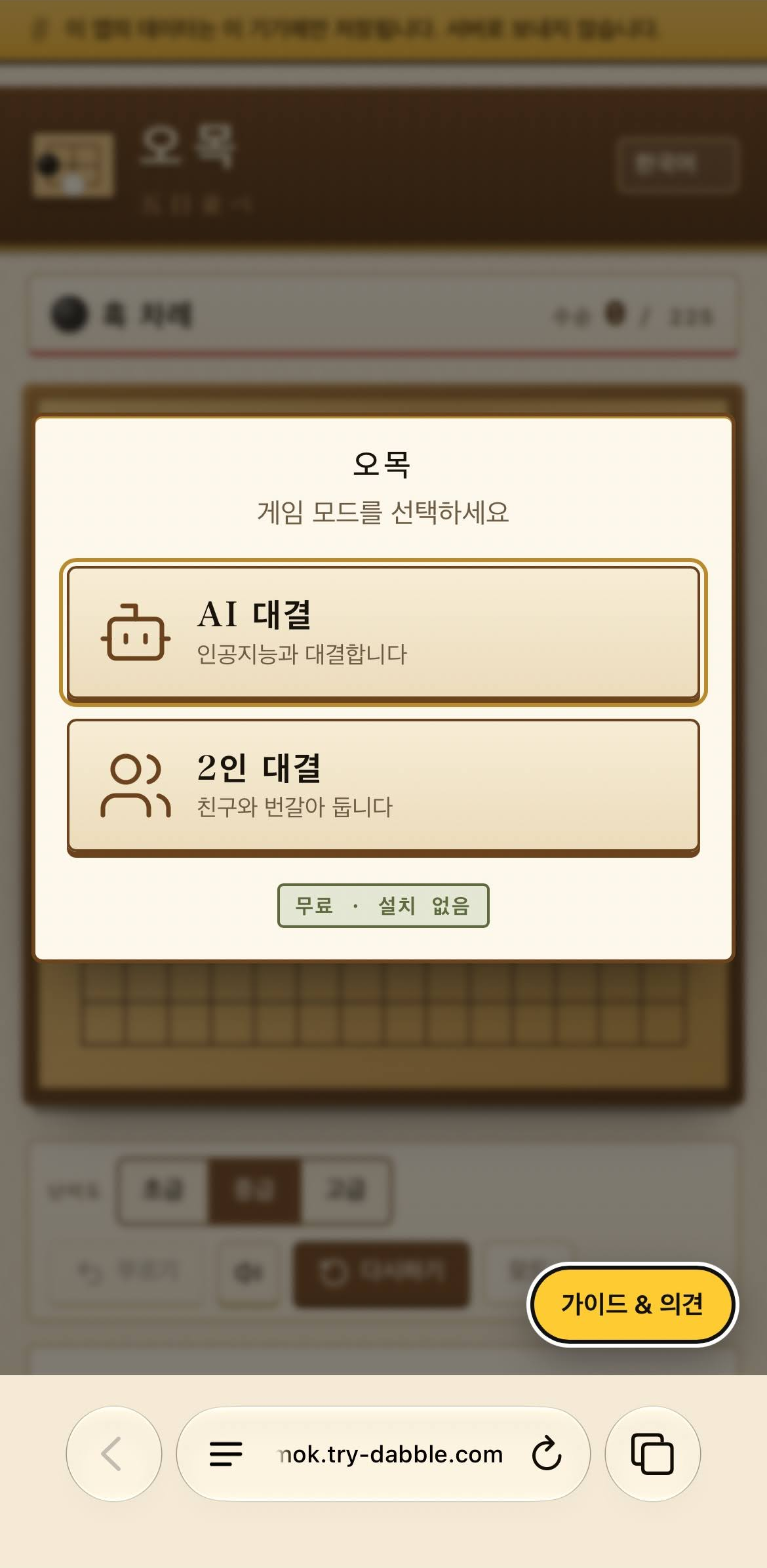
The Share button in Safari. If there is a … button next to the address bar, Share is inside it. - Scroll down the list and tap Add to Home Screen. If you do not see it, add it with Edit Actions at the very bottom.
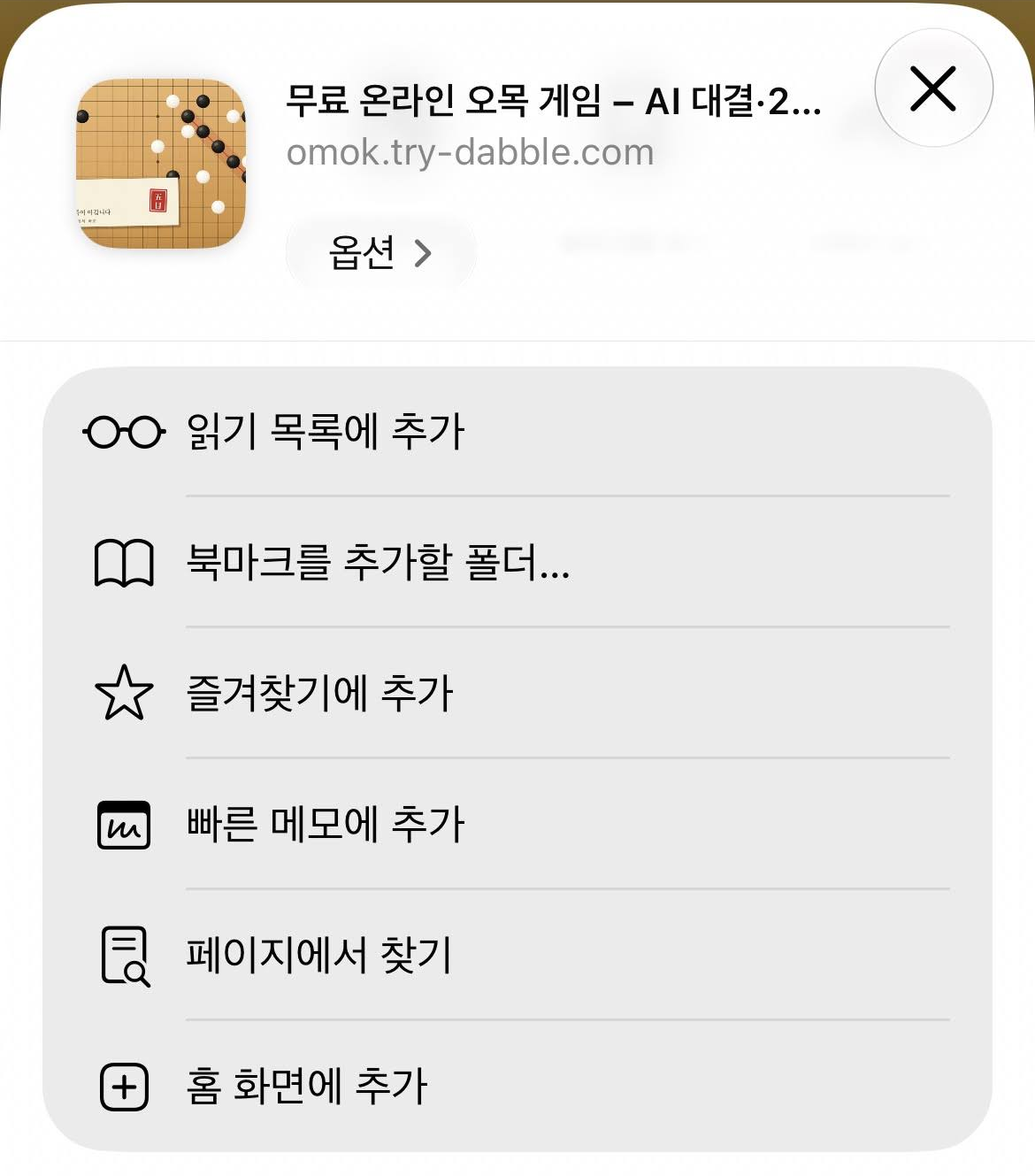
Add to Home Screen in the share list. If it is missing, add it with Edit Actions at the bottom. - If Open as Web App appears, leave it on, then tap Add.
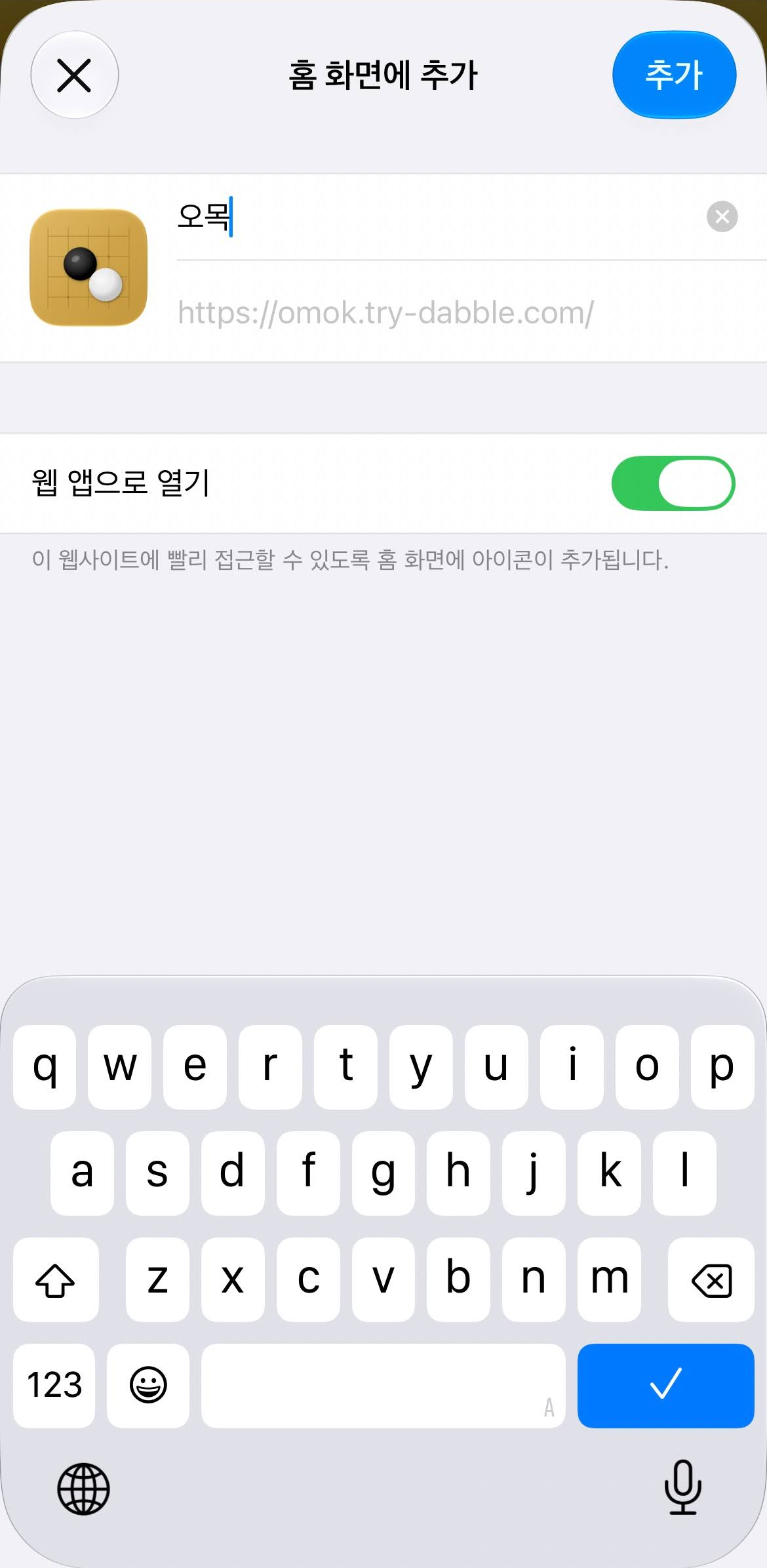
Leave Open as Web App on and tap Add.
Android (Chrome)
- Open the tool’s address in Chrome.
- Tap More (⋮) to the right of the address bar.
- Tap Install and create shortcut, then Install. Depending on the device, it may appear as Install app or Add to Home screen instead.
- Follow the on-screen instructions to finish installing.
In Samsung Internet, open the menu at the bottom and choose the option that adds the current page to the Home screen.
Installing does not add an app from an app store. Some tools also open offline, but tools that need a server, such as Gomoku, still need an internet connection after you install them.