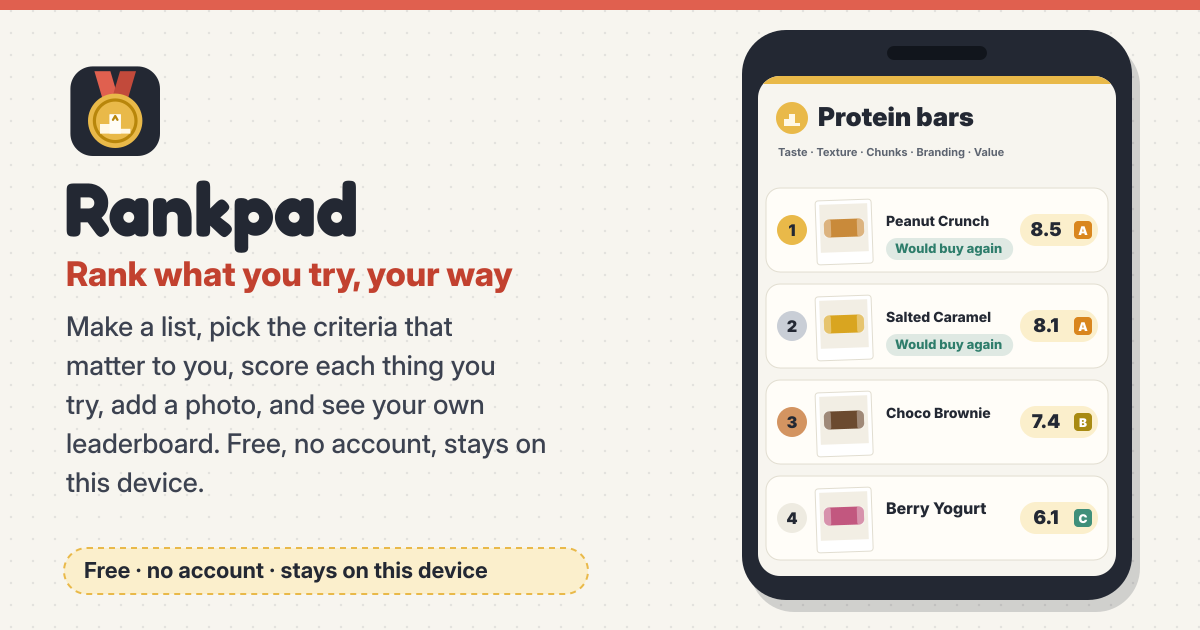
Rank what you try, your way
Make a list, pick the criteria that matter to you, score each thing you try, add a photo, and see your own leaderboard. Free, no account, stays on this device.
There are no ads and nothing is uploaded. It speaks Korean, English, Japanese and German.
1. Make a list
- Create a list with a name, an emoji and a colour, or start from a starter template.
- Templates: protein bars (taste, texture, chunks, branding, value), coffee, chocolate, ramen and snacks. Everything in a template can be edited later.
2. Set your criteria
- Each list has its own criteria: add, rename, reorder and delete them.
- Weights are optional; by default every criterion counts the same.
- Give the two ends of a scale their own labels, like “barely sweet / sugar bomb”.
- Scores run from 1 to 10 in half steps. You can show them as 5 stars instead; the scores underneath stay the same.
3. Add items and photos
- Add a name, brand, optional price and currency, the date you tried it, notes, and “would buy again”.
- Take a photo with the camera or pick a picture from the device. Photos are shrunk on the device before saving (longest side 1280 px), up to 6 per item.
4. The overall score
- The overall is the weighted average of the criteria you rated. A criterion you left empty is skipped, not counted as 0.
- No ratings yet means no overall yet.
- Changing weights or criteria recalculates every overall.
5. The leaderboard and manual order
- Each list has a leaderboard: sort by overall or by any one criterion, filter by brand or “would buy again”, and search names, brands and notes.
- Manual order: switch it on, then drag the handle or use the up, down and top buttons to move any item to any spot — even from the bottom of a long list on a phone.
- A “Manual order” badge shows when it is on, and “Back to score order” resets it.
6. Compare, top-N picture and tier view
- Compare 2–3 items side by side, criterion by criterion, with photos and the overall.
- Share your top 3, 5 or 10 as a picture: the PNG is made on the device, then goes to the share sheet or downloads.
- The tier view sorts items into S/A/B/C/D by overall: S 9.0 and up, A 8.0 and up, B 6.5 and up, C 5.0 and up, D below 5.0. Unscored items are listed apart.
7. Barcode (optional)
- Take a photo of the barcode or type the digits, and the name, brand and picture can be filled in from Open Food Facts. They are always editable.
- Open Food Facts is an open database (data ODbL, images CC BY-SA); the credit is shown when its data is used.
- You never need a barcode: typing everything in works fully offline.
8. Backup and CSV
- The backup file includes your photos. Restoring merges: nothing is deleted, and restoring the same file twice changes nothing.
- Export your items as a CSV file for a spreadsheet.
9. Everything stays on this device
- Lists, scores, photos and settings stay in this browser on this device. No account, no ads, no upload.
- On iPhone/iPad, use Safari’s Share button → Add to Home Screen and open it from there: Safari may clear website data after 7 days without a visit. Download a backup file now and then too.
Movies and restaurants?
Rating movies and restaurants in half stars? Tastepad does exactly that.
Not planned for now
If you would like something, tell us with the Guide & Feedback button at the bottom of the screen.
- Accounts
- Shared lists
- Cloud sync
How is the overall score calculated?
It is the weighted average of the criteria you rated, and only those. For example, taste 8 (weight 2), texture 7 (weight 1) and value not rated yet gives (8×2 + 7×1) / 3 = 7.7. The empty value criterion is not counted as 0.
Do I need a barcode?
No. The barcode is only an optional way to fill in the name, brand and picture. Typing everything in works fully offline.
Where are my photos stored?
Only in this browser on this device, shrunk. They are never uploaded. When you download a backup file, they are inside it too.
How do I move to a new phone?
Download a backup file on the old phone, open Rankpad on the new phone, and tap Restore to pick that file. Your photos come along too.