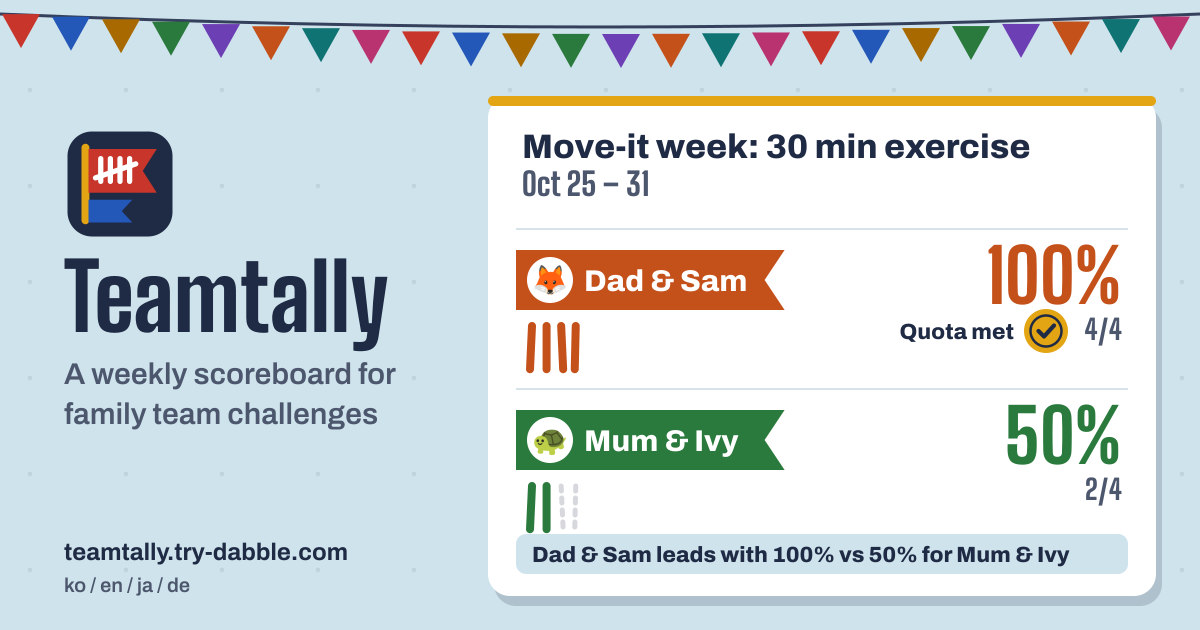
What Teamtally is
A weekly scoreboard for a household, a couple, flatmates or friends who split into teams. Say dad and son take on mum and daughter, and each team has to exercise 4 days a week: on a day you did it, you tap your own name once. Each team shows how many days it has this week, how far it is from the quota, and which team is ahead.
One shared phone or tablet is the scoreboard. There is nothing to install and no account, it is free, and there are no ads in the tool. It speaks Korean, English, Japanese and German. Everything stays in this browser on this device; nothing is uploaded.
Setting up a challenge
- On Start a team challenge, give it a Challenge name (say “Family move-it challenge”) and write what counts as a done day: type your own, or pick a suggestion such as Exercise, A long walk, Reading, No sweets, Instrument practice, In bed by 10, No phone at dinner or 8 glasses of water.
- Week starts on is preselected from the language: Sunday on the English screen, Monday in Korean, Japanese and German. You can change it any time; the change applies from the current week on. The week of the change is one day shorter or longer, once; past weeks keep their own days, and no check-in is lost.
- Choose How a team’s days count (see the four counting rules below) and the quota, 1 to 7 days a week; with Every person’s day and Everyone on their own it is per person, so a team’s target is its people × the quota. Create challenge makes two teams to start with, and next you name the teams and add the people.
- You can keep up to 12 challenges, for example one for exercise and one for reading, and switch between them at the top. Each has its own teams, people and days.
Teams and people
- From 2 to 8 teams, each with a name, one of 8 colours and an emblem emoji. With only one team, the board asks you to add a second.
- Up to 30 people in all, each on one team. Leave a name empty and it becomes “Team 2” or “Person 3”; the same name twice is fine, and the second one shows as “Sam 2”.
- Rename, move or remove people and teams under Teams. Moving someone mid-week takes this week’s days with them to the new team; past weeks stay with the old team.
- Remove person and Remove team ask first. What you remove leaves this week’s board from today on; past weeks keep it, and their results never change.
Checking in each day
- On a day you did it, tap your name once; tap again to undo. Each person counts at most once a day, so an accidental double tap still counts once.
- Forgot a day? Today and the earlier days of this week and last week can be corrected. Older weeks are read-only, and future days can’t be ticked.
- A day is the calendar date on this device at the moment you tap; midnight starts the next one. If the device changes time zone, days already ticked stay on their date, and “today” is the local date where the device is now.
Reading the board: tally, quota and who leads
- At the top of Board you see this week’s date range and the counting rule in one sentence, for example “A team day counts when anyone on the team checked in. Quota: 4 days a week per team.”
- Each team has its tally marks against the quota and a progress bar, and a Quota met badge once it gets there. Next to it is how far along the team is (for example 6 of 8 · 75%), and at the top the board says which team leads and with what percentage, or that it is a tie.
- The lead is decided by progress toward each team’s own quota, not by the raw count, so it is fair even when the teams are different sizes, say two people against three. Going past the quota shows as it is, such as 125%, and a team with nobody on it shows “—” and is not ranked.
- Inside each team, every person has a mini row of the week’s 7 days, in the order your week runs, so you see at a glance who did it on which day.
A new week, and the weeks behind you
At midnight on your chosen start day (device time) the board starts a fresh week by itself, even while it is open. Nothing is wiped: Weeks lists every past week with each team’s total, whether it met the quota and the winner or a tie, plus the weeks won by each team and its streak of weeks in a row with the quota met.
A week goes to the team furthest along toward its quota (the highest percentage); equal percentages are a tie, even with different counts. A change to the rule, quota or week start applies from this week on; past weeks keep their own rule and quota, so changing the quota never changes a past winner or quota-met badge.
The four counting rules
Take the dad and son team: dad did it on Monday, Tuesday and Thursday, the son on Tuesday, Thursday and Saturday.
- Anyone on the team: a team day counts when at least one person on the team checked in. Monday, Tuesday, Thursday, Saturday: 4.
- Everyone together: a team day counts only when everyone on the team checked in that day. Tuesday and Thursday: 2. A team with nobody on it never scores.
- Every person’s day: each person’s day adds one, so two people on Monday make 2. This team has 3 + 3 = 6. The quota is per person, so with a quota of 4 this team of two needs 8, and the board shows 6 of 8 · 75%.
- Everyone on their own: each person must reach the quota, and days past it add nothing; the team meets the quota when everyone has. With a quota of 4, both have 3, so not yet, and the board shows 6 of 8.
Sharing and backups
- Share image draws this week’s board as a PNG on this device. Where the phone supports it, Share… opens the share sheet; otherwise Download image saves it. Copy text puts a text summary on the clipboard. Both go only where you send them; there is no link to a live board.
- More › Save backup (.json) puts every challenge in one file. Restore from a backup… then offers Add to what is here (the same challenge is joined and nothing is counted twice, so restoring the same file again changes nothing) or Replace everything here. A bad file is explained and nothing is restored.
- After 30 check-ins or changes, or 7 days without a backup, the app suggests one; Later quiets it for 3 days.
- If saving fails (private mode or full storage), everything stays on screen, the app says so and offers Try saving again. If the saved data can’t be read, it is kept as it is instead of wiped, and a recovery panel offers Download the unreadable data, Restore a backup file… or Start fresh.
Tips
- Pick one phone or tablet as the scoreboard and keep it by the fridge or the door. Devices are not linked, so opening it on each person’s phone gives everyone a separate board of their own.
- Match the week start to your household. If the weekend is when most of it happens, a Monday start keeps the weekend at the end of the week, with room for a late comeback; if you plan the week on Sunday, a Sunday start fits.
- Save a backup file every few weeks: clearing browser data erases the board. When you change devices, restoring the backup on the new one moves the board there.
How it differs from Goalpad
Goalpad is a personal weekly time budget per goal, filled with a timer. Teamtally has no timers and no hours: it counts days done per person, rolls them up into teams against a weekly days quota, and puts the teams up against each other. Reading 4 hours a week on your own is a job for Goalpad; a family split into teams racing to 4 exercise days a week is Teamtally’s.
What it does not do
There are no accounts, no syncing between devices and no live link, and nothing is uploaded to a server. It does not measure workouts or read step counts; it counts the days you tap, with no timers and no hours. It is a scoreboard for fun at home, not medical or training advice. The Guide & Feedback button in the app leads here; send a missing feature or a problem from this page.
Can each of us tick on our own phone?
No. Devices are not linked or synced, so another phone would have its own separate, empty board. Keep one shared device as the scoreboard and have everyone tap their name there.
Is last week wiped when a new week starts?
No. Only the board starts fresh; past weeks stay under Weeks with their results, and last week can still be corrected for a missed day.
Does it work offline?
Yes. After the first visit it opens without a connection, and check-ins, the board, past weeks, the share picture and backups all work.
Where is the scoreboard kept?
Only in this browser on this device; Teamtally uploads nothing. Clearing browser data or closing a private window erases it, so save a backup file now and then.
How do I move the board to a new tablet?
On the old device tap Save backup (.json), move the file to the new one (email, a cloud drive, a cable), then open Teamtally there and pick Restore from a backup…. Challenges, teams, people and days all come along.