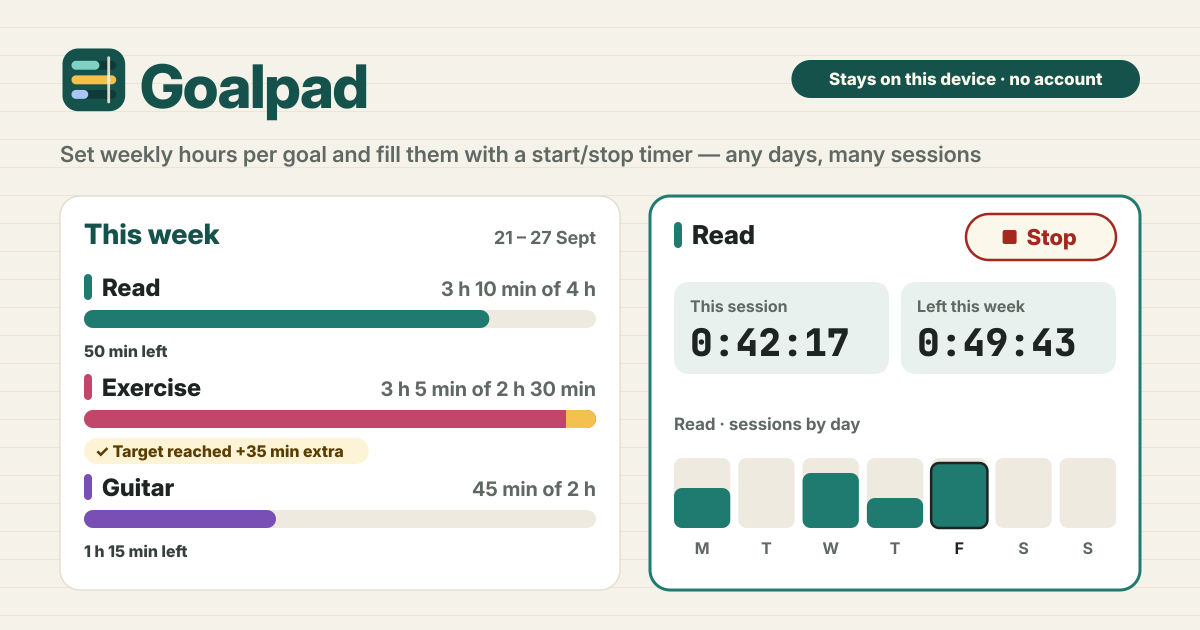
It started with “read for 4 hours a week”
Someone on Reddit's r/ProductivityApps was looking for an app where you can "set a certain amount of time per week for a task", for example "read for 4 hours a week", with a "timer that counts down but can track over multiple sessions".
Similar tools are mostly English only, built for team timesheets and billing, or daily habit checklists. Goalpad opens in a browser, has no account and does one thing: your own weekly time budget. Everything is saved in this browser on this device. The interface is in Korean, English, Japanese and German.
What Goalpad does
- Weekly hours per goal → "Read 4 h", "Exercise 3 h", set in hours and minutes, each with its own colour.
- Start and Stop → one big Start button on each goal card. While it runs, this session counts up and the week's remaining time counts down.
- Any days, many sessions → 30 minutes on Monday and an hour on Wednesday all add up on this week's progress bar.
- Going over → the end of the bar turns gold with "Target reached" and the extra time. No scolding.
- Past weeks → each finished week shows every goal's time against the target it had then, with its sessions.
Your first goal in two taps
- On first open you see starters such as "Read · 4 h a week" and "Exercise · 3 h a week". Tap one and it becomes your goal.
- Tap Start on the goal card and the timer runs. When you are done, tap Stop in the same place.
- Use New goal to set your own name, weekly time and colour, and Edit on a card to change them any time.
- A changed target counts from this week on. Past weeks keep the target they had.
The timer does not get lost
- Goalpad only stores when you started. So if you close the tab, reload or restart the phone, the time in between is all there when you open it again.
- Only one timer runs at a time. Tapping Start on another goal saves and stops the first one.
- The browser tab title shows the running time, so you can check it from another tab.
- Time that runs past midnight is split by day, so a session started on Sunday night counts the part after midnight in the next week.
- If you forget to stop for hours, the card says so. Stop it and fix the time, or throw that run away.
Adding and fixing forgotten time
- Tap Add time on a card, then enter the date, hours and minutes and a note if you like. Only today or earlier days can be picked.
- Every session under This week's sessions and Past weeks has Edit, to change its length, date or goal, or delete it.
- Right after a change or delete, Undo in the message at the bottom takes it back.
When the week starts, and past weeks
- The week starts fresh on Monday by default. Under Settings you can pick Sunday or any other day; changing it only regroups days, and no time is lost.
- When a new week begins, the bars empty by themselves and the old week moves to Past weeks. There is nothing to press.
- Archive a goal you no longer use: it leaves this week's list and keeps its history. Restore it under Settings.
Backup and changing phones
- Export JSON puts your goals, sessions and even a running timer into one file. On the new phone, Import JSON brings it back.
- Export CSV has one row per session — date, week start, goal, minutes, start time, note — and opens in Excel.
- Import and Delete everything always ask first, with an Export JSON first button in the same window.
What Goalpad does not do
- It is not a team timesheet, invoice or payroll tool. It is a notebook for you alone.
- It is not a Pomodoro timer, and there are no streaks, badges or scores.
- It does not watch which apps or sites you use. It only counts the time you start and stop yourself.
- No account, no sync and no ads on the tool. Your time is never uploaded.
Is it free?
All of it is free. The number of goals, the timer, past weeks and backup are not locked, and there is no sign-up or payment screen.
What happens in a week I fall short?
Nothing. The week simply stays in Past weeks with its time next to its target, and nothing is carried over. Every new week starts fresh.
Does it work offline? Can I put it on my home screen?
Once opened, it opens and the timer runs without internet too. Use Add to Home Screen in your browser's menu to keep it like an app. Send feedback with the Guide & Feedback button at the bottom right.