What Sheetpad is
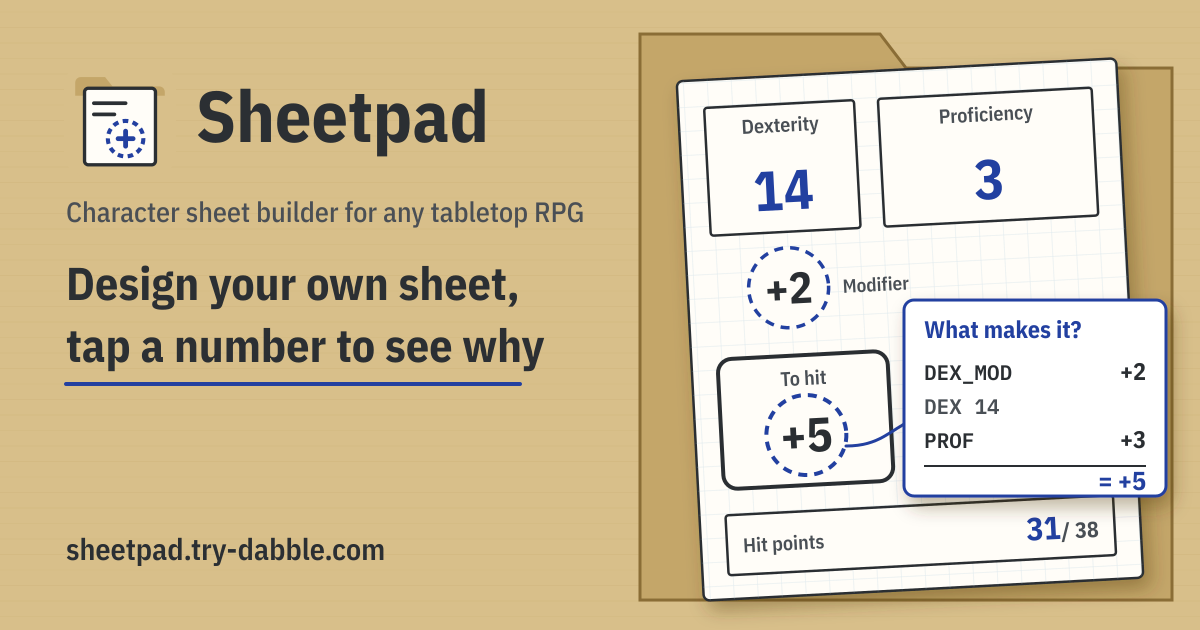
Sheetpad is a character sheet builder for tabletop role-playing games. You start from a blank page, put your own fields wherever you want them and let formulas work out the derived numbers, such as a modifier from a stat or a to-hit bonus from a modifier and a proficiency bonus. Tap any worked-out number and Sheetpad shows what adds up to it. When the sheet is ready, lock the layout and play.
It is not tied to any one game system: there are no class or race presets and no rules content, only empty fields with plain labels that you name and connect yourself, so it fits a homebrew system as well as a published one.
There is nothing to install and no account, it is free, and there are no ads in the tool. It speaks Korean, English, Japanese and German. Your sheets and pictures stay in this browser on this device and nothing is uploaded.
Start a sheet: a blank page or starter blocks
Press “Sheets”, then “New sheet”. Give the sheet a name and start with a blank page or with a few “Starter blocks”. A block is just a ready-made group of empty fields: change or delete anything in it like any other field.
- “Name, player and level”: a sheet title with name, player and level fields. The level’s formula name is LEVEL.
- “6 stats with modifiers”: six number fields starting at 10, each with a formula field beside it that works out its modifier as floor((stat - 10) / 2). The labels are plain (Stat 1 to Stat 6), so rename them to your game’s.
- “Hit point tracker”: an HP tracker with current / max and − and + buttons.
- “Skills table”: a table with skill and bonus columns. “Inventory list”: a table with item and quantity columns. “Notes box”: a large text field for several lines.
- The same blocks are under “Add” on any page later.
Place fields in Build mode
In “Build” mode, press “Add” to put a field on the page: a number, a formula, text, a checkbox, a dropdown, a tracker, a table, a picture, a heading, or a box or line. Then drag it where you want it and drag its corner to size it.
- With a mouse, drag the field itself. On a touch screen, drag it by its move handle, so scrolling the page never moves a field by accident.
- The arrow keys move the selected field.
- “Snap” lines fields up on a grid: “Off”, “Fine” or “Normal”.
- “Undo” and “Redo” take a change back or put it back.
- Select a field to change its label, value, formula name, look and exact position and size; “Duplicate” and “Delete” are there too. A page holds up to 300 fields.
Formulas and references
A “Formula” field works out a number from other fields. Every field with a number has a formula name: it shows on the field when you select it, in its settings, and in the “Names on this sheet” list under the “Formula guide”. Formula names use letters, digits and _ only, start with a letter and are up to 24 characters long; rename one and the formulas that used it follow. A formula can use fields on any page of the sheet, and the “Formula guide” below the sheet sums up the syntax.
- {STR} or just STR: the value of the field whose formula name is STR (braces are optional for one-word names).
- {Armor class}: a field by its label, when only one field has that label.
- {HP.max}: a tracker’s max; {HP} alone gives its current value.
- + - * / ( ): add, subtract, multiply, divide and brackets.
- floor(x), ceil(x), round(x, 1): round down, round up, round to the nearest (here to 1 decimal).
- min(a, b), max(a, b): the smallest or the largest of the values.
- abs(x): the value without its minus sign.
- if({LEVEL} >= 5, 3, 2): 3 when the level is 5 or more, otherwise 2; <, <=, >, = and != work too.
- A ticked checkbox counts 1 and an empty one 0; a dropdown counts the number of the picked option.
- No dice: a formula never rolls anything, so the same values always give the same answer.
Example: a modifier and a to-hit bonus
A number field STR (formula name STR) holds 16. A formula field STR mod (formula name STR_MOD) with floor(({STR} - 10) / 2) shows 3. A number field Proficiency (formula name PROF) holds 2, and a formula field To hit with {STR_MOD} + {PROF} shows 5. Set STR to 18 and STR mod turns 4 and To hit 6 straight away.
For a modifier, tick “Show + before positive numbers” and it reads +3.
Errors show in red on the field
When a formula can’t give a number, the field shows an error in red instead of a wrong value, and selecting the field says why.
- A loop: fields use each other (A uses B and B uses A), so no value can be worked out. The field shows “loop”; remove one of the references.
- An unknown name: no field has that formula name or label. The “Names on this sheet” list in the “Formula guide” shows every name.
- Division by zero: the number after / is 0.
- It also tells you when several fields share a label (use their formula names), when a text, table or picture field is used in a formula, and when a formula can’t be read, with the place where reading stopped. A formula that uses a field with an error shows an error too, naming that field.
Tap a number to see what makes it
Worked-out numbers have a dotted ring. Tap or click one and Sheetpad opens what makes it: the formula, the formula with the values filled in, and the contributors with their values. A contributor that is a formula itself is expanded beneath it, all the way down to the numbers you typed in.
In the example above, tapping To hit 5 lists STR mod 3 (from STR 16) and Proficiency 2.
Change a value right in that breakdown and every number that uses it updates. “Show on the sheet” points to where that field is.
Dropdowns, trackers and tables
- “Dropdown”: pick one of your own options. Each option can carry a number (an armour type with its bonus, say), and formulas count the picked option’s number.
- “Tracker”: current / max with − and +, for hit points, mana, ammunition or anything that goes up and down. The max can be typed or come from a formula (for example {CON} * 2 + 10), and other formulas use it as {HP.max}.
- “Table”: you name the columns and add rows while playing with “Add row”, for skills, gear or spells. A table holds text and is not used in formulas.
- There is also “Number” for values you type in, “Text” for a name or notes on one line or several, and “Checkbox”, which counts 1 when ticked.
Pictures, headings, boxes and lines
- “Picture”: a portrait, a symbol or a map on the sheet. Each page can also have a background picture, which can be faded.
- Pictures (PNG, JPG, WebP or GIF, up to 25 MB per file) are read and made smaller on this device and never uploaded. All pictures on this device together can take about 12 MB.
- “Heading”: fixed text for a title or a section name.
- “Box or line”: a frame around a group of fields, or a dividing line.
The look: paper, ink, colours, fonts and borders
“Look” sets the whole sheet: paper, ink, the colour of your entries, lines, a font and a heading font. “Default look” puts it back.
- Fonts are the system fonts this device already has (sans, serif, condensed, typewriter and handwritten styles). Nothing is downloaded, so a sheet can look slightly different on another device.
- Each field can have its own border (none, line, thick, double, dashed, rounded or circle), fill, text colour, text size and alignment, and can hide its label.
- “Page” sets the page’s name, background colour and background picture.
Play mode locks the layout
Switch to “Play” when the sheet is ready. The layout is locked, so nothing moves when you tap: type values, tick boxes, pick from dropdowns, press − and + on trackers and add table rows, and every formula follows at once. Switch back to “Build” whenever you want to change the layout.
Several pages and several sheets
- A sheet can have several pages (up to 20), switched with tabs. “Add page” makes a new one, and “Page” moves a page left or right or deletes it. Stats on the front and spells and gear on the back works well.
- “Sheets” lists your sheets on this device (up to 200): open them, “Rename”, “Duplicate” or “Delete” them, and press “New sheet” for another. Duplicate a sheet you built to use it as the template for a new character.
Sheet files, backup files and another device
- “Save sheet file” saves one sheet, pictures included, as a JSON file. “Save backup file” saves every sheet on this device in one JSON file.
- On another device, press “Sheets” and open a sheet file or a backup file with “Open a sheet file…”. Then choose whether to add only the sheets that aren’t there, replace the same sheets with the file’s, add new copies, or replace every sheet.
- To share a sheet you built with your group, send the sheet file; they open it the same way.
- Sheets live only in this browser, so clearing its site data erases them. Sheetpad reminds you now and then to save a backup file.
Print / PDF
“Print / PDF” opens the browser’s print dialog with one sheet page on each printed page. Pick a printer, or choose to save as PDF to get a PDF file; it is made on this device.
Privacy: your sheets stay on this device
Everything stays in this browser on this device: sheets, pages, values and pictures. Pictures are read and made smaller on the device and never uploaded. There is no account and no login. Sheet files, backup files and PDFs are made on the device and go only where you save or send them.
If this browser can’t save a change (private mode or full storage), Sheetpad says so and offers “Try saving again”; save a backup file before you close the tab.
Which games does it work with?
Any, because you build the fields: D&D, Pathfinder, Call of Cthulhu or your own homebrew. Sheetpad has no classes, races or rules from any game, and the starter blocks are plain labels you rename.
Can it roll dice?
No. Formulas never roll, so the same values always give the same answer. Roll at the table and add the modifiers and to-hit bonus from your sheet.
Are my sheets or pictures uploaded?
No. Sheets and pictures stay in this browser on this device, pictures are read and made smaller on the device and never uploaded, and there is no account.
How do I move a sheet to another device?
Save a file with “Save sheet file” or “Save backup file”, get it to the other device, and open it there with “Open a sheet file…”. Pictures travel inside the file.