Why a virtual pet works as a small daily ritual
A virtual pet is a cause-and-effect toy. A meter drops, you press a button, the face changes; the whole loop takes ten seconds and the result is visible. For a child of five to nine that is the appeal: a creature that depends on them in a way they can fully understand, with no rules to read. It is also a gentle rehearsal for looking after something real, because the pet has needs on its own timetable rather than the child’s. For an adult it works as punctuation in the day, a small ritual on the same footing as watering a plant, with none of the stakes.
The trouble starts when the pet keeps calling. Tie the check-in to something fixed, such as after breakfast and before bed, and keep it to a couple of minutes: feed, play, clean, done. A pet that can run down while nobody is watching but never dies and never sends a notification supports that boundary; a game that pings every hour undermines it. With a child, agree the two visit times out loud, and say in advance that the pet will be hungry but fine after school or after a weekend away. Whether the visits are the child’s own idea matters more than how long they last, and a pet you name and dress together tends to get the calmest care.
Build the pet, then keep four meters up
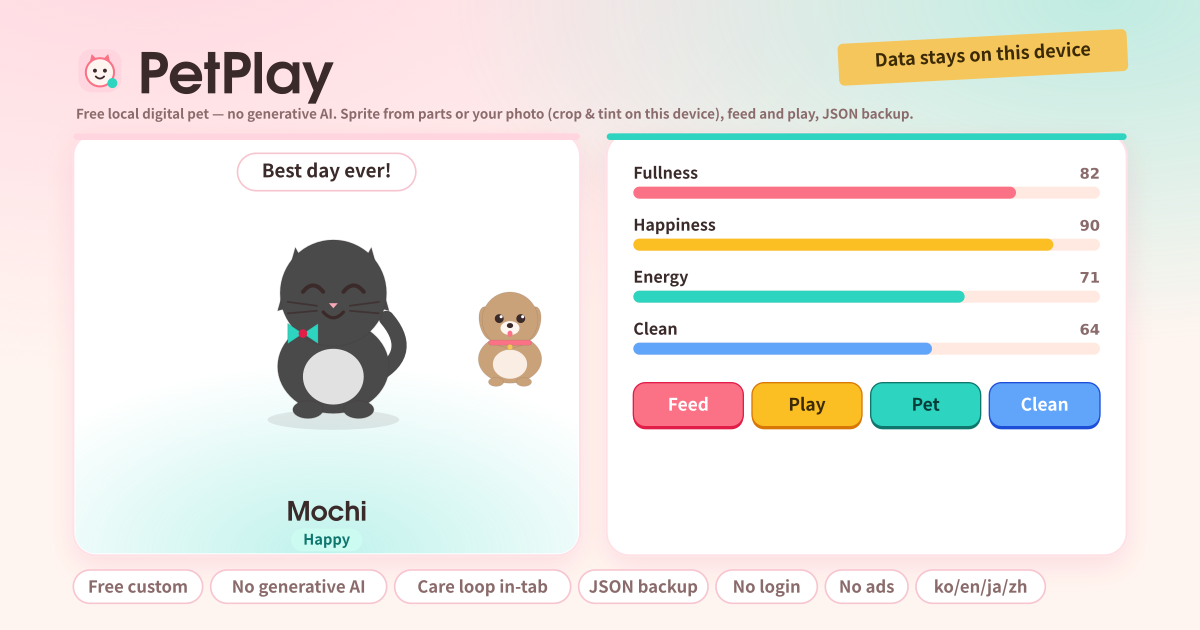
PetPlay is a small toy for making a digital version of your pet and looking after it. The pet stands in the middle of the screen with a speech bubble above and its name and a mood chip below. There are two ways to make one. The first is parts: pick a species (dog, cat, bunny, bird or fox), change the ears, eyes, body, tail and accessory one at a time, and set the body, belly and accent colours from the palette or a free colour picker. The second is your own photo: choose a picture, frame a square with the zoom, left / right and up / down sliders, tint it if you like, and use that as the sprite.
Neither path uses generative AI. The parts are fixed shapes that ship with the app, and the photo is only cropped and tinted by the browser on this device; it is never uploaded. So the app does not promise to “paint your pet for you”; instead, exactly what you choose is what the pet looks like. Give it a name and the little notes use it, like “Mochi ate happily”.
On first open a cat stands there with a default name. Tap Build from parts, switch the species to Dog, the ears to Floppy and the body colour to brown; the preview follows at once. Tap Done, type “Mochi” in the name field and tap Done again, and the name on the stage changes. Now tap Play and watch the happiness bar rise by 25, then Feed and watch fullness rise by 30.
The meters drift down slowly while the tab is open (fullness 40 an hour, happiness 30, energy 20, cleanliness 15). If you do not want to wait, tap Skip 1 hour to see an hour’s worth drop, then fill them again with Feed and Play. That is the care loop, and it finishes inside the tab with no widget or notification. Close the tab and open it days later and the meters have dropped for the time away, but at most three hours’ worth and never below 10, so the pet is never gone.
To use your own photo, tap Use my photo, choose a picture, frame the face inside the square with zoom, left / right and up / down, tint it mint or coral if you like, and tap Use this sprite. The photo is processed only inside the browser and travels inside the backup file. Finally tap Export JSON to keep a backup: clear the browser data or switch phones, then Import JSON, and the pet and its meters come back exactly as they were.
Stage, meters, care buttons and the two sprite sheets
- The amber strip at the top: a note that your data stays on this device. Nothing is sent to a server.
- Stage: the pet sprite, a speech bubble, the name and a mood chip (Happy, Doing fine, Hungry, Sleepy, Needs a wash, Bored, Down). The face and the bubble follow the meters.
- Needs: four bars for fullness, happiness, energy and cleanliness (0 to 100). Below 30 the number turns red.
- Care: Feed (+30 fullness), Play (+25 happiness, −10 energy), Pet (+15 energy, +10 happiness), Clean (+45 cleanliness). Four big buttons, always enabled, always free. Below them, Skip 1 hour (see time pass without waiting) and a Pause meter drift toggle.
- Name · Look: the name field (up to 24 characters), Build from parts, Use my photo. While a photo sprite is in use, Back to the parts sprite appears.
- Build from parts sheet: a preview at the top, five species chips, chips for ears, eyes, body, tail and accessory, three colour rows (ten swatches plus a free picker), Surprise me, Done. Every tap applies to the pet immediately.
- My photo sheet: Choose a photo, a preview canvas, zoom / left-right / up-down sliders, tint swatches with a strength slider, Use this sprite. All of it runs on this device.
- Backup: Export JSON, Import JSON, Delete all. Below, the promise chips (Free custom, No generative AI, Care loop in-tab, JSON backup, No login, No ads) and the Privacy, Terms and Guide links.
Where the pet and your photo stay
The pet’s look, name, meters, settings and the photo sprite stay on this device; there is no account, no token or checkout screen, no ad on the app screen and no call to any image service. Every part, colour and photo sprite is free, and the care loop finishes inside the tab with no widget or notification. Before switching phones or reinstalling, export JSON from the Backup card and “Import JSON” brings the pet back exactly as it was; “Delete all” starts over.
Is there really no generative AI?
Yes. The parts sprite is a set of fixed shapes shipped with the app, recoloured and combined; the photo sprite is the browser cropping your picture to a square and multiplying a colour over it. No model draws anything and no request goes to any image service.
Does the pet die if I leave the tab closed?
No. When you come back the meters have dropped for the time away, but only up to three hours’ worth and never below 10. The pet is hungry and glum but still there, and a few taps of Feed and Play make it happy again. There are no background notifications and no widget.
Send feedback
Use the Guide & Feedback button at the bottom right of the app or the feedback link on the try-dabble.com hub. There is no separate feedback form inside the app, and nothing you send includes your pet data or photo.