It started with “Looking for an F2L trainer/app with custom algorithms” on r/Rubiks_Cubes
The thread appeared on the r/Rubiks_Cubes subreddit in 2026 under the title “Looking for an F2L trainer/app with custom algorithms”. The list was specific: pick a subset of the F2L cases to drill rather than all 41 at once; save custom algorithms, including ones that stop mid-pair on purpose — a setup or a connect, not a full solution; favourites and notes; a view that greys every piece except the pair so the eye lands on the right two; and step-by-step 3D playback with arrows showing which way each layer turns. The poster had already tried SpeedcubeQuest, CubingGen, Cubyqo and CFOPTrainer and had not found that combination. It is a fair list: the algorithms already exist, in a notebook or a spreadsheet; what is missing is a place that plays them back on a cube and otherwise stays out of the way.
Look at that category and a pattern repeats. GAN’s CubeStation has strong visualisation, but after version 5 its custom-algorithm training broke: customs were wiped, a chosen subset could not be practised, and a custom that ends mid-pair is treated as a wrong full solution — and the app is tied to GAN’s smart cubes. Web trainers such as solved.no, cuberacetimer and aicubetrainer are in English only. alg.cubing.net plays any sequence you paste, but it is a generic player with no case library, so every case is something you set up yourself, every time. For someone who wants to drill twelve cases with their own setups, that is a smart cube, a language or a blank player before the first case is practised.
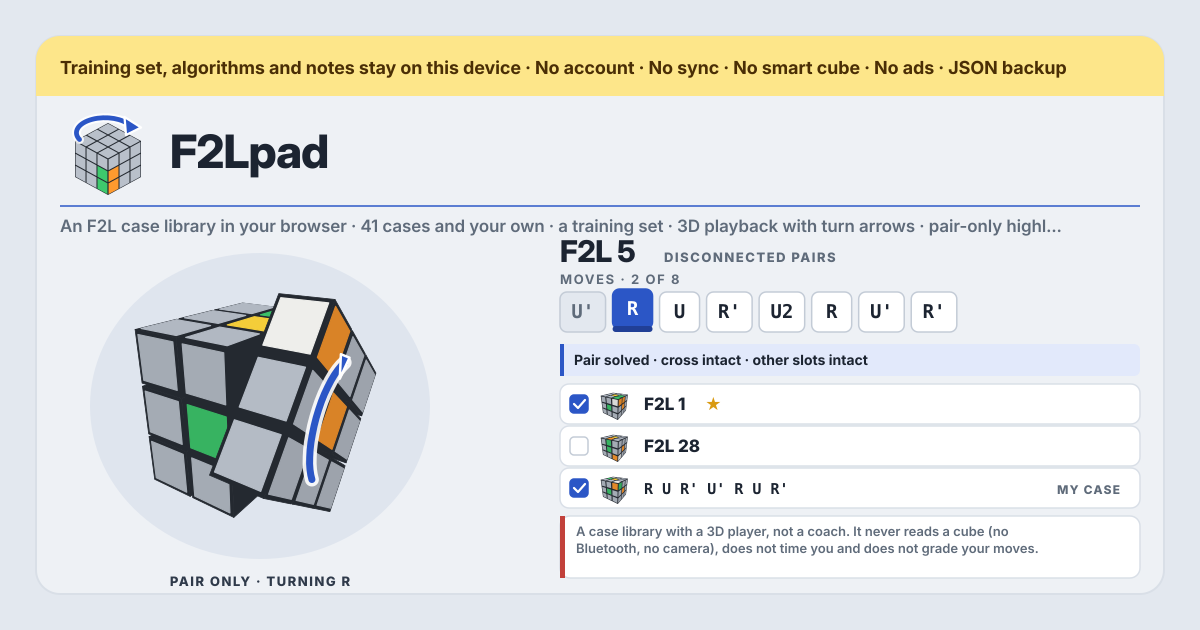
F2Lpad is that wish, answered as asked. The 41 standard cases in their six groups, each with a small 3D thumbnail and a tick box; the cases you tick are the training set; an algorithm plays on a 3D cube one move at a time with a curved arrow on the turning layer; “Pair only” greys everything except the pair; your own algorithms attach to a case and may end mid-pair on purpose without ever being called wrong; a star marks the one you use and a note per case keeps the recognition cue — in the browser on this device, with no account, no smart cube and no server. The UI is in Korean, English, Japanese and German. F2Lpad is a case library with a 3D player, not a coach: it never reads a cube, it does not time you and it does not grade your moves.
What F2Lpad does
“Case library” is the list. The 41 standard cases are for the front-right slot with the white cross on the bottom — yellow on top, green in front, orange on the right — and sit in six groups following the commonly shared 41-case chart: “Free pairs” (1–4), “Disconnected pairs” (5–10 and 19–22), “Connected pairs” (11–18 and 23–24), “Corner in the slot” (25–30), “Edge in the slot” (31–36) and “Both in the slot” (37–41). Each row has a small 3D thumbnail of the case, a tick box and the name; press the name and the case appears on the cube. Under a standard case a line reads “Set up on a real cube: …”, the sequence that produces the case from a solved cube, so you can hold the same position in your hand. Under that, “Algorithms for F2L 7”: up to three reference algorithms, widely known ones offered as a starting point and marked “Reference” — nothing here decides which is “right”. Above the list sit four filters, “All”, “In my set”, “Starred” and “My cases”; each group has “Add group” and “Remove group”, and “Add all” and “Clear the set” do the whole list. The count reads “N in the training set”.
“Cube” is a 3D cube on a round mat. Drag to turn the view, “Reset view” to bring it back. “Highlight” has three settings: “Pair only”, the default, keeps only the two pieces of the pair and the centres in colour and greys everything else; “F2L pieces” greys the top layer; “All colours” shows the cube as it is. Under the cube sit the transport buttons — “To the start”, “One move back”, “Play” / “Pause”, “One move forward”, “To the end” — and “Speed” from 0.5× to 3×. The “Moves” tape runs under that with the current move raised; press a move to jump there, or use ← → Space Home End on a keyboard. While a move plays, a curved arrow on the turning layer shows the direction; while paused, the arrow shows the move that comes next. Half turns, slice moves (M E S), wide moves (r u f, or Rw) and rotations (x y z) all play. Under the tape one line states, as facts, what the loaded algorithm ends with from this case: “Pair solved · cross intact · other slots intact”, with “· cube solved” added when the whole cube ends solved; or “Ends with the pair unsolved”, with “(an intentional partial)” when the algorithm is marked so; and “cross disturbed” or “another slot disturbed” when that is what happens.
“Add algorithm” on a case opens a form. “Moves” takes standard notation — R U F L B D, lowercase or w for wide, M E S, x y z, ' and 2; brackets are ignored. “Label (optional)” is for “Setup only” or “Left-hand version”. “What it ends with” is either “Solves the pair” or “Ends mid-pair on purpose”. “Note” is for fingertricks and when to use it. As you type, a live line reads “From this case it ends with: …”, and a token the app cannot read is named, “That is not notation F2Lpad reads: Q”. On a reference algorithm, “Copy to mine” prefills the form so you can change one move and keep the result as yours. Your own are marked “Mine” and have “Edit” and “Delete”; Delete asks first and offers “Export JSON first”. An algorithm marked “Ends mid-pair on purpose” is never shown as a mistake: the line says the pair is unsolved and that it is intentional, nothing more. Every algorithm, reference or yours, has a star, ☆ or ★; when a case is shown, its first starred algorithm is the one loaded onto the cube. “My note for this case” is a text box under the cube, saved when you leave the field, with “Note saved” to say so.
“Add my own case” takes a “Name”, a “Setup from a solved cube” in the same notation — front-right slot, white cross on the bottom — and a “Note”; the cube previews the position while you type, and a setup that ends with a rotation is re-oriented so the centres sit home. Your cases appear under “My cases”, can go into the training set, take your own algorithms and have “Edit” and “Delete”; deleting a case removes its algorithms, their stars and its note, after a confirmation that offers “Export JSON first”. “Train the set” is its own card, under the cube on a wide screen and after the algorithms on a phone: “Next case” draws a random case from the training set onto the cube, never the one already on show when another exists, and “Hide algorithms until I reveal them” veils the list and empties the tape until you press “Reveal”. There is no timer, no score and no streak.
“Backup” at the bottom has “Export JSON”, which writes one file, f2lpad-YYYY-MM-DD.json, holding the training set, your cases, your algorithms, stars, notes and settings; “Import JSON”, which simply restores into an empty F2Lpad, asks “Replace with the file?” over existing data and offers “Export JSON first”, and refuses a file from another app with “Not an F2Lpad backup file”; and “Empty F2Lpad”, behind a confirmation that offers the same export. The 41 standard cases and the reference algorithms ship with the app and are not in the file. A new version never locks anyone out and never wipes what was saved.
Your first session, step by step
You do not need to type in every algorithm you know the first evening. One group and one algorithm of your own are enough to see whether the page earns a place on the home screen; the rest can follow with your notebook open beside it. Keep a real cube in your hand — the app cannot see it, so the position on the screen and the one in your hand are yours to keep matched.
- Open https://f2lpad.try-dabble.com?lang=en and pick your language at the top. Whatever you choose, notation, case numbers and your own names and notes are never translated.
- Look at the “Case library”. The 41 standard cases are in six groups, each row with a small 3D thumbnail. Press a name — “F2L 1” — and the case appears on the cube; under it, “Set up on a real cube: …” gives the sequence that makes the same position from a solved cube, so set it up in your hand.
- Press “Play” on the first reference algorithm. The cube turns one move at a time with a curved arrow on the moving layer; “Speed” slows it to 0.5× or takes it up to 3×. Press a move on the “Moves” tape to jump there, or use ← → Space Home End.
- Try the “Highlight” setting. “Pair only” keeps only the two pieces of the pair and the centres in colour; “F2L pieces” greys the top layer; “All colours” shows everything. Drag the cube to look from behind, “Reset view” brings it back.
- Tick the cases you want to drill. “Add group” takes a whole group at once, “Remove group” takes it out, and the count under the filters reads “N in the training set”. Switch the filter to “In my set” to see only those.
- On a case, press “Copy to mine” on a reference algorithm, change one move, and watch the line “From this case it ends with: …” update as you type. Or press “Add algorithm” and write your own “Moves”; if it is a setup or a connect that stops before the pair is in, set “What it ends with” to “Ends mid-pair on purpose”. “Save”.
- Star the algorithm you actually use — ☆ becomes ★, and it is the one loaded next time the case is shown. Under the cube, write what tells you the case apart into “My note for this case”; it saves when you leave the field.
- If a case you drill is not in the chart, press “Add my own case”: a “Name”, a “Setup from a solved cube” — the cube previews it while you type — and a “Note”. It appears under “My cases” and takes algorithms like any other.
- Under “Train the set”, turn on “Hide algorithms until I reveal them” and press “Next case”. A random case from your set lands on the cube with the list veiled; recall the algorithm, then press “Reveal” and play it to compare. Press “Next case” again.
- At the end of the session press “Export JSON” under “Backup”; that file is the only copy of your algorithms outside this browser.
What it does not do, said plainly
Not a coach, which is the part that matters most. F2Lpad is a case library with a 3D player: it shows the algorithms you keep on a cube, and that is the whole of it. It never reads a cube — no Bluetooth, no camera, no smart cube needed or supported — so it cannot know the state of the cube in your hand; the position on the screen matches the one in your hand only because you set it up. It does not time you, it does not grade your moves, it keeps no score and no streak. An algorithm that ends with the pair unsolved is shown as exactly that, nothing more: the outcome line says what the position is, and an algorithm you marked “Ends mid-pair on purpose” is never called a mistake.
It never decides which algorithm is right for you. The reference algorithms are widely known ones, offered as a starting point; the case numbers and groups follow the commonly shared 41-case chart; nothing here ranks, recommends or corrects. F2Lpad is not affiliated with any cube brand or app. No account, no server, no sync, no ads on the tool, no in-app purchase, no update lockout: nobody can see your training set or your algorithms unless they hold your unlocked phone or the file you exported.
What stays on the device, and the backup
Everything stays in the browser on this device: the training set, your cases with their setups, your algorithms with their labels and notes, the stars, the note under each case, the highlight and speed settings and the language. The app requests nothing but its own files, so ticking a case or saving an algorithm asks no server for anything, and once it has been opened it works offline as an installed PWA — the cube turns in flight mode too. There is no account, no server of ours and no sync; nothing about what you practise leaves the device. The amber band at the top says the same thing in one line: your training set, your algorithms, stars and notes live in this browser on this device.
That also means the backup is yours to keep. “Export JSON” under “Backup” writes one small file, f2lpad-YYYY-MM-DD.json, with the training set, your cases, your algorithms, stars, notes and settings; the 41 standard cases and the reference algorithms ship with the app and are not in it. “Import JSON” in another browser or on a new phone restores it: into an empty F2Lpad it just loads; over existing data it asks “Replace with the file?” and offers “Export JSON first”; a file from another app is refused with “Not an F2Lpad backup file”. Clearing the browser’s site data removes your algorithms, which is why the export exists. Deleting an algorithm removes it and its star; deleting a case of yours removes its algorithms, stars and note; “Empty F2Lpad” removes everything — all three behind a confirmation that offers the same export. A new version never locks anyone out and never wipes what was saved.
Is there a paid tier or an account?
Neither. Every feature is open to everyone from the first tap: all 41 cases, every group in the training set, as many algorithms and cases of your own as you like, stars, notes, the 3D player, training mode and the backup. Nothing asks for a login and nothing asks for a payment at the tenth algorithm; there is no subscription, no premium, no in-app purchase and no ads on the tool. An algorithm is a line of text and a case is a setup sequence, so there is nothing to meter. The only cost is the minute it takes to type an algorithm in.
Do I need a smart cube?
No, and it would not connect one if you had it. F2Lpad never reads a cube: no Bluetooth, no camera, no scanning. Any cube works, or none — the 3D cube on the screen is the one that moves, and you set the same case up in your hand with the “Set up on a real cube: …” line if you want to follow along. That is a choice, not a gap: a trainer that reads a smart cube belongs to that cube and its app, and this one belongs to no brand. The flip side is honest too: because it cannot see your cube, it cannot tell you whether you turned the right thing. The screen shows the algorithm; the checking is yours.
Are the case numbers and the reference algorithms “official”?
No. There is no official F2L numbering; the 41 cases and their groups here follow the chart most trainers and printed sheets share, so “F2L 7” in F2Lpad should be the case you see under that number wherever that chart is used — but another chart may count differently, and the “Set up on a real cube” line is the definition to trust. The reference algorithms are widely known ones, up to three per case, offered as a starting point; F2Lpad does not decide which is “right”, best, or fastest for your hands. If you use a different one, “Copy to mine” or “Add algorithm”, star it, and it is the one loaded from then on. If you disagree with a case entirely, “Add my own case” with your own setup and your own name.
Can a saved algorithm end with the pair unsolved on purpose?
Yes, and that is the point of the app. In “Add algorithm”, set “What it ends with” to “Ends mid-pair on purpose” and the algorithm is stored as an intentional partial: a setup that brings the pieces where you want them, a connect that joins the pair in the top layer, a first half. Its outcome line then reads “Ends with the pair unsolved (an intentional partial)” plus what the cross and the other slots did — a statement, not a verdict. It is never coloured as wrong, never counted as a failure and never sorted away. Leave it on “Solves the pair” and the same sequence shows “Ends with the pair unsolved” without the bracket, still a fact and still not a mark against you; the setting only changes what the line says, because F2Lpad grades nothing.
The live line in the form shows it before you save: type the moves, and “From this case it ends with: …” updates on every keystroke, so you can see where a partial leaves the pieces and whether the cross survived before it is stored.
How does it decide what an algorithm ends with — rotations, the other slots?
It applies the moves to the case and looks at the pieces, relative to the centres. The case position is built from its setup; your moves are applied on top; then four things are checked: are the front-right corner and edge in their slot and oriented — “Pair solved” or “Ends with the pair unsolved”; are the four cross edges still home — “cross intact” or “cross disturbed”; are the six pieces of the other three slots still home — “other slots intact” or “another slot disturbed”; and is every piece home — “cube solved”, added only when it is. Solved-ness is judged relative to where the centres are now, not to the screen, so an algorithm that ends with a rotation — a trailing y', an x at the start — still counts: the pair is solved if it sits in its slot in the cube’s own frame. The same check runs on the live line in the form and on the outcome line under the tape.
What orientation and slot do the cases use, and how do I make my own case?
Every standard case is for the front-right slot with the white cross on the bottom: yellow on top, green in front, orange on the right, so the slot being solved is the one between the green and orange faces. Every reference algorithm and every algorithm of yours is read in that frame. If you drill with a different colour scheme or a different slot in your hands, the case is the same shape — hold your cube so that the slot you are solving is at the front right and the cross is down, and the moves match.
A case of your own is a setup: press “Add my own case”, give it a “Name”, write the “Setup from a solved cube” in the same notation — the moves that produce the position starting from a solved cube — and a “Note” if you like. The cube previews the position while you type, so you can see it come together; a setup that ends with a rotation is re-oriented so the centres sit home. The easiest way to get one is to take a real solved cube, do the moves and write them down — or take a standard case’s setup, add a U, and save it under a new name. Your cases appear under “My cases”, go into the training set like any other and take your own algorithms.
How does training mode work?
It is a random draw and a veil, nothing more. Build a training set by ticking cases in the library; the count reads “N in the training set”. Under “Train the set”, press “Next case” and one case is drawn at random from the set and put on the cube — never the one already on show when another exists. Leave “Hide algorithms until I reveal them” off and the algorithms appear under the cube as usual, with the first starred one loaded; turn it on and the list is veiled and the tape empty: look at the cube, recall your algorithm, then press “Reveal” and play it to compare. Press “Next case” for the next draw. There is no timer, no score, no streak and no record of what you got right, because nothing is graded — it is a flashcard, not a test.
Can I move it to another phone? Does it work offline?
Moving is done with the JSON file. “Export JSON” under “Backup” downloads one file, f2lpad-YYYY-MM-DD.json, holding the training set, your cases, your algorithms, stars, notes and settings. Get it to the new device any way you like — a cable, a message to yourself, a drive you already use — open F2Lpad there and press “Import JSON”; it asks you to confirm with “Replace with the file?” only if something is already on that device, and everything is back as it was. A file that is not an F2Lpad backup is refused with “Not an F2Lpad backup file”. The 41 standard cases and the reference algorithms need not be in the file: they ship with the app and are there on any device. There is no sync in the background, so export again whenever you want a fresh copy, and keep the old file: an older backup still loads in a newer app.
Offline, yes. Open it once with a connection and it installs as a PWA on Android or any browser; after that the library, the 3D player, your algorithms and cases, training mode and the backup all work with no network, because nothing is fetched while you use it — on a train or on a plane. A new version loads quietly the next time the page opens online, and your training set and your algorithms are untouched by it.