What Wordloop is
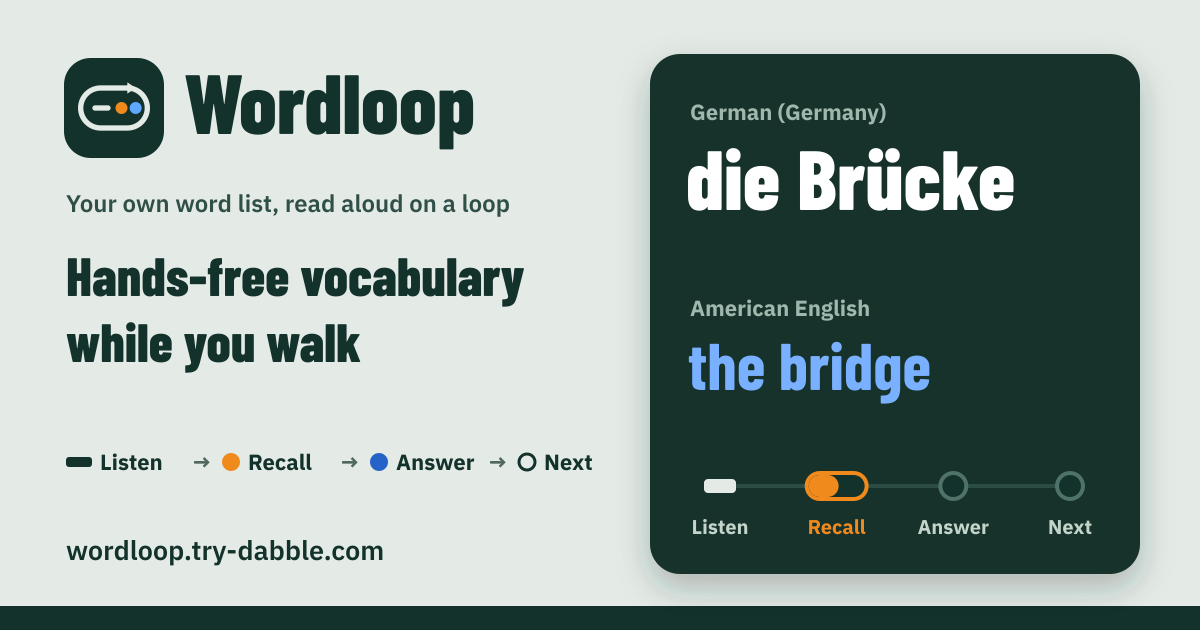
Wordloop is a listening loop for your own vocabulary. Paste the words you want to learn with their translations, press Play, and your device’s own voices read the word, give you a moment to recall it, read the translation and move on to the next word. Keep the screen on (Pocket mode) and listen on a walk or a commute without looking at it. The lists are yours; on the first visit a short sample list in your interface language is ready (German → English on the English interface).
There is nothing to install and no account, it is free, and there are no ads in the tool. The interface speaks Korean, English, Japanese and German. Your lists stay in this browser on this device; nothing is uploaded. Add it to your home screen and it opens offline after the first visit.
Paste your word pairs
In the Lists view press “Paste words” and put one pair per line: the word, then its translation. Separate them with a tab, a comma, a semicolon, or a hyphen or en dash with a space on each side (der Apfel - the apple). Wordloop detects the separator and the preview shows how many pairs it found; you can also pick the separator yourself. Two columns copied from a spreadsheet work, and quoted CSV fields (a translation with a comma in it) are read correctly. Blank lines are skipped, a repeated pair is added once, and lines without a translation are left out and counted. If your list has the translation first, tick “Columns are the other way round (translation first)”.
You can keep several lists. “New list” makes one with a name of your choice, “Rename” and “Duplicate” change the name or make a copy, and “Delete list” asks first and can still be brought back with “Undo” right after. One list holds up to 5,000 words.
Language and voice for each side
The “Voices & timing” view has a “Word side” (the language you learn) and a “Translation side” (the language you know). For each side pick the language and one of the voices installed on this device, or leave it on “Best voice for the language”. “Test voice” reads a short sample with the chosen voice. Speed goes from 0.5× to 2×, and the pitch can be changed too. Voices differ from phone to phone and computer to computer, so the same list can sound different on another device.
Order and pauses
There are three orders. “Word → translation” trains you to recall the meaning of a word you hear; “Translation → word” trains you to come up with the word in the language you learn. “Word only (translation shown, not spoken)” reads only the word and shows the translation on the screen.
“Pause before the answer” is the wait between the first side and the answer, from 0.5 to 10 seconds: that is your moment to recall it yourself. “Pause between words” is the gap after one word before the next begins, from 0 to 10 seconds.
Repeat, loop, shuffle and sleep timer
“Repeat each word” plays each word 1 to 5 times in a row. With “Loop the list” on, the list starts over at the end and keeps going; with it off, playback stops at the end. “Shuffle” mixes the order. “Sleep timer” can be off or 5, 10, 15, 30 or 60 minutes; when time is up it finishes the word in progress and then stops.
Lock-screen or headset play and pause buttons depend on the device and may not appear.
Pocket mode: keep the screen on
“Pocket mode” shows the word being read as a giant word across the screen and, where the browser allows it, keeps the screen from turning off. “Full screen” hides the address bar too, and there is a dark look. If the browser can’t keep the screen on by itself, Wordloop says so: set a longer auto-lock time in your phone’s display settings while you listen.
On iPhone and iPad, in Safari and every other browser there, speech stops when the screen locks or the app goes to the background. Background playback of device speech isn’t possible there, so keep the screen on with pocket mode while you listen.
Mark known words
“Mark known” on the Play view marks the current word as known, and “Skip” moves on to the next word without marking it. With “Only unknown words” on, words marked known are left out. To hear everything again, press “Reset known marks” in the Lists view; it asks first.
CSV and backup file
“Import CSV…” reads a CSV or text file on this device (up to 5 MB) and shows the same preview as pasting. “Export CSV” saves the current list with columns for the word, the translation and the known mark; if Excel garbles the letters, tick “Add a BOM so Excel shows every letter” before exporting.
Your lists live only on this device, so press “Save backup file” now and then: every list, the known marks and your settings go into one file (JSON). On another device, “Restore from a file…” lets you choose “Add what’s new (keep everything here)” or “Replace all lists here”, and loading the same file twice changes nothing. If part of the file is broken, nothing is changed at all.
No voice for a language? Add one
Wordloop speaks only with the voices installed on your device. If the chosen language has none, the app tells you and shows how to add one. After adding a voice, reload the page.
- iPhone / iPad: Settings › Accessibility › Spoken Content › Voices › choose the language › download a voice
- Android: Settings › System › Languages & input › Text-to-speech output › settings of the preferred engine › Install voice data
- Mac: System Settings › Accessibility › Spoken Content › System voice › Manage Voices… › tick a voice
- Windows: Settings › Time & language › Speech › Manage voices › Add voices
Privacy: everything stays on this device
Lists, words and translations, known marks, the languages and voices you chose and your settings are all kept only in this browser on this device and are never sent to our server. The speech is made by your device’s own voices; no word and no sound is sent anywhere. CSV and backup files are read and made on the device too. The anonymous usage counter of the shared Guide & Feedback button counts only the app name and language, never a word, translation or list name. Clearing your browser data removes the lists too, so keep a backup file.
Wordloop or Listenpad?
Wordloop makes speech from a word list you typed, with a recall pause between the word and its translation; it uses no recorded audio. If you want to replay an audio file, such as a course track or a podcast, with short rewinds and an A–B loop, Listenpad is the tool for that.
Does it keep playing when my iPhone screen locks?
No. On iPhone and iPad, speech stops when the screen locks or the app goes to the background, and background playback of device speech isn’t possible there. Keep the screen on with pocket mode while you listen. On Android and computers it depends on the browser and the device.
Can I use it without looking at the screen?
Yes. After you press Play, word, pause, translation and the next word follow on their own, and with “Loop the list” on it keeps going. The “Sleep timer” sets when it ends. Headphone buttons work only where the browser offers them.
How do I move my lists to another device?
Make a file with “Save backup file”, open Wordloop on the other device and choose that file with “Restore from a file…”. To move one list, a file from “Export CSV” read on the other device with “Import CSV…” works too. The file never passes through us.
Which file formats can I paste or import?
Any text with one word and one translation per line. Separators are tab, comma, semicolon, or a hyphen or en dash with spaces around it; cells copied from a spreadsheet, quoted CSV and CSV with a BOM are read too. Files can be up to 5 MB, and a CSV exported from Wordloop brings its language names in the first row.