Your own PDFs, read like a book
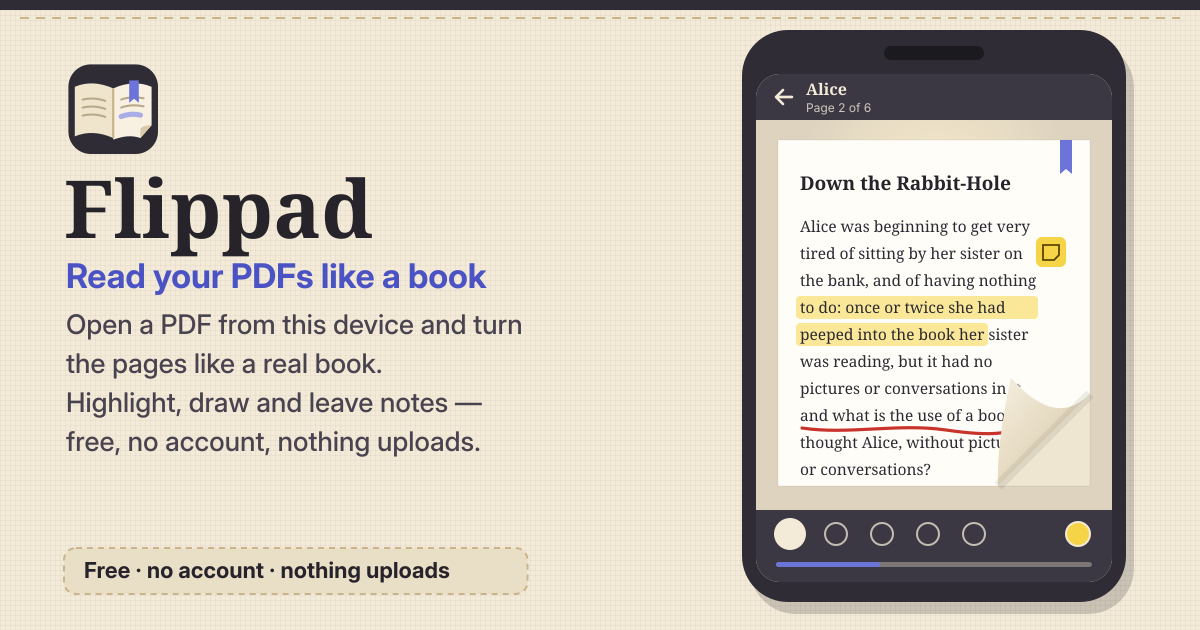
Sometimes you want to read a PDF you already have — an ebook, a comic, a paper, a manual — by turning pages instead of scrolling a long strip. Flippad is a free reader that opens a PDF from this device and lets you flip through it with a page curl, like a real book.
There is no account and no ads. Your PDFs and notes stay in this browser on this device, and nothing is uploaded. It speaks Korean, English, Japanese and German.
1. Open a PDF and your library
- Tap “Open a PDF” (or Open in the bar at the bottom) and pick a file from this device, or on a computer drag a PDF onto the library. Every PDF you open is placed in your library with a cover thumbnail.
- Search the library by name, and if you like, group books into collections (say, Work or Comics). Collections are optional.
- Continue Reading reopens a book at the last page you read, with the same zoom and the same view.
2. Turning pages: three views
- Page-curl flip: swipe anywhere, or tap the left or right side, and the page curls over.
- Slide moves page by page sideways, and vertical scroll shows the pages one under the other. Switch with one tap in the reader bar.
- Drag the page slider to jump far ahead or back quickly.
- A phone held upright or a narrow screen shows one page at a time; a landscape or wide screen shows a two-page spread. Like a real book, the cover opens on its own.
- Right-to-left reading: turn it on for books that open the other way, such as manga and Japanese books. The flip direction and the order of spreads reverse.
- Fullscreen, and pinch to zoom (or the + / − buttons); the zoom stays the same when you flip pages. Themes: light, sepia, dark, or follow the device.
3. Highlights, pen, notes and bookmarks
- Pick “Highlight text” and drag across the words to highlight them in the colour you chose (indigo, yellow, green, pink or blue). Starting inside a word takes the whole word.
- Draw on the page with the Pen or the Highlighter, using a finger, a stylus or a mouse. While a tool is on, pages don’t turn; tap Done to read on, or undo the last mark.
- Leave a note on any page, and add an optional note to a bookmark.
- Each book has a Notes list with its highlights, notes and bookmarks: tap one to jump there, or delete it.
4. Table of contents and search
- If the PDF has its own outline, the table of contents takes you straight to a chapter. Some PDFs don’t have one.
- Text search lists every hit and marks it on the page. It only works for PDFs that contain text, not for scanned images of paper.
5. Export and the backup file
- Annotated PDF: highlights and ink are drawn onto the pages and notes are added as PDF comments, saved as a new PDF. Your original file stays as it is.
- Notes and highlights also export as Markdown or JSON, handy for moving them into your other notes.
- The backup file holds your library list, reading positions, annotations, collections and settings. You can include the PDF files themselves too, which makes it big.
- Restoring a backup only merges and never duplicates: restoring the same file twice changes nothing. If a PDF isn’t on this device yet, its notes wait and appear once you open the same PDF file again.
6. Everything stays on this device
- PDFs, annotations, bookmarks, notes, collections and settings are stored only in this browser on this device and never uploaded. There is no account and no ads. The app asks the browser once to keep its storage.
- On iPhone/iPad, use Safari’s Share button → Add to Home Screen and open it from there: Safari may clear website data after 7 days without a visit. Download a backup file now and then too.
What it is built with
Built with pdf.js (Apache-2.0), page-flip (MIT), pdf-lib (MIT).
Not planned for now
If you would like something, tell us with the Guide & Feedback button at the bottom of the screen.
- Opening a PDF from a web link
- Cloud sync
- Accounts
- Read-aloud
- AI features
Where are my files stored?
Only in this browser on this device. Neither the PDFs nor your notes are uploaded, and nothing reaches our server. Clearing the site data deletes them too, so download a backup file now and then.
Will my notes survive if I rename the PDF?
Yes. Flippad recognises a PDF by the file’s content, not its name, so the same file opened under a new name still has its notes and highlights.
How do I move to a new phone?
Download a backup file on the old phone, move it to the new one and restore it in Flippad there. A backup with the PDFs included does it in one go. With a backup without PDFs, restore it, then open the same PDF files on the new phone and their notes and reading positions show up again.
Can I open a PDF from a website link?
Not yet. Download the file to this device first, then open it here.