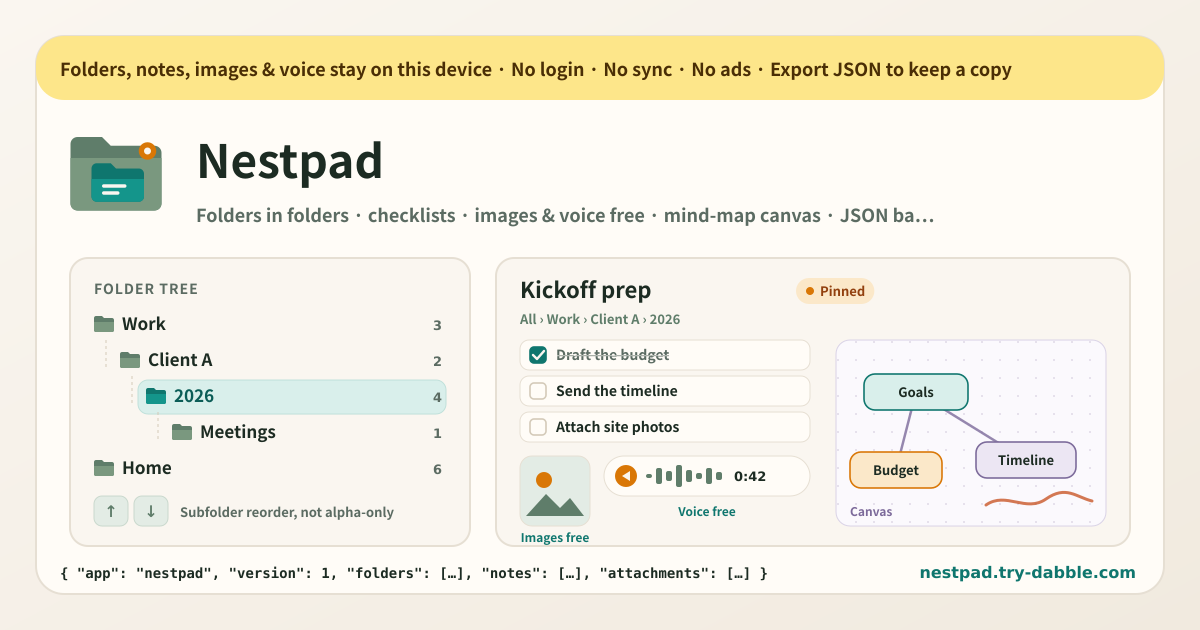
When you want folders inside folders, but the store apps charge for photos, force the order and lock the door on update
The structure people want from a planner is not complicated. “Work”, then “Client A” inside it, then “2026”, then the meeting notes. “Home”, then “Travel”, then this summer. If folders can hold folders, that is the whole ask. Yet the store’s folder-note apps start charging right there: photo attachments behind a purchase, voice memos behind another. Subfolders sort alphabetically and nothing else, so “2026” cannot sit above “Meetings” no matter how much you want it to. And one day an update is forced, the screen locks until you take it, or the local data is simply gone afterwards. Backup means their account and their sync.
On the other side sits Obsidian. Folders are free there, but making photos, voice, checklists and a canvas feel natural means an evening of choosing and configuring plugins. What is missing is something in between: folders inside folders, notes and checklists inside them, photos and voice that just attach, one simple mind map, an order you decide, data that stays on this device, and an update that never locks the door. Being able to carry it all to another browser in one JSON file would be the bonus.
What Nestpad does
Nestpad is a local planner and notepad with no login. Make a folder in the tree on the left, then a folder inside it — there is no depth limit. Each folder holds text notes, checklists and canvas notes. Any note takes photos and voice memos, and that is free, always. The canvas is a small mind map: drop boxes, drag them, link them, draw with the pen. A single note or an entire folder tree can be moved to another folder or duplicated whole, attachments included. Search reads titles, bodies, checklist items and canvas labels across every folder. Pin, favorites and recent bring you back fast; the recycle bin brings back what you deleted. Subfolders and notes keep the order you set with the up / down buttons — by name and recently edited are options, not the rule. The JSON backup carries the folder tree, the notes, the recycle bin and, if you tick it, the images and voice memos; import on a new browser and the whole tree returns. A new deploy never shows an “update required” screen, and what you saved is read as it is.
What you see on screen
· Amber local-only banner — folders, notes, images and voice stay on this device · Folder tree — unlimited nesting with expand / collapse, the current folder highlighted, note counts · Folder view — breadcrumb (All › Work › Client A), subfolders with up / down / menu buttons, the note list · Folder menu — new subfolder, rename, move, duplicate whole folder, delete · Note editor — title, kind (text / checklist / canvas), autosaved body, pin and favorite, move / duplicate / delete · Checklist — tick, edit and remove items, progress bar, turn body lines into items · Canvas — add / drag boxes with text and colour, link tool, pen, undo last stroke · Images & voice — add image (resized on device), record voice, attach an audio file, thumbnails and playback — all free · Quick access — Recent, Pinned, Favorites, Recycle bin · Search — titles, bodies and checklist items across every folder, with the path shown on each hit · Recycle bin — restore folder trees and notes, delete forever, empty · Sorting — your own order (default), by name, recently edited · Backup — include images & voice or not, export / import JSON (merge or replace), and a “delete everything” that needs a typed word · Promise chips and Privacy / Terms / Guide links
Where your data stays
The folder tree, notes, checklists, canvases, the recycle bin, the sort setting, and every photo and voice memo you attach stay on this device and this browser. Nothing is uploaded and nothing is tied to an account. Photos are shrunk to a 1600px long edge on this device before they are kept; voice is recorded with the browser’s own recorder, and the microphone is used only after you allow it and only while you record. To move to another device, export JSON and carry that file yourself. Clearing the browser’s data removes it all, so export once for anything you would miss.
Does it work on Android and the web?
Yes. It opens in Chrome or Samsung Internet on Android, in any desktop browser, and in Safari on iOS. “Add to Home screen” installs it like an app and it keeps working offline. Adding an image lets you pick from the gallery or the camera; voice recording works wherever the browser has microphone access, and where it does not, you can attach an audio file instead.
Is there no sync or account?
None, by design. There is no screen asking you to create an account and no nudge to “turn on sync”. Open the page and the folder tree is there. Moving between devices takes one JSON backup, and that file is in your hands, not on a server.
Are images and voice memos really free?
Yes, free forever. Adding images, recording voice and attaching audio files are never behind a purchase, and there is no counter that nudges you toward one. Photos are shrunk on the device, attachments are copied along when you duplicate a note or a whole folder, and they go into the JSON backup if you tick that option.
Can I order subfolders myself?
Yes. “Your own order” is the default. Use the up / down buttons in the folder view to move subfolders and notes; that order is saved, survives a reload, and comes back when you import the JSON on another browser. When you want it by name or by recent edits, pick that in Sorting — switch back and your own order is still there.
Will an update lock me out or wipe my data?
No. There is no “update required” screen. A new version simply takes over the next time you open the page, and the folders, notes and attachments the previous version saved are read as they are. Unknown fields are ignored, never deleted, and a folder whose parent is missing is kept at the top level rather than dropped. The only time the app removes what it saved is “Delete everything”, and that needs a typed confirmation word.
How does the backup work?
Tap “Export JSON” and the folder tree, notes, checklists, canvases, recycle bin and sort setting come down as one file. Leave “Include images & voice” on and the attachments go in too. “Import JSON” first shows how many folders, notes and attachments the file holds, then lets you choose Merge (only same-ID items are replaced, everything else stays) or Replace (what is on this device is swapped for the file). Items that were in the recycle bin are still in the recycle bin after import.
Is it free? Any ads, account or purchase?
Everything is free. Folder depth, note count, image and voice attachments, the canvas, the recycle bin and the JSON backup never sit behind a payment. No ads on the tool UI, no account, no login, no sync, no in-app purchase. If you have thoughts, use “Send feedback” on this page. Open the app at https://nestpad.try-dabble.com/?lang=en