Notes everywhere, and never there when you need them
Handouts arrive as PDFs, the whiteboard lives in your camera roll and the key points sit in a phone memo, so before a test you spend the time hunting. When a classmate asks for yesterday’s notes, you end up sending photos one by one.
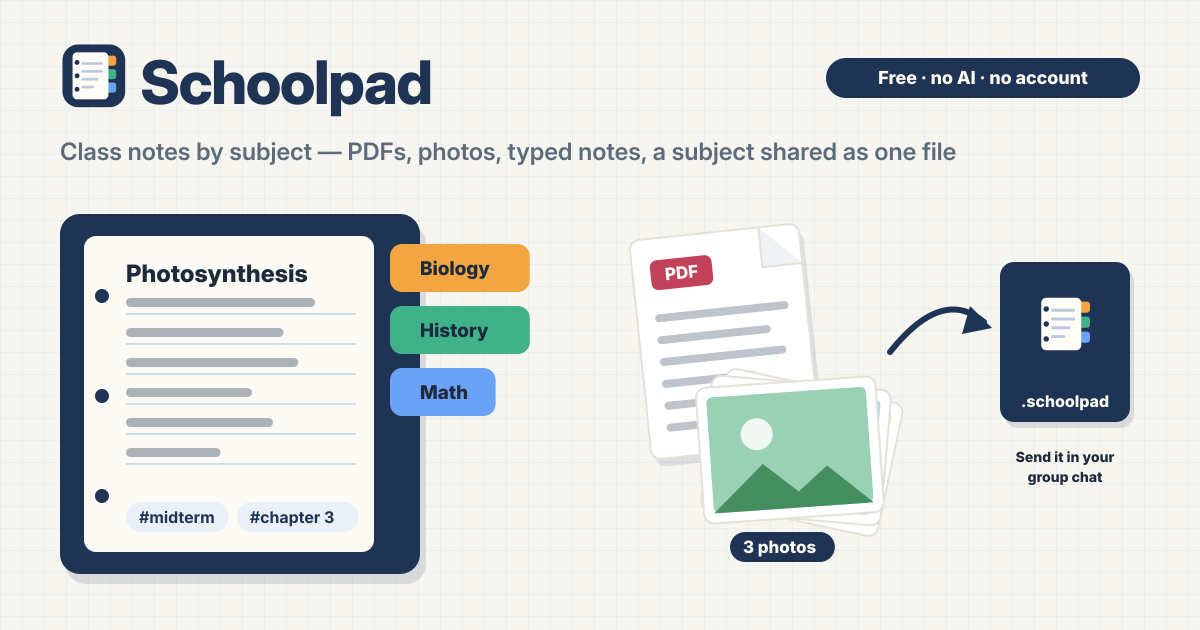
Schoolpad opens in a browser and keeps your notes by subject, with no sign-up. Find a note fast, and send a whole subject or just the notes you pick as a single file. The interface is in Korean, English, Japanese and German, and every note is saved in this browser on this device only. There is no upload server, no public feed and no account.
Make a subject, add notes
- Tap New subject and type a name. A course, teacher or term line, a color and a school are there if you want them.
- Open a subject and tap Add note to put in one of three kinds: one PDF, several photos kept together as one photo set (reorder pages or remove one), or a typed text note that saves as you type.
- Besides the file picker, you can drag files onto the page or paste a copied photo. The note title comes from the file name, and you can change it later.
- New here? Tap Show an example. A small sample subject appears, and you can undo it right away.
Find it fast
- The home screen shows every subject with its note count, plus your recent notes.
- The search box finds titles, tags, subject names, words inside typed notes and your memos. It works in Korean and Japanese too.
- Filter by Tags and by type (PDF, Photos, Text), and sort by last updated, title or date added.
Share with classmates as one file
- To send a whole subject, tap Share this subject. To send just a few, tap Select notes, pick them, then Share selected. Either way you get one .schoolpad file.
- On phones that support it, the share sheet opens right away; otherwise the file downloads. Send it through the class group chat, messenger, email or drive you already use.
- Your memos go along only if you tick Include my memos.
- Your classmate taps Open a shared file in Schoolpad, drops the file onto the page, or opens it with the installed app.
- A preview comes first and shows what is new, what is already here and what was updated. Open the same file twice and it simply says Nothing new; nothing is duplicated.
- Damaged files, files from a newer version and files that are not Schoolpad files are refused, and nothing you already have changes.
Memos on every note
- Each note has its own Memos list. Use Add memo to leave a short dated line such as “Question 3 is on the test”, and edit or delete it any time.
- There is no class comment thread. Talk in the group chat you already use and pass notes around as a file.
Backup, restore and storage
- Export backup saves every subject and note as one file. Restore from backup lets you Merge (the default, adds to what is here) or Replace.
- Delete everything asks first and offers Export first so you can keep a backup.
- The app shows how much space it uses in this browser. A file over 25 MB is refused while the others are still added. At 80% full you get a warning, and a note that would not fit is refused before it is added.
- HEIC photos (the iPhone photo format) are saved as they are, but only Safari can show them. In other browsers you can download them and open them elsewhere; the app tells you when you add one.
- After your first note, the app asks the browser to keep your notes instead of clearing them to free space.
Where are my notes stored?
In this browser on this device only. There is no server your notes are uploaded to, no public feed and no account. The only thing that reaches anyone else is a file you share yourself. To move to another device, use a backup file.
What happens if I clear my browser data?
Clearing the site data or uninstalling the app deletes your notes too, and there is no way to bring them back. Use Export backup now and then to keep a copy.
Can classmates comment on my notes?
No. There is no comment or chat feature. Share notes as a file and talk in the group chat you already use. The Memos on each note are your own, and they go into a shared file only if you tick Include my memos.
Is there any AI?
No. There are no AI summaries, quizzes or auto-sorting, and your notes are never sent anywhere to be read. Search runs inside this browser too.
Is there a file size limit?
Up to 25 MB per file. A larger file is left out while the others are still added. The total space depends on your browser and device, and the app shows how much you are using.
Is it free? Can I put it on my home screen?
All of it is free. Subjects, notes, sharing and backup are not locked, there is no account, and there are no ads on the tool. Use Add to Home Screen in your browser menu to keep it like an app. Send feedback with the Guide & Feedback button at the bottom right.