It started with “Visual schedule iPad apps” on r/slp
The post went up on r/slp — the speech-language pathologists' subreddit — under the title “Visual schedule iPad apps”. What was wanted was plain enough: a picture schedule for an iPad, with photos rather than only clip art, a short word under each step, the step happening now shown big, and a way to mark it done. And, if possible, something a family could keep using at home after the session.
The apps in this corner tend to be expensive. Around forty dollars for a one-off purchase is common, and the free edition typically allows one schedule of up to five tasks before asking for money. Hitting a wall on the sixth card while building a morning routine is a poor first impression, especially for a family trying this at home for the first time. There are web tools too, but they are often limited to Russian, English and Spanish, or they are beautiful static picture boards made for printing, with no way to actually mark a step done.
Vispad fills the middle. It opens with no account, has no cap on boards or steps, has no payment screen anywhere, and a child's photos never leave the device. What it does not do is equally plain: it does not assess a child and it keeps no record of how a day went.
What Vispad does
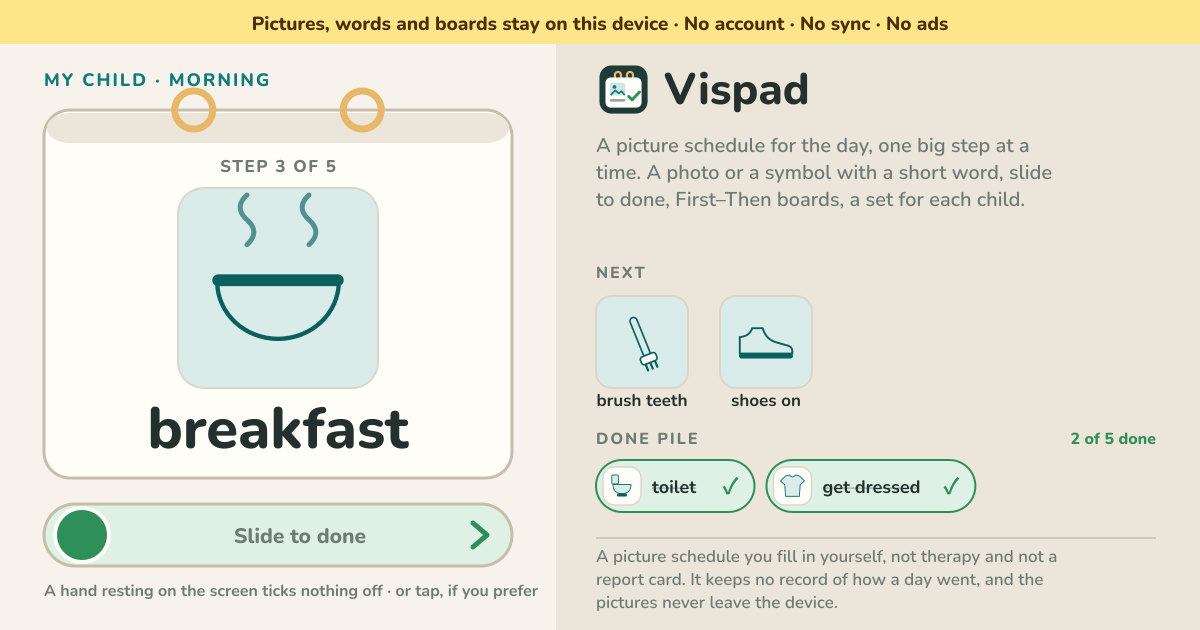
A step is one picture and one short word. The picture is either a photo already on this device or one of the symbols that ship with the app. A board holds those steps in order and shows one at a time, as large as the screen allows. The rest wait in a small strip underneath.
There are two ways to finish a step. The default is pushing a handle the whole way to the right. A shared iPad lies flat on a table and a forearm lands on it; with a single tap, a step would be ticked off and the board would jump to the next picture with nobody knowing why. A slide is deliberate, so that does not happen. You can switch to a single tap in the settings. The finished card drops into the pile at the foot of the board, and one tap on that card puts it back where it belongs.
The pile belongs to a day. When the date changes it empties itself, so nobody has to reset the board before the next morning. And nothing from yesterday is kept — Vispad produces no streaks and no percentages.
Your first board, step by step
On the first open there is already an example Morning board and a First–Then board. It is usually faster to edit them than to delete them.
- Rename the child in the Children card on the right. A nickname or a single letter is enough — the name is written here and looked up nowhere.
- Tap a row in the Steps card to open it. Make the word under the picture one the child knows, and keep it short: on the board the picture does the talking and the word helps.
- Use “Use a photo from this device” to put in the real bathroom, the real backpack, the real pair of shoes. A photo of the child's own things works far better than a symbol. The photo is shrunk on the device and kept in this browser only.
- If the photographs are not taken yet, start from the symbols: washing and dressing, eating and drinking, going out, play and school, around the house, feelings, marks — seven rows of them. Swap them for photos later.
- Put them in order with the arrows: top to bottom is the order on the board.
- Add one more board for each part of the day — morning, school, bedtime. That beats pushing fifteen steps into one morning board.
- Before handing the tablet over, turn on Kiosk view: the editing cards disappear and only the board is left. It is not a lock, so you can come back any time.
What it does not do, said plainly
- It is not therapy and not a medical device, and it replaces no programme anyone is following. What belongs on a board is decided by the people who know the child.
- It assesses nobody. There is no score, no star, no streak and no weekly report. Nothing about how a day went is kept.
- It identifies nobody. It asks for no date of birth and no diagnosis, has no face recognition, and the name is just the letters you typed.
- The waiting ring never finishes a step when it runs out. Deciding a step is finished is a person's job.
- Kiosk view is not a lock. There is no password, no PIN and no fullscreen trap — it is a view that puts away the cards a child has no use for.
What stays on the device, and the backup
The children's names, the boards, the steps, the words, the pictures and which steps are finished today — all of it sits inside the browser on this device. There is no account, no server and no sync. A photo is shrunk on the device as it goes in, is sent nowhere and is analysed by nobody.
Which means the exported file is the only copy there is. “Export JSON” puts the children, the boards, the steps and the pictures into one file. Export it on the tablet in the speech room, send it to the family, open it with “Import JSON” on the device at home, and the boards are the same ones — no account, no invite link, no cloud in between. Clearing the browser's data clears this too, so export once after building something you care about.
Is there an account or a paid tier?
No. There is no sign-up screen, no payment screen and no free trial. There is no cap on boards or steps, so nothing stops at the sixth card. Opening the address is the whole of it.
Do I have to photograph everything first?
No. Stand the board up with symbols and use it today; swap in photographs one at a time later. A step wears one picture: choosing a photo puts the symbol away, and choosing a symbol puts the photo away.
What if a hand rests on the screen — does a step get ticked off?
That is why the slide is the default. Only the very end of the rail counts, and a handle let go half way slides back on its own. If a step is finished by mistake anyway, tap that card in the pile — it goes back where it belongs. Putting a card back has no confirmation: if undoing a mistake were fiddly, nobody would undo it.
What is a First–Then board for?
For when the story is two cards long. First this, then that, and nothing else on the screen. Because two cards are the whole point, a third is refused out loud rather than hidden, with a nudge to make an ordered board instead. On a morning when five steps are too much to look at, two still land.
Two children with different routines — does that work?
Yes. Add a child and they get their own set of boards, switched with one tap on the pills above the board. Two children may both have a board called Morning. A child's boards go with the child when you delete them, behind a confirmation that offers the export first.
Does it keep track of how the day went?
No, and that is on purpose. Steps finished today belong to today and go when the date changes. There is no streak, no percentage and no report to export. What gets recorded about a child, and what is kept, belongs to the people responsible and their own paperwork, not to a picture board.
Where do my child's photos go?
Nowhere. A file picked with the device's own picker is shrunk on this device, kept in this browser and shown on the board. There is nothing to upload to, no server and no model it is fed to. The exported JSON does contain the pictures, so treat that file as a document about a child.
Can it read the step out loud?
With the voice the device already has. “Say it” on the board speaks the word on the current step, and switching it on in the settings speaks each new step as the board moves. Nothing is recorded and no microphone is opened — it is the same speech the operating system uses to read a page out, asked for one short word. On a browser with no voice the switch shows as unavailable.
What is the waiting ring for?
To make “a little longer” something to look at. Give a step a waiting time when you edit it and the board draws it a ring; press start and it counts down quietly. When it runs out it says so and stops — it does not finish the step for anyone. There is a pause and a back-to-the-start. It is a picture of this device's clock, not a timer anything should depend on.
Does kiosk view lock the iPad?
No. It is a view that hides the editing cards and leaves the board. There is no password and no PIN, and “Leave kiosk view” under the board brings everything back in one tap. If you really want the iPad held in one app, use Guided Access in iOS — that is a proper lock, and not something Vispad should imitate. The setting stays on the device, so kiosk view survives closing and reopening.
How do I carry the boards from the speech room to home?
Export JSON, hand the family the file, and on the device at home open the same address and pick that file with Import JSON. The pictures travel with it. If the device at home already has boards, it asks before replacing them and offers the export right there in the question. A file that is not a Vispad backup is refused.
Does it work offline, and in Korean, Japanese and German?
Once it has been opened, it works with no internet at all. “Install” or “Add to Home Screen” puts it on an iPad or an Android tablet as an icon. The interface is in Korean, English, Japanese and German, switched at the top right. The words on the steps and the children's names are left exactly as typed — they are never translated.