It started with “populate my projector screen at exact times”
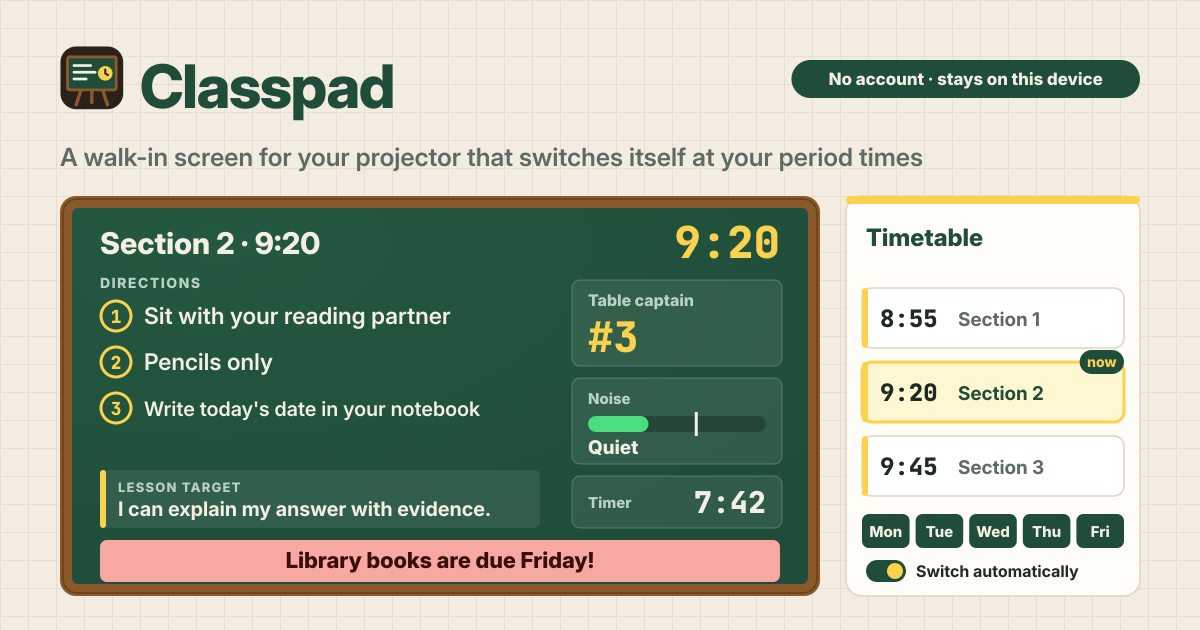
A teacher on Reddit's r/Teachers asked for "an app like classroomscreen": a walk-in screen with that day's directions, the table captain #, a noise meter, a message and the lesson target. Each 25-minute section starts at 8:55, 9:20 and 9:45, so they wanted it to populate the projector screen at exact times, with no time for repetitive admin.
Classroom screen tools exist, but Classroomscreen's app is English-only, and switching on its own at set times is not what it is built around. What was needed was simple: make a screen for each section once, write down the times, and from then on the right screen is up without anyone touching it.
Classpad is that screen. It opens in a browser, there is no account, and your screens and timetable are saved in this browser on this device. The interface is in Korean, English, Japanese and German.
What Classpad does
- A screen → one per section. Directions show as numbered steps, the Lesson target and the Message in big type, and Your fields such as the table captain # sit alongside.
- Classroom tools → switch a Clock, Timer, Noise meter, Traffic light and Name picker on or off for each screen.
- The timetable → at the times and days you write down, the projector switches to that screen by itself. A run like 8:55, 9:20 and 9:45 is made in one go with Fill periods.
- Presenting → Present goes full screen and keeps the display awake. You can put another screen up by hand at any time, and the timetable takes over again at the next switch time.
- The copy is yours → Export JSON and Import JSON back it up and move it to another computer.
First: making your screens
- Want to see it working first? Press Show an example (3 sections, 25 min each) on the first screen. Three screens and a timetable switching at 8:55, 9:20 and 9:45 on school days are filled in; when you are done looking, Delete everything starts you fresh.
- On the Screens tab, press New screen and type a Screen name (Section 2 · 9:20, say). For a similar screen, press Duplicate and change just what differs.
- Board colour is Chalkboard, Night, Paper, Sunshine or Berry. A different colour per section lets students see at once that the screen has changed.
- In Directions (one step per line), write one step per line: hang up your bag, sit at your table, start the warm-up. The board numbers them 1, 2, 3. Add the Lesson target and a Message too.
- Under Your fields, Add a field gives you a label and a short value of your own: Table captain → #3, Materials → coloured pencils, anything.
- What you type is shown as written and never translated; the words students see are your own.
Clock, timer, noise meter, traffic light and name picker
- Under On this screen, switch Clock, Timer, Noise meter, Traffic light and Name picker on for each screen separately: a clock and timer on the walk-in screen, a traffic light for group work, whatever suits.
- Each screen has its own Timer length (min); run it with Start, Pause, Reset and +1 min.
- The noise meter starts with Turn on the noise meter and uses the microphone only to measure how loud the room is. The measuring happens on this device alone; nothing is recorded or uploaded. The Too loud at slider sets where Too loud! appears.
- Whether the microphone is allowed is the browser's question, and the browser keeps that permission. If it is blocked, the screen says so: allow the microphone for this site in the browser's settings, then press Try again. A computer with no microphone needs one plugged in.
- The traffic light steps through Red: silent work, Yellow: whisper, Green: talk at your table and Off with each tap.
- The name picker draws from the Class list tab, one name per line. Each press of Pick a name gives one name, with no repeats until everyone has been picked. The list stays on this device too.
The timetable: switching by itself at set times
- On the Timetable tab, press Add a switch time and choose the time, the screen and the days: School days, Every day or just the weekdays you want.
- When sections follow each other at a steady length, use Fill periods. Type 8:55 in First at, 25 in Every (min) and 3 in How many, press Add these switch times, and you get 8:55, 9:20 and 9:45, with your screens handed out in list order.
- On the board now tells you why the current screen is up (from the timetable or picked by hand) and which screen comes next, and when.
- Switching only happens while this page is open. If the tab on the projector computer is closed or the laptop goes to sleep, nothing switches. When the computer wakes and the page shows again, it catches up with the screen that fits the current time.
Presenting and picking by hand
- On the computer wired to the projector, press Present: the board goes full screen and the display is kept awake while you present. Esc leaves full screen.
- On devices whose browser does not allow full screen, such as iPhone, it falls back to a view that fills the page instead.
- To put another screen up now, press Show now, tap a screen in the switcher, or use ← and → while presenting. A screen picked by hand stays up until the next switch time, and then the timetable takes over again.
- To go back to the timetable without waiting for the next time, press Back to the timetable. To run a day by hand only, turn off Switch screens automatically.
Backup and moving to another computer
- Screens, timetable and class list are saved in this browser on this device only, and do not sync. If you build them at home and present on the classroom computer, you move them over.
- Under Backup, Export JSON saves a file; carry it over and press Import JSON on the other computer. Importing replaces the screens and timetable there, so a confirm comes first, with an Export JSON first button to save what is there now.
- Delete everything asks first before erasing every screen, the timetable and the class list, and that dialog has an Export JSON first button too. After deleting, an Undo shows for a moment. Clearing the browser's site data also erases everything.
What it deliberately does not do
- It is not a class-management platform. There are no student accounts, and it does not keep or sync grades or attendance anywhere. It is only the board on your own classroom projector.
- The noise meter never records sound and sends no loudness readings anywhere.
- With the page closed or the computer asleep, nothing can switch when the time comes. It is not connected to the school bell or PA either.
- No account, no sync, no cloud and no ads on the tool.
Is there an account or a paid tier?
No. There is no sign-up, no payment screen and no cap on the number of screens. There are no ads on the tool either.
Does the noise meter record the class?
No. It measures only how loud the sound coming into the microphone is, on this device, and the sound itself is never recorded, stored or uploaded. The browser asks for and keeps the microphone permission, so if it is blocked, allow it in the browser's settings and press Try again.
Is it enough to leave the projector computer on?
This page has to stay open. The open page does the switching, so a closed tab or a sleeping laptop cannot switch. Present keeps the display awake, but it cannot stop a closed lid or power settings that force sleep. When the computer wakes, it catches up with the screen for the current time.
Does it work offline? Where do I send feedback?
Once it has been opened, it works with no internet, so the screens keep switching if the classroom Wi-Fi drops. The interface is in Korean, English, Japanese and German. The Guide & Feedback button at the bottom right of the app opens this guide in a new tab, and feedback is left on this guide page.