It started with “how many hours do I have left?”
A post on Reddit's r/productivity asked for an app to track placement hours: a fixed number of hours to reach, and after entering each day's hours, see what is completed, what is left, where you should be by now and the percent. Excel works, the poster said, but they wanted something easier.
There are employer timesheets, school submission portals, location clock-in apps and team time-tracking services, but what was needed was simpler: write the goal once, add one line a day, and see how much is left and whether you are ahead or behind, with no formulas.
Placepad is that ledger. It opens in a browser and installs like an app, there is no account, and your hours are saved in this browser on this device and never uploaded. The interface is in Korean, English, Japanese and German.
What Placepad does
- The goal → once. Type Total hours needed and, if you like, the start and end date and the hours you already did. That is it.
- A day → one line. Type the date and hours (and a note if you like) and press Log hours. Write 7.5 or 7:30, whichever you prefer, or tap a quick button.
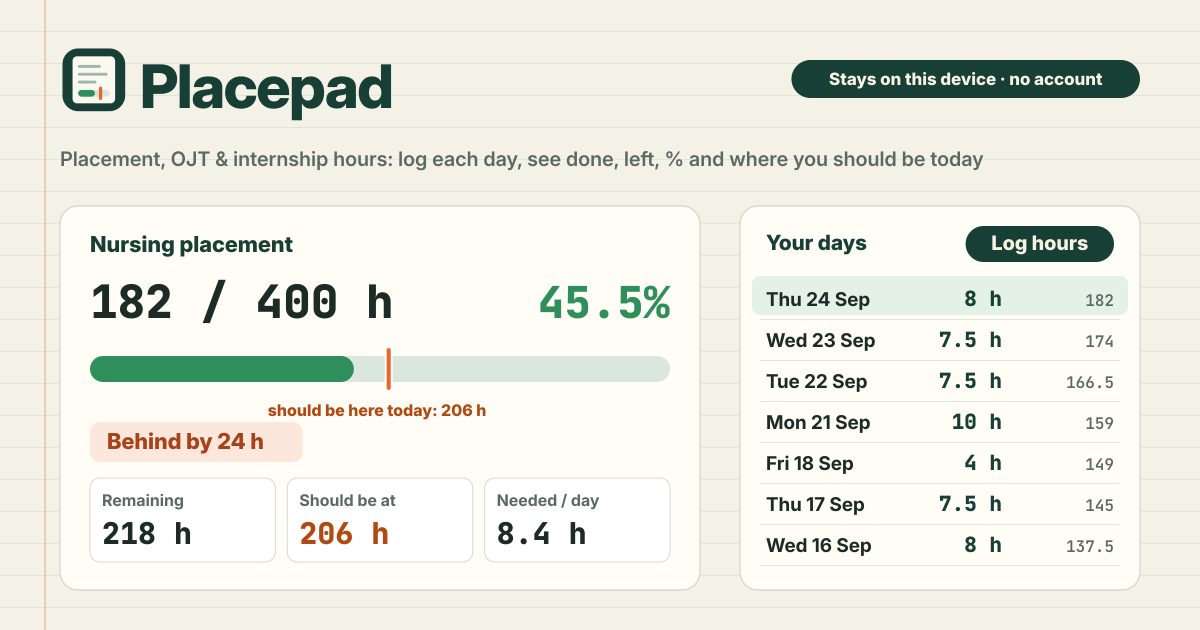
- How far you are → Completed, Remaining, Done (the percent) and a progress bar.
- Whether you are on schedule → Should be at by today, and ahead or behind. With a start and end date, an orange tick on the bar shows where you should be today, and you are told how many hours ahead or behind you are.
- What comes next → Needed per day and Finish at this pace: how many hours a day the days left need, and when you finish if you keep going as you have.
- The copy is yours → Export CSV (opens in Excel), JSON backup and Import JSON.
Once at the start: setting the goal
- Want to see it working first? Press Show an example on the first screen. A 400-hour nursing placement is filled in; when you are done looking, Delete everything starts you fresh.
- Under Your goal, type Total hours needed (400, say). Name (optional) can hold whatever you call it: nursing placement, OJT, internship.
- Fill in both Start date (optional) and End date (optional) and you also get Should be at by today. Without dates, completed, remaining and percent still work.
- Days that count is Every day or Mon–Fri only. If there is no placement at weekends, pick Mon–Fri only, so should-be-at and hours a day needed count weekdays alone.
- Hours you did before you started logging here go in Hours done before (optional). They count towards completed, and the CSV running total starts from them. Press Save goal; to change it later, press Edit goal.
Every day: logging hours
- Under Log hours, the Date starts on today. Forgot yesterday? Just change the date.
- Hours takes 7.5, 7,5, 7:30 or 7h30; all of them mean seven and a half hours. Or tap 4, 6, 7.5, 8, 10 or 12 under Quick hours. One entry holds at most 24 hours.
- Note (optional) takes something to recognise the day by, such as ward 3 or night shift; then press Log hours. Completed and percent update at once, and if that day already has hours you are told.
Reading Where you are
- Completed is the hours you logged plus the hours done before, Remaining is what is left to the goal, and Done is the percent.
- Should be at by today is where a straight line from zero on the start date to the goal on the end date stands at the end of today, counting weekdays only with Mon–Fri only. The orange tick on the progress bar marks that spot.
- Above the line it says Ahead by …, below it Behind by …, and within 30 minutes On track. At the goal it says Goal reached, and once the end date has passed it shows how much is still to go.
- Needed per day is the remaining hours spread over the counted days left until the end date. If today already has hours, the count starts tomorrow.
- Average per logged day averages only the days you logged, This week totals Monday to Sunday of the current week, and Finish at this pace is the day you reach the goal if you keep the pace so far.
Editing entries and undo
- Your days lists every entry with its date, hours, note and the running total up to that day.
- Edit changes the date, hours or note; press Save. Delete removes it at once, and an Undo shows for a moment.
- Pressed the wrong thing? Press Undo last change. It steps back one change at a time since you opened the page: logging, edits, deletes, goal changes, an import, even Delete everything.
Export and moving to a new phone
- Export CSV writes a file with Date, Hours, Note and Running total columns. It opens in Excel or Google Sheets, handy when a coordinator wants a table.
- JSON backup is the full backup, with the goal and every entry. Your hours are saved in this browser on this device and do not sync, so take one now and then.
- To move phones, press JSON backup on the old one, carry the file over and press Import JSON on the new one. Importing replaces what is on the device, so a confirm comes first, with an Export JSON first button to save what is there now.
- Delete everything asks first before erasing the goal and all entries, and that dialog has an Export JSON first button too. Clearing the browser's site data also erases your hours.
What it deliberately does not do
- It is not a timesheet your employer or school sees, and not a submission portal. It is your own ledger and does not replace any official record; if you have to hand something in, export the CSV and copy it into the form you were given.
- No location clock-in, no photo proof and no payroll.
- It is not a weekly check-in and overtime tracker; Hourpad does that job. Placepad only follows you towards one fixed total.
- No account, no team accounts, no sync, no upload and no ads on the tool.
Is there an account or a paid tier?
No. There is no sign-up, no payment screen and no cap on the number of entries. There are no ads on the tool either.
Are my hours sent anywhere? Can my employer or school see them?
No. Your hours are saved in this browser on this device and never uploaded, so nobody but you sees them. When someone needs to see them, send the file Export CSV makes yourself. To move to another device, carry the JSON file over yourself.
Can I start halfway through? What if there is no placement at weekends?
Yes. Put everything so far into Hours done before (optional) once and log from today; it counts towards completed and percent. If weekends are off, set Days that count to Mon–Fri only, so should-be-at, hours a day needed and the finish date count weekdays alone. Public holidays are not taken out, so the straight line keeps moving on those days.
Does it work offline, and can I install it? Where do I send feedback?
Once it has been opened, it works with no internet. “Install” or “Add to Home Screen” puts it on your phone as an icon. The interface is in Korean, English, Japanese and German. The Guide & Feedback button at the bottom right of the app opens this guide in a new tab, and feedback is left on this guide page.