It started with a Reddit post asking for a “return home” app that works offline
Someone asked on Reddit’s r/androidapps: “A 'return home' app… I'm looking for a simple app like this. Requirements: It must work offline, not drain the battery, and be as simple as possible.” Save one place, then point the way back to it, with no signal needed and no drain on the battery.
A store review of Car Compass, an Android app for finding a parked car, names the same gap: “Walking directions not available OFFline”.
Backpin answers exactly that. One tap pins where you stand; to get back you follow one big arrow, the distance left and the bearing. There are no map tiles to fetch, so it works offline after the first visit, and location is used only while you save a spot or while the walk-back screen is open, so nothing runs in the background. It opens in the browser, has no account and no ads in the tool, and your spots stay on your device.
What you find elsewhere
Rechecked on 23 October 2026. There are a few web tools for finding a parked car, but every one we found is English only, and we found no web tool in Korean, Japanese or German.
- Parksy Find My Car (parksy.com): a direction arrow, a photo, a note and a meter timer; English only, with an optional account.
- Parkpin (allthingsn.com): a compass, a meter timer and a history; English only.
- ParkHere (parking-pwa-eight.vercel.app): a map and a photo; English only.
- WDILIT (wdilit.com): a place saver on a map; English only.
- MyParkPin (myparkpin.com): a map that needs an internet connection, and one spot at a time; English only.
What Backpin does
There are three tabs: “Pin here” (save where you stand, or type a place), “Spots” (your saved spots and History) and “Backup” (the backup file, settings and delete everything). “Walk back” on a spot opens the walk-back screen with the arrow. A spot is one of five kinds: “Car”, “Hotel”, “Camp”, “Home” or “Other”.
The amber band at the top says it plainly: your saved spots, notes and photos stay only in this browser on this device and nothing is uploaded, so save a backup file for the spots that matter.
Pin a spot in one tap, with the accuracy shown
Open https://backpin.try-dabble.com: nothing to install, no sign-up. On “Pin here” choose what you are leaving (“Car”, “Hotel”, “Camp”, “Home” or “Other”) and press the big “Pin this spot” button. The first time, the browser asks whether the site may use your location. If the fix is ± 20 m or better, the spot is saved at once. If not, Backpin shows the accuracy it has, keeps waiting for a better fix and offers “Save now (± N m)” or “Save + level / bay note”.
If the fix is worse than ± 50 m, a low-accuracy warning says so and offers “Save anyway”, “Keep waiting” or “Save + level / bay note”. Backpin never pretends a rough position is exact: indoors, in garages and between tall buildings it can be off by a lot, and a level and bay note (B2, C-47) lets the signs do what the arrow can’t.
Underground garages, tunnels and location turned off
Underground garages, tunnels and thick walls block GPS. When no position arrives in time, Backpin says “No position yet” and suggests walking toward an exit or open sky and trying again, or typing the coordinates. If you have to save underground, use “Save + level / bay note” even with a rough fix, and add a photo of the sign.
If location access is off for the site, Backpin shows how to turn it back on. iPhone: Settings → Privacy & Security → Location Services → Safari Websites → While Using the App, then in Safari the page menu (aA) → Website Settings → Location → Allow. Android Chrome: tap the icon left of the address → Permissions → Location → Allow. Then reload the page.
Type or paste a place
“Type or paste a place” on “Pin here” reads decimal coordinates (37.5665, 126.9780), degrees-minutes-seconds (37°33′59″N 126°58′41″E), a geo: link, or a Google or Apple Maps link that contains the coordinates. Short links such as maps.app.goo.gl hide the coordinates behind the link, so they can’t be read offline: open them in the map app first and copy the coordinates. Backpin shows how it read the text, then “Save this place” saves it.
Spots: level, bay, note, photo and sharing
“Spots” lists every spot you saved, with no limit on how many. Each one has a name, its kind, “Level / floor”, “Bay / spot”, a note and an optional photo: snap the level sign or the bay number, and the picture is made smaller on this device, to at most 1024 px, and never uploaded. “Share” opens the phone’s share sheet (or copies, where there is none) with the name, the coordinates and a geo: link; “Copy coordinates” copies just the numbers.
“Open in a map app” offers a geo: link, Apple Maps and Google Maps. It appears only while you are online, as an extra: map apps need a connection, while the arrow and distance in Backpin work without one.
Parking meter: a countdown that runs only while the tab is open
Under “Parking meter” on a spot, start a countdown with 15 min, 30 min, 1 h, 2 h or 3 h, or type another length such as 45 or 1:30 under “Other length”. The countdown runs only while this tab is open: Backpin can’t alert you when the tab or browser is closed or the phone is asleep, so set a phone alarm too. Under 10 minutes left, the line turns into a warning.
Walk back: a big arrow, the distance and the bearing
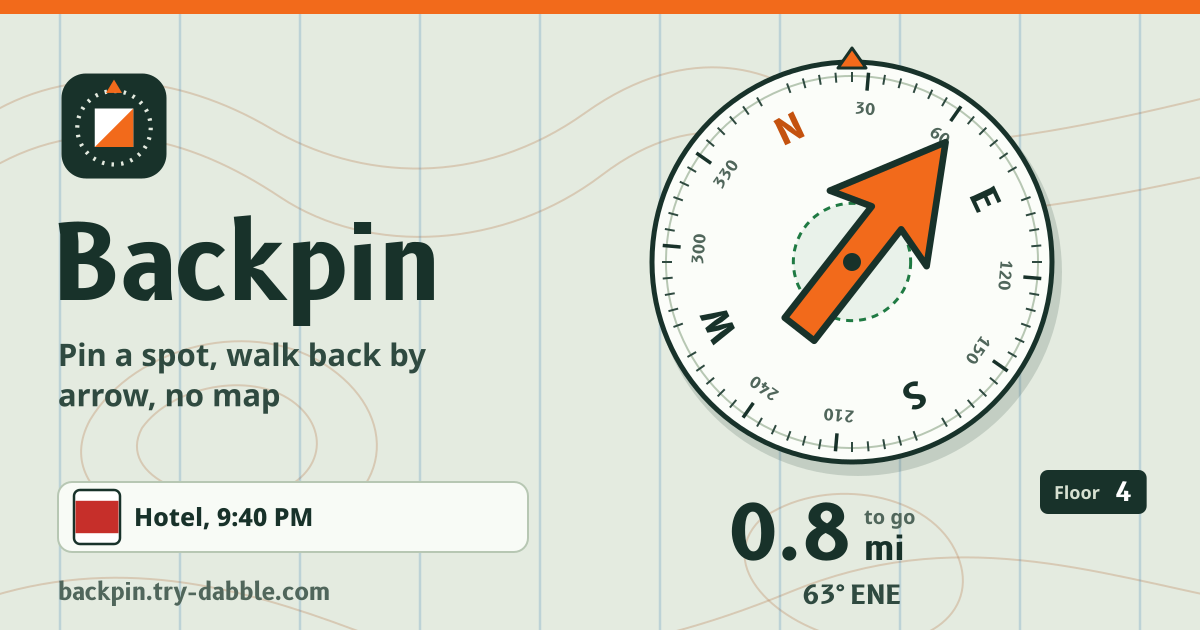
Tap “Walk back” on a spot. The screen shows the distance left in m and km or in ft and mi (switch with m | ft; the default follows your language, feet and miles for US English), and a hint: “Bear left”, “Bear right”, “Straight ahead” or “Turn around”. In the middle is the big orange arrow on a compass dial whose ring turns with the phone, and under it the bearing in degrees with a compass point, such as 212° SW. Your live accuracy and the age of the fix are shown too, and a fix older than 30 seconds is flagged because you may have moved since.
Inside the arrival radius (10, 15, 25 or 50 m, or your live accuracy if that is larger) it says “You're there”, with a short vibration where the phone supports it; “Mark as found” moves the spot to History. If the spot is inside the error circle of a poor fix, Backpin says the arrow can swing instead of claiming you have arrived: stand still a moment, step toward open sky, or look at your level / bay note.
The compass: iPhone permission, figure-8 calibration and north-up
On Android Chrome, Backpin reads the phone’s absolute orientation sensor directly. iPhone asks before a web page may read the compass: on the walk-back screen tap “Turn on compass” and choose Allow. If you refused, reload the page and tap “Turn on compass” again. If the iPhone no longer asks, go to Settings → Apps → Safari → Advanced → Website Data, remove try-dabble.com and try again.
If the compass is poorly calibrated, “Compass needs calibrating” appears with a figure 8: move the phone through a slow figure 8 a few times, away from cars, magnets and steel beams. This hint appears on iPhone only, because Android browsers don’t report compass accuracy; on Android, if the arrow swings oddly, do the same figure 8 anyway.
With no compass reading (a desktop, a phone with no sensor, or permission refused), Backpin falls back to north-up: hold the phone flat and turn it until its top points north, and the arrow then shows the way. Or take the bearing to a real compass, or use the sun. With a working compass you can still choose the “North-up” button, and “Use compass” switches back.
Battery: no background tracking
Location is used only while you save a spot or while the walk-back screen is open and in view. It stops when you leave the screen, switch tabs or the screen turns off. There is no background tracking, and nothing is tracked with the screen off.
“Low-power location” uses the network position, updated about every 10 seconds: easier on the battery, less precise. “Keep the screen on while walking back” is off by default; switched on, the screen stays on while you walk so location does not stop, at the cost of more battery.
Offline and on the home screen
Backpin uses no map, so it works offline after the first visit: it opens, saves and walks you back with no connection, because GPS needs none. Add it to your home screen to open it like an app in a garage or on a trail.
History, backup and restore
When you are done with a spot, “Mark as found” or “Move to History” sends it to History, and “Back to my spots” re-opens it. Deleting asks first, and “Undo” brings a deleted spot back.
On the “Backup” tab, “Save backup (.json)” writes your spots, History and settings to one file, with the photos too when “Include photos” is on. “Restore from a file…” brings it back with “Merge with what is here” or “Replace everything here”, and replacing asks first. The same tab holds the units, the arrival radius, “Low-power location”, “Keep the screen on while walking back” and “Delete everything”. If the saved data is ever damaged, Backpin keeps it as it is and shows a recovery panel instead of wiping it: download the unreadable data, restore a backup file, or start fresh.
The Guide & Feedback button in the tool opens this guide in a new tab.
What it does not do
There is no map: Backpin does not route you along streets or paths; it shows the direction and the straight-line distance to your spot. There is no Bluetooth auto-detection of parking: saving is always one manual tap. There is no background tracking, no alert while the tab or browser is closed, and no account and no sync, so you move a backup file to use your spots on another device. Pinning places you have been as memories on a map belongs to Memomap, collecting places you want to visit to Place Inbox, and walking a virtual long-distance trail with your real miles to Trailquest.
Does it work offline?
Yes. It works offline after the first visit, and your spots stay on this device. It fetches no map and uses only GPS, so the arrow and distance work with no data, at a garage exit or on a mountain. Add it to your home screen to open it like an app.
Does it track me in the background?
No. Location is used on this device only while you save a spot or while the walk-back screen is open and in view, and it is never sent anywhere. It stops when you leave the screen, switch tabs or the screen turns off; there is no background tracking.
Why does my iPhone ask about motion and orientation?
iPhone makes a web page ask before it may read the compass heading. Tap “Turn on compass” and choose Allow, and the arrow turns with the phone; the heading is used only on this device. If you refused, reload and tap again; if it no longer asks, go to Settings → Apps → Safari → Advanced → Website Data and remove try-dabble.com. Until then north-up works.
What if my phone has no compass?
Backpin switches to north-up: hold the phone flat and turn it until its top points north, and the arrow then shows the way. If you can’t tell where north is, take the bearing (say 212° SW) to a real compass, or use the sun: around midday it is roughly south north of the equator. The distance and bearing are right with or without a compass.
Why is the position off in a parking garage?
GPS needs a view of the sky. In underground garages, multi-storey car parks, tunnels and between tall buildings the signal is blocked or bounced, so the position can be tens of metres off, and GPS can’t tell floors apart at all. Backpin shows that accuracy instead of hiding it. Use “Save + level / bay note” to write down the level and bay and snap the sign: the arrow gets you to the building, the signs get you to the car.
Will the parking meter alert me when the browser is closed?
No. The countdown runs only while the tab is open, and it can’t alert you when the tab or browser is closed or the phone is asleep. When you start the meter, set a phone alarm too.
How do I move my spots to a new phone?
On the old phone switch on “Include photos”, press “Save backup (.json)”, move that file to the new phone and open it with “Restore from a file…” in Backpin. Choose “Merge with what is here” to keep any spots already on the new phone. The backup file is yours to keep; we have no copy.