It started with “App to track volunteer hours and organizations” on r/TimeTrackingSoftware
The thread appeared on the r/TimeTrackingSoftware subreddit in 2026 under the title “App to track volunteer hours and organizations”. The poster runs events where volunteers arrive from several organizations, and wanted one shared tablet — an iPad at the door — where each volunteer types a name, picks the organization they came with and the task or station they are working, clocks in and clocks out, and the organizer gets who is in right now plus totals by organization and by task. One more thing: it had to keep working when the site’s connectivity is poor. It is a fair wish. A sign-in sheet on a clipboard already does most of it; what is missing is the arithmetic, the totals by organization, and a board that says who is still here.
Look at that category and the same thing keeps happening. Track It Forward’s Volunteer Check In Kiosk needs accounts and an organization set up on its service before anyone can punch. vHours is a subscription SaaS. The Volgistics class of tools is the same: paid, account-first, English-only services. So people fall back to a Google Sheet, which is awkward when several people need to punch at once and the organizer wants a clean report by organization and by task. None of them speak Korean, Japanese or German. And a cloud kiosk that syncs every punch breaks in exactly the place the thread described — a venue with limited connectivity, where the queue at the door cannot wait for a spinner.
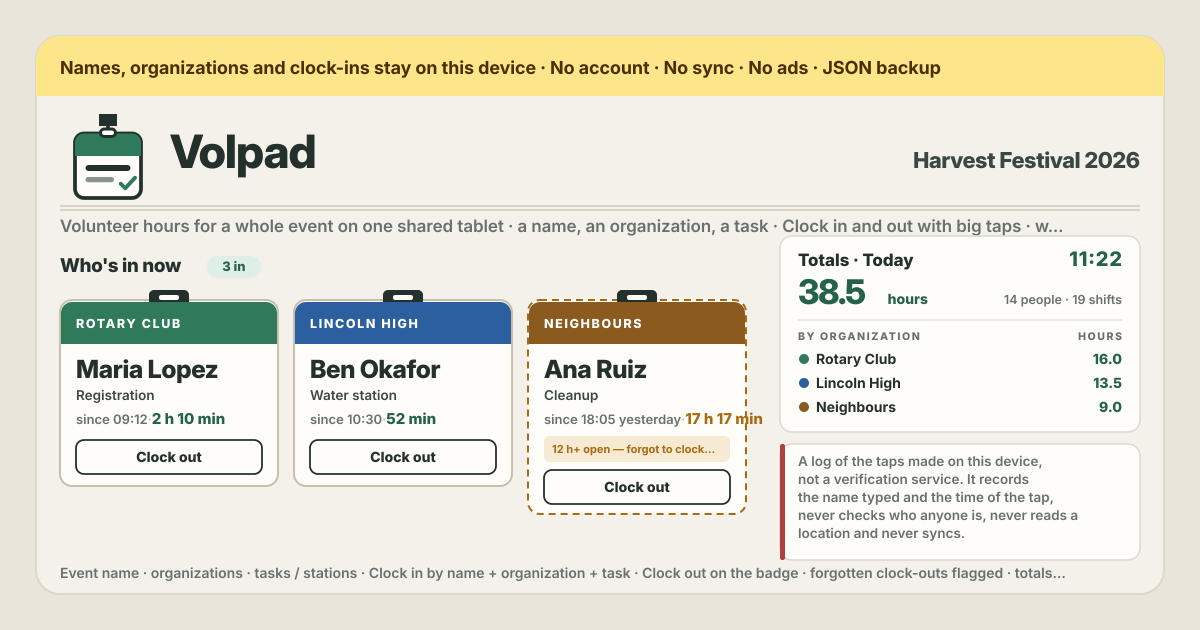
Volpad is that wish, answered as asked. One shared tablet at the door: the check-in sheet takes a name, the organization and the task as big buttons and one green Clock in; the board “Who’s in now” shows a badge per person with the time since; Clock out sits on the badge; Totals give hours by organization and by task; the Log lists every shift and is where a forgotten clock-out is fixed — all in the browser on this device, with no account, no server, no sync and no volunteer cap, and offline once it has been opened. The UI is in Korean, English, Japanese and German. Volpad is a log of the taps made on this device, not a verification service: it records the name that was typed and the time of the tap, never checks who anyone is, never reads a location, and one device is one log.
What Volpad does
“Setup” is the coordinator’s card. It takes the event name, the organizations the volunteers come with — add one, rename it in place, delete it; a duplicate name is refused, case aside, and deleting an organization deletes every shift logged under it, so it asks first and offers “Export JSON first” — and, optionally, the tasks or stations; deleting a task keeps its hours, which now show under “No task”. “Flag an open badge after (hours)” starts at 12 and takes 1 to 72. A button “Switch to kiosk view” is at the bottom. “Check in” is the sheet the volunteers use. “Your name” suggests names typed earlier on this tablet as you type — nothing is looked up anywhere — then the organizations as big buttons, the tasks as big buttons with “No task” when tasks exist, and one big green “Clock in”. “+ New organization” and “+ New task” sit right on the sheet, so the queue at the door never has to wait for the coordinator. One name is in once, case and spacing ignored: a name already in is refused with the time, “Maria is already in since 09:12. Tap Clock out on the board first.”
“Who’s in now” is the board: one lanyard-style badge per person in, the band in the organization’s colour, the name big, the task under it, and “since 09:12 · 2 h 10 min” ticking with the wall clock. Each badge carries “Clock out”, behind a light confirm — “Clock out Maria? In since 09:12 — 2 h 10 min so far. The shift ends now.” — so a wrong tap on a shared tablet cannot sign someone else out. A badge open longer than the hours set in Setup turns ochre with a dashed border and reads “Open for over 12 h — forgot to clock out?”; it is a flag and nothing more, because nothing is ever closed by itself. The strip above the cards shows the event name and the current time.
“Totals” has a “Today / Whole log” toggle. At the top a big hours figure with the people and the shifts behind it; under it a table by organization — every organization listed, even at zero: name, people, shifts, hours to one decimal — and a table by task with a “No task” row. Someone still in counts up to now, and a note says “Includes n still in, counted up to now.” “Export totals CSV” writes the tables as a file. “Log” lists every shift, latest first, with the organization, the task, in → out and the duration, and a “still in” tag on an open one. “Edit shift” opens the name, the organization, the task, Clock in and Clock out as date-times, a “Still in” box and a note — this is how a forgotten Clock out is fixed, by typing the time it really ended. “Add a shift” writes one in after the fact, yesterday’s for instance. “Delete” asks first. A Clock out before the Clock in, or more than a week after it, is refused.
“Backup” has “Export JSON”, which writes everything — the event, the organizations, the tasks, the shifts and the settings — as one file; “Import JSON”, which on an empty device simply restores, and over an existing log asks “Replace with the file?” and offers “Export JSON first”, refusing a file from another app; “Export shifts CSV”, one row per shift with name, organization, task, clock_in, clock_out, minutes, hours and note in local times like 2026-09-22 09:12, an open shift with an empty clock_out and its minutes so far; and “Empty Volpad” behind the confirm. “Switch to kiosk view” hides the coordinator cards — Setup, Totals, Log, Backup and How it works — so the tablet at the door shows only the check-in sheet and the board, with larger taps; it survives a reload, and “Show the coordinator cards” at the bottom brings them back. It is a view, not a lock: there is no PIN or password, on purpose, and who may see the tablet is the organizer’s call. The language picker sits in the masthead, and the shared td_lang cookie carries the language to the other try-dabble apps; Privacy, Terms and the Guide are linked in the footer, and a small feedback button links to try-dabble.com.
Your first event, step by step
Set the tablet up the evening before, or in the ten minutes before the doors open — there is not much to do. The event name, the organizations you know are coming and, if you want totals by station, the tasks; anything missing can be added at the door from the sheet itself. Then switch to kiosk view and leave the tablet where the volunteers arrive.
- Open https://volpad.try-dabble.com on the tablet and pick the language at the top. Names, organizations and tasks are your own words and are never translated.
- In “Setup” type the event name and add the organizations — one after another, as they call themselves. Add tasks or stations if you want totals by them; leave them out if you do not. Check “Flag an open badge after (hours)”: 12 suits a day event, a shorter shift may want less.
- Press “Switch to kiosk view”. The coordinator cards disappear, the check-in sheet and the board get bigger taps, and the tablet can go to the door. It stays that way through a reload; “Show the coordinator cards” at the bottom brings everything back when you need it.
- A volunteer arrives: they type their name in “Your name”, tap their organization, tap a task or “No task”, and press “Clock in”. A badge appears on the board in the organization’s colour with “since 09:12”. If their organization is not on the sheet yet, “+ New organization” adds it right there.
- When they leave, they find their badge on the board and press “Clock out”; the confirm reads back the name and the time so far, and the shift ends. A name that tries to clock in while already on the board is refused with the time — clock out on the board first.
- At the end of the day open “Show the coordinator cards”. Any badge still on the board that should not be is a forgotten clock-out: open it in “Log” with “Edit shift” and type the real end time, or press its “Clock out” if the person really has only just left. Nothing is closed for you.
- Then “Totals”: today’s hours, people and shifts, by organization and by task. “Export totals CSV” for the report, and “Export JSON” under “Backup” for the file you keep — the tablet is the only copy until you do.
What it does not do, said plainly
Not a verification service, which is the part that matters most. Volpad records the name that was typed and the time of the tap, and that is all it knows: it never checks who anyone is, there is no identity check, no signature, no photo, no location, no geofence, no QR or badge scanning. A shift in the log means someone typed that name and pressed Clock in on this tablet at that time — a fair record for a coordinator who was in the room, and nothing stronger than that. The honest line in the app says so itself. If what you need is proof that a person was on site, Volpad is not it.
No automatic clock-out: a badge open longer than the set hours is flagged, and that is all — the shift stays open until a person ends it, on the badge or in the log, because a guessed end time would be a made-up number in a report. No rounding of minutes, no pay and no rate: this is not a payroll tool and not a personal work-hours tool — for your own working hours there is hourpad, a different try-dabble app. No PIN and no admin lock on kiosk view. No grading, no ranking, no awards. No sync between devices and no merge of two JSON files: import replaces, after asking. And no account, no cloud, no server, no ads, no purchase, no volunteer cap.
What stays on the device, and the backup
Everything stays in the browser on this device: the event name, the organizations and tasks, every shift with its name, times and note, the flag hours, the kiosk switch and the language. The app requests nothing but its own files, so a Clock in at the door asks no server for anything, and once it has been opened it works offline as an installed PWA on Android or in any browser — the venue’s connectivity can be poor or gone and the sheet keeps taking names. There is no account, no server of ours and no sync; a name typed on this tablet is never sent anywhere, and “Your name” suggests only what was typed here before. This log lives in this browser on this device.
That also means the backup is yours to keep. “Export JSON” under “Backup” writes everything as one file, and “Import JSON” on another tablet or in another browser restores it — on an empty device it just loads, over an existing log it asks “Replace with the file?” and offers “Export JSON first”, and a file from another app is refused. “Export shifts CSV” writes one row per shift for a spreadsheet, “Export totals CSV” the tables by organization and by task. Clearing the browser’s site data removes the log, and a browser cannot be prevented from doing that, which is why the export exists — a JSON export at the end of each event is the habit worth having. Deleting an organization removes its shifts, deleting a task keeps the hours under “No task”, and “Empty Volpad” removes everything — each behind a confirm that offers the same export.
Is there an account or a paid tier?
Neither. There is nothing to sign up for — not for the coordinator and not for the volunteers, who only ever type a name. Every feature is open from the first tap, and there is no cap on organizations, tasks or volunteers, because an organization is a name and a colour and a shift is two times. No subscription, no premium, no in-app purchase and no ads on the tool. The only thing it costs is the minute it takes to type the event name and the organizations before the doors open.
Does it need internet at the venue?
Only once, to open it. Load https://volpad.try-dabble.com with a connection — at home, the evening before — and it installs as a PWA on Android or in any browser; after that the sheet, the board, Totals, the Log and the backup all work with no network, because nothing is fetched while you use it. A Clock in is a write to this browser, not a request to a server, so a venue with poor or no connectivity changes nothing at the door. That is the point of keeping the log on the device: the thread’s tablet had to keep working when the site’s signal did not.
Someone forgot to clock out — what now?
Their badge is still on the board, and once it has been open longer than the hours set in Setup it turns ochre with a dashed border and asks “forgot to clock out?”. Volpad never closes it for you, because it does not know when the person left. You do: open “Log”, find the shift with the “still in” tag, press “Edit shift”, type the Clock out that really happened — or leave it open if they are in fact still there — and save. If the person has genuinely only just walked out, “Clock out” on the badge does it too. Either way the totals update at once, and the hours in the report are the ones you wrote, not a guess.
Can two people have the same name?
Not at the same time. One name is in once, with case and spacing ignored, so a second “Maria” trying to clock in while the first is on the board is refused with “Maria is already in since 09:12. Tap Clock out on the board first.” That rule exists so a wrong tap cannot open a second shift for someone who is already here, and so Clock out on the board always finds the right badge. Two people who share a name simply type something that tells them apart — a surname, an initial, “Maria K.” — and “Your name” will suggest it next time. The name is a label you typed, nothing more; Volpad never checks it against anything.
How do I get totals by organization and by task into a spreadsheet?
Open “Totals”, pick “Today” or “Whole log”, and press “Export totals CSV”: the file holds the table by organization — every organization, even at zero, with people, shifts and hours to one decimal — and the table by task, “No task” included. If someone is still in, their hours up to now are in it, and the note on the card says so. For the raw data behind the totals use “Export shifts CSV” under “Backup” instead: one row per shift with name, organization, task, clock_in, clock_out, minutes, hours and note, in local times like 2026-09-22 09:12, so a pivot in the spreadsheet can slice it any way the report needs.
We have two tablets at two doors — how do I combine them?
One device is one log, and Volpad does not merge two of them: there is no sync between tablets, and “Import JSON” replaces what is on a device rather than adding to it, after asking. So keep the two logs as two files. At the end of the day press “Export JSON” on each tablet and keep both, and for the report press “Export shifts CSV” on each and put the two CSVs together in a spreadsheet, where the rows simply stack and a pivot gives the totals across both doors. Note that a person who clocked in at one door cannot clock out at the other — each tablet knows only its own board — so a two-door event works best when each volunteer uses the same door both ways.
Does kiosk view lock the tablet?
No. Kiosk view is a view: it hides the coordinator cards — Setup, Totals, Log, Backup and How it works — so the tablet at the door shows only the check-in sheet and the board with larger taps, and it survives a reload. It has no PIN and no password, on purpose, and “Show the coordinator cards” at the bottom brings everything back for anyone who scrolls down. It keeps the door screen simple; it does not keep a determined person out of the settings. Who may see and handle the tablet is the organizer’s decision, not the app’s.
Does it verify that someone was really there?
No. Volpad is a log of the taps made on this device, not a verification service. A shift means that at that time someone typed that name on this tablet and pressed Clock in, and later Clock out — that is the whole claim. There is no identity check, no signature, no photo, no location, no geofence and no scanning of a QR code or a badge, and the app never reads where the tablet is. For a coordinator who stood at the door that record is usually exactly what the paper sheet gave, with the arithmetic done; where a body needs proof of presence, that proof has to come from somewhere else, and the honest line in the app says so rather than pretending.
Can I log a shift after the event?
Yes. “Add a shift” in “Log” opens the same form as “Edit shift”: name, organization, task, Clock in and Clock out as date-times, a “Still in” box and a note. Set yesterday’s date and the times, save, and the shift takes its place in the log and in the totals like any other. The only checks are the ones that keep the log honest: a Clock out before the Clock in, or more than a week after it, is refused. It works the other way too — a shift that was logged wrongly at the door is fixed with “Edit shift”, and one that should never have existed goes with “Delete”, behind a confirm.
What happens to the hours if I delete an organization or a task?
They go two different ways, and the difference is deliberate. Deleting a task keeps every hour: the shifts stay, now listed under “No task”, and the totals by organization do not move — a task is only a label on a shift. Deleting an organization deletes every shift logged under it, because a shift without its organization would be a line the report cannot place; that is why it asks first and offers “Export JSON first”. If you only want to correct a name, rename the organization in place instead, and the shifts follow. Duplicates are refused, case aside, so two spellings of one organization cannot split its hours by accident.
Can I move the log to another device?
Yes, with the JSON file — that is how a log travels. “Export JSON” under “Backup” downloads one file with the event, the organizations, the tasks, every shift and the settings. Get it to the other device any way you like, open Volpad there and press “Import JSON”: on an empty device it simply restores; over an existing log it asks “Replace with the file?” and offers “Export JSON first”, because import replaces rather than adds. A file from another app is refused. The same file is the backup against a cleared browser, so keep it somewhere that is not the tablet.
Does it work in Korean, Japanese and German?
Yes: the whole UI — the sheet, the badges, the confirms, Totals, the Log, the backup dialogs and this guide — is in Korean, English, Japanese and German. Pick the language in the masthead, or open https://volpad.try-dabble.com/?lang=ko, ?lang=ja or ?lang=de directly; the shared td_lang cookie carries the choice to the other try-dabble apps. Names, organizations and tasks are your own words and are never translated, so a Korean coordinator and a German volunteer can use the same tablet: switch the language at the top and the buttons change, the log does not. None of the tools in the thread’s category speak these languages; that was part of why Volpad exists.