It started with “I’d like to control my PowerPoint with hand gestures or voice” on Reddit
On Reddit’s r/software, someone wrote: “I’d like to control my PowerPoint presentation using hand gestures or voice commands instead of clicking through the slides manually… I’m not very good with this sort of thing” The wish is simple: turn the slides without walking back to the laptop or buying a clicker, and without a fiddly setup. What turns up in a search is mostly a Windows program or a Chrome extension, in English only.
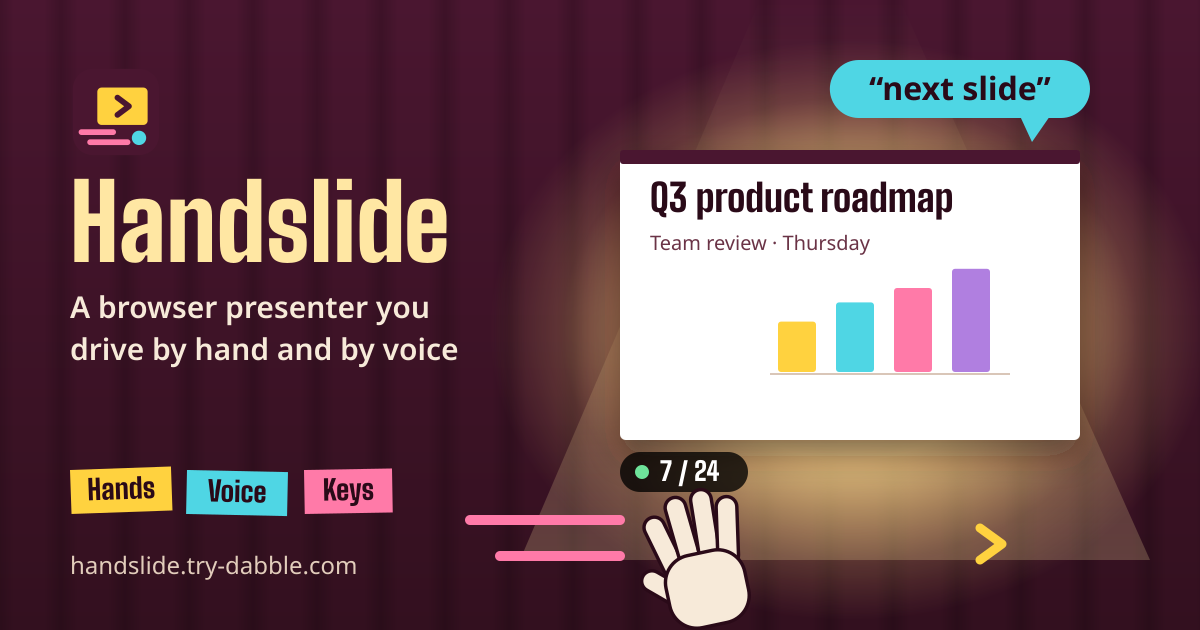
Handslide does that without installing anything. Export the deck to PDF, open it in the browser and press Present: it goes full screen, and a hand swipe in front of the webcam, a spoken “next” or a press on a presentation clicker moves it on. No account, no ads, in English, Korean, Japanese and German.
What you find elsewhere
Gesture and voice presenters already exist, and each does something well. What was hard to find was one that opens in the browser with nothing to install, takes both gestures and voice, and also speaks Korean, Japanese and German.
- GesturePresent (gesture-present.vercel.app): a Windows .exe that turns slides with hand gestures, in English.
- VoxSlide AI: a Windows program you drive by voice; free sessions last 10 minutes, Pro is $29; English.
- Gesture Presenter: a Chrome extension plus a phone-pairing site, Google Slides only, English, open source.
- Slidect (slidect.com): a web tool that opens a PDF with your phone as the remote, English and French, no gestures or voice.
- Nonlinear (nonlinear.pages.dev): a web tool that shows a PDF with a webcam overlay, keyboard only, English.
Getting started
- Save or download your deck as a PDF from PowerPoint, Keynote or Google Slides.
- Press “Open a slide PDF” or drop the file on the spotlight. The first slide shows up with the number of slides.
- To use your hands, switch on “Use hand gestures”, then open “Test gestures” and swipe a few times from where you will stand. Allow the camera when the browser asks.
- To use your voice, switch on “Use voice commands” and hold “Hold to test” while you say “next”.
- Press “Present” to go full screen. Esc or “End show” ends it, and the last slide you showed becomes the next start slide.
Hand gestures: swipes, the laser pointer, and how to make them reliable
- Swipe a hand to your right for the next slide, to your left for the previous one: your own right and left, as you stand.
- Light: face the light. A bright window or the projector beam behind you makes the hand hard to see.
- Distance: stand 1–2 m from the camera and sweep sideways at chest height, inside the picture. Slow drifts and up-and-down moves don’t turn a slide.
- Cooldown: after each turn, gestures are ignored for the “Pause after each turn” (1 second by default), and bringing your hand back doesn’t count as the opposite swipe. If one swipe turns two slides, lengthen the pause; if swipes are missed, raise the “Sensitivity”.
- Under “Which hand”, pick Left or Right and the other hand is ignored: handy when that hand holds notes or a microphone.
- Point your index finger up and a red laser dot follows it on the slide while swipes pause. Holding an open palm still to black out the screen works once you switch it on.
- While presenting, the small cue light at the bottom left shows the state: green means a hand is seen, an outline asks you to show your hand, blue is the pause.
Voice commands
- English: “next”, “back”, “previous”, “go to slide 5”, “first slide”, “last slide”. Recognition uses the language chosen on the page.
- “Hold to talk” (the default) listens only while you hold V or the microphone button. “Always listening” only acts on a short command said on its own, so “next quarter we grew…” in the middle of your talk doesn’t turn a slide.
- Voice commands use your browser’s speech service: depending on the browser, the sound may be processed on the browser maker’s server (Google for Chrome, Apple for Safari, Microsoft for Edge). Handslide never receives it.
- Voice commands don’t work in Firefox. When the browser has no speech recognition, the page says so and gestures, keys and clicks keep working. The speech service needs a connection.
Keyboard and presentation clicker
- Next: →, ↓, PageDown, space. Previous: ←, ↑, PageUp. Most presentation clickers send PageUp/PageDown, so they just work.
- Home and End jump to the first and last slide, B or the full stop blacks the screen out, a number then Enter goes to that slide. L toggles the laser pointer, Esc ends the show.
- Click or tap the right half of the slide for next, the left half for previous. The timer pauses or resets from the buttons at the top and turns pink once you run over your talk length.
- The screen is kept awake while you present, and your settings (sensitivity, which hand, listening mode and the rest) are remembered on this device.
PowerPoint and Keynote decks: present the PDF
A browser can’t control desktop PowerPoint or Keynote on your computer, so Handslide shows the PDF you export from them instead. Animations, transitions, videos and speaker notes are lost in a PDF. If a slide builds up step by step, duplicate it into one slide per step before you export, and each swipe reveals the next step.
Privacy: the PDF and the camera stay on this device
The PDF and the camera frames stay on this device and are never uploaded. Hand tracking downloads about 18 MB from this site once, the first time, and runs on this device; it never records, stores or sends a camera frame. The PDF is not kept, so open it again next time. Only voice commands go through your browser’s speech service, which may process them on the browser maker’s server. There is no account; only your settings stay in this browser.
What it does not do
- It doesn’t control desktop PowerPoint or Keynote; it shows your PDF.
- No animations, transitions, videos, speaker notes or a separate presenter view on a second screen.
- No phone-as-remote pairing: use a clicker, the keyboard, your hands or your voice.
- Reading PDF books with a library and highlights is Flippad; classroom screens that switch on a timetable are Classpad; matching a pose in front of the camera is Poseguide.
Does it work offline?
Yes. It works offline after the first visit: you can open a PDF and present with gestures and keys with no connection, because the browser keeps a copy of the app and the hand tracker on the device. Voice commands need the browser’s speech service, so they need a connection.
Which browsers and devices does it work on?
On a laptop or desktop with a webcam, Chrome, Edge and Safari take both gestures and voice. Firefox takes gestures and keys but not voice commands. On a phone you can open a PDF and tap through it; iPhone browsers can’t go full screen, so you get a view that fills the page instead.
One swipe turned two slides. What do I change?
Lengthen the “Pause after each turn” to about 1.5 seconds. If swipes are missed instead, raise the “Sensitivity” and try good light, 1–2 m from the camera. The “Test gestures” screen lets you tune this without turning any slide.
Is there an account or a paid tier?
No. It’s free, with no sign-up and no time limit, and the tool shows no ads. The “Guide & Feedback” button at the bottom right opens this guide.