What makes a pose read well in a photo
Most stiff photos are stiff because the weight is split evenly between both feet. Shift it to one leg, let the other knee soften, and the hips and shoulders stop being parallel; that small asymmetry is what reads as relaxed. Turn the body slightly away from the camera and bring the face back toward it, so the shoulders sit at an angle rather than square. Angles everywhere: a bent elbow, a hand on a hip, a foot pointed off-centre. A limb that is dead straight looks posed; a limb with a bend looks caught mid-movement.
Hands are where people freeze, so give each hand a job. A pocket, a strap, a cup, the edge of a jacket, the other hand — anything is better than fingers hanging open. Keep hands relaxed and slightly turned so the camera sees their edge rather than the full palm. Lift the chin a little and push it forward; it lengthens the neck and sharpens the jaw at every angle. Finally, do something between frames — take a step, look away and back — because the second shot after a reset is usually the good one.
None of this is fitness or medical advice. A silhouette is a picture to line up with, not a posture to hold; if a position hurts, leave it out.
A silhouette over the camera, with a score and a voice if you want them
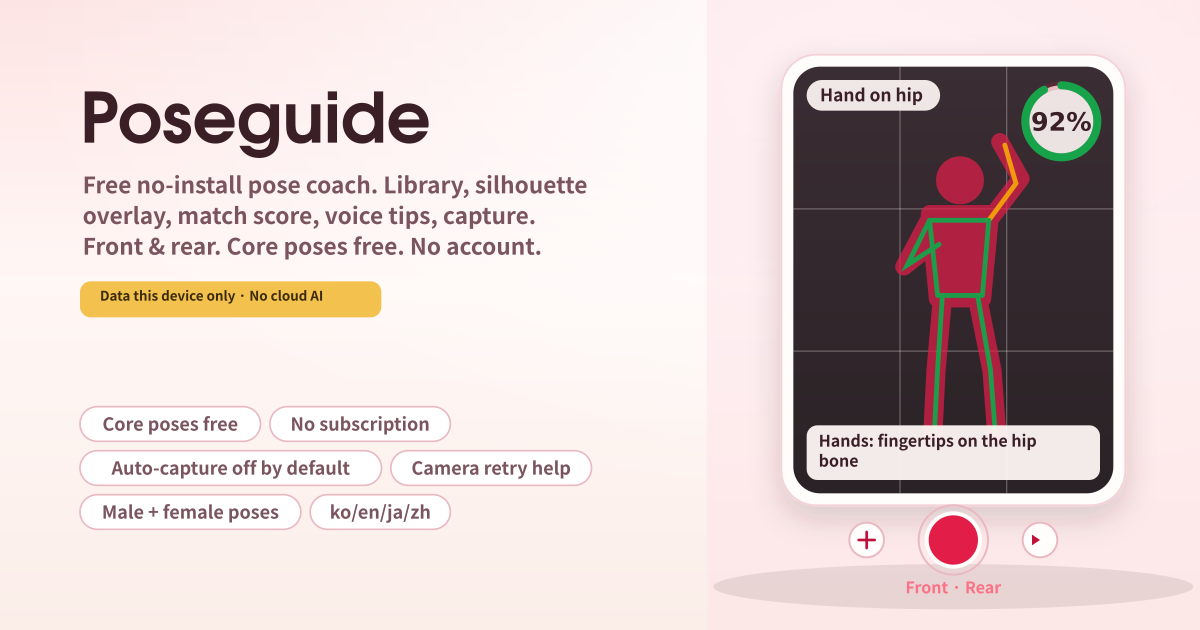
Poseguide answers “how do I stand?” right on the camera. Pick a pose from the library and its silhouette floats, half transparent, over the live view. Line yourself up with it, tap the shutter, and the photo is saved on this device. No app store, nothing to install, no account.
Two helpers are there if you want them. Pose Match shows how close your body is to the silhouette as a 0–100% score, and the Voice Coach reads step tips like “one hand on the hip, push the elbow out” in your language. Both run on this device only. A cloud AI coach, scene detection and two-phone sync were left out on purpose.
The viewfinder, the pose strip and the controls
- The amber strip at the top: a note that your data stays on this device, with no cloud AI or scene detection.
- The pose strip: the library button, the current pose name, and previous / random / next buttons.
- The viewfinder: the rose silhouette over the camera, a Front / Rear badge top-left, the score ring top-right once Match is on, and the hand-position tip along the bottom. Before the camera starts you see an “Allow camera” button.
- The control row: flip camera, Match (%) on/off, the big shutter in the middle, Voice Coach, and Stranger Mode.
- The silhouette opacity slider, the Voice Coach panel (current step with Back / Next / Say it), the Auto-capture switch (off by default), the composition guide (Off / Thirds / Center), the pose tips, and the recent captures list.
- The promise chips: core poses free (not just 2), no subscription, auto-capture off by default, camera retry help, male + female poses, data this device only, ko/en/ja/de.
Picking a pose, lining up, and handing the phone to a stranger
Tap “Allow camera” and accept the browser prompt. Open the library with the picture button on the left, choose Solo, Couple, Travel, Grad, Casual or Formal, narrow it to Everyone / Female / Male, or tap “Seated / wheelchair” to see only seated poses. Tap a pose and its silhouette lands on the camera at once. The slider makes the silhouette lighter or stronger, and the flip button swaps front and rear.
Line up with the silhouette and press the big shutter; the photo downloads to this device. Want a score? Tap the % button to turn Match on. The first time takes a few seconds to get ready, then the ring moves live and the skeleton turns green, amber or rose to show how close each part is. Turn the Voice Coach on and it reads the current step; “Next” moves on.
Handing your phone to a passer-by? Turn on Stranger Mode. It switches to the rear camera, simplifies the screen, and leaves one big “Capture (3 burst)” button inside a green outline. One tap saves three shots in a row. “Exit mode” brings everything back.
Where the camera feed and your photos stay
The camera video is shown on your screen and never leaves this device; the match score is worked out here too, and the app remembers only your settings and a list of when you captured which pose. Photos go straight to your browser’s downloads, so the app keeps no copy. There is no login, no cloud AI, no scene detection and no sync, all of the 30-plus core poses are free with no lock icon anywhere, and auto-capture stays off until you turn it on.
When does auto-capture actually take a photo?
Only when you have switched it on, and only while Match is running: once the score holds 85% or higher for two seconds it takes one photo. The switch sits on the main screen, is off by default, and off stays off, so nothing fires while you are still moving into position.
I turned Match on and it says “unavailable on this device”.
Older phones, or a browser with graphics acceleration turned off, may not be able to run the match calculation. The silhouette overlay, Voice Coach, capture and Stranger Mode all keep working regardless; Match is a helper, not a requirement for taking the photo. Try turning it on again while online so it can fetch what it needs.
Where are my photos?
The shutter hands the photo to your browser’s download path. On iPhone look in the Files app under Downloads (Safari may ask whether to save to Photos), on Android in Downloads or the gallery. The app keeps no copy, so back up as you normally would from your photos app.