When you only want to hear that one sentence again
Listening practice in another language usually goes like this. You put on a podcast or a textbook track, follow along, and one word turns to mush. What was that? Your thumb is already looking for rewind, but the podcast app on your phone jumps back fifteen or thirty seconds at a time. You sit through two or three sentences you already understood before the trouble spot comes around, and it slips past again, and it is another fifteen seconds. That is not practice; it is waiting.
One web tool solves exactly this. A browser player called “Come again?” opens a file and gives you just what a drill needs: rewind by one, two or three seconds, set an A–B loop, slow the speed down. But it is English-only, and its own author notes it is not made for smartphones. The controls assume keyboard shortcuts, and on a phone the targets are too small for a thumb. Yet the commute, on a phone, is exactly where most listening practice happens.
The app stores have plenty of “language learning players”. Open one and, more often than not, one of the three things you need, the short rewind, the A–B loop or the speed control, sits behind a premium tier, or the app wants your file on its server, or it wants an account first. Needing a subscription to rewind an audio file is strange. The file is already on your phone, and rewinding is something the browser can do by itself.
What you want is simple. Open one file from your phone, jump back only a second or two to the spot you missed, pin a hard passage and repeat it, slow it down when you need to. With a thumb, with no checkout screen, and with the file sent nowhere.
What Listenpad does
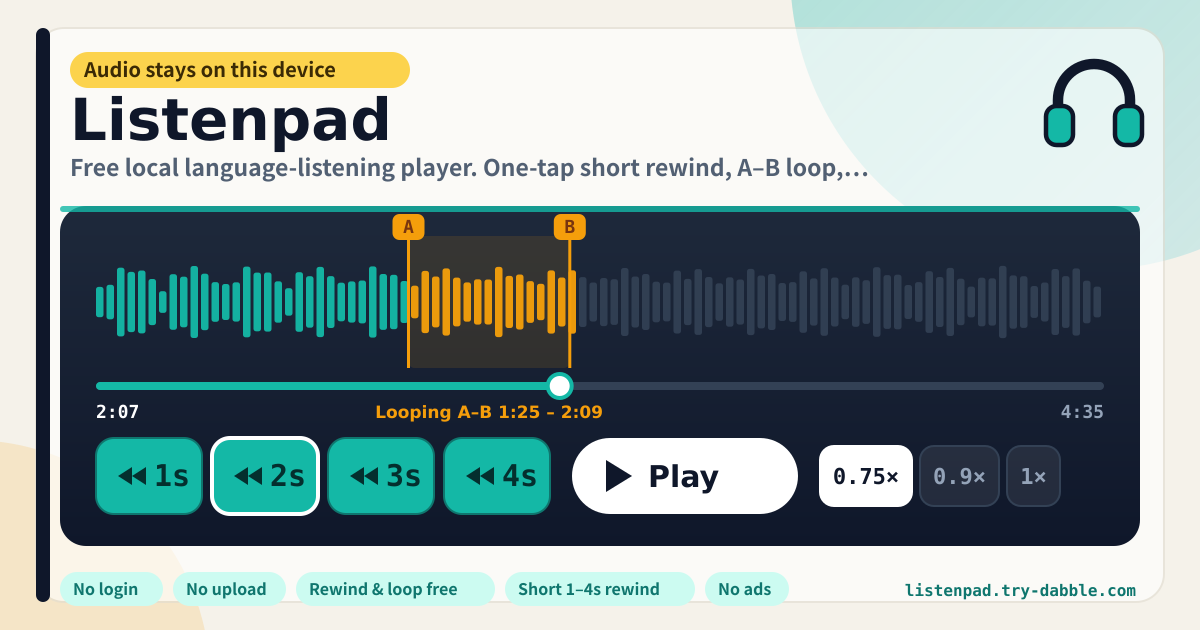
Listenpad is that player. Open it and you see a file box and a dark navy deck. Pick one audio file on this device, or drop one in, and it is ready to play. On the deck sit four rewind buttons, 1s, 2s, 3s and 4s, side by side and each the size of a thumb. One tap goes back exactly that much. Below them, forward-skip buttons of the same size cover the same steps.
A hard passage gets pinned. Tap “Set A” where it starts and “Set B” where it ends; from then on, every time playback reaches B it jumps back to A and plays the passage again. Amber A and B markers appear over the scrubber with the loop shown as a band between them. “Clear loop” returns to normal playback. Speed is a row of chips from 0.5× to 1.5×, with “Reset 1×” to snap back. Slowing down keeps the pitch, so voices do not drag.
The notepad is optional. Write what you hear, a new word, a phrase to check, and it is saved on this device under that file’s name. Open the same file again and the notes come straight back. The last rewind amount you tapped, the speed and the A–B points are remembered too, and are in place the next time you open the app.
Banner, file box, deck, A–B, speed, notes, backup, notes to self
- The yellow banner at the top says audio and notes stay on this device, that there is no upload, login or ads, and that rewind, A–B loop and speed are all free. Screen language follows ?lang=, then the browser.
- File box: a “Pick a file” button and drag-and-drop. The open file’s name is shown, and “Change file” opens another. A short note says that on iPhone you may need to pick the file again after a reload.
- Deck: the scrubber with current time and duration, four rewind buttons for 1, 2, 3 and 4 seconds, a big Play / Pause, and four forward buttons for the same steps. The rewind amount you tapped last keeps a white outline.
- A–B loop: “Set A”, “Set B”, “Clear loop”. The time of each point shows under its button and a status line says what is looping now. If the two points land in the wrong order, the earlier one becomes A.
- Speed: chips for 0.5×, 0.6×, 0.7×, 0.75×, 0.8×, 0.9×, 1×, 1.1×, 1.25× and 1.5×, plus “Reset 1×”. The current speed shows in the card header.
- Listening notes: a notepad per file name, saved on this device as you type. The same card holds “Export JSON”, “Import JSON” and “Delete everything”. A backup contains settings and notes only, never audio.
- Notes to self and promise chips: short lines on re-picking on iPhone, phone browsers, not being a music library, playable formats and keyboard shortcuts, then the chips “No login · No cloud upload · Rewind & loop free · Phone-sized buttons · Short 1–4s rewind · Settings saved here · No ads · ko/en/ja/de”. The footer links Privacy, Terms, this guide and the hub, and a floating “Guide & Feedback” button sits at the corner.
Where your data stays
The audio file is opened by the browser straight from this device and played here. It goes up to no Listenpad server and nowhere else, and the app keeps no copy of it. The rewind amount, speed, last file name, A–B points and notes live inside this browser on this device. There is no account, so there is no server-side copy either. That is also why opening it in a different browser on the same device shows a fresh, empty player.
One thing should be said plainly. Most phone browsers, Safari on iPhone included, cannot keep a file open between visits. After a reload or on the next visit you pick the same file again. Because Listenpad remembers notes and A–B points by file name, everything comes back into place once that file is chosen. Not stashing the audio itself inside the browser is deliberate: copying a few hundred megabytes of lessons into a browser fills the device up fast.
Before you switch devices or clear browser data, press “Export JSON” and keep the file. “Import JSON” on the new device brings back the settings and every note. The file is created on this device, sent nowhere, and contains no audio.
On iPhone, does the file vanish after a reload?
The file itself is still on your phone; only the handle Listenpad had on it is gone, because Safari does not hand a previously chosen file back to a page when it reopens. Tap “Change file” and choose the same file, and the notes and A–B points for that file name return at once. The rewind amount and speed persist regardless of the file.
Does it work in Chrome or Safari on a phone? Do I need a keyboard?
It does; the phone is the primary target. Rewind, forward, play, A, B and speed are all thumb-sized buttons, so everything works without a keyboard. Picking a file is the phone’s ordinary file chooser, from Files, voice memos or the downloads folder. On a desktop, as a bonus, Space plays and pauses and ← / → rewind and skip by the amount you tapped last.
Can I use it as a music library or for playlists?
No. Listenpad is a drill player for one file at a time, which is why it has no library, albums, playlists or queue. If you need those, a music player is the better tool. The line is kept on purpose: what listening practice needs is not the next track but the two seconds that just went by.
Which files play? Does slowing down make voices sound odd?
Anything this browser can play: usually MP3, M4A/AAC, WAV, OGG and FLAC, with small differences between browsers. If a file will not play, the screen says so; try MP3 or M4A instead. When you lower the speed the browser keeps the pitch, so voices come through slowly without going deep and draggy. 0.7× to 0.9× is a comfortable range for dictation practice.
Is it free? Any ads, account or paid unlock for rewind?
Everything is free. None of the 1 to 4 second rewind, A–B loop, speed, notes or JSON backup sits behind a payment, and there is no subscription and no trial. No ads, no account, no login. The tool page loads no ad script; the domain serves an ads.txt only to stay consistent with the rest of try-dabble.com. Use the “Guide & Feedback” button in the corner of the app, or Send feedback on this guide, to tell us what is missing.