Keeping an MP3 library that survives a device change
A music folder outlives every player you will ever install, so the folder is the thing worth tidying, not the app. Keep one root folder — Music — and inside it one folder per artist and one per album: Music/Artist/Album/01 Title.mp3. Put the track number at the front with two digits so the album plays in order even in a player that sorts by name. Do not keep a second copy of the same file in a “Favourites” folder; playlists are for that, and duplicates come back twice on every import.
Fix the tags once, in the file, with a tag editor before you add anything to a player. Title, artist, album and track number are what every player reads; “album artist” keeps a compilation together instead of scattering it into thirty artists of one track each. Spell names the same way every time — “The Beatles” on one album and “Beatles, The” or “beatles” on another become separate artists, because players group by exact text. Untagged files fall back to the file name, so a clean file name is your second line of defence.
When you move to a new phone, copy the whole root folder in one go and keep the same folder names. Most players store playlists as paths or file names, so identical names let them relink; renaming files after you made playlists is what breaks them.
Adding a folder and playing from the library
Localplay is the app that “just plays my MP3s”. No streaming, no recommendations, no account. Pick files or a folder on your device, it reads title, artist and album from the tags, and from then on it plays them with no internet at all.
Tap “Add folder” and choose your music folder. It walks subfolders and takes only the audio files. If your browser cannot pick a folder, use “Add files” and select many at once. Tap a track and the list you are looking at becomes the queue, starting from that track.
If a title or artist looks wrong, open “…” at the end of the row and choose “Edit track info”. The same menu adds the track to the queue, marks it as a favorite, puts it in a playlist, or removes it from the library. The shuffle key keeps the current track and mixes the rest; the repeat key cycles off → all → one.
The EQ button opens bass, mid and treble sliders from −12 to +12 dB, and the speed control goes from 0.5× to 2×. Both are remembered on this device. The lock screen and headset buttons also play, pause and skip.
The deck, the library and the queue
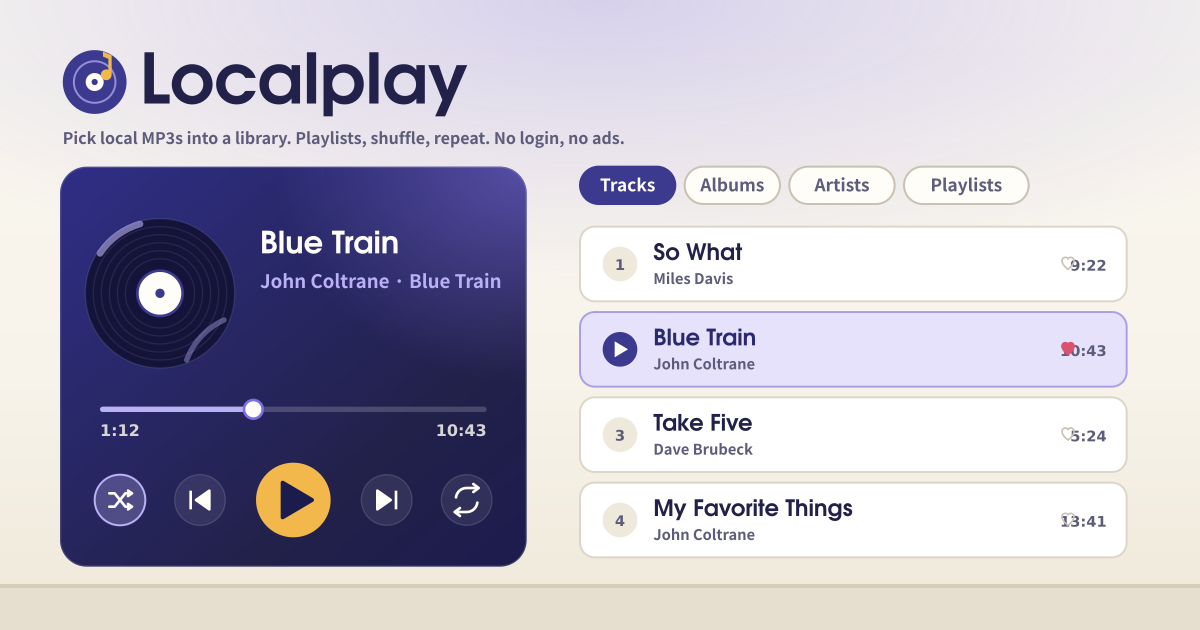
- The dark indigo deck: the current track, a turning disc, the seek bar, and the shuffle, previous, play, next and repeat keys. Below them sit the speed control (0.5× to 2×) and the EQ button.
- The Library card: “Add files” and “Add folder”, the Tracks / Albums / Artists / Playlists / Favorites / Recent tabs, a search box, and the list. Each row has a heart and a “…” button.
- The Queue card: what plays after the current track. Tap a row to jump to it, use × to drop one, or clear the whole queue.
- At the bottom: the JSON export / import buttons and the promise chips (offline play, no subscription, no ads during play, and so on).
When you switch devices or reinstall
“Export JSON” writes track info, playlists, favorites and recents into one small file. Audio is not included. On the new device, read that file with “Import JSON”, then add the same music folder. Tracks with matching file names relink on their own, and your playlists and favorites come back as they were.
Where your music copies live
Picked files are copied into the app’s own space on this device; your originals are untouched, nothing is uploaded, and there is no account, no sync and no analytics. Removing a track in the app deletes its copy, and clearing the browser’s site data removes the library, playlists and settings together. Export JSON before you do that if you want the playlists back.
Which file formats play?
Anything your browser can play: MP3, M4A/AAC, WAV, OGG/Opus, FLAC and so on. The browser has the final say, so for example OGG may not play in Safari on iOS. Title, artist and album are read from MP3 ID3 tags; without tags the file name is used.
Why does a track show its file name instead of a title?
That file has no ID3 tag, or its title field is empty — common with old rips and files passed around in chat apps. You can fix it inside this app with “…” → “Edit track info”, or fix the file itself with a tag editor before adding it, in which case every other player shows the same title too.