Why voice memos are harsh on a practice take, and why upload-to-cloud “AI denoise” is the wrong trust model
People record practice for two reasons: to hear whether today is better than yesterday, or to send a teacher or bandmate a clip and ask “is this how you play it?”. But the phone’s voice memo app is built for the human voice. Its call-grade noise suppression mistakes a guitar’s overtones for breath and shaves them off, its auto gain drags a quiet arpeggio up along with the hiss, and a hard strum gets flattened. The file tells you what you played, not how it sounded.
So people look for a “noise removal” app, and a surprising number of them upload the file to their own servers to do the work. For two bars played in a garage, you hand a stranger’s server the sound of your room, your voice, and whatever the next room was saying. And those apps tend to be free for the first few files, after which noise removal or export sits behind a payment. Reducing hiss is a computation a browser can do comfortably. Taking the quietest moments as the noise reference and turning down whatever sits below them needs no server at all.
Then there is trimming and export. Cutting the thirty seconds of tuning at the front and the cough at the end, and lifting a take that was recorded too quietly up to -1 dB, changes what the listener hears more than any effect. A recorder without those two makes you move the file to another app, and that app asks for an account. Recpad was built to take the whole path, from recording through noise clean, trim and WAV or MP3 export, on one screen and on this device only.
Record, pick, clean, export
Recpad is a free practice recorder that opens straight in the browser. The big red Record button asks for mic permission; Stop turns the take into a waveform. The browser’s call-style noise suppression and auto gain are switched off, so the instrument and the room come through as they are. Without a mic, “Load a demo take” lets you try every edit first.
Drag on the waveform to select a region; tap to move the playhead. “Trim to selection” throws away everything outside it, “Cut selection” removes just that part. Several levels of undo are there if you cut the wrong thing. Noise clean has three strengths and runs on this device when you press the button; gain moves the take up or down in dB, and normalize sets the loudest moment to -1 dB.
When it sounds right, download it as WAV or MP3. Both are made inside this tab and both are free. If you want to come back to it, give it a name and save it as a draft. Drafts stay in this browser on this device, are still listed after a refresh, and can be opened for more edits, renamed or deleted.
Banner, record card, waveform, edit, export, drafts
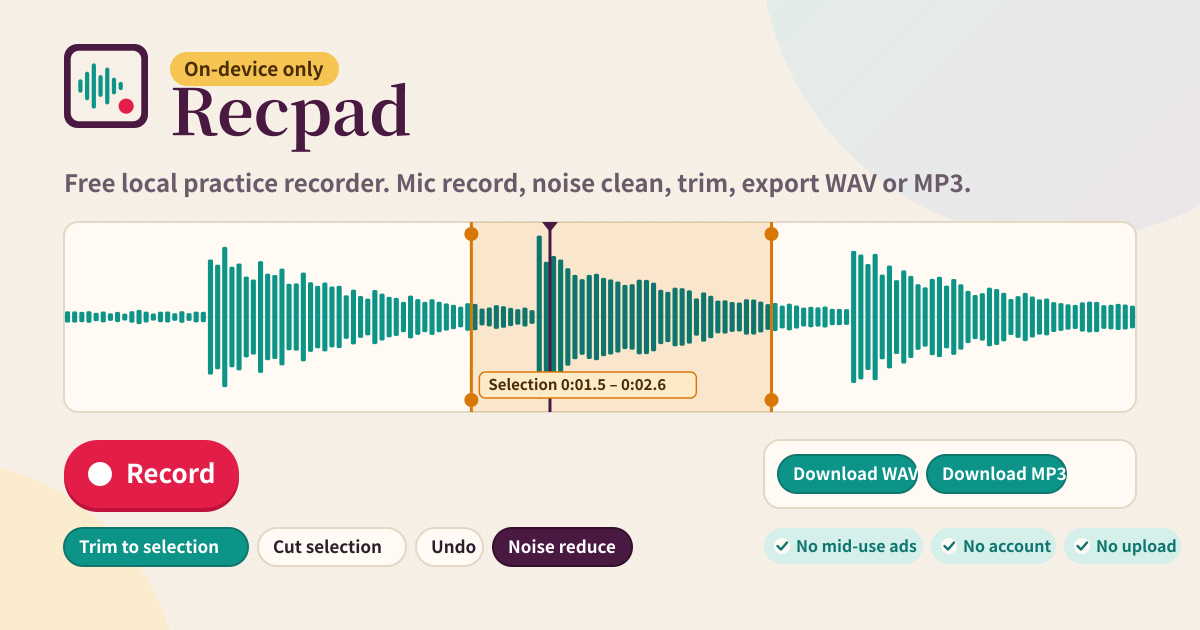
- The amber banner at the top: a promise that recording and processing happen on this device and nothing is sent to a server. It also says there is no subscription and no ads.
- Record card: the big Record / Stop button, Play / Pause, and the demo take. While recording you see the time and the input level. If the mic is refused it tells you where to allow it.
- Waveform: teal waveform, plum playhead, amber selection with handles. Drag to select, tap to seek, drag an edge to adjust. Length, position and selection times sit underneath.
- Edit: trim to selection, cut selection, clear selection, undo. Noise clean with three strengths, gain in dB and normalize to -1 dB. A “cleaning on this device” status shows while it works.
- Export: Download WAV and Download MP3. The MP3 encode runs on this device with a short progress state. Both free, no payment.
- Drafts on this device: name and save, then open, rename or delete from the list. The draft currently open is outlined, and pressing save again updates that same draft.
- Bottom: the promise chips (no mid-use ads, no account, noise clean free, WAV/MP3 free, on-device only, no upload) and the Privacy, Terms and Guide links.
Where your audio stays
Sound from the mic exists as numbers inside this browser tab, and noise clean, trim, gain and the MP3 encode are all computed in that same tab. Recpad has no server to send audio to, no account and no sync. Save a draft and it stays in this browser on this device only. Another device or another browser will not see it; to move it, download the WAV and carry it yourself. Clearing the browser’s site data removes drafts too, so download any take you want to keep.
Does it really upload nothing? How can I check?
Open the page once, switch on airplane mode, then record, noise clean and download WAV and MP3. All of it still works: there is no server address in the app that could receive audio. Keep the browser’s network tab open if you like; pressing record, clean or export sends no request at all.
What if noise clean eats into the playing?
Press Undo and you are back where you were. Then try again with the strength set to Light. The clean uses the quietest moments of the take as its noise reference, so leaving about a second of silence after pressing Record before you play gives it a better reference. Very quiet tails and long sustain can get dulled at the Strong setting; for that kind of piece, one pass at Light is the better choice.
Should I send WAV or MP3?
For a teacher or a band chat, MP3 is small and opens everywhere. If you plan to edit further in another program or layer several takes later, keep the WAV: it is lossless, and this app’s drafts are kept in the same form. Both are free with no limit on how many you export.
Is it free? Any ads or account?
It is free, with no mid-use ads and no full-page ads. There is no account to create and no sign-in screen, so a login problem can never wipe your drafts. Noise clean, trim and WAV or MP3 export all work without any payment. The tool is one of the small local apps made at try-dabble.com; use Send feedback on this page to tell us what to improve.