Internet radio with no install, and a place for the song that’s on
When a good song comes on the radio, it is surprisingly hard to note its name before it ends. And listening to stations from around the world shouldn’t mean installing an app, signing up and sitting through ads.
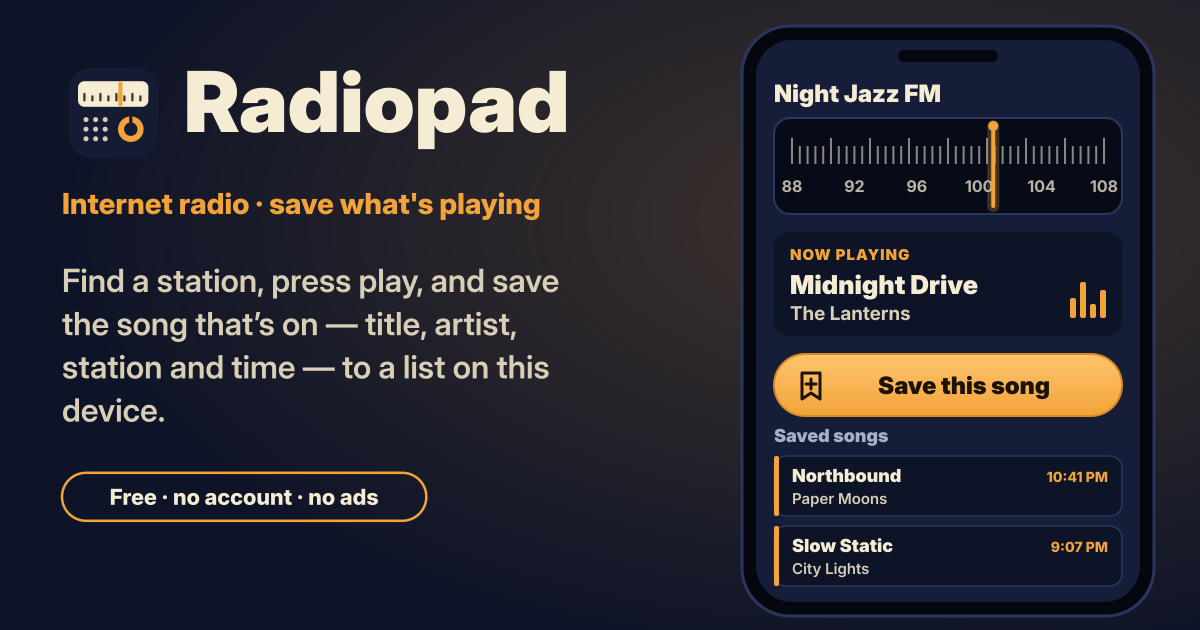
Radiopad is a free internet radio you open right in your browser. Find a station, tap to play, and save the song that’s on with one button, together with artist, station and time. There is no sign-up and no ads, and your favorites and saved songs stay in this browser on this device. It speaks Korean, English, Japanese and German, and has a dark mode.
1. Find a station: Discover
- When you open it, the most popular stations are listed. Tap one to start playing.
- Type a station name into the search box to find it.
- Browse by genre tag chips (jazz, classical, news and so on) or by country, and sort by popular or most voted.
2. Listen: the mini player and the full player
- Once a station plays, a mini player sits at the bottom, so you can pause or resume while you look at other tabs.
- Tap the mini player to open the full player with its needle dial. The station name, the song that’s on, Save this song, the favorite star and the Sleep timer are all there.
3. Save the song that’s on
Many stations send the title and artist of the song that’s on along with the sound, and then the player shows it. Some don’t; then the player says “Song info not available for this station”.
- Tap Save this song and the title, artist, station and time go into Saved songs.
- Even on a station without song info, Type it in lets you write the title and artist yourself and save it; station and time are added for you.
- Tap it again for the same song within 10 minutes and it says “Already saved” instead of saving it twice.
4. Your Saved songs
- Saved songs are grouped by day, in this device’s local time.
- Search by title, artist or station.
- Copy the list as text to paste into a note or a message.
- The web search link on each song opens a normal web search for artist and title in a new tab, so you can find it wherever you listen to music.
- Deleted a song by mistake? Undo brings it back right away.
5. Favorites and recently played
- Tap the star to add a station to Favorites. Favorites keep the station’s details on this device, so they still play if the station directory is briefly down.
- The last 50 stations you played are kept automatically, so getting back to yesterday’s station is easy.
6. Sleep timer
In the full player, tap Sleep timer and choose 15, 30, 45, 60 or 90 minutes, or until the end of this hour. When time is up, the sound fades out over 10 seconds and pauses. You can cancel it anytime.
7. When a stream stalls, and stations that won’t play
- If a stream stalls, it shows “Reconnecting…” and reconnects by itself, waiting 2, 4, 8, 16 and 30 seconds between up to 6 tries. There is also a retry button.
- Some stations only stream over plain http, without a secure connection, and browsers block that on secure pages. Radiopad marks these stations; it can’t play them.
- Stations that are offline or gone show an error.
- Use Hide this station so a station never gets in your way again. Hidden stations can be shown again in Settings.
8. Lock screen, headphones and screen off
Radiopad offers play/pause and next/previous favorite on the lock screen and headphone buttons, but whether that works depends on your phone and browser. On iPhone, add it to the Home Screen from the Share menu for the best result. Whether it keeps playing with the screen off is up to the browser and the phone, so we can’t promise it.
9. Backup file and CSV
- Download backup in Settings puts favorites, recently played, hidden stations, saved songs and settings into one file.
- Restore from backup merges: it never deletes or duplicates anything, and restoring the same file twice changes nothing.
- Export saved songs as CSV to open them in a spreadsheet.
Where the stations come from
The station list comes from radio-browser.info (community station directory, https://www.radio-browser.info), a free list where anyone can add and fix stations. Searching and playing contact radio-browser.info directly from your browser, and starting a station sends that directory an anonymous click count for the station.
The sound comes straight from each station’s own server, which sees your IP address like any website. For the song that’s on, our server asks the station for its current title: it gets only the station number from your browser, keeps nothing, and limits how often each IP address may ask without storing the address. We never record streams.
Not planned for now
Recording, casting to a TV or speakers (Chromecast, DLNA), Android Auto, accounts and sync between devices, podcasts and an equalizer are not planned for now.
Looking for your own audio files with rewind? → Listenpad
Why doesn’t this station show the song?
Song info only shows when the station sends it along with the sound. Many do, but some don’t, and some send only the station or show name. You can still save the song with Type it in by writing the title and artist yourself.
Can I record a stream?
No. Radiopad is for listening and saving songs; recording is not planned for now. What it saves is just the title, artist, station and time.
Why won’t some stations play?
Stations that only stream over plain http are blocked by the browser, so Radiopad marks them and can’t play them. Other stations are offline or gone. Use Hide this station and they won’t show up again.
Will it keep playing with the screen off?
That is up to the browser and the phone, so we can’t promise it. Often it keeps playing, but some phones stop it to save battery. On iPhone, adding it to the Home Screen works best.
How do I move my saved songs to a new phone?
Tap Download backup in Settings, move the file to the new phone, and choose Restore from backup in Radiopad there. Favorites, recently played, hidden stations and saved songs all come along (settings such as appearance and the sleep timer stay as they are on the new phone). Restoring merges: nothing is deleted or duplicated, and restoring the same file twice changes nothing.
What if something I need is missing?
Tell us with the Guide & Feedback button at the bottom right. A station that won’t play or shows odd song info can be reported the same way.