What Midipad is
Midipad is a MIDI recorder in the browser. Plug in a MIDI keyboard, press record and play: what you play is recorded in real time and can be saved as a .mid file that any music program opens. It is made for the moment you want to keep an idea on an old computer without installing a DAW.
There is nothing to install and no account, it is free, and there are no ads in the tool. It speaks Korean, English, Japanese and German. Your takes stay on this device and nothing is uploaded.
Connect a MIDI keyboard
Plug the keyboard in by USB (or through a MIDI interface) and press “Connect MIDI keyboard”. The browser asks once whether this page may use MIDI devices: choose Allow. This works in Chrome and Edge on a computer, also in Opera and Firefox, and in Chrome on Android.
- If MIDI was blocked, allow MIDI devices for this site in the browser’s site settings (the icon left of the address), then press “Connect MIDI keyboard” again.
- A keyboard plugged in or switched on later appears by itself; there is no need to reload.
- “Listen to” picks which input is recorded; “All inputs” is the default. A small light blinks with each message and the last note played is shown, so you can see the keyboard is heard.
- “Hear what I play” sounds what you play through this browser too, for a keyboard without its own speakers (a controller keyboard). Switch it off if the keyboard makes its own sound.
Safari, iPhone and iPad
Safari, iPhone and iPad have no Web MIDI, so a MIDI keyboard can’t be heard there; the page says so up front instead of failing later. The computer keyboard and the on-screen piano still record there, and takes, the piano roll and saving a .mid file work the same.
Computer keys and the on-screen piano
No MIDI keyboard at hand? Under “Computer keys”, play on the keyboard of the computer.
- A W S E D F T G Y H U J K play C to C: the middle letter row is the white keys and the row above it the black keys, like a piano.
- Keys count by their position, not by the letter, so a Korean or Japanese input mode works the same, and so does a German QWERTZ keyboard. On German keyboards Y and Z are swapped; the position counts, so the key labelled Z plays the note of the Y position.
- Z / X move the “Octave” down / up, and C / V make the “Touch” softer / harder, in levels from 20 to 127. The space bar is the sustain pedal while you hold it down, shown under “Pedal”.
- Keys typed into a text field, such as a take’s name, are never taken as notes.
- The on-screen piano works with the mouse and with several fingers at once, and sliding across it plays each key you pass. Notes never stick: everything is released when the window loses focus.
Tempo, time signature, metronome and count-in
- “Tempo” goes from 30 to 300 BPM and counts quarter notes.
- “Time signature”: 2/4, 3/4, 4/4 or 6/8. In 6/8 the metronome clicks eighth notes.
- The “Metronome” accents beat 1 of each bar. When it is on, it also clicks while a take plays back.
- “Count-in”: “Off”, “1 bar” or “2 bars” of clicks before recording starts. The count-in is never part of the take.
Record and stop
Press the big red “Record” key and play; press “Stop” when you are done. A REC lamp lights while recording and blinks during the count-in. The tape counter shows “Time”, “Bar” (bar and beat) and “Messages”, the number of MIDI messages recorded so far.
- Recorded: notes with velocity, the sustain pedal and other controllers, pitch bend, program changes, and channel and poly aftertouch, on every channel.
- Each message is timed to the millisecond from the keyboard’s own timestamps, not from when the page got to it.
- MIDI clock, Active Sensing and other timing and system messages, and SysEx, are ignored, so they never fill the file.
- Notes still held when you press Stop are closed at the stop time, and a held sustain pedal is released there, so nothing hangs in the file.
Safety limit and leaving the page
- Recording stops by itself after 30 minutes or 100,000 MIDI messages, whichever comes first, and says so; the take is kept up to there.
- If you try to leave or close the page while recording, or while a take failed to save, the browser asks whether you really want to leave.
Your takes on this device
Every take lands in “Takes on this device”, named Take 1, Take 2 and so on in the screen’s language. Type in the name to rename it.
- “Play” and “Pause”, and “Play from the start”.
- “Delete” removes a take; the message that follows has “Undo”.
- Takes are saved on this device until you delete them.
- If the browser can’t store a take (private mode or no space left), it says the take is not saved and only in this tab, with “Save again”; save a .mid file to be sure. If it saved the take but couldn’t make its crash-safe copy, it says that too: a crash in the next few seconds could lose the newest change.
Piano roll
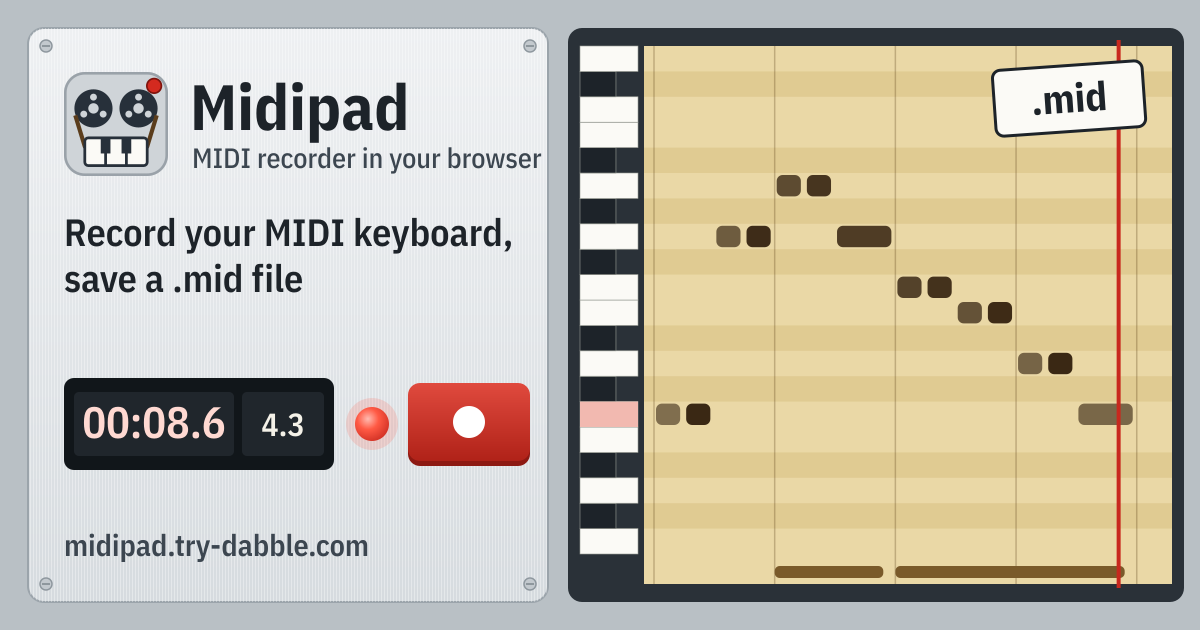
The “Piano roll” is drawn like the paper roll of a player piano: each note is a punched slot, darker when played harder, and the sustain pedal is the bottom track. It scrolls with the playhead, which is red while recording, and a slider moves you through the take.
Playback: this browser’s synth or your MIDI device
Under “Play takes on”, choose “This browser’s synth”, a simple piano-like sound made in the browser with nothing to download, or a connected MIDI device such as a digital piano or a sound module, which then plays the take with its own sound.
Save a .mid file
“Save .mid” writes the take as a Standard MIDI File, format 0, with 480 ticks per quarter note, carrying the take’s tempo, time signature and name. The file is named after the take (for example Take 1.mid).
It opens in GarageBand, Logic, Cubase, Studio One, Ableton Live, FL Studio, MuseScore, Signal and other DAWs and notation programs.
Built for old computers
Midipad needs nothing that only new browsers have. It is built to run in Chrome on macOS 10.15 Catalina (Chrome 128, the last version for Catalina) and in older Chrome and Edge on Windows, such as version 109 on Windows 7 and 8.1. So an old laptop next to the keyboard is enough to keep an idea.
Privacy: your takes stay on this device
Everything stays in this browser on this device. MIDI and key input is read only here, takes (notes, timing, tempo and names) are kept until you delete them, and nothing is uploaded. There is no account.
The page’s Permissions-Policy lets only this page ask for MIDI devices and keeps the camera, microphone and location switched off.
How it differs from Pedalpad
Pedalpad is a journal for guitar and bass pedal settings: you note the knobs and switches of your pedals so a good tone is not lost. It has no MIDI and records no audio. Midipad records MIDI performances from a keyboard and exports them as .mid files.
Does it work on iPhone or Safari?
Partly. Safari, iPhone and iPad have no Web MIDI, so a MIDI keyboard can’t be connected there. You can still record with the computer keys or the on-screen piano and save a .mid file. For a MIDI keyboard, use Chrome or Edge on a computer, or Chrome on Android.
Is my playing uploaded?
No. MIDI and key input is read only in this browser, takes stay on this device until you delete them, and nothing is uploaded. A .mid file is made on the device and goes only where you save it.
Which programs open the .mid file?
Any program that reads Standard MIDI Files: GarageBand, Logic, Cubase, Studio One, Ableton Live, FL Studio, MuseScore, Signal and other DAWs and notation programs. The file carries the take’s tempo and time signature, so the bars line up.