It started with “where were the knobs on that tone?”
At rehearsal or at home you turn the knobs on your analog pedals until the tone is exactly right. A week later you turn them for another song, and that tone never quite comes back, because a pedal without presets keeps nothing. Guitarists and bassists say this again and again.
Many take a photo of the board, but the photo gets lost somewhere in the camera roll and the small knobs are hard to read. Nobody wants to dig through a notes app with a guitar strapped on. And what they need is not a note about one pedal but the whole board, in order, sorted into folders by song or band.
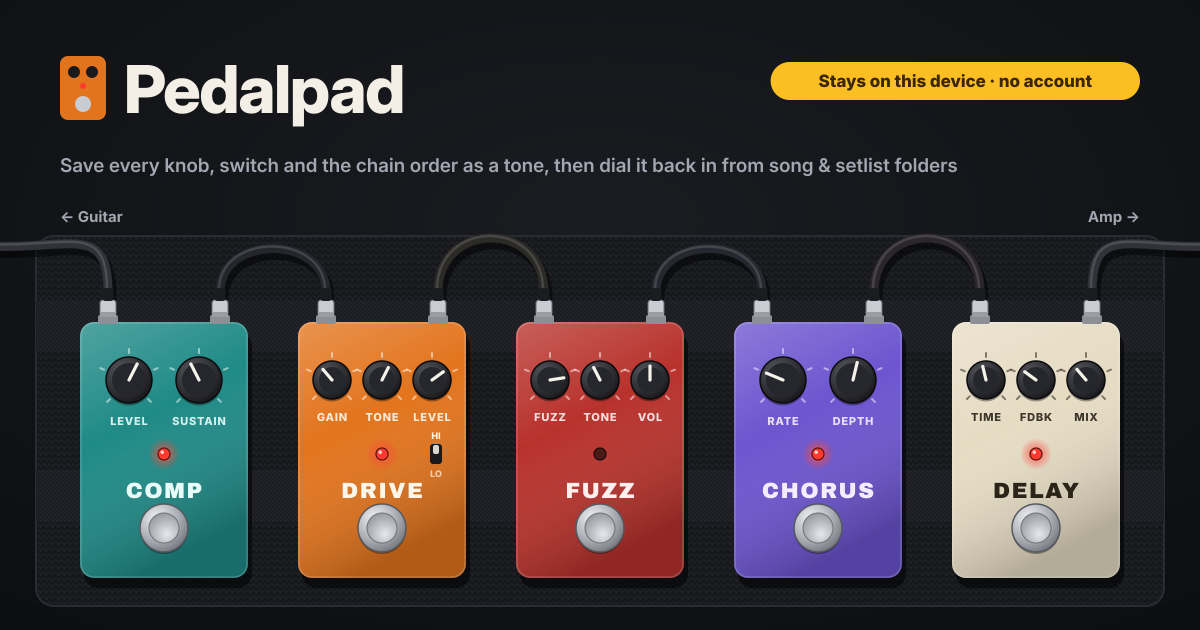
Pedalpad is a notebook for exactly that. You note your pedals with the knobs and switches they really have, build your boards in order, and when a tone sounds right you save the whole board as a tone and put it in a folder. It opens in a browser and installs like an app, there is no account, and everything is saved in this browser on this device. The interface is in Korean, English, Japanese and German.
What Pedalpad does
- Your pedals as they really are → the pedal library. Name a pedal, start from a type template (overdrive, distortion, fuzz, boost, compressor, EQ, chorus, phaser, flanger, tremolo, delay, reverb, octave, wah, volume, looper, other), then rename, add or remove controls until they match the real knobs. Switches get named positions such as Hi/Lo, and every pedal gets an enclosure colour.
- A chain in order → boards. Build the signal chain from guitar through the pedals to the amp and move pedals up or down. The same pedal can sit on several boards.
- A snapshot of the whole board → tones. Every knob (0–10, also shown as a clock position from 7 o'clock to 5 o'clock), every switch and which pedals are on or bypassed are saved together, plus the guitar, pickup, amp, amp settings and notes if you like.
- Old tones stay put → each tone keeps its own copy of the chain. If you later remove a pedal from the board or change the order, the tones you already saved do not change.
- Finding it again → folders, tags and search. Make folders such as a song, a band or a setlist, add tags and search. Opening a tone shows the whole chain big enough to read with the guitar in your hands.
- Variations → Duplicate & tweak and pedal presets. Duplicate a tone and change just a few knobs, or save one pedal's setting under a name such as “Klon-ish edge” and apply it inside any tone.
- The copy is yours → Export JSON, Import JSON, a CSV of tones and Delete everything. The amber band at the top always reminds you that everything stays on this device.
Once at the start: your pedals and a board
- In the pedal library, add a pedal. Type its name (the name of the overdrive you actually own, say) and pick the closest type.
- Match the template's controls to the real pedal: rename any that differ (Gain instead of Drive, say), remove the ones it lacks, add extra knobs and switches. Give switches their position names, such as Hi/Lo. Pick an enclosure colour close to the real one and you will spot it on the board at a glance.
- Make a board and add the pedals in their real order: the one nearest the guitar at the top, the one nearest the amp at the bottom. Move any that are out of place up or down.
When a tone sounds right: saving it
- Start a new tone from the board. The pedals of the chain come up in order.
- Set each pedal's knobs to where they really are. Values show as 0–10 and as a clock position (noon, 2 o'clock), so use whichever matches how you read the pedal. Choose the switch positions and set pedals you do not use in this tone to bypassed.
- If you like, add the guitar, pickup, amp and amp settings, and a note such as “delay on for the chorus”.
- Give it a name, choose a folder (a song, a band, a setlist) and tags, and save.
Before rehearsal or a gig: dialling a tone back in
- Open Pedalpad. If it has been opened once before, it opens at the venue with no internet too.
- Open the folder (tonight's setlist, say) or search, and open the tone.
- Put the phone next to the board and follow the chain from the top, big and readable: set each knob and switch and check which pedals are on and which are bypassed.
- Changed something tonight? Use Duplicate & tweak to keep it as a new tone; the original stays as it was.
Pedal presets: one pedal's good setting
Some settings belong to one pedal rather than a board: a “Klon-ish edge” on a drive pedal, a “slapback” on a delay. When one turns up while you build a tone, save just that pedal's setting under a name as a pedal preset.
In another tone, apply that preset to the same pedal and its knobs and switches fill in at once; then nudge only what needs it. Applying a preset never changes tones you have already saved.
Backup and moving to a new phone
- Everything is saved in this browser on this device and does not sync. Now and then, save a file with Export JSON.
- Moving to a new phone: Export JSON on the old one, get the file onto the new one, open Pedalpad there and Import JSON. Pedals, boards, tones, folders and presets move together.
- To look at your tones in a spreadsheet, export them as CSV.
- Delete everything asks first, with an Export JSON first button inside the dialog. Clearing the browser's site data also erases the notebook.
What it deliberately does not do
- No MIDI. It never sends settings to a pedal or a multi-effects unit; it only notes the values you set by hand.
- It makes no sound. No amp simulation, no recording, no audio of any kind.
- No tone sharing network, no social feed, no marketplace. It is a notebook for your own tones, not a place to download other people's.
- No account, no cloud sync, no upload and no ads on the tool.
Is there an account or a paid tier?
No. There is no sign-up, no payment screen and no cap on the number of pedals, boards or tones. There are no ads on the tool either.
If I change a board, do my old tones change too?
No. A tone keeps a copy of the chain as it was when you saved it. Add, remove or reorder pedals on the board and the tones saved before still open exactly as they were.
Is my notebook sent anywhere?
No. Pedals, boards, tones and presets are saved in this browser on this device, and Pedalpad uploads nothing. To move to another device, carry the JSON file over yourself.
Does it work offline, and can I install it? Where do I send feedback?
Once it has been opened, it works with no internet. “Install” or “Add to Home Screen” puts it on your phone as an icon, and the controls stay large on phones. The interface is in Korean, English, Japanese and German. The app's Guide & Feedback button opens this guide in a new tab, and feedback is left on this guide page.