What Cutpad is
Cutpad makes the cut line for printed acrylic goods and stickers. Open one illustration and set the finished size in millimetres: it traces the outline of the art, pushes it outwards by a margin to a cut line, adds a white plate and a keyring hole or an acrylic stand tab with its base, and saves vector cut paths as SVG and PDF for the print shop. It is made for ordering acrylic stands, acrylic keyrings and die-cut stickers without drawing the cut line by hand in an illustration program.
There is nothing to install and no account, it is free, and there are no ads in the tool. It speaks Korean, English, Japanese and German and works offline after the first visit. Your images are processed only in this browser and nothing is uploaded.
Open an image: a transparent PNG works best
Drop an image onto the page, press “Choose image”, or copy an image and press “Paste image”. A PNG with a transparent background works best: its alpha is used as it is, so the cut line follows the edge of the art exactly. A JPG, WebP or PNG on a flat background colour works too, and a GIF opens with its first frame.
- Cutpad says plainly when a file can’t be opened as an image, when an image is fully transparent, and when an opaque image’s corners don’t share one flat colour, so there is no background to remove automatically.
- Large images such as 6000 × 6000 px open without trouble: the outline is traced on a smaller working copy (at most 1600 px on the artwork’s long side and 16 px per mm), and the page stays responsive while it traces. Background removal works on a copy of up to 3000 px on the long side. When no background was removed, the SVG embeds your original file untouched; the PDF keeps up to 4096 px on the long side.
Remove a flat background
If the picture has no transparency, press “Remove background (from the corners)”: Cutpad picks the colour from the corners and removes it from the edges inwards, only where it is connected, so the same colour inside the art stays. Or press “Tap the background”, then tap the background in the picture.
- “Colour tolerance” sets how close a colour must be to the picked one to be removed. Raise it for a background with a light gradient or noise; lower it when part of the art disappears.
- “Show what was removed” marks the removed area on the preview, “Undo removal” brings back the last removal, and “Restore original” goes back to the picture as you opened it.
Choose the product: acrylic stand, keyring or sticker
Pick a product: each one fills in sensible starting values that you can change afterwards.
- “Acrylic stand”: 90 mm high, with a tab and a separate base, white plate on.
- “Acrylic keyring”: 50 mm wide, with a keyring hole, white plate on.
- “Die-cut sticker”: 60 mm wide, 2 mm margin, white plate off (turn it on only for clear film).
- “Custom”: your own mix of the options.
Set the finished size in mm and read the dpi
Set the finished size by width or by height, in millimetres. The other side follows the artwork’s visible (non-transparent) bounds, so the aspect ratio never changes. Cutpad shows the size of the artwork and of the cut outline in mm.
Next to it is the resolution in dpi: the image’s pixels divided by the size in inches (mm ÷ 25.4). At 300 dpi or more it is enough for print. Below 300 dpi an amber warning says the print may look soft, and below 150 dpi a strong warning says it will look blurry or blocky. Use a larger image or a smaller size.
Cut line: margin, corner rounding and smoothness
The cut line is the outline of the art pushed outwards by the margin.
- “Margin” is the distance from the art to the cut line: 2.5 mm by default, from 0 to 10 mm in 0.5 mm steps. The margin itself rounds the outside corners.
- “Corner rounding” (1 mm by default) rounds the inside corners and fills narrow gaps, such as between strands of hair or fingers, so the blade doesn’t have to follow every notch.
- “Smoothness” evens out small steps in the outline.
- “Solid from alpha” sets which alpha counts as solid: pixels fainter than that are treated as transparent by the cut line and the white plate.
- Holes inside the art: by default there is one outer cut line only, and holes stay part of the piece, which is sturdier and what most shops expect. Turn on “Also cut holes inside the art” to give holes wider than the “Thinnest allowed part” their own cut line.
- Separate parts: if the margin doesn’t join every part of the art, Cutpad warns how many separate pieces there are and offers a button to join them into one piece with a larger margin. Specks smaller than 0.3 mm² are ignored.
White plate
The white plate is white ink printed under the art so the colours don’t show through clear acrylic or film.
- “Make a white plate” turns it on. “Inset from the art edge” pulls it slightly inside the art (0.2 mm by default, 0 allowed), so it stays hidden if the print shifts a little.
- The white plate is shown tinted on the preview; “Show white plate” hides or shows it.
- Under “White in the PDF”, choose “K100 on the White layer” (the default) or “Spot colour “White””, whichever your print shop asks for.
Keyring hole
For a keyring, turn on “Add a keyring hole”. “Hole diameter” is 3 mm and “Ring width” 2 mm by default.
- Drag the hole along the outline on the preview (touch works too), or pick a spot: “Top”, “Top left”, “Top right”, “Left” or “Right”.
- The ring is joined into the cut line, and the hole itself gets its own inner cut circle.
Acrylic stand tab and base
For an acrylic stand, turn on “Add a tab and a base”. The figure gets a tab at the bottom, and the base is cut as its own piece below the figure, with a slot the tab fits into.
- “Tab width” is 20 mm, “Base width” 60 mm and “Base depth” 25 mm by default.
- “Acrylic thickness” is 2, 3, 4 or 5 mm (3 mm by default). The slot is the tab plus 0.2 mm play in each direction, so a tab of that thickness slides in.
- “Thickness preview” shows the piece as a simple slab of acrylic with depth.
Checks: thin parts and soft edges
Two checks run while you change the settings.
- Thin parts: parts of the cut piece and of the white plate narrower than “Thinnest allowed part” (2 mm by default) are painted red and counted, because acrylic can snap there. Cutpad suggests a larger margin; you can also thicken that part of the art.
- Soft edges: glows, shadows, blur and wide anti-aliasing are hatched cyan. The white plate and the cut line follow “Solid from alpha”, so those areas may print without white under them or be cut off. Erase glows and shadows in the art, or move the threshold to decide what counts as solid.
Sheet layout
To print several pieces on one sheet, choose A4, A5, A3, B5 (JIS, 182 × 257 mm), Letter or your own size in mm.
- Set the “Gap” between pieces (3 mm by default) and the “Sheet margin” (5 mm by default). “Rotate 90° to fit more” turns the pieces when more fit that way.
- Enter a number of “Copies” or choose “Fill the sheet”; Cutpad shows how many fit per sheet.
- “Preview sheet” shows the layout, and “Sheet SVG” and “Sheet PDF” save it.
Export SVG and PDF for the print shop
Save a single piece with “SVG (cut + white + design)” or “PDF (cut + white + design)”. “Cut line only (SVG)” and “Cut line only (PDF)” save just the cut paths, and “Preview (PNG)” saves a picture to check or share.
Send the print shop what its order page asks for, usually the full SVG or PDF with all three layers. Always check the file against your print shop’s own template and spec before you order: sizes, margins, white handling and layer names differ from shop to shop, and no file is guaranteed to be accepted.
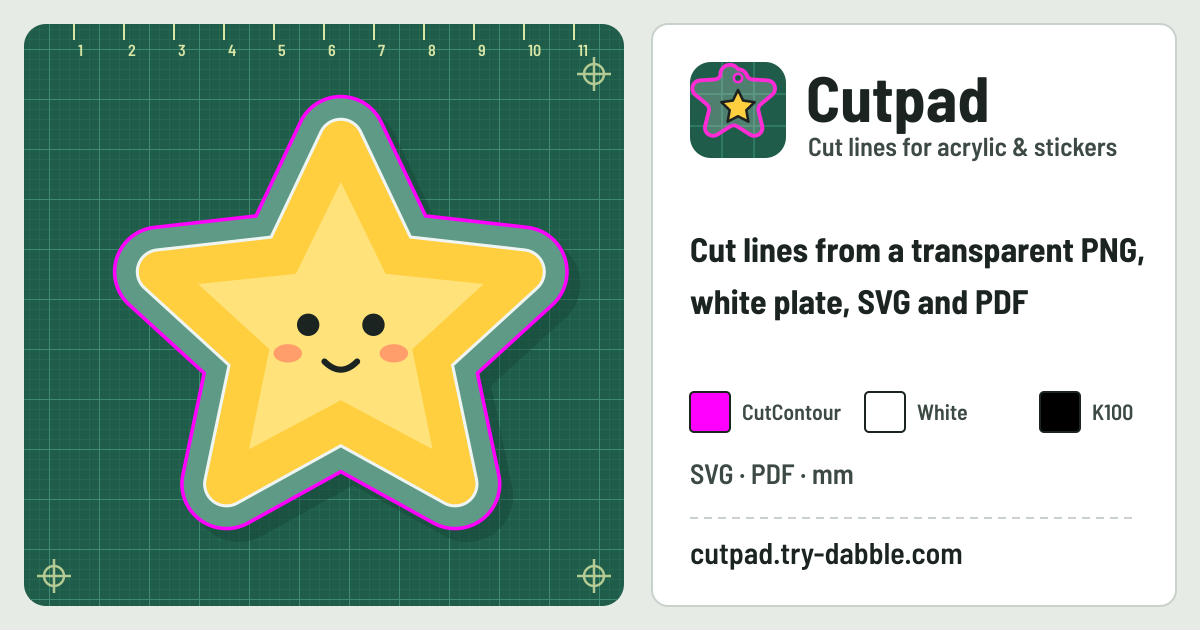
- Layers: CutContour (the cut line, a magenta #FF00FF spot colour, 0.25 pt hairline, no fill), White (the white plate) and Design (the artwork at its print size).
- The SVG uses real millimetres (width and height in mm with a matching viewBox) and groups that Illustrator and Inkscape show as layers.
- The PDF takes its page size from the millimetres, has PDF layers CutContour, White and Design, and holds CutContour as a Separation spot colour with a magenta alternate.
- Files are named after the picture and the size in mm, like cutpad-mascot-50x62mm.svg.
Privacy: your images stay on this device
Images are opened and processed only in this browser on this device and are never uploaded. The picture is held only while the tab is open and is gone when you close it, so export your SVG or PDF first. Only the settings (product, size, margin and the other options, the last sheet size and the language) are kept on this device. There is no account.
The page’s Permissions-Policy keeps the camera, microphone and location switched off; Cutpad never uses them.
How it differs from Croppad
Croppad cuts the separate photos out of a flatbed scan and saves them as raster JPEG or PNG crops. Cutpad traces the outline of an illustration, offsets it in millimetres and exports vector cut paths with a white plate for printed acrylic goods and stickers. It is not Framepad, which helps compose camera shots, nor Photo Spec, which sizes ID photos.
Does it work with a JPG on a white background?
Yes, if the background is one flat colour. Press “Remove background (from the corners)”, or press “Tap the background” and tap it. For a background with a pattern or a photo, cut the art out in a drawing program first and save a PNG with a transparent background.
Are my images uploaded?
No. Images are opened and processed only in this browser on this device, never uploaded, and gone when you close the tab. Only your settings are kept on this device.
Will my print shop accept the file?
Cutpad follows the common convention (a magenta CutContour spot-colour line, a White layer and the design at real size), but every shop has its own template and spec. Always check the file against them before you order; acceptance is not guaranteed.