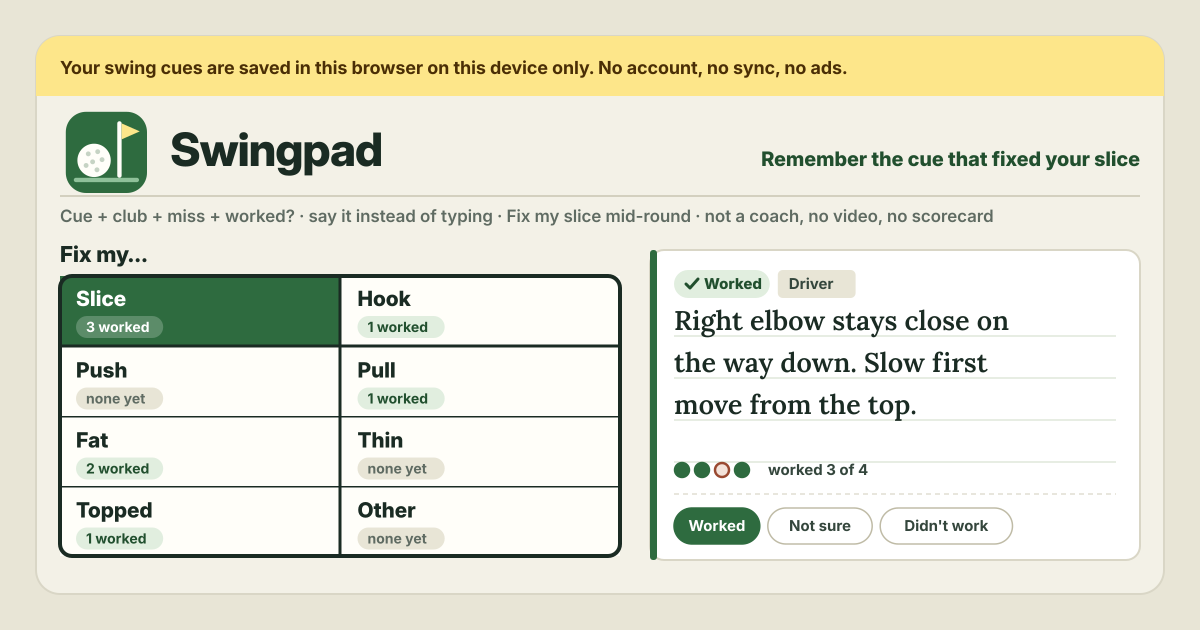
It started with “what fixed my slice last time?”
At the range you find a cue that fixes your slice: keep the right elbow close, or start down slowly from the top. It works for a couple of weeks. Then the slice comes back, and you cannot remember what fixed it last time. Golfers say this again and again.
Some golfers ramble for a minute after a session about what they worked on: which club, which miss they were fixing, and whether it worked. And they wish that mid-round they could tap “fix my slice” and see what worked for them before.
Swingpad is a notebook for exactly that. Each cue carries its club, the miss it was fixing and whether it worked, and one miss button brings up your own cues that worked, first. It opens in a browser and installs like an app, there is no account, and everything is saved in this browser on this device. The interface is in Korean, English, Japanese and German.
What Swingpad does
- Four tags on every cue → club, miss, result, day. Club is Driver, Woods, Hybrids, Irons, Wedges, Putter, Every club, or Other club… with your own name such as “7 iron”. Miss is Slice, Hook, Push, Pull, Fat, Thin, Topped or Other. Result is Worked / Not sure / Didn't work. The day starts as today, and if you like you add where (Range, Lesson, a course); places you wrote before are suggested.
- Say it instead of typing → Say it. The browser's voice typing writes down what you say; when you stop, the club, miss and result are picked from your words and only the tags you have not set yourself are filled in. For typed text, Pick tags from the words does the same.
- One button per miss → the Fix my… panel. Eight big buttons, one per miss, each showing how many cues currently work for it. Tap Fix my slice and your cues for that miss come up.
- What worked comes first → three groups. Worked for you first (the cues that worked most often and most recently on top), then Not sure yet, and Did not work (n) folded away. The club row narrows the list; cues noted for Every club always stay in.
- One more line each time you try it → Tried it again today:. Every cue shows worked n of total, the day found, last tried and a dot for each try, and tapping Worked, Not sure or Didn't work records one more try for today.
- A journal grouped by session → Your cues. Grouped by day and place, with a search box and filters by miss, club and result; every cue can be edited or deleted (it asks first).
- The copy is yours → Keep a copy. Export JSON, Import JSON, Export CSV and Delete everything.
After a range session, step by step
- Tap Add a cue.
- Write the cue: what you felt or did, in your own words, such as “Right elbow stays close on the way down”. Rather not type? Tap Say it, ramble the way you would to a friend (“hit driver, fixing my slice, kept the elbow tucked and it worked”), then tap Stop.
- Check the tags. Tags picked from your words are announced (“Picked from your words: …”), so look over the club, the miss it was fixing and whether it worked, and change any that are wrong. A club not on the list goes under Other club… with its name.
- Set the day (today to start with) and, if you like, where, then tap Save. Cues from the same day and place form one session in Your cues.
Mid-round: Fix my slice
- Open Swingpad. If it has been opened once before, it opens on the course with no internet too.
- In the Fix my… panel, tap the miss you are fighting, for example Fix my slice.
- If it helps, pick the club in your hands from the club row. Cues for Every club stay in.
- Read the top cue under Worked for you and swing with that one thought.
- Then, on the spot or after the round, tap Worked, Not sure or Didn't work under Tried it again today:. All misses takes you back to the other buttons.
Voice typing, and where the sound goes
Say it uses the speech recognition built into your browser, in the language the page is showing. It works in Chrome, Edge and Safari, not in Firefox. If the browser has no voice typing or the microphone is refused, it tells you so, and typing still works; the microphone key on your phone keyboard is another way in.
To be plain about it: some browsers, Chrome for one, send the sound to their maker's speech service to turn it into text. That is the browser doing it. Swingpad itself keeps only the words on this device and uploads neither sound nor text. If that matters to you, type instead.
Picking the tags is not AI. It only looks for words from fixed lists, such as “driver”, “slice”, “worked” or “didn't work” (and Korean, Japanese and German words too); a tag your words do not name stays empty, and a tag you already chose is left alone. That is why you check them before you save.
Tries: keeping a cue honest over weeks
A cue that worked once does not always keep working. So each time you try it again, leave one answer under Tried it again today:. One more try is recorded for today; tapping again on the same day replaces today's answer. A dot is added for every try, and the cue reads something like “worked 4 of 5”.
The latest try decides which group a cue sits in. A cue that worked for months but stopped working drops down to Did not work, and climbs back up when it works again. So the cue on top mid-round is the one that works for you now.
Backup and moving to a new phone
- Everything is saved in this browser on this device and does not sync. Now and then, save a file with Export JSON under Keep a copy.
- Moving to a new phone: Export JSON on the old one, get the file onto the new one, open Swingpad there and Import JSON. Importing replaces the cues on that device with the ones in the file, so it asks first.
- To look at it in a spreadsheet, use Export CSV.
- Delete everything asks first, with an Export JSON first button inside the dialog. Clearing the browser's site data also erases the notebook.
What it deliberately does not do
- It is not a swing coach. It never suggests a cue; it only shows the ones you found.
- It does not analyse video. AI swing-video coach apps do a different job.
- No GPS, scorecard, handicap or shot tracking. That is what apps such as GolfShot, 18Birdies, Arccos and The Grint are for; Swingpad is a practice notebook that sits beside them.
- No social feed, no points and no streaks. No account, no sync, no upload, no ads on the tool and no in-app purchase either.
Is there an account or a paid tier?
No. There is no sign-up, no payment screen, no in-app purchase and no cap on the number of cues. There are no ads on the tool either.
Is my voice or my notebook sent anywhere?
Swingpad uploads nothing: cues and tries are saved in this browser on this device. When you use Say it, though, some browsers (Chrome, for example) send the sound to their maker's speech service to turn it into text. If you would rather not, type instead; Pick tags from the words works on typed text too.
Will it tell me which cue to use?
No. Swingpad only orders the cues you wrote by the results you recorded. For advice on changing your swing, ask a teaching pro, and use Swingpad to note down what you heard in the lesson as a cue.
Does it work offline, and can I install it? Where do I send feedback?
Once it has been opened, it works with no internet; only voice typing may need a connection, depending on the browser. “Install” or “Add to Home Screen” puts it on your phone as an icon. The interface is in Korean, English, Japanese and German. Guide in the footer opens this guide, and feedback is left on this guide page.