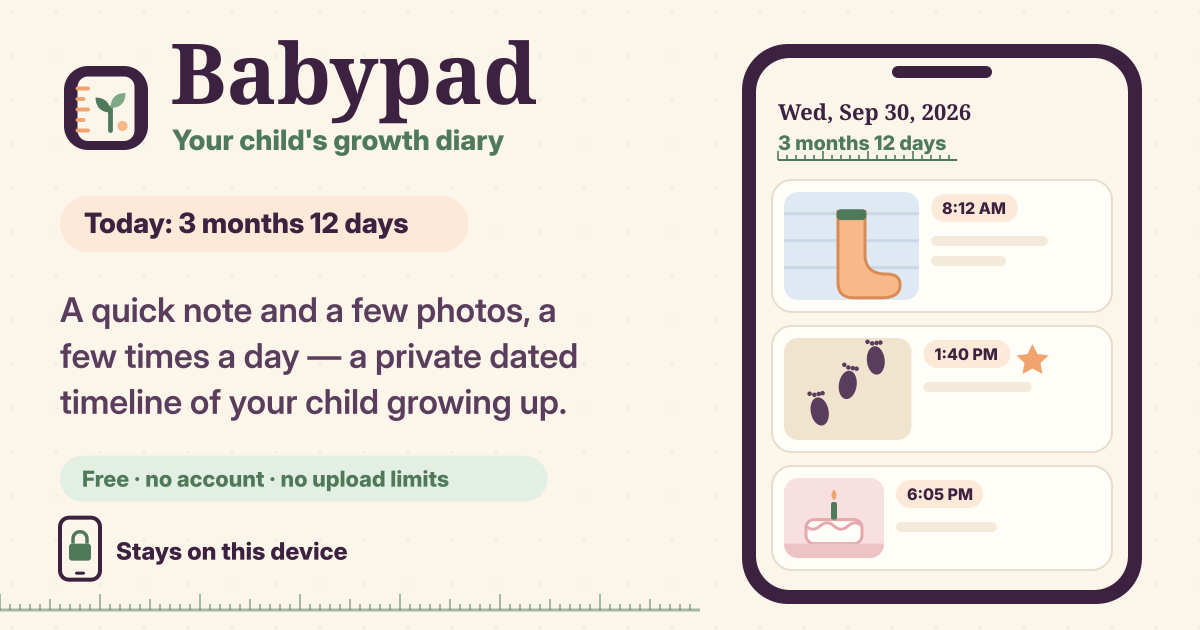
A growth diary you add to in a few seconds, a few times a day
Your child changes every day, but the photos get lost among thousands in the phone’s gallery and what happened that day is soon forgotten. There is rarely time for a long diary, but a line or two and a few photos you can manage.
Babypad is a private growth diary that opens right in the browser. Add a short note and some photos as often as you like, and they pile up on a dated timeline and a month calendar. Nothing to install, no sign-up, and notes and photos stay only in this browser on this device. There are no upload limits (only your device’s space), no print books to buy and no ads in the diary. It speaks Korean, English, Japanese and German.
1. Put in your child’s name and birthday in Settings
- Open Settings and fill in your child’s name and birthday under Your child. From then on, every day header on the timeline shows your child’s age on that day, like “3 months 12 days”.
- Entries from before the birthday (up to 42 weeks before) show how many weeks before birth they were, so notes and scan pictures from the pregnancy fit on the same timeline.
2. New: a line or two and a few photos
- Tap New and write a short note or story. Add photos lets you pick several pictures at once, and on a phone Take a photo opens the camera straight away. When you are done, tap Save.
- You can add as many entries a day as you like. Morning, after a nap, before bed: each one lands under the same day, in order.
- Photos are made smaller on this device (long side up to 2048 pixels, turned the right way up) and never uploaded. A photo the browser can’t open, such as an iPhone HEIC picture outside Safari, is kept as the original file and shown with a placeholder picture.
3. First smile, first steps: milestones and tags
- While writing, pick tags under Milestones & tags: First smile, First laugh, Rolled over, First tooth, Sat up, Crawled, First steps, First word, First food, First haircut, First day at daycare/school, Birthday, Trip, Family. You can make your own tags too.
- Entries with a milestone get a small star. Filter the timeline by Milestones or by any tag to see just those moments together.
4. Look back with Timeline, Calendar and Search
- Timeline shows your entries day by day, with your child’s age on each day header. Tap a photo to see it full screen, then swipe or use the arrow keys to move through them.
- Calendar shows a whole month at a glance; tap a day to see its entries.
- Search looks through notes and tags, and it also finds parts of words in Korean and Japanese.
5. Keep it safe and move it with a backup file (ZIP)
- Export backup in Settings builds a backup file (ZIP) with every note and photo on this device and saves it where you choose. The photos go in as stored here: the resized copies (long side up to 2048 pixels, WebP or JPEG), not the camera originals, except files the browser couldn’t open, which were kept as they came. If you haven’t exported for more than 14 days, a gentle card reminds you.
- On a new phone or another browser, pick that file with Import backup. Importing never deletes what is already there: new entries are added, identical ones are skipped, and an entry changed on both sides is kept twice, the imported one labelled Imported copy. Choose Keep only the newer version of each instead if you want just the newer one.
- On iPhone and iPad, put Babypad on your Home Screen with Add to Home Screen in Safari, because Safari may clear a website’s data after 7 days without a visit. Export regularly, and always export before clearing your browser data or changing phones.
- To wipe everything, use Delete everything in Settings. Export a backup first if you might want it back.
Where are my photos?
Only in this browser on this device. Photos are made smaller there and never uploaded, so we never see them. The same goes for your child’s name and birthday, your notes and your tags: your family’s diary stays on your device.
What if I change phones?
Make a backup file (ZIP) with Export backup in Settings, move that file to the new phone, and tap Import backup in Babypad there. Importing never deletes anything already on the new phone.
Can my partner see it?
Not in this first version: there is no sharing and no shared links, because the diary lives only on this device. To put a copy on your partner’s phone, hand over a file made with Export backup and bring it in there with Import backup.
Is there a limit? Where do I send feedback?
No limits except your device’s space. Settings shows how much is used and how much is free, and a warning card appears when space runs low. Babypad is free, with no sign-up and no ads in the diary. If something is missing, tell us with the Guide & Feedback button at the bottom right.