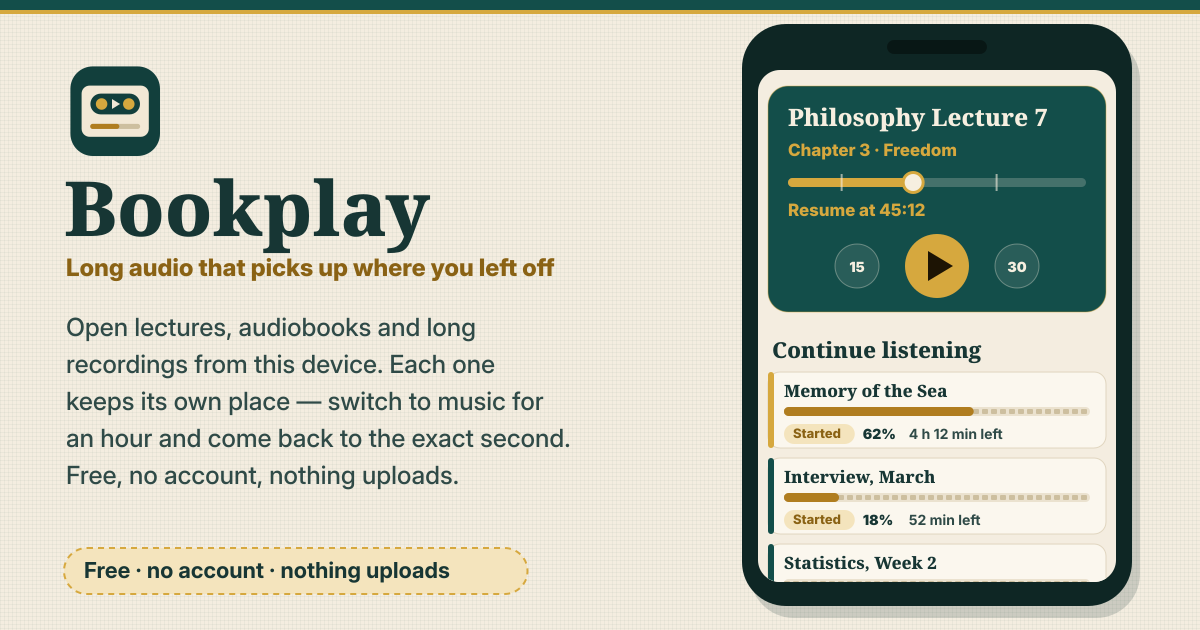
Long audio that picks up where you left off
Open lectures, audiobooks and long recordings from this device. Each one keeps its own place — switch to music for an hour and come back to the exact second. Free, no account, nothing uploads.
There are no ads, no account and no AI. It speaks Korean, English, Japanese and German, and you move between three tabs at the bottom: “Shelf / Player / Settings”.
1. Add audio files
- Tap “Add audio files” or drag files onto the page. It opens mp3, m4a, m4b, aac, ogg, opus, wav and flac files.
- If you pick several files at once, choose “One book” or “Separate items”. A book puts its files in natural order: Part 1, Part 2, Part 10.
- If the order is off, change it by hand in “File order”.
2. Keep a copy, or not
- “Keep a copy in the app” (the default): a copy of the audio is kept inside the app, so the shelf plays it without picking files again. Settings shows how much space it uses.
- “Remove copy” frees the space but keeps your place and bookmarks.
- “Don't copy”: only your place is kept. When you open it, use “Pick the files again” to choose the same file, and it continues where you left off.
- A different file is not matched, and nothing is overwritten.
3. Every item keeps its own place
- Your place is saved automatically every few seconds, and whenever you pause, switch items or leave the page.
- “Continue listening” at the top of the shelf lists what you played last first, with the % done.
- Each item is marked “New / Started / Finished”. To bring a finished one back, tap “Mark as not finished”.
4. Rewind on resume
- “Rewind on resume” can be 0, 3, 5 or 10 seconds; the default is 3. Hearing the last few words again makes it easy to pick up the thread.
- It only applies when you come back after a pause of 2 seconds or more, switch items or reopen the page — not on tiny pauses.
5. Playing: speed, skips and the lock screen
- “Speed” goes from 0.5× to 2.5× and is remembered per item. The pitch stays natural at any speed.
- Skip back or forward by 10, 15 or 30 seconds — also across the files of a book.
- Lock-screen and headset buttons work: play/pause, skip, and previous/next chapter.
- On a computer: Space plays and pauses, ←/→ skip, and [ ] change the speed.
6. Chapters and bookmarks
- “Chapters” are read from m4b and m4a files and from MP3 chapter marks. Only the start of the file is read, so even huge books open fast.
- A book of several files without chapters gets one chapter per file.
- “Add bookmark” marks the current spot, with an optional note. Tap one in “Bookmarks” to go back there.
7. Sleep timer
- Set the “Sleep timer” to 5, 10, 15, 30, 45 or 60 minutes, your own number of minutes, or “End of chapter”.
- At the end the sound fades out gently, and the timer turns itself off.
8. Jump history
- “Jump history” keeps your last 20 jumps. If a stray tap sent you somewhere else, “Undo last jump” brings you back in one tap.
9. Backup
- “Download backup” saves a backup file with your places, bookmarks and settings. No audio is inside.
- “Restore from backup” only merges: nothing is deleted, and restoring the same file twice changes nothing.
10. Everything stays on this device
- Audio, copies, places, bookmarks and settings stay in the browser’s storage on this device. No account, no ads, no upload, and the app makes no network requests for your audio. It does not search for covers either.
- On iPhone/iPad, use Safari’s Share button → Add to Home Screen and open it from there: Safari may clear website data after 7 days without a visit. Download a backup file now and then too.
- To start over, “Delete everything” in Settings removes all of Bookplay’s data from this device.
A music library, or one clip to practise?
Building a music library from your own songs? Try Localplay. Practising listening with one short clip over and over? Try Listenpad.
Not planned for now
If you would like something, tell us with the Guide & Feedback button at the bottom of the screen.
- Cloud sync
- Cover art search
- Accounts
- Streaming from links
Will I lose my place if I listen to something else?
No. Every item saves its own place. Listen to another book or to music for as long as you like; when you come back, that item continues from the second you stopped, starting a little earlier by your “Rewind on resume” setting.
What if I pick the same file again?
It is recognised as the same file and continues from the place it remembered — that is how an item without a copy is played. A different file is not matched, and nothing is overwritten.
Where is the audio kept?
With “Keep a copy in the app”, a copy sits in the browser’s storage on this device. With “Don't copy”, the file stays where it is and the app only remembers your place. Either way nothing is uploaded, and the backup file never contains audio.
How do I move to a new phone?
On the old phone, tap “Download backup”. On the new phone, open Bookplay and pick that file with “Restore from backup”. Your places, bookmarks and settings move over. The audio is not in the backup, so pick the same files again on the new phone and they continue where you left off.
Why doesn't it see my folders?
Browsers on phones can’t keep access to a folder, so you just pick files. There is no root folder to set up and no rescans to wait for.