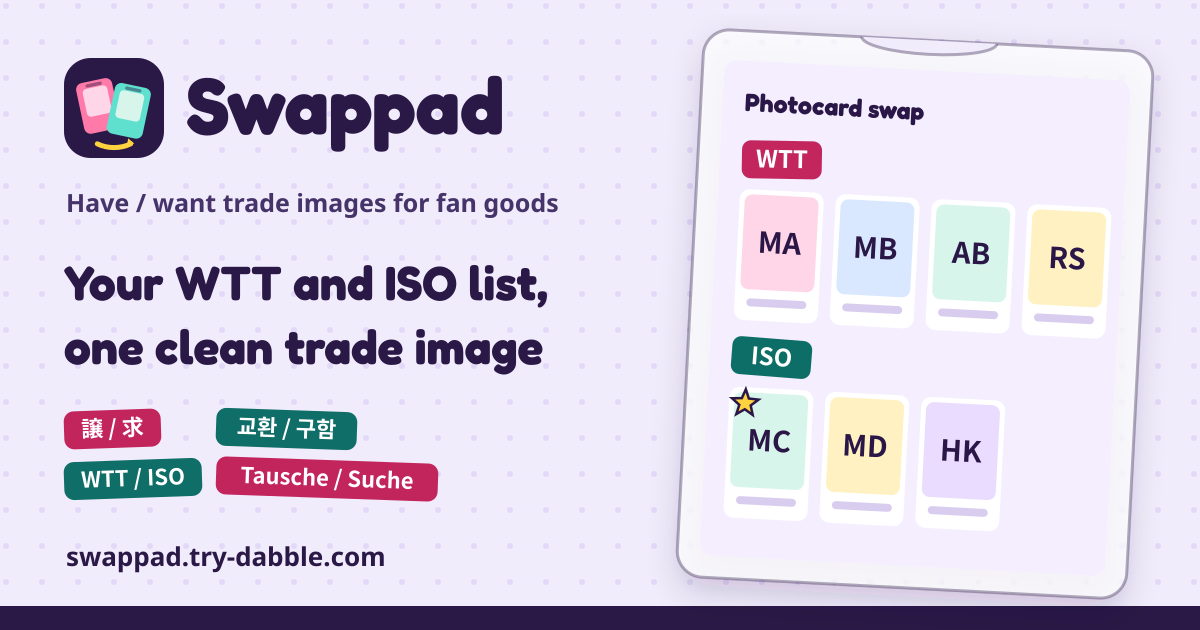
What Swappad is
Swappad makes the picture you post when you look for trade partners for photocards, acrylic stands, badges and other fan goods. It puts what you have and what you want into one clean image, with your conditions and handle, and saves it as a PNG sized for X or Instagram. It also writes the trade text to post with it. On the first visit a sample board with made-up items is ready in your interface language.
Binderpad is for tracking a Pokémon card set like a binder; Swappad makes a have / want trade picture for any goods.
Add what you have and what you want
The “Items” screen has two sections, “Have” and “Want”, up to 30 items each. Type a name and press “Add”, or press “Add photos” and pick several photos from your device: each photo becomes an item, and you can add its name afterwards. Without a photo, a coloured tile with the name’s initials stands in. Tap the small tile at the left of an item to add or change its photo.
Photos are shrunk on this device to 480 px on the long side and kept with the board; they are never uploaded anywhere. A photo the browser can’t open (such as HEIC outside Safari) gets a clear message: pick a JPEG or PNG, or use a screenshot.
Names, counts, stars and order
Edit each name in place, and set the count with − and +; the image shows it as ×2. Turn on the “Priority” star for the ones you want most (a yellow star on the tile), and “On the way” for goods you don’t have in hand yet (a band on the tile). Change the order with “Move up” and “Move down”, or on a computer drag the handle at the left. The two-way arrow moves an item to the other section.
Title, note, handle and conditions
On the “Look” screen, the “Goods or series title” goes at the top of the image and your handle under it (the @ is added for you). Write packing or shipping details in the “Note”; it goes near the bottom of the image.
Under “Conditions”, turn on mail / shipping, in person, same kind only, cross-kind trades OK and sale at or below list price; they appear as chips at the bottom of the image. Under each switch you see the exact word the image will use.
Theme and size
There are five “Theme” choices: Pastel, Soda, Lemon, Night (dark) and Ink (black and white), all with readable contrast. “Size” is Feed 4:5 (1080 × 1350 px), Story 9:16 (1080 × 1920 px) or Square 1:1 (1080 × 1080 px). Tile size follows the number of items, and long names wrap to two lines and then end with an ellipsis. When the items don’t fit one image in the chosen size, Swappad splits them into images marked 1/2, 2/2 and says so.
Save or share the PNG
The preview redraws as you edit. “Save PNG” downloads the file on computers and Android; where the browser supports it, “Share…” opens your device’s share sheet so you can send it straight to X, Instagram or a messenger. “Full view” shows the finished image across the screen.
On iPhone and iPad, “Save PNG” opens the image large: touch and hold it, then choose “Save to Photos”. To put it in the Files app instead, use “Download as a file instead” on that screen. The PNG is drawn fresh on this device, so no location or camera data from your original photos goes into it.
Copy the trade text
The “Text” screen has the same content as text: WTT: … ISO: … Conditions: …, with counts, stars, the “On the way” mark, the note and your handle. With “Add hashtags” on, your own hashtags and the usual ones for those trade words are added. Press “Copy text” and paste it with the image.
Trade words for your audience
“Trade words on the image” is chosen apart from the app language: Japanese 譲/求, Korean trade words, English WTT/WTS/ISO or German Tausche/Suche, so an English interface can make a 譲/求 image for Japanese fans. A “Second set of words (bilingual)” shows two at once, like “譲 / WTT”. You also choose whether your Have list is for trade, sale or both, and with English words the image can carry the legend: WTT = want to trade, WTS = want to sell, ISO = in search of, OTW = on the way (not in hand yet). On the “Text” screen the text can use other words than the image.
Several boards and a backup file
On the “Boards” screen, “New board” starts a board per series and “Duplicate” copies one to start from. Right after deleting a board, “Undo” brings it back. Changes are saved on this device automatically; if the space runs out, the screen says so.
Boards and photos live only on this device, so press “Save backup file” now and then: every board and photo goes into one file (JSON). On another device, “Restore from file…” adds what’s new or replaces everything, and loading the same file twice adds nothing twice. If photos take up too much room, “Remove all photos” or removing a single board’s photos frees space; the names stay.
Privacy: everything stays on this device
Boards, item names, photos, conditions and settings are kept only in this browser on this device and never sent to our server. There is no account and no login. Photos are only shrunk on the device, never uploaded, and the image and trade text are made on the device and go only where you save or share them. There are no ads in the tool.
Can I make a Japanese 譲/求 image with the English interface?
Yes. “Trade words on the image” is independent of the interface language. Add a second set to show two at once, like “譲 / WTT”.
How do I save it to Photos on iPhone?
Press “Save PNG” and the image opens large. Touch and hold it, then choose “Save to Photos”; with several images, do it for each. Where the share sheet is available, “Share…” works too.
Are my photos uploaded?
No. Photos are shrunk and kept in this browser on this device, and the saved PNG carries no location or camera data from the original photos.
What do WTT, WTS, ISO and OTW mean?
They are English trading shorthand: WTT = want to trade, WTS = want to sell, ISO = in search of, OTW = on the way (not in hand yet).