It started with “recommendations for apps” on r/PokemonTCG
The post appeared on the r/PokemonTCG subreddit under the title “Recommendations for apps”. A collector asked which app people use to keep track of what they own — not to price the cards or to play, just to know which cards of a set are in the binder and which are still missing, so the next trade or the next pack has a purpose. It is one of the most common questions in the hobby, and an honest one: the cards are already in sleeves; what is missing is a checklist that keeps up.
Look at what the replies pointed to and a pattern repeats. The apps people named want an account before the first card is ticked, put a subscription or a premium tier in front of the useful parts, are English-only on the screen, sell price tracking and card scanning as the main event, and some put the binder view — the plain grid of what you have — behind a paywall. For someone who only wants to mark off a set, that is a lot of signing up and paying before a single card is checked.
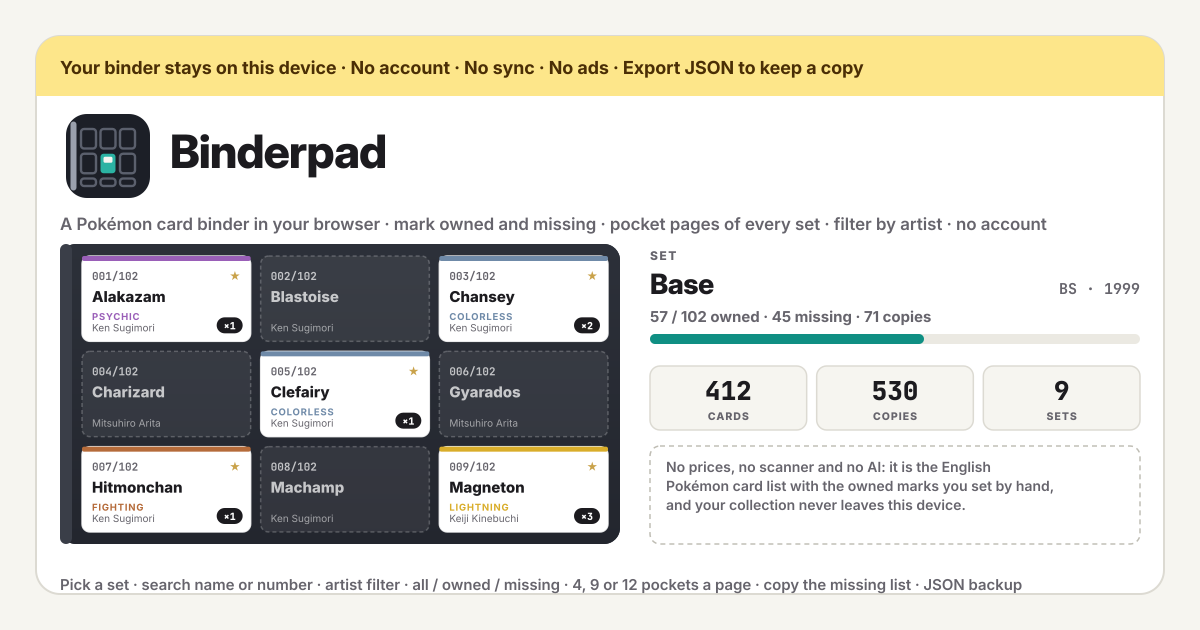
Binderpad is a different answer to that question. The English Pokémon card list is built into the app, so you open a set, see it as binder pages of pockets, and tap the ones you own — in the browser on this device, with no account, no card cap and no server. There are no prices, no scanner and no AI: it is a checklist kept by hand, which is what the question asked for. The UI is in Korean, English, Japanese and German; card, set and artist names stay English because that is the data.
What Binderpad does
The binder is the top of the page. Under “Set” you pick one of the 176 sets — newest first, from the 2026 releases back to Base of 1999 — and it opens as binder pages: “Per page” sets 4, 9 or 12 pockets, exactly like the sleeves in a real binder, and “Previous page” and “Next page” turn them. Every pocket shows the card number as printed (012/102), the name, the rarity glyph, the energy type or Trainer / Energy, and the artist. Tap a pocket and the card is owned; tap it again and it is missing; − and + under an owned card count the copies, so three Charizards are three, not one. The line above the pages reads “12 / 102 owned · 90 missing” and the total copies, and it changes with every tap.
Three controls narrow what the pages show. “Show” switches between “All”, “Owned” and “Missing”, so the missing view is the shopping list and the owned view is the brag. “Search” takes a name or a number — “Pikachu” or “25” — and works inside the chosen set or, with “All sets”, across all 20,635 cards. “Artist” lists every illustrator in scope with a count; pick one inside a set to see just their cards there, or pick one under “All sets” to see everything Mitsuhiro Arita or Ken Sugimori ever drew and tick what you have, which is how artist collectors actually work. “Clear filters” resets the lot, and whenever something is missing in scope, “Copy missing list” puts a plain-text list — one line per set, card numbers and names — on the clipboard for a trade post.
The rest is the shelf, the summary and the backup. “Sets” is a shelf of every set grouped by series — Scarlet & Violet, Sword & Shield, Sun & Moon and so on back to Base — each with a progress bar and “12 / 102”; the newest series are open, older ones fold away, “Started only” hides the sets you have not touched, and tapping a set opens its pages. “Your collection” counts cards, copies and sets, and lists the sets in progress and the artists you have collected most. “Backup” has “Export JSON”, which downloads the whole binder as one file, “Import JSON”, which restores it in another browser after one confirm, and “Empty the binder”, which wipes every mark on this device after the same confirm. “How it works” at the bottom names the list, its date and what the app is not.
Filling your first set, step by step
You do not need to enter the whole collection on day one. One set and a stack of sleeves is enough to see whether the binder earns its place; the rest can come in a set at a time, in the order the real binders sit on the shelf.
- Open https://binderpad.try-dabble.com and pick your language at the top. Card, set and artist names stay English whatever you pick — that is how the data is written and how trade posts are read.
- Under “Set” choose the set you are working on. It opens on page one; set “Per page” to the pocket count of your real binder — 9 for a standard page, 12 for a large one, 4 for a small one — so page 3 on the screen is page 3 in your hands.
- Go through the real pages and tap every pocket you own. A tap is owned, a second tap is missing; there is nothing else to fill in. For duplicates press + under the card once per extra copy.
- Set “Show” to “Missing” and what is left is your want list. “Copy missing list” puts it on the clipboard as “Set name (code) — 4 Charizard, 6 Gyarados”, ready to paste into a trade thread or a message to a shop.
- Try the artist filter: pick “All sets” and then an artist under “Artist”, and every card they ever drew is a binder of its own — tick the ones you have and the rest is the next hunt.
- Look at “Sets” on the shelf and “Your collection” under it whenever you want the big picture: the progress bar of every set, the sets in progress, and the artists you have collected most.
- Before you close the tab press “Export JSON” under “Backup”. The file holds every mark and every count; it is the only copy that exists outside this browser, and “Import JSON” brings it back anywhere.
What it does not do, said plainly
No prices. Binderpad never shows a value, a market price or a trend and never will; it does not know what a card is worth and does not pretend to. No scanner: you tap the pocket yourself, and no camera is ever opened. No AI: nothing recognises, ranks, suggests or predicts anything. No card pictures: a pocket shows the number, the name, the rarity, the type and the artist, and a missing card is an empty sleeve with its number on it — the pictures are in your real binder, and the app has no right to reproduce them. It is a checklist over a list, kept by hand, and that is the whole product.
The list is English only in this first version: the 176 sets, 20,635 cards and 400 artists come from the open pokemon-tcg-data project, which covers the English releases, so Japanese-only sets and Korean or German printings are not in the list yet, and the numbering is the English one. The UI speaks Korean, English, Japanese and German; the card names do not. A newer set appears when the app is updated with a newer list, and an update never removes a mark you set. Pokémon and the card names are trademarks of their owners; Binderpad is an independent checklist and is not affiliated with them.
What stays on the device, and the backup
Everything stays in the browser on this device: every owned mark, every count, the pocket setting and the language. The card list is inside the app itself, so browsing a set or an artist asks no server for anything — the app requests nothing but its own files, and once it has been opened it works offline as an installed PWA. There is no account, no login, no server of ours and no sync; nothing about your collection leaves the device, and nobody can see your binder unless they hold your unlocked phone or the file you exported.
That also means the backup is yours to keep. “Export JSON” under “Backup” writes one small file — marks and counts only, no card data, so a binder of thousands of cards is a few kilobytes — and “Import JSON” in another browser or on a new phone restores it after one confirm, replacing what is there. Clearing the browser’s site data removes the binder, which is why the export exists. A new version never locks anyone out and never wipes what was saved; an older backup file still loads.
Is there a card cap? Is there a premium tier?
No cap and no tiers. Every feature is open to everyone from the first tap, and the binder holds every card of every set — all 20,635, with any number of copies each — because a mark is a few bytes, not a picture. There is no subscription, no premium, no in-app purchase and no ads on the tool; the only cost is the minute it takes to tick a page.
Does it show prices or scan cards?
Neither, on purpose. A price feed needs a server and a data deal, and it turns a checklist into something that nags about value; a scanner needs the camera, a recognition model and card images, and it is wrong often enough that you check by hand anyway. Binderpad is the part that is left when both are gone: the list, your marks and a missing list you can paste. If you want values, any price site takes the missing list as a starting point; the binder itself stays quiet about money.
Why is the card list English only? What about Japanese or Korean cards?
Because that is the list that exists in the open. The 176 sets and 20,635 cards come from the pokemon-tcg-data project, which is maintained in public and covers the English releases with English names, numbers and artists; there is no equivalent open list of the Japanese, Korean or German printings yet. So in this first version a Japanese-only set is not on the shelf, and a Korean or German print of an English set is marked under its English name and number — which is usually the same number. The UI is in four languages; the data is in one, and the guide says so rather than pretending otherwise.
How does the artist filter work across every set?
Leave “Set” on “All sets” and open “Artist”: the list names every illustrator in the data — about 400 — with how many cards each drew, and picking one turns the binder into that artist’s whole body of work, newest set first like the shelf, paged like any set. Tap what you own, set “Show” to “Missing” for the rest, and “Copy missing list” groups the want list by set. Inside a chosen set the same control lists only the artists in that set, with their counts there. “Your collection” keeps a separate tally of the artists you have collected most, which is the number many artist collectors actually care about.
Can I move the binder to a new phone or another browser?
Yes, with the JSON file. “Export JSON” under “Backup” downloads one file holding every owned mark and every count. Get it to the new device any way you like — a cable, a message to yourself, a drive you already use — open Binderpad there, press “Import JSON” and confirm with “Replace”; the binder is restored exactly as it was, over whatever was on that device. There is no sync in the background, so export again whenever you want a fresh copy, and keep the old file: an older backup still loads in a newer app.
Does it work offline? What happens when a new set comes out?
Yes. Open it once with a connection and it installs as a PWA on Android or any browser; after that the whole thing works with no network, because the card list is part of the app and nothing is fetched while you browse or tap. A new set arrives with a new version of the app, which loads quietly the next time the page opens online — your marks are untouched, the shelf simply grows by one set. The list has a build date, shown under “How it works”, so you always know how current it is.
How do I post my missing cards for a trade?
Set “Show” to “Missing” inside the set — or across “All sets” with an artist or a search — and press “Copy missing list”. The clipboard gets plain text, one line per set: the set name and code, then every missing card as number and name, in binder order, such as “Base (BS) — 4 Charizard, 6 Gyarados, 15 Venusaur”. Paste it into the trade thread, a message or a shop’s order form; nothing is posted by the app itself, and nothing about the list is sent anywhere. The toast tells you how many cards went into it.