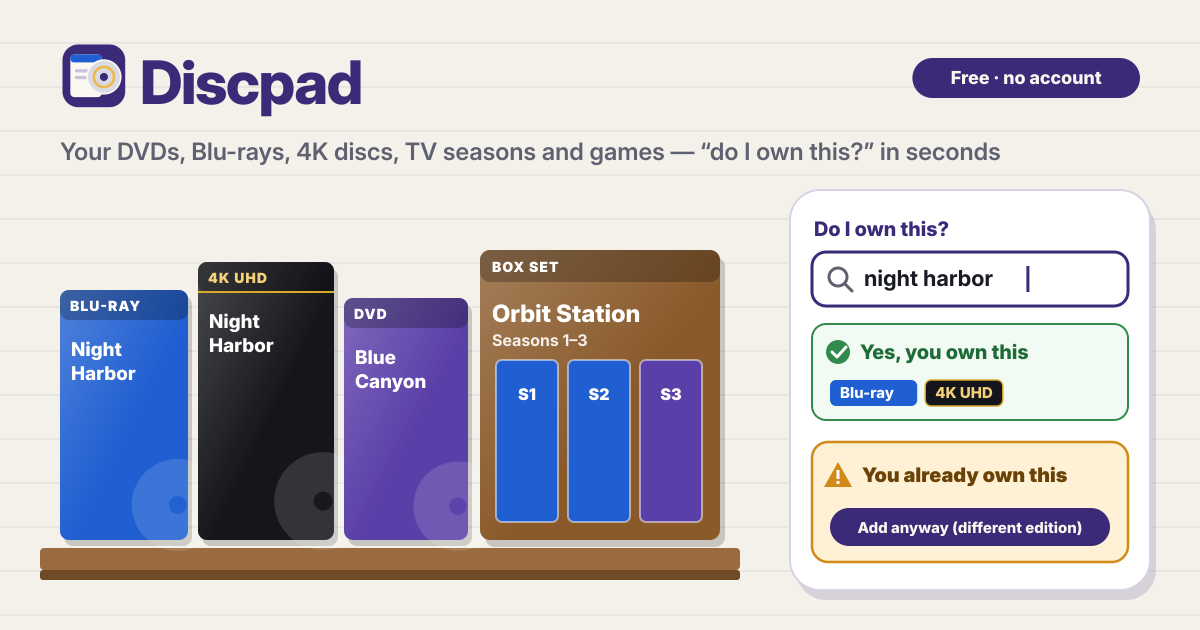
Standing in a shop, wondering if you already own it
Once the collection spreads over several shelves, it gets hard to remember which films you have on Blu-ray or how many seasons of a show you bought. You hesitate at the bargain bin and bring home a second copy, and a list made for movies alone leaves out your TV seasons and games.
Discpad opens in a browser and keeps the discs and games you own in one list, with no sign-up. Add movies, TV seasons, complete series or boxes and games, and in a shop you type a title and have your answer in seconds. The interface is in Korean, English, Japanese and German, and your list is saved in this browser on this device only. There is no account, no sync and no ads.
Check with “Do I own this?”
- The big Do I own this? box at the top of the home screen searches your own list as you type. Capital letters, punctuation, full-width or half-width characters, a leading “The” and small typos don’t get in the way.
- If you own it, you see Yes, you own this with a line such as “You own: Title (Blu-ray, 4K UHD)”, so you know which formats you already have.
- If not, you see Not in your collection, with a button that adds the title you typed and a Put on wishlist button.
- The check runs on this device only, so it works even when the shop has no signal.
Add a disc or game
- Tap Add to open Add a disc or game. Type into Find the title (optional) and it looks up films, TV series and games on Wikidata, then fills in the title, year, type and number of seasons. Only the title you type is sent.
- If you are offline or the search can’t be reached, it says “Title search isn’t available right now — add it by hand”, and the title you typed stays in the form. Adding by hand works fully offline.
- By hand, pick the type (Movie, TV season, Complete series or box, Game), then the title, season, year and formats (DVD, Blu-ray, 4K UHD, Steelbook, Box set). For a game, add the platform.
- Edition, HDR and region, bought on, price with currency, tags and notes are there if you want them. Finally choose I own it or Wishlist.
- Add a cover with Take a photo or Choose a photo. The photo is made smaller on this device before it is saved. Without a photo you get a drawn cover in the colour of the format, and a photo in the iPhone photo format (HEIC) that this browser can’t show is kept while a drawn cover is shown instead.
- New here? Tap Show an example. A small sample shelf appears, and you can undo it right away.
TV series, season by season
- Each TV season is its own item, and the shelf groups them under the show. The card reads “Seasons 1, 2, 4”, and when the total is known it also shows “3 of 5” seasons.
- Open a show to see its seasons, and use a button such as Add Season 4 to add the next one with the show name already filled in.
- While adding, tap one of the Your shows chips to fill in the show name. A complete series or box set goes in as Complete series or box.
Duplicate warning and wishlist
- Try to add something you already own and you first see “You already own: Title (Blu-ray, 4K UHD)”. Tap Add anyway (different edition) if it really is another edition, or Cancel.
- A different season of the same show is not a duplicate, and neither is a remake from a different year.
- The Wishlist tab holds the titles you want. After you buy one, Move to owned takes a single tap, and it runs the same duplicate check.
Your shelf: covers, list and filters
- Switch between Covers for a cover grid and List for rows. Games sit on the same shelf as movies and TV.
- Filter by type (All, Movies, TV, Games), by format chips that show their counts and by tags, and sort by Title, Year or Recently added.
Backup, restore and spreadsheet
- Export backup saves every item and cover as one .discpad file. Bring it back here or on another device with Restore backup.
- Restore checks the whole file first and shows what will happen, what is new and what is already here. It never makes duplicates, so restoring the same file twice adds nothing.
- Files that are not Discpad backups, damaged files and files from a newer version are refused, and nothing in your list changes.
- Export list for a spreadsheet makes a spreadsheet file (CSV) of your list without the covers.
- Delete everything asks first and offers Export first so you can keep a backup.
Where is my list stored?
In this browser on this device only. There is no server your list is uploaded to, no account and no sync between devices. The only thing that leaves the device is a title you type into Find the title yourself. To move to another device, use a backup file.
What happens if I clear my browser data?
Clearing the site data or uninstalling the app deletes your list and cover photos too, and there is no way to bring them back. Use Export backup now and then to keep a copy.
Does it scan barcodes or look up prices?
No. There is no barcode lookup and no price or market-value lookup. Find a disc by its title or type it in, and write down what you paid if you want to.
Where does the title data come from?
Find the title searches open data anyone may use freely (Wikidata) for films, TV series and games. The app carries the line “Title data: Wikidata (open data anyone may use freely)” with a link to https://www.wikidata.org/. Anything it fills in can be changed afterwards.
Is it free? Can I put it on my home screen?
All of it is free. Items, covers, the wishlist and backup are not locked, there is no account, and there are no ads on the tool. Use Add to Home Screen in your browser menu to keep it like an app and open it quickly in a shop. Send feedback with the Guide & Feedback button at the bottom right.