It started with a post on X: no idea any more what I entered or which results are out
Someone wrote on X (Twitter), in Japanese: “もはや何に応募して何の当落出たのかも分からないし、グッズも何買って何予約してどこまで届いてるのかもわかってない。便利なアプリないかな” Roughly: I no longer know what I applied for or which results came out, or which merch I bought, which I preordered and how far it has got. Is there a handy app?
Reviews of “#OSHI 推し活貯金” on the Japanese App Store asked for the same things: “グッズやイベントの販売期間の管理を行いたく…継続するイベントの場合伸ばし棒のような形でハイライト表示…リマインドを複数設定できるようになるとより便利” (manage the sale periods of goods and events, highlight anything that runs for several days as a bar, and allow more than one reminder), and “推しが1人しか選べないのが残念…” (a pity you can only pick one oshi).
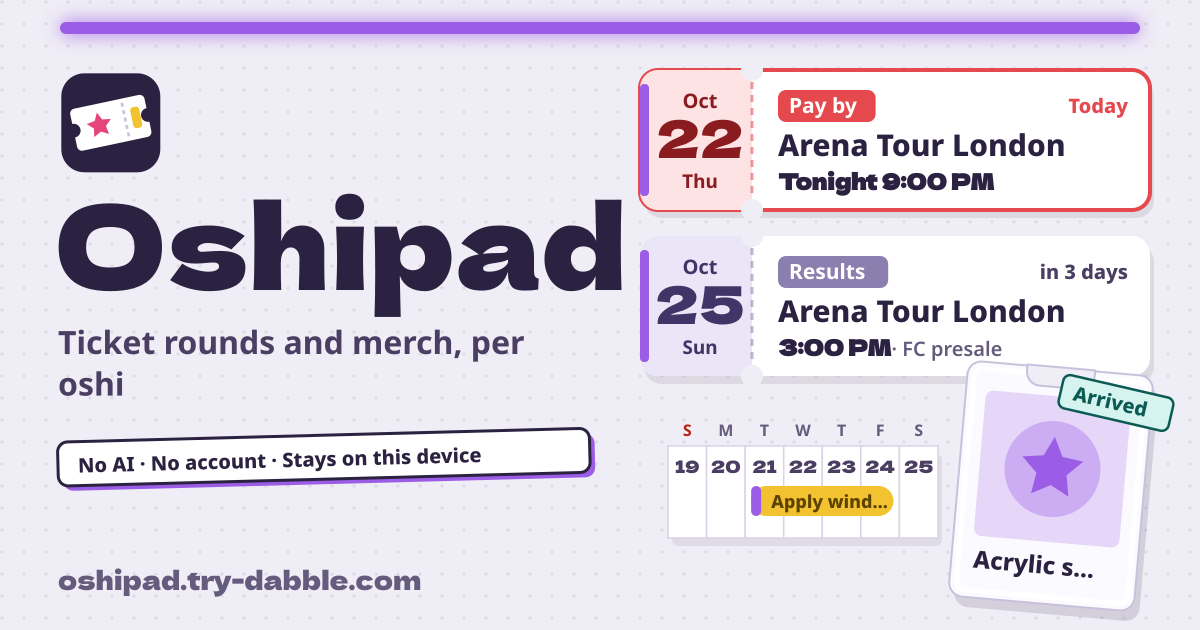
Oshipad answers exactly that. Any number of oshi, all free; several sales rounds per event; apply windows and goods sale periods drawn on the calendar as bars across the days; and a calendar file with several alarms on every deadline. There is no AI: it never reads posts or screenshots to fill things in, and every entry is one you typed. It opens in the browser, has no account and no ads in the tool, and your notebook stays on your device.
What you find elsewhere
Rechecked on 22 October 2026. Most ticket-lottery trackers are Japanese only and come with an account or AI, and we found no web tracker in Korean, English or German.
- refii.app: Japanese only, needs a sign-in, and its AI parsing is capped at 10 a month.
- oshigoto.fun: Japanese only, a cloud account, and export only on the paid plan.
- ataru.app: Japanese only, needs an account, and the free tier is capped at 5 lottery groups and 20 shows.
- FanWindow: English, but it only converts KST deadline times.
- Store apps: 推シツジ (Japanese, ads to unlock more oshi, a paid premium) and #OSHI 推し活貯金 (built around savings; titles and notes are limited to 20 characters, says a review).
What Oshipad does
Right under the name it says: “No AI · No account · Stays on this device”. There are six tabs: “Next” (what is due, nearest deadline first), “Calendar” (a month view), “Tickets” (events, their sales rounds and costs), “Goods” (orders and the want list), “Spending” (totals and a budget) and “Backup” (backup file, CSV, reminders, delete everything). Pick one oshi or “All oshi” in the rail at the top and every tab follows.
The amber band at the top says it plainly too: No AI, and your oshi, events, rounds, goods and photos live only in this browser on this device, so save a backup file regularly.
Oshipad is only a notebook for your own tickets and goods. The tool says so too: “For your own tickets and goods only: there is no resale, trading or transfer here.”
Your oshi and their member colour
Open https://oshipad.try-dabble.com and pick your language at the top. Nothing to install, no sign-up. “Add oshi” takes a name, an optional group or unit and a “Member colour”; while that oshi is picked, the header, cards and buttons take on the colour. Add as many oshi as you like, all free, and pick “All oshi” to see everyone together. Deleting an oshi keeps their events and goods, under “No oshi”.
Events and sales rounds: every date from applying to the show
In “Tickets”, “Add event” takes the event title, venue, oshi and notes, and “Add round” attaches as many sales rounds as you need. A round is an “FC presale”, “Playguide”, “General sale” or “Custom”, and each one has apply opens and closes, results, payment deadline, tickets issued, the show date and, for a multi-day run, a “Last show day”. Times are optional. Fill in “Price per ticket”, “Tickets” and “Fees” for the round total.
For a show abroad, type the deadline exactly as it was announced. Pick the zone it was announced in under “Time zone” for that date, such as Asia/Seoul or Asia/Tokyo, and Oshipad shows it in your local time with the source time as a small second label. It stays correct across daylight saving time changes.
Status and one-tap next steps: once you win, the other rounds go to lost
A round is “Planned”, “Applied”, “Won”, “Lost”, “Paid”, “Issued” or “Attended”, and one tap on its card moves it to the next step. When one round is won, a button such as “Won → mark the other 2 open rounds lost” clears the other open rounds of that event; tapped by mistake, “Undo” in the message puts them back. Deadlines of finished stages, such as the payment deadline of a lost round, drop out of “Next to do”.
Next to do: the nearest deadline on top
“Next to do” on the “Next” tab lists every apply deadline, result, payment deadline, ticket issue, show, goods sale end and expected arrival, nearest first, in “Overdue”, “Due today” and “Coming up”. Switch between “All upcoming” and “Due today” at the top. “Add to calendar” next to a deadline saves just that one as .ics. Empty? Start right there with “Add event” or “Add goods”.
Calendar: apply windows and sale periods as bars
The “Calendar” tab colour-codes the month: apply in yellow, results in lavender, payment in red, ticket issue in teal, shows in indigo, goods sales in magenta and arrivals in orange. Apply windows, goods sale periods and multi-day shows are drawn as range bars across the days, not dots, and a bar carries on into the next week row. Switch between “Calendar” and “List”, and filter by oshi with the rail at the top.
Duplicate an event or a round, and travel costs
For a two-day run, fill in day one, then press “Duplicate event”: every round is copied and every date moves by the number of days you give (1 for the next day’s show); the rounds go back to Planned and costs are not copied. For one more round much like another, use “Duplicate round”. Under “Travel & other costs” on each event, “Add cost” logs the train, the hotel or the locker.
Goods: from ordered to arrived, plus a want list
“Add goods” on the “Goods” tab takes the item, shop, price, quantity, status (“Ordered”, “Preordered”, “Shipped”, “Arrived”), the expected date and an optional sale period, which the calendar draws as a bar. A photo is made smaller on this device, to at most 1024 px, before it is kept. Items with “Want list” switched on are not bought yet, so they are not counted as spending.
Spending: per month, per oshi, per event, and a monthly budget
The “Spending” tab shows this month and all time by category (tickets, fees, goods, travel, other), by oshi and by event. Tickets and fees count once a round is marked paid, in the month it was paid; goods count in the month ordered. Set a “Monthly budget” to see what is left or how far over you are.
Reminders through an .ics calendar file: several alarms per deadline
A browser can’t remind you while it is closed, so the .ics calendar file is Oshipad’s reminder path. Under “Reminders” on the “Backup” tab, pick several alarms for every deadline: “1 week before, 09:00”, “Day before, 21:00”, “Day before, 09:00”, “Same day, 09:00”, “3 hours before”, “1 hour before” and “30 minutes before”. Then save “All upcoming deadlines (.ics)” and add it to your phone’s calendar: every alarm you picked goes off for every deadline.
Apple Calendar and Outlook keep the alarms. Google Calendar may drop alarms from imported files and use its own default reminder instead, so if you use it, check the reminders on the deadlines that matter.
Backup, restore and CSV
Your notebook is only on this device, so save a backup file regularly. On the “Backup” tab, “Save backup (.json)” writes every oshi, event, round, cost, goods item and setting to one file, with the photos too when “Include goods photos” is on. “Restore from a file…” brings it back with “Merge with what is here” or “Replace everything here”. After 25 changes, or 14 days since the last backup, a “Time for a backup” reminder appears.
“Export spreadsheet (.csv)” makes one table with a row per round, goods item and cost that opens in Excel, Numbers and Google Sheets, and “Import from CSV…” reads it back. A CSV import adds new rows and updates rows it recognises; rows already in the notebook are skipped and nothing is deleted, so importing the same file twice does not double anything. To restore everything exactly, use the backup file (.json), not the CSV. Cells that start with =, +, - or @ are defused so a spreadsheet never runs them as formulas. “Delete everything” wipes the notebook from this device after a confirmation.
The Guide & Feedback button in the tool opens this guide in a new tab.
What it does not do
There is no AI: no parsing of posts or screenshots, every round and goods item goes in by a quick manual add. There are no push notifications (reminders come through the .ics file), and no account and no sync, so you move a backup file to use it on another device. There is no resale, trading or transfer; it is only a notebook for your own tickets and goods. A card binder belongs to Binderpad, a seller-side DM order ledger to Orderpad, TV episodes to Showpad, and gift ideas to Gift Stash.
Is there really no AI at all?
Yes. Oshipad sends your notebook nowhere, never reads posts or screenshots and never guesses anything in. Every event, round and goods item is one you entered.
Will it remind me when the page is closed?
Not from the browser itself: a closed browser can’t send reminders. Instead, save “All upcoming deadlines (.ics)” and add it to your phone’s calendar, and the calendar sounds the several alarms you picked under “Reminders”. When you add or change deadlines, save and add the file again.
Does it work offline?
Yes. It works offline after the first visit, and your notebook is saved on this device. Add it to your home screen to open it like an app, even at a venue with no signal.
Is there an account or a paid tier?
No. Every feature is free with no limit on oshi, there is no sign-up, and there are no ads in the tool.
How do I move my notebook to a new phone?
On the old device switch on “Include goods photos”, press “Save backup (.json)”, move that file to the new one and open it with “Restore from a file…” in Oshipad. The backup file is yours to keep; we have no copy.
Can I sell or trade tickets with it?
No. Oshipad is only a notebook for your own tickets and goods; there is no resale, trading or transfer feature. It connects you to no one and posts nothing.