It started with “just a simple, plain 2D shelf”
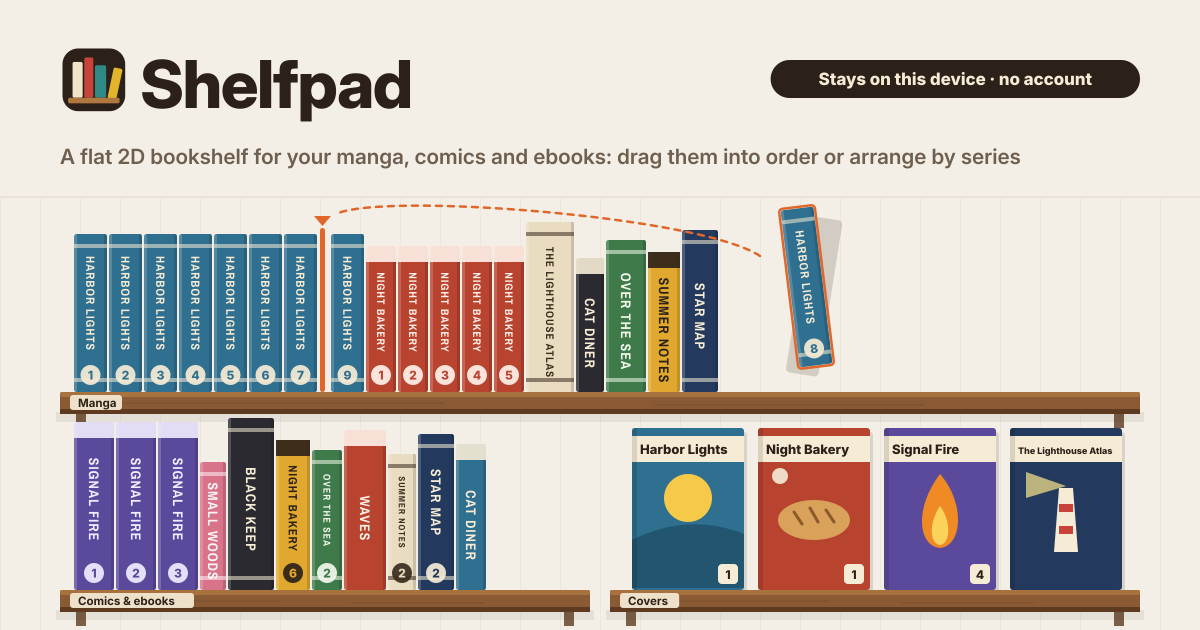
A post on Reddit's r/SomebodyMakeThis asked for this: a way to put digital comics and manga on shelves like a real bookcase, not a 3D room but something simple, plain and 2D. Show spines or covers, just write the name on a spine that has no picture, and sort by series, by order, by how much you like them or by artist.
The poster said the sorting in their library server was “really, really clunky”. Covers piled up in a camera roll or rows in a spreadsheet never show your shelf at a glance. What was missing was not another reader but one wall where the books you own stand neatly and you can move them by hand.
Shelfpad is that wall. You put up shelves, stand books on them by cover picture or by a spine with the name on it, and drag them around or arrange a shelf in one go. It opens in a browser and installs like an app, there is no account, and everything is saved in this browser on this device. The interface is in Korean, English, Japanese and German.
What Shelfpad does
- One wall → shelves. Put up as many shelves as you like, each a Whole row or a Half row; two half shelves sit side by side. Move a shelf Up the wall or Down the wall, rename it or delete it.
- A cover or a named spine → books. A cover picture and a spine picture are both optional. With no spine picture, Shelfpad draws a spine in the spine colour with the name and volume on it. Pictures are shrunk on this device before they are saved.
- A whole run at once → “to volume”. Add volumes 1 to 12 of a series in one go, without pictures; numbers already on your shelves are skipped. New volumes slot in right after the earlier volumes on that shelf.
- By hand → dragging. Drag a book to a new place, onto another shelf too; on a phone, hold it a moment first. If dragging is awkward, the book dialog has Move left and Move right buttons.
- In one go → Arrange this shelf. Sort a shelf once by Series & volume, Hearts, Author / artist, Title or Date added. Not what you wanted? Press Undo right away. After arranging you can still drag books wherever you like.
- How it looks → Spines and Covers. Switch each shelf between Spines and Covers, or use Every shelf to switch the whole wall at once.
- The copy is yours → Export JSON, Import JSON, Book list (CSV) and Delete everything. One JSON file carries every shelf, book and picture.
Once at the start: putting up shelves
- On first open, Show an example shelf lets you see how it looks before you start. Delete the example whenever you like.
- Use New shelf, give it a name (Manga, to read, favourites, say) and choose its width on the wall: Whole row or Half row.
- Change the order of shelves in Shelf settings with Up the wall and Down the wall. Deleting a shelf moves its books to the shelf above or below; if it is the last shelf, its books are deleted with it.
Adding books
- Press Add a book and fill in Title, Series, Volume, Author / artist and Kind (Manga, Comic, Ebook, Book, Other). The title can stay empty when series and volume say it.
- Give it 0–5 hearts under How much you like it and pick a spine colour. Add a cover picture and a spine picture with Choose picture or Take photo; for an ebook, a screenshot of the cover works too.
- Own many volumes of one series? Put the first in Volume and the last in “to volume”. Every volume in between goes in at once without pictures, and any already on your shelves is skipped. Add covers one by one later.
- Use Notes for the edition, where you bought it or who borrowed it. There is an ISBN field too.
Finding things: search, filters and missing volumes
- Search looks through titles, series, artists and notes.
- Filters: Series, Author / artist, Show (Every book, No spine picture, No cover picture) and Hearts (N or more). No spine picture gathers the books still waiting for a photo.
- Pick a series in the filter and it lists the missing volume numbers, such as “Missing from Harbor Lights: 4, 7”. Handy before a trip to the shop.
- Dragging is off while you search or filter. Press Clear to drag again.
ISBN lookup: off unless you turn it on
Out of the box, Shelfpad sends nothing off this device. ISBN lookup under Settings starts off, so an ISBN typed in the book dialog just stays there like a note.
Turn it on and only when you press Look up in the book dialog, the one ISBN you typed goes to Open Library (openlibrary.org), and the answer fills in title, author and cover. Nothing else about your books or shelves is sent.
Backup and moving to a new phone
- Everything is saved in this browser on this device and does not sync. Now and then, save a file with Export JSON; the pictures go into that one file too.
- Moving to a new phone: Export JSON on the old one, get the file onto the new one, open Shelfpad there and Import JSON. Importing replaces what is on the device, so the confirmation has an Export JSON first button.
- To see your books in a spreadsheet, use Book list (CSV).
- Delete everything asks first, with an Export JSON first button inside the dialog. Clearing the browser's site data also erases your shelves.
What it deliberately does not do
- It is not a reader. It never opens comic files, CBZ or EPUB; it is where the books you own stand on a shelf.
- It does not connect to or sync with a library server such as Komga or Calibre.
- No 3D room and no reading social network. It is a flat 2D shelf.
- No account, no cloud sync, no upload and no ads on the tool.
Is there an account or a paid tier?
No. There is no sign-up, no payment screen and no cap on the number of shelves or books. There are no ads on the tool either.
Does Arrange this shelf throw away the order I dragged together?
Arranging reorders that one shelf once, and pressing Undo right away puts the old order back. Afterwards you can still drag books freely, and other shelves are not touched.
Are my shelves or pictures sent anywhere?
No. Shelves, books and cover and spine pictures are saved in this browser on this device, and Shelfpad uploads nothing. The one exception is the single ISBN sent when you have turned ISBN lookup on yourself and press Look up. To move to another device, carry the JSON file over yourself.
Does it work offline, and can I install it? Where do I send feedback?
Once it has been opened, it works with no internet. “Install” or “Add to Home Screen” puts it on your phone as an icon. The interface is in Korean, English, Japanese and German. The Guide & Feedback button at the bottom right of the app opens this guide in a new tab, and feedback is left on this guide page.