A song list lighter than a spreadsheet
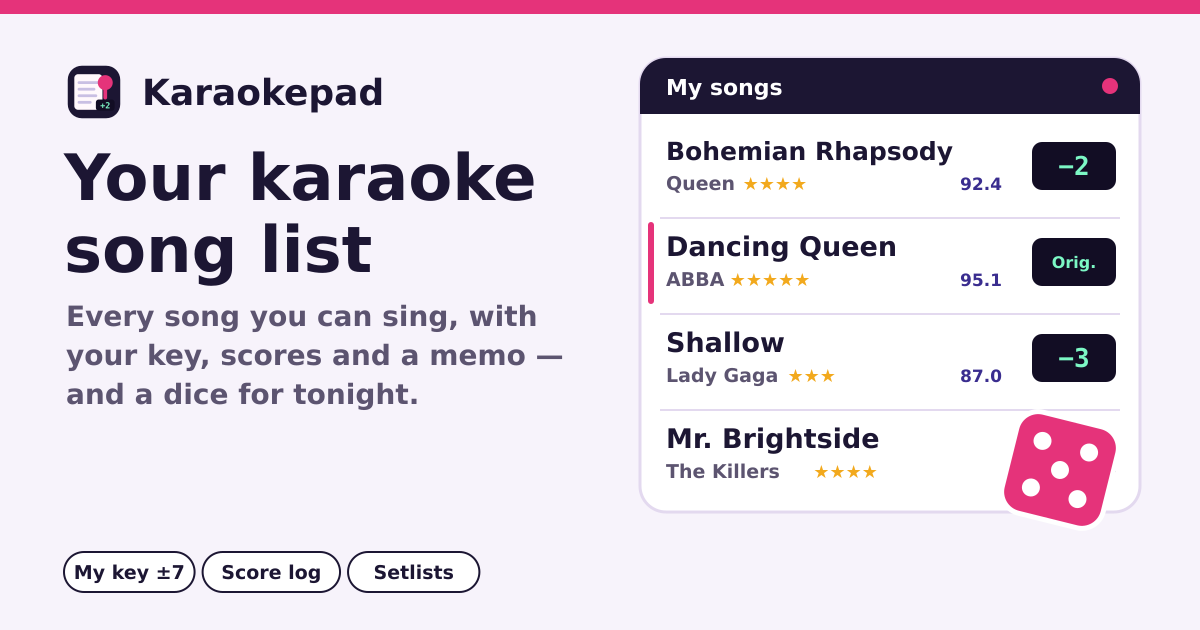
At karaoke the questions are always the same: what can I sing, and which key did I use last time? Karaokepad lets you pile up the songs you can sing by just typing a title, and keeps your key, how confident you are, a memo and your past scores with each one. When nothing comes to mind, roll the dice.
It is free, with no login, no ads and no song cap. It opens in the browser without installing anything, and after the first visit it opens offline too. Your list stays in this browser on this device. It speaks Korean, English, Japanese and German.
1. Add a song: just type the title
- Type two or more characters into Song title under “Add a song”; after a short pause, suggestions appear as big rows. One tap on a row adds the title and artist together.
- Not in the suggestions, or no connection? No problem: type the title and the Artist yourself and press Add. “Title - artist” in the one field is split for you too.
- With “Keep adding (fields clear after each song)” on, the fields clear after each add and the cursor stays, so you can type the next song right away. Turn it off to open each new song’s card instead.
- A song already in your list — even with different case, full or half width, or katakana vs hiragana — is not added twice; you are told it is already there.
2. Per song: my key, original key, tempo, confidence, tags, memo
- Tap a song to open its card. “My key” goes from −7 to +7 with the − and + buttons; 0 is “Original key”. It is always shown on the little display at the right of the list.
- Pick the “Original key” (e.g. Ebm) and it also works out the key you really sing in — “You sing in Fm”. “Tempo (BPM)” is optional.
- “Confidence” is 1–5 stars (tap the same star again to clear it). “Tags” mix ready ones like Pop, Ballad, Duet or Anime with your “Own tag”.
- The “Memo” takes anything: breath points, the high part, who it is good with.
3. Sing log and best score
- Under “Sing log” on the card, fill in the date, machine (DAM, JOYSOUND, TJ, KY or Other), score (0–100, decimals fine), key used and a note, then press “Log this sing”.
- The best score is shown big on the card and in the list. A sing without a score still counts for “Last sung”.
4. Search, sort and group by artist
- The search box looks through title, artist and tags at once and ignores case, full or half width and katakana vs hiragana.
- Sort by Recently added, Title, Artist, Last sung, Best score or Confidence ★. “Group by artist” gathers each artist’s songs under one heading.
- Filters: tags, confidence (★2+ and up) and “Not sung in 30 days” (never-sung songs included).
5. Tonight: setlists, the dice and copy for host
- On the Setlists tab, make lists such as “Tonight”, “With friends” or “Work party”, then add songs, remove them and move them up or down.
- “Pick a song” rolls from the songs your filters show right now; “Pick from this setlist” rolls from that list. The same song never comes up twice in a row.
- “Copy for host” copies one line like “Title - Artist (key +2)”. A setlist goes out with “Share as text” (the share sheet on phones, the clipboard elsewhere) or “Copy all for host”.
6. Bring your list in, CSV and backups
- Paste a list from your notes or a spreadsheet into “Import (paste)”. It reads “title - artist” or “title / artist” per line, or copied cells (title and artist columns), and shows a preview with duplicates before anything is added. If yours says “artist - title”, tick “Swap title and artist”.
- “Export CSV” makes a spreadsheet file, which can be imported again.
- In “Backup / restore”, “Save backup (.json)” saves every song, sing and setlist in one file. “Restore from backup…” only replaces your list after you confirm, and a damaged, foreign or newer file is refused with the reason — nothing is changed.
- After 20 changes, or when unsaved changes are 14 days old, a small backup reminder shows at the top. It never blocks anything: “Later” snoozes it for a week, and saving a backup clears it.
Lyrics: a link, never the text
“Search lyrics” opens a web search for the title and artist plus “lyrics” in a new tab. Karaokepad never fetches, shows or stores lyrics.
Privacy: what goes to Apple for suggestions
Song suggestions come from Apple’s public iTunes Search (itunes.apple.com). While you type in the “Add a song” field, your browser sends Apple only the text you typed and a country matching the app language (Japan, Korea, US or Germany); like any website, Apple also sees your IP address. Your saved songs, keys, scores, memos and setlists are never sent anywhere — they stay in this browser on this device. There is no account.
What it does not do
- No sync between devices and no login; move to another device with a backup file.
- It does not connect to karaoke machines or pull scores automatically; you type your score.
- It does not look up song numbers for karaoke machines.
Will an update wipe my list?
No. The saved list carries a version, and a newer app keeps a copy of the original in this browser before converting an older format. Clearing the browser’s site data does delete the list, though — save a backup when the reminder asks.
Can I keep hundreds of songs? Mine are already in a spreadsheet.
Yes — there is no song cap. Copy the title and artist columns from your spreadsheet, paste them into “Import (paste)” and they go in at once; songs you already have are skipped.