It started with “copy in Lens, paste in notes, next device”
A post on Reddit's r/androidapps described the routine: “Right now I use google lens, highlight the serial number, copy, minimize lens app, open notes app and paste, move on to next device.” With dozens of devices, that is dozens of round trips between two apps.
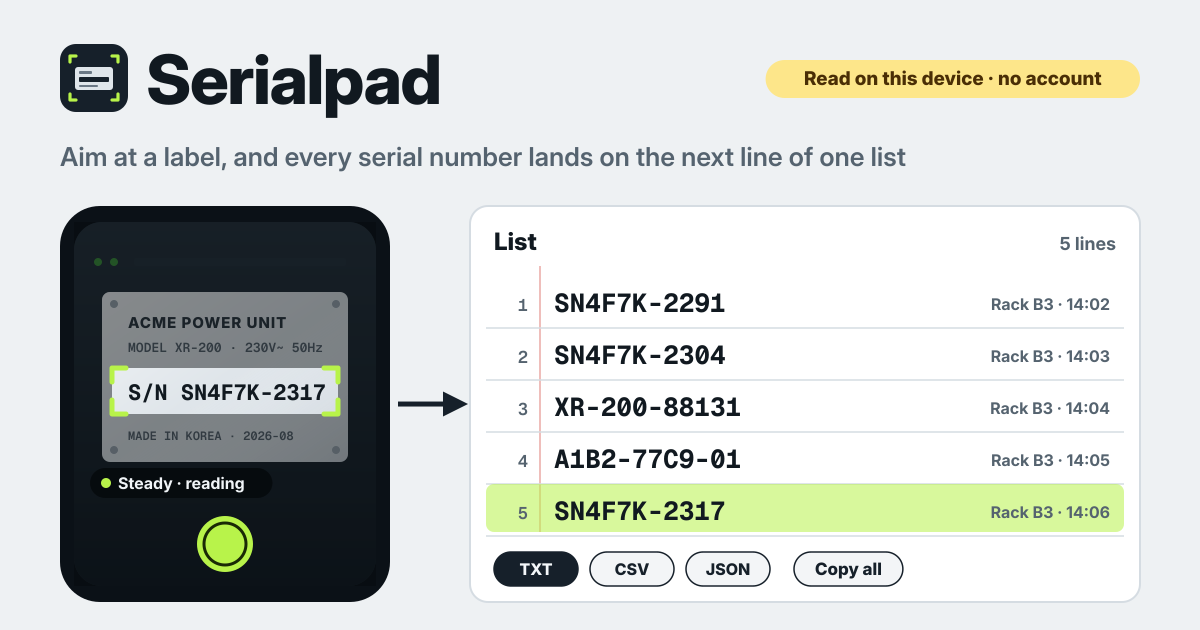
There are sites where you upload a photo to turn it into text, and store-only inventory scanners, but what was needed was simpler: the camera and the list on one screen, where each label you point at lands on the next line and a wrong read is fixed right there.
Serialpad is that screen. It opens in a browser and installs like an app, there is no account, and the text is read on this device. The camera picture is never uploaded, and the list is saved in this browser on this device. The interface is in Korean, English, Japanese and German.
What Serialpad does
- Camera and list → one page. Start camera opens the camera inside this page, and the list sits right below it. No switching apps.
- One tap or hands-off → Capture and Auto capture. Put the label in the aiming frame and tap Capture, or tap the picture. With Auto capture on, it reads by itself when the picture holds still and is sharp.
- Check before it goes in → the review panel. The best guess sits in an editable field, and every other line it saw is one tap away.
- The same label twice → skipped. If text you just added is read again, it is not added and you are told. Case, spaces and dashes do not count.
- Where the device was → Note for the next captures. Write Rack B3 or Room 204 and it is stamped on every line that follows.
- The copy is yours → Copy all, Export TXT, Export CSV, Export JSON and Import JSON.
Once at the start: starting the camera
- Press Start camera and the browser asks whether the page may use the camera. Allow it and the camera opens inside this page. Nothing is recorded or sent anywhere.
- The first read downloads the text reader once, about 7 MB. The files come from serialpad.try-dabble.com itself, and after that it reads with no internet. Do one read before heading into a warehouse or basement with weak signal.
- If the camera is blocked, the page says where to allow it (the site settings behind the icon next to the address) and shows a Try again button. Type it in below keeps working meanwhile.
Reading a label: aiming frame, Capture and Auto capture
- Choose the aiming frame: Line (the default), Box or Whole picture. Line for a single serial, Box for a label with several lines, Whole picture when you want everything in view. Text outside the frame is not read.
- Line the serial up in the frame and tap Capture or tap the picture. In a dark cabinet, turn on the Light if your phone offers it, and if it says the picture is too blurry, move a little closer or further.
- Turn on Auto capture and there is nothing to press. It reads by itself when the picture holds still and is sharp, and skips shaky, blurry or blank frames. After a read it waits until the camera moves on to the next label, so it does not keep reading the same one.
- A confident auto read goes straight onto the list and an Undo shows for a moment. When it is not sure, it opens the review panel and waits for you.
Checking the read and adding it
- The top of the panel shows the grey crop it read, so you can compare at a glance. Below it, the best guess sits in the Text to add field; fix any wrong character there.
- Not the line you wanted? Tap another one under Or pick another line it saw. Label words such as “S/N:” or “Serial No.” are stripped, leaving just the value.
- Add to list puts it on the next line; Discard throws a bad read away. If the text is already on the list, it tells you how many times.
- For a worn label or tiny print, write it in the Type it in field and press Add. Its source is recorded as typed.
The list, notes and skipping duplicates
- Every line gets a number, a time and a source (camera, auto, typed). Edit or delete any line, and take back the one you just added with Undo last.
- Write Rack B3 or Room 204 in Note for the next captures and it is stamped on every following line until you change or clear it. Change it once when you walk into the next room.
- Skip the same text for, under Settings, is Off, 10 s, 30 s (the default), 1 min or 5 min. The same text again inside that window is not added and you are told; if it really belongs twice, press Add anyway. “SN 4F7K-2291” and “sn4f7k2291” count as the same text.
Serial-number hint: off unless you turn it on
- Off (the default): every line it reads is offered. Use it for asset tags, model names, name plates, anything.
- Letters + digits: prefers codes of 5 or more characters with a digit in them (like SN4F7K-2291) and reads only letters, digits and - / . Turn it on when other words on the label keep winning.
- My pattern: your own pattern, such as SN[0-9]{8}, and lines that match it come first. A broken pattern is ignored until it is fixed.
Export and moving to a new phone
- Copy all puts the list on the clipboard, one line per read, ready to paste into a spreadsheet or an email.
- Export TXT writes one read per line; Export CSV adds the note and time in n, text, note, time, source columns; Export JSON keeps everything and can be brought back with Import JSON.
- The list is saved in this browser on this device and does not sync. To move phones, Export JSON on the old one, carry the file over and Import JSON on the new one. Lines already there are not added twice.
- Clear list asks first, with an Export JSON first button inside the dialog. Clearing the browser's site data also erases the list.
What it deliberately does not do
- It is not an upload-a-photo OCR converter. The camera picture is read on this device and never uploaded.
- It is not an asset database or an inventory system. It gathers what it reads into one list for export; your spreadsheet or system takes it from there.
- It does not read barcodes or QR codes, only the printed text on a label.
- No account, no cloud sync, no upload and no ads on the tool.
Is there an account or a paid tier?
No. There is no sign-up, no payment screen and no cap on the number of lines. There are no ads on the tool either.
Is the camera picture or my list sent anywhere?
No. Text is read on this page in your browser, and the camera picture never leaves the device. The only network use is fetching the text reader files, about 7 MB, once from serialpad.try-dabble.com; after that, it works offline. The list is saved in this browser on this device; to move to another device, carry the JSON file over yourself.
How accurate is the reading?
The reader is tuned for Latin letters and digits. Look-alikes such as 0 and O or 1 and I happen, so compare with the grey crop before adding. Good light, the Line frame and, when needed, the Serial-number hint all help. For labels in Korean, Chinese or Japanese script, Type it in works better.
Does it work offline, and can I install it? Where do I send feedback?
Once it has been opened and has read one label, it works with no internet. “Install” or “Add to Home Screen” puts it on your phone as an icon. The interface is in Korean, English, Japanese and German. The Guide & Feedback button at the bottom right of the app opens this guide in a new tab, and feedback is left on this guide page.