It started with “I would like to take a picture, then voice to text a note about the photo”
Someone asked on Reddit’s r/ProductivityApps: “I am going to be walking several buildings looking for things that need to be fixed. I would like to take a picture, then voice to text a note about the photo. Ideally generating a list as I went. A way to export to my computer would be great too.”
Walkpad follows that flow step by step. Tap + Finding and the camera opens; once the photo is taken, the Speak the note button is right there. The note is typed as you speak, and the finding lands on top of the walk’s list. Back at the desk, one ZIP with the photos and a CSV goes to your computer. No install, no account.
What you find elsewhere
Rechecked on 25 October 2026. The one local, no-install punch list we found is English only, the shared tools need an account or a phone login, and we found no web tool in Korean, Japanese or German that pairs photos with spoken notes.
- PunchList Solo (dotcombot.com/punchlist): no install, stays on the device, before and after photos, JSON export; English only, no dictation.
- LastBlueTape (lastbluetape.com): shared punch lists with photos, no install; an email link and storage on their server, in English, Spanish, Portuguese and Haitian Creole.
- SitePunch (sitepunch.app): site punch lists with vendor assignment; a US phone number and a text-message login, English and Spanish.
- Apps such as Punchlee or InspectAI: an install and an account, built around teams or a subscription.
How a walk goes
- Tap + New walk, give it a name (say “Elm St, unit B”), an address or building if you like, and the date, then Start walk. Leave the name empty and it is called after the date, like “Walk on Oct 26”.
- At each thing to fix, tap the big + Finding at the bottom: the camera opens. For photos you already took use Gallery (several at once), and Note only for a finding without a photo.
- Once the photo is in, the finding opens with Speak the note right below it. Talk and the words appear in the note, which you can fix or add to any time. Room or location and the priority (High, Medium, Low) are set here too.
- There is no Save button: every tap and keystroke is saved on this device at once, and “Saved” shows it. Done takes you back to the list.
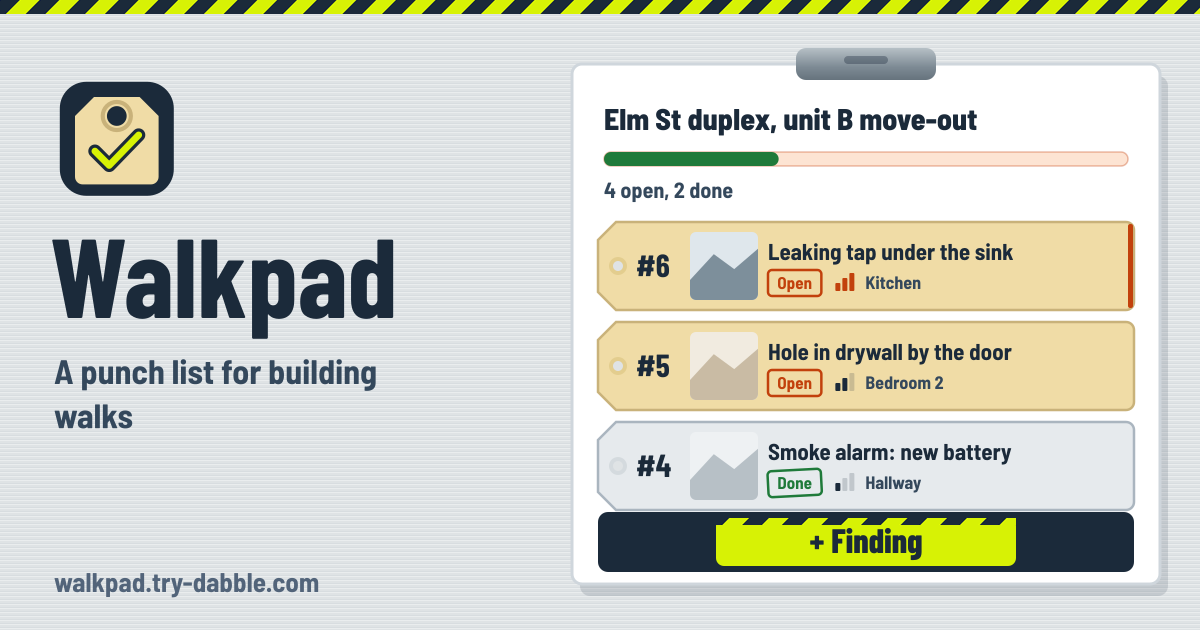
- The list shows the newest finding on top, each with its number, photo, note, room, priority and open or done, and you can filter All, Open, Done and by priority. The bar at the top shows the progress.
Speaking the note, or recording a memo
Dictation uses your browser’s built-in speech recognition, in the language the app is in: English screen, English dictation; ?lang=de, German. While you talk, the words not yet settled show in grey; settled words are added to the note. Stop dictation ends it.
If the browser has no dictation, or it fails, Walkpad says what went wrong and shows Retry mic. You can always type the note meanwhile, or tap Record audio memo instead for a memo of up to 2 minutes. The memo is kept on this device with the finding, plays back in place and goes into the ZIP.
Camera and microphone permission, browser by browser
- Camera: + Finding opens your phone’s own camera screen. If it does not open or no photo comes back, Walkpad says so and lets you carry on with Gallery or Note only. On Android check Settings › Apps › Chrome › Permissions › Camera.
- Chrome (Android, computer): allow the microphone when asked. If you blocked it: the icon next to the address › Site settings › Microphone › Allow. Chrome’s dictation sends the audio to Google for recognition, so it needs a connection.
- Safari on iPhone and iPad: Settings › Apps › Safari › Microphone › Allow, and keep Settings › General › Keyboard › Dictation on. Some Safari versions do not dictate in web pages at all; then use the audio memo or type. The app shows this hint only on iPhone and iPad.
- Firefox and other browsers without dictation: a note replaces Speak the note; the audio memo and typing work as usual.
- The microphone is on only while you dictate or record; stopping, closing the finding or switching to another app turns it off at once.
Done, and the after-repair photo
When the repair is done, open the finding and set the status to Done. Take after photo appears, and the new photo sits beside the first one as Before and After. The printed report shows them the same way, and in the ZIP the file is named like 007-after.jpg. Done findings turn into grey tags in the list.
Getting it to your computer: ZIP, printed report, backup
- Export › Download ZIP (photos + CSV): one file with findings.csv, findings.txt, the photos named by finding number (photos/007-1.jpg, photos/007-after.jpg) and the audio memos (audio/007-memo…). A walk with no findings says there is nothing to export.
- The CSV is UTF-8 with a BOM so Excel shows every script, and it has every field (number, room, priority, status, note, photo file names, times, walk, ID). Column headers and the status and priority words follow the screen language; dates are written as 2026-10-26 14:05 so they sort. A note starting with =, +, - or @ gets a leading apostrophe so a spreadsheet never runs it as a formula.
- Print report / save as PDF: the walk’s name and date, the progress, and for every finding its status, priority, room, note and photos, before and after side by side. Pick “Save as PDF” in the print dialog to keep a file.
- Save backup (.json): every walk with its photos and audio memos in one file. Restore from a backup… then choose Add to what is here (the same findings are updated, so the same file twice adds nothing) or Replace everything here. A damaged file, or the ZIP picked by mistake, is explained and nothing is changed.
Keeping lots of photos from filling the phone
Before a photo is kept it is made smaller on this device: a JPEG with the long side at 1280 px. A phone photo of several MB usually ends up around 150–350 KB, and pictures the phone saved sideways are stood upright. The original file is not kept.
Past 40 photos in one walk a hint appears, past 50 a warning. Nothing is blocked, but that is the moment to export a ZIP and start the next building as a new walk. On this device, on the first screen, shows how much room the photos and memos take. If the phone is full, Walkpad says what was not saved, keeps it in memory while the tab stays open and shows Try saving again. After 15 changes or 7 days it suggests a backup.
How it differs from Scanpad
Scanpad scans barcodes and QR codes one after another into a CSV list. Walkpad reads no codes: it builds a punch list from photos of what needs fixing, spoken notes, open or done and after-repair photos. Counting equipment or stock by its code is a job for Scanpad; walking a building for repairs is Walkpad’s.
What it does not do
It is a tool for one person: no accounts, teams, vendor assignment, sync or share links, and nothing is uploaded to a server. There are no floor-plan pins, no AI report and no barcode reading. It is a record, not a certified inspection or a legal protocol. To share, send the ZIP or the PDF yourself. The Guide & Feedback button in the app leads here; send a missing feature or a problem from this page.
Does it work offline?
After the first visit it opens in basements and buildings with no signal, and photos, notes, audio memos, marking done and exports all work. Chrome’s dictation is the exception: it sends the audio to Google for recognition and needs a connection. With no signal, record an audio memo or type.
Where are my photos kept?
Only in this browser on this device. Walkpad uploads nothing, and it does not put them in your phone’s photo library either. Clearing browser data or closing a private window erases them, so export a ZIP or save a backup when a walk is finished.
Why doesn’t dictation work?
The app tells you why. If the microphone is blocked, allow it in the site settings and tap Retry mic; with no connection, record an audio memo; if nothing was heard, speak again close to the phone. In browsers without dictation and some Safari versions, the audio memo and typing always work.
How do I move my walks to a new phone?
On the old phone tap Save backup (.json), move the file to the new one (email, a cloud drive, a cable), then open Walkpad there and pick Restore from a backup…. Photos and audio memos come along.
Will the CSV open cleanly in Excel?
Yes. The CSV is saved as UTF-8 with a BOM, so a double-click in Excel shows accents, Hangul and kana correctly. The photo file names are in their own columns; the pictures with those names are in the folder you unzip.