When you want scans in a table, not a photo roll
Counting a warehouse shelf, checking event gear or ticking off returned equipment, what you need is a line per code with a few columns: quantity, location, who checked it. Most scanner apps keep only the code, or want an account and a subscription before you can add your own columns.
Scanpad is a barcode and QR scan log that opens right in your phone’s browser. No install, no sign-up and no limit on how many codes you scan. It speaks Korean, English, Japanese and German.
1. Make a list and choose its columns
- The first time you open it, a list with Time, Qty, Location and Note columns is ready. On the Columns tab, rename them in your own words, reorder them with the up and down buttons, and delete what you don’t need. The scanned code and its format are always the first two columns.
- Column types: the time of the scan (automatic), a new unique ID per row (automatic), text, a quantity with − and + buttons, a checkbox, a drop-down (you add, remove and reorder its choices), a fixed value that goes on every row such as the operator, a location you type, and a GPS position only when you ask for it.
- Columns marked Required are asked for after each scan. For text, drop-downs and locations, “Remember the last value” saves typing when you work through the same shelf. To just keep scanning without questions, turn on Quick mode.
2. Scan code after code: beep, green flash, no double reads
- Tap the big Scan button and the back camera opens full screen. It reads barcodes (EAN, UPC, Code 128, Code 39, ITF, Codabar), QR codes and Data Matrix. A read beeps, buzzes briefly and flashes green with the code shown big, and the row is saved that very moment.
- While a label stays in view it isn’t filed again; the same code counts again only after it has been out of view for 2 seconds (adjustable from 1 to 5). A different code is read right away, so you just move the camera from box to box.
- Fixed values such as the operator show as chips above the scanner; tap one to change it on the spot. A switch button appears when the phone has more than one camera, and a light button when the camera has a torch. Tap Done when you’re finished — the camera turns off as soon as you leave the scanner or switch away.
3. Type a code when the camera can’t
For a crumpled label, shiny packaging, or a browser where the camera is blocked, a “Type a code” box is always on the first screen and inside the scanner. A typed code becomes the same kind of row, with the format “typed”. If a retail number’s last check digit doesn’t fit, it warns you but still lets you add it. When the camera is blocked, the screen explains how to allow it.
4. The same code again: a new row, or +1
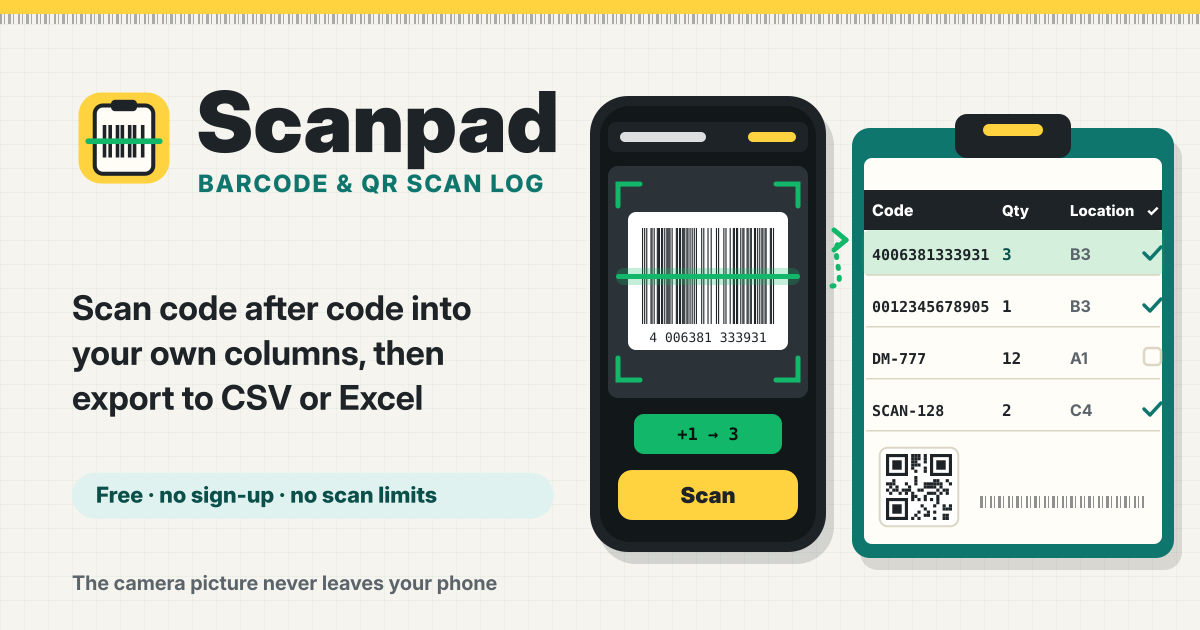
Choose per list. “Add a new row” adds a line for every read (good for a log of what came in or went out); “Add 1 to the quantity of its last row” counts up the most recent row with that code (good for a stock count), and the green flash shows the new number, like “+1 → 3”. If the list has no number column, it offers to add a Qty column in one tap.
5. Edit, delete and find
- Tap a row to edit every column, the code included. If the list has a GPS column, “Add my location” puts your position into that row only.
- A deleted row can be brought back with Undo for a few seconds. Deleting several selected rows or clearing a list asks first. The search box looks through codes and every text column.
6. Export: a spreadsheet file and a backup file
- On the More tab, export the list as a spreadsheet file. Both the Excel file (.xlsx) and the CSV file open in Excel, Numbers or Google Sheets, with the same columns in the same order. The Excel file keeps leading zeros in codes. On a phone the share sheet opens, so you can save it to Files or send it to yourself.
- Download backup puts every list — with its columns and settings — into one file. Open it with Restore from a file to see what it adds, then add it to what’s here or replace everything. A file that isn’t a Scanpad backup, or is damaged, is refused with “nothing was changed”. After 50 new scans, Scanpad gently suggests a backup.
7. Several lists
Keep a list per shelf, site or day, and switch between them at the top of the first screen. On the Lists tab you can rename, delete, or copy a list’s columns into a new list. Every list has its own columns and settings.
Does the camera picture or my location go anywhere?
No. The camera picture is read on your phone and never uploaded or stored — only the decoded text is saved. Location is asked for only when you tap “Add my location” or turn on “Attach my location to each scan” for a GPS column, and it is stored in that row on this device. Opening the page never asks for your location.
Where are my scans saved? Is there an account or a limit?
There is no account and no scan limit. Your lists and scans are saved only in this browser on this device, with no sync. Clearing site data deletes them, so export a spreadsheet or download a backup file now and then — the backup file is also how you move to another phone.
Does it work offline? Can I keep it like an app?
After the first visit, your lists open and scanning works without a connection — fine at the back of a warehouse with no signal. Add to Home Screen in your browser menu keeps it like an app.
Does it track prices? Is it free? Where do I send feedback?
Want price history per product instead? Try Scanpad’s sibling Scanprice (https://scanprice.try-dabble.com/?lang=en). Scanpad is free, with no sign-up and no ads on the tool. If something is missing, tell us with the Guide & Feedback button at the bottom right.