What to record about a store so a return visit or reorder is painless
The name on the sign is not always the name on the invoice. Record the one the other side uses when they answer the phone, and put the trading name in the note if it differs, because that is what you will search for from the van. The store number is whichever code appears on their paperwork and yours; if there are two, write both, since a reorder quoted with the wrong one comes back as a query.
Then write down what you had to ask on the first visit so you never ask again. Who to speak to, and who not to. The day they are closed and the hour they stop taking deliveries. Where to park and which door takes goods — the front door is rarely it. Anything about access: a code, a bell, a back lane, a lift that is out. One line each is enough.
Last, note the state of the account in a few words and date it: “delivered 12 boxes, paid cash, wants same again end of month”. That line turns a return visit from a conversation about what happened last time into a conversation about what happens next. Keep notes short and factual; a list you can read at a red light gets used, and a long one does not.
Three fields per store, sorted by itself
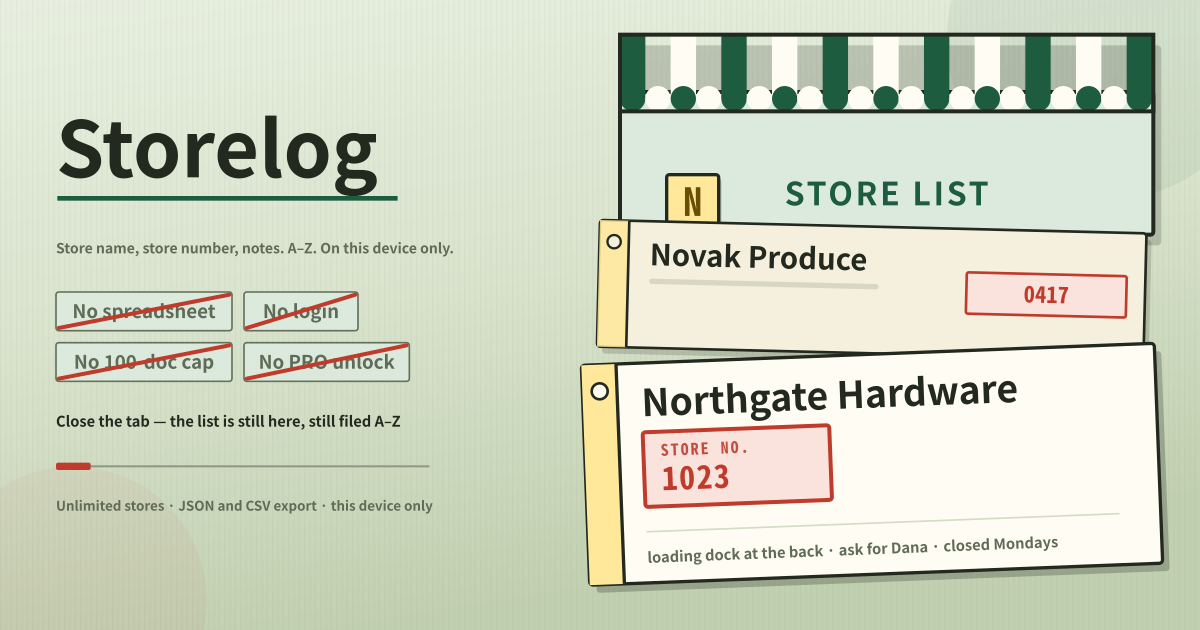
Storelog keeps three things per store: the name, a store number or phone number, and a short note. Only the name is required; the other two can stay empty. It goes into the list the moment you type it, and the list files itself A–Z by name. There is no sort button and no save button.
The list is cut into runs by first letter — Korean names by their lead consonant, Latin names by their letter, anything starting with a digit under “#”. You read down it the way you read the shelf-edge labels along an aisle.
Adding, finding, editing and exporting
- Type the store name. That is the only required field. Tap add and it lands in its A–Z place immediately.
- Add the store number or the phone number. A short internal depot code and a full dialling number both go in as they are; when it is long enough to actually dial, the label grows a call button.
- Put whatever you have to remember in the notes — where the loading bay is, who to ask for, which day they are closed. Line breaks are kept.
- One search box finds anything. It runs across the name, the number and the notes at once, so “closed Mondays” finds it and so do the last digits of a phone number — dashes and spaces are ignored when matching numbers.
- The pencil on a label opens the same three fields in place. Change the name and the store moves to its new spot in the list.
- A store you no longer deal with is removed after a confirmation. Nothing else ever disappears by itself.
- The export panel downloads the whole list as CSV or JSON. The CSV opens straight in Excel or Google Sheets.
Where the list stays, and what it is not
Names, numbers and notes are saved on this device the moment you type them, with no account, no sync, no share link and nothing uploaded; the CSV and JSON exports are built in this page and handed straight to your download. Switching devices or clearing site data clears the list, so export a copy of anything you cannot lose. It is not a spreadsheet — no cells, no formulas, no column widths to drag — and there is no 100-record cap, no subscription and no payment screen.
People who call at several stores a day
It gets used by people who call at several stores in a day — delivering, collecting, servicing, selling — who write down the name and the internal store number so they never have to ask for it twice. It has to be one-handed on a phone in a van, which rules a spreadsheet out from the start.
Past twenty or so accounts you need a list rather than a memory — but not enough to sign up for a business tool and invite a team. This sits in that gap.
How do I sort the list?
You do not. A store takes its A–Z place the moment you add it, and moves if you rename it. There is no sort button because there is only ever one order. Switching the language re-files the list in that language’s own order — 가나다 in Korean, あいうえお in Japanese, pinyin in Chinese.
Does it disappear when I close the tab?
No. It is saved the moment you type it, and it is still there after closing the tab or the browser. That is also why there is no save button. Nothing expires on a timer.
Is there a limit on how many stores I can keep?
No. Some store apps cap the free tier at 100 documents and unlock “unlimited” in a paid version; that step does not exist here, and nothing locks after a trial because there is no trial. The list is three short fields per store, so even several hundred stores take up almost nothing on the device.