For anyone who wants to know where the day goes but cannot keep starting and stopping a timer
Most time trackers ask for the same promise: start the timer when you begin, stop it when you finish, pick the project, and fix it by hand when you forget. Most people give up on day three. Tools like TagTime took another road: instead of a timer, a random “what are you doing right now?” where each answer is one sample, and enough samples add up to the share of your time. The catch was that the tool is English-only, wants a login, and the simpler version — “ask me every 30 minutes, exactly” — did not exist anywhere.
What is missing is something in between: fixed or random, your choice; answer with one tag; say so when your memory is hazy and it still counts; fill in or skip the pings you missed; watch the shape of the day appear once the answers pile up; and keep all of it on this device. Pingpad fills that gap.
What Pingpad does
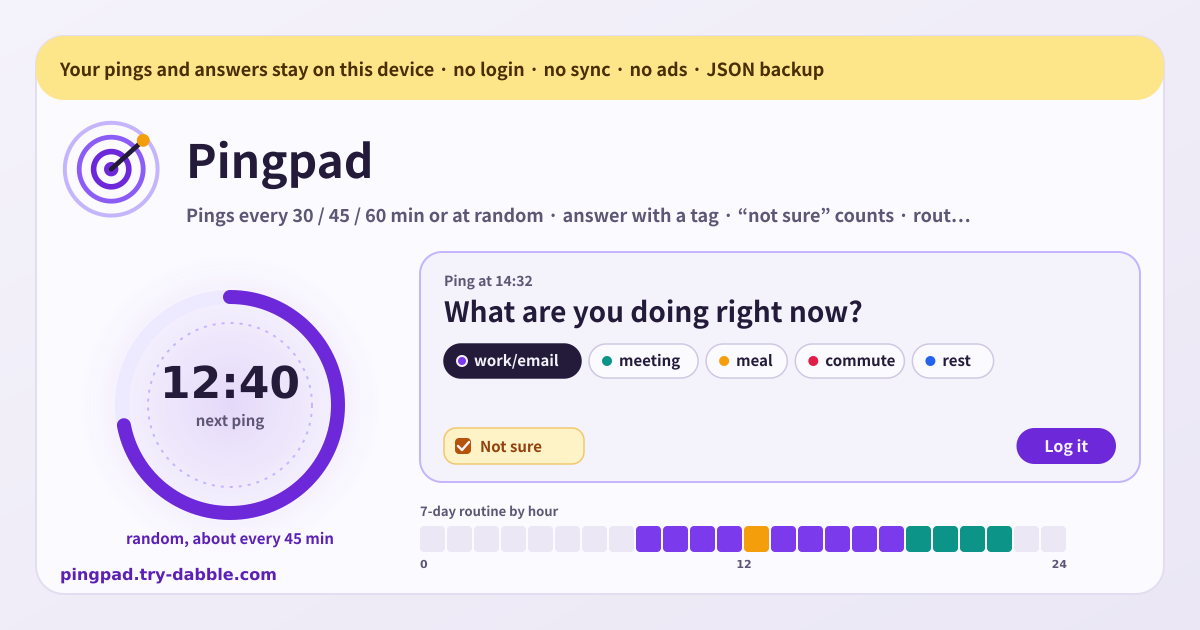
Pingpad is a local time sampler with no login. In Schedule you pick a fixed interval (30, 45 or 60 minutes, counted from the hour so pings land on the clock) or random (Poisson gaps — the average is set, the next moment is not). When a ping lands, the big ring at the top turns into the question. Tap a tag chip or type a new one, add a one-line note if you like, and switch on “Not sure” when you are. Tags nest with a slash: answering work/email also counts as work.
Routine adds the samples up. For today, 7 days, 30 days or all time it shows a bar per tag with its share and a rough time (samples × the mean gap), and a 24-cell strip painted with the dominant tag of each hour. Hours that keep the same tag become routine blocks like “09–12 mostly work”, and a block built mostly on “not sure” is hatched. The log underneath keeps every ping with its time, tags and status, and any answer can be edited or deleted later.
How to use it
- It starts the moment you open it: random by default, about every 45 minutes, quiet from 23:00 to 08:00. Pick fixed 30 / 45 / 60, another average or other quiet hours in Schedule and the next ping follows the new setting.
- When a ping lands, tap a tag chip and “Log it” — two taps is enough. Type a new tag in the field and press Enter or a comma to add it; a slash, as in work/email, groups it.
- Hazy memory? Switch on “Not sure” and log anyway — it counts toward the routine and the haze is counted separately. If you truly cannot answer, tap “Skip”.
- A ping left unanswered for 30 minutes becomes “missed” and gathers in the list at the top. If you remember what you were doing, “Log late”; otherwise skip them one by one or all at once.
- “Ping now” takes a sample of this moment regardless of the schedule. “Pause” stops the pings; “Resume” picks up at the next interval.
- Under Alerts, “Allow notifications” lets a ping reach you while the app sits behind another tab. Sound and vibration can be switched off separately.
- In Data, “Export JSON” makes the backup and “Import JSON” brings it back on a new browser or after a reinstall. “Export CSV” is for a spreadsheet.
Honest limit: pings arrive while the app is open
Pingpad has no server, so the schedule runs only while the app is open in a tab or installed and running from the Home Screen. Close the tab or leave the screen off for long and the pings from that time show up as “missed” when you return, ready to be logged late. After a very long absence (more than 12 pings) only the newest 12 are created; the rest are not counted.
Notifications are best-effort. On Android Chrome and desktop browsers they arrive while the app sits in the background. On iPhone and iPad, web notifications work only when the app is installed to the Home Screen, and only as far as iOS allows. Pingpad is not an alarm and cannot be relied on to wake a locked screen — no web app can honestly promise that.
Fixed interval or random — which should I pick?
Random (Poisson) is statistically honest: because you never know when the next ping comes, there is no “only work right before the ping” bias, and every moment of the day is equally likely to be sampled. Fixed is predictable and comfortable: knowing the next ping lands at :30 makes it easy to answer, and the 30 / 45 / 60 rhythm is a small check-in in itself. Both feed the same Routine screen. When in doubt, start with random at 45 minutes.
How does “not sure” count?
As a full sample. With a tag attached it goes straight into that tag’s share, and into the hour strip and the routine blocks. The haze is counted on its own: a “n not sure” count per range, hatching on a bar that is more than half hazy, and a “(mostly not sure)” mark on a routine block that is. Throwing hazy answers away would skew what is left toward the moments you happened to be certain about, so they are kept and marked instead.
Does it work on Android and the web?
Yes. It opens in Chrome or Samsung Internet on Android, in any desktop browser, and in Safari on iOS. “Add to Home screen” installs it like an app, and while the installed app is open the pings keep coming. On Android Chrome, once notifications are allowed, they reach you even with the app in the background. For iPhone, read the honest limit above.
Is there no sync or account?
None, by design. There is no screen asking you to create an account and no nudge to “turn on sync”. Open the page and the ring starts. Moving between devices takes one JSON backup, and that file is in your hands, not on a server.
Will an update lock me out or wipe my data?
No. There is no “update required” screen. A new version simply takes over the next time you open the page, and the pings and answers the previous version saved are read as they are. Unknown fields are ignored, never deleted, and one odd entry never blocks the rest.
How does the backup work?
Tap “Export JSON” and every ping and answer, the schedule and the tag colours come down as one file. “Import JSON” first shows how many pings the file holds, then lets you choose “Merge” (matching pings replaced, the rest kept) or “Replace” (the current log swapped for the backup). After an import the schedule restarts on this device. “Export CSV” is a table with time, answered time, status, tags, not-sure, late and note columns, ready for a spreadsheet.
Is it free? Any ads, account or purchase?
Everything is free. The fixed intervals, random mode, quiet hours, the Routine screen and the JSON / CSV export never sit behind a payment. No ads on the tool UI, no account, no login, no sync, no in-app purchase. If you have thoughts, use “Send feedback” on this page.