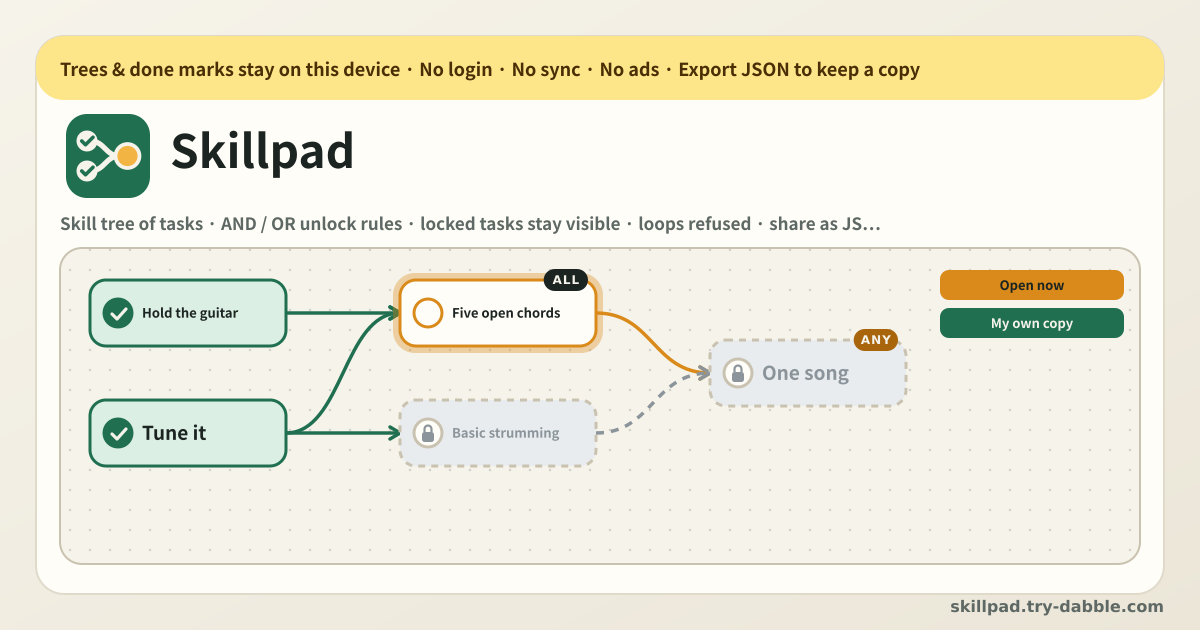
It started with someone asking for a skill tree builder for tasks
The starting point was a thread on Reddit’s r/ProductivityApps. The ask was specific: draw tasks as a visible graph, with AND-style unlocking (“finish A, B and C and D opens”) and OR-style unlocking (“A or B is enough”), and then hand the finished tree to someone else as a copy. In other words a skill tree builder — not for a game, but for your own tasks and for a curriculum you want to give away.
Look for “Skilltree”-style self-improvement or RPG apps in the stores and the story repeats. The skills come from a catalog the app decided on, you need a login to use it at all, and there are in-app purchases. The reviews keep saying the same things: progress vanished after a login change, unlocks that never fired even when the conditions were met, no way to hide or delete tasks you do not care about. The one web tool that does free-form trees, Path of Mastery, is English-only.
Skillpad is that request, built as asked. You draw the tree, the copy belongs to whoever receives it, and the interface speaks Korean, English, Japanese and German. There is nothing to sign into.
What Skillpad does
The middle of the screen is a canvas. Add a node and a box appears; drag it with a finger or the mouse and it stays exactly where you put it. Drag the background to pan, pinch or use the buttons to zoom. When the layout gets messy, “Auto arrange” lays the tree out again in layers by dependency depth — the starting nodes on one row, whatever waits on them on the next.
The lines between nodes are the prerequisites. Select a node, tap “Connect”, then tap the node that should only open once the first one is finished: an arrow is drawn from prerequisite to task. Edges can be removed from the inspector panel or by tapping the edge itself. A node with no prerequisites at all is open from the start.
Each node shows one of three states: done (filled), open (available right now, highlighted) or locked (grey, dimmed, with a lock icon). A locked node never disappears from the canvas. Instead it carries a line telling you which prerequisites it is waiting on, and its checkbox is disabled. The “Next up” panel lists what is open at this moment, what each locked node is waiting for, and the done / total count.
How to use it
- The first run creates a sample tree so there is something to poke at. Tap around, delete a connection, and when you have the idea, throw it away and make your own. Nothing to sign up for.
- Use “Add node” to drop tasks one at a time. Titles take up to 120 characters, notes up to 2000. Notes are the place for a link, how you plan to practise, a page number — whatever future-you will need.
- Then set the order. Select the node that has to come first, tap “Connect”, then tap the node that should come after it: the arrow runs prerequisite → task. Wrong link? Remove that edge from the inspector, or tap the edge itself.
- For a node with more than one prerequisite, pick the unlock rule. AND means every prerequisite has to be done; OR means one of them is enough. AND is the default. You can switch the rule at any time and the states recompute immediately.
- If the scatter bothers you, hit “Auto arrange”: nodes are re-placed in layers by dependency depth. You can keep dragging afterwards — anything you move stays where you moved it.
- To make progress, tick an open node. The moment it turns done, whatever was waiting on it opens according to its rule. A locked node’s checkbox does not respond — that is deliberate, so nothing gets skipped. Untick it and the tasks behind it lock again.
- The “Next up” panel saves you from hunting across the canvas: it lists what is open right now, writes next to each locked task what it is waiting on, and shows the done / total count at the top.
- You can keep several trees. In the library you create, rename, duplicate, delete (with a confirmation) and switch between them. Guitar practice, onboarding for a new hire and a renovation plan can sit side by side in the same browser without mixing.
- Pick the language with ?lang=ko, ?lang=en, ?lang=ja or ?lang=de on the address. Add it to the home screen and it installs as a PWA that opens offline.
AND, OR, and tasks that stay visible while locked
AND means “all of them”. If the F-chord node has C, G and Am as prerequisites and the rule is AND, F opens only once all three are ticked. That fits a curriculum with a real order, safety training, or assembly work where every earlier step matters.
OR means “any one of them”. Use it when several routes reach the same place. If learning it in Python or in JavaScript both qualify you for the next step, connect both as prerequisites and set the rule to OR; the moment either one is done, the next task opens.
Keeping locked tasks on screen is deliberate. Seeing the whole tree is what lets you judge when something will come up, and a one-line reason under a locked node means you never have to wonder why an unlock did not fire. The “I met the conditions and it still will not open” complaint in store reviews usually comes from conditions you cannot see. Skillpad always writes them down.
Cycles cannot be made. If A is a prerequisite of B and you try to make B a prerequisite of A — even through a chain of other nodes — the connection is refused and you are told why. Nothing breaks silently. If a JSON file you import contains a loop, the offending edges are dropped and a notice tells you it happened.
Author and learner: handing your tree to someone else
Every tree carries a role. In Author mode you build: add, connect, edit, delete, arrange. In learner mode you work through it: tick what is open and watch what opens next.
To hand it over, use “Export tree (JSON)”. The file contains nodes, connections, rules, positions and notes, with every done mark cleared — the curriculum and nothing else. Whoever opens Skillpad and uses “Import JSON” gets their own copy of that tree and works through it.
That copy really is a copy. If the author edits the original later, the other person’s copy does not change, and the author cannot see how far they got — nothing is sent anywhere. The recipient can also flip their copy into Author mode and edit it. It is theirs.
When you only want to move progress, there is “Export progress (JSON)”. That file holds just the done marks of one tree. Open the same tree in another browser and “Import JSON” with the progress file applies those marks to the tree with the matching id — that is how you carry a laptop’s progress to a phone.
What stays in this browser
Trees, nodes, connections, notes, done marks and canvas positions all live in this browser on this device. Nothing goes to a server. There is no account, no login, no sync. An amber local-only banner at the top says so on every screen.
Which is why the backup matters. Clear the browser’s data, switch devices, or close a private window and the trees go with it. One “Export tree (JSON)” file is a complete copy of that tree — mail it to yourself, park it in a cloud folder, zip it away. Restore it on a new browser with “Import JSON”.
The limits are generous but real: 500 nodes per tree, 120-character titles, 2000-character notes, 100 trees. For a personal curriculum or an onboarding checklist you are unlikely to meet any of them.
Honest limits
- There is no sync. Tick things on two devices at once and they will not merge themselves; exporting and importing a progress file is the only way across.
- There is no collaboration. Two people cannot edit one tree together; you hand over a copy, and whoever changed it exports again.
- There are no notifications. Nothing tells you something has unlocked; you open the app and the “Next up” panel has it.
- It does not log hours or percentages. A node is done or it is not. If you want to accumulate time or percent on one long task, Progresspad is the tool for that.
- No streaks, no stats, no levels, no points. A missed day resets nothing — and rewards you with nothing either. What you get is the tree and what you can do next.
- Nodes take no images or attachments. Title and notes — and any link you paste into the notes — are all there is.
What is the difference between AND and OR?
It decides when a node with several prerequisites opens. With AND, every prerequisite has to be done. With OR, one of them is enough. AND is the default and the rule is set per node. With a single prerequisite the two behave identically, and a node with no prerequisites at all is open from the start. Change the rule and the tree’s states recompute immediately.
Can I hand my tree to someone else?
Yes. “Export tree (JSON)” writes a file with every done mark cleared. Send it however you like — chat, email, a shared folder — and when the other person uses “Import JSON” in Skillpad they get their own copy of that tree. That copy is theirs: editing your original afterwards does not reach them, and you cannot see how far they got, because nothing is transmitted anywhere. They can also switch their copy into Author mode and change it themselves.
What happens if I make a loop?
The connection is refused with a message. If you try to connect a node to something that already depends on it, directly or through other nodes, Skillpad stops you. Nothing is silently broken — the existing tree is untouched and only the attempted edge fails to appear. If an imported JSON file contains a loop, the offending edges are dropped and a notice tells you that happened. You never end up with nodes waiting on each other forever.
Will an update lock me out or wipe my trees?
No. There is no “update required” wall and no server checking your version. New code simply takes effect the next time you open it, and your trees are still there. Because the data lives only in this browser, the real risk is not an update but clearing browser data or changing devices — so take an occasional “Export tree (JSON)” file. Nothing here hides or locks tasks behind a catalog or a plan either.
How is this different from Progresspad?
Progresspad tracks how far one long task has come: an hours or percent target for a thesis or exam prep, with sessions logged by date and minutes. Skillpad draws the order between many tasks: each node is done or not, no time is counted, and the point is which task has to come before which. Accumulating 60 hours of study is Progresspad; mapping which topics to take in which order is Skillpad. Both run entirely in this browser and neither needs the other.
Is it free? What about ads, accounts and purchases?
It is free. No account, no login, no subscription, no in-app purchase, and no ads on the tool UI. There is nowhere to pay for more nodes or more trees (the limits — 500 nodes per tree, 100 trees — are the same for everyone), and no catalog of ready-made skills being sold. Open the address and it works; add it to the home screen and it opens offline. Your trees live only in this browser on this device, and you can take them out whole as JSON whenever you like.