Why Forest kills the tree, why Engross wants a payment, why a Gantt chart speaks only English
You are writing a thesis, studying for an exam, or moving a side project forward, and there is one problem: the work takes days or weeks, some sessions are hours long and some are ten-minute gaps, and you want to see how far you have come. The tools around you cannot tell you. The word count in Google Docs does not say "I have spent 12 of the 40 hours". The calendar shows appointments, not totals. The Notion kanban says "chapter 1 done" but not how many hours that took out of the 40 you planned.
So people open a Pomodoro app or Forest. That is where the trouble starts. Forest threatens to kill the tree if the timer is not running. Answer the phone for a minute or walk to the kitchen and the sapling starts to wilt, and the anxiety that creates does not help you focus — it makes focusing worse. Engross is clean but its main features sit behind a subscription; creating a second project or logging a longer session means paying. Paying a monthly fee to track your own study hours is a strange bargain.
What about a Gantt chart or a project management tool? Those are built for teams, they rarely support Korean, Japanese or Chinese well, and they take thirty minutes to set up. Nobody is going to put a 40-hour thesis goal into Trello. The ask is simpler: create a task, set a target in hours or percent, write down the minutes you focused today, and the progress bar fills. No need to keep a timer running, no penalty for a missed day, no account required.
What Progresspad does
Progresspad is that small record. It is not an editor or a timer. When you create a task you choose a title and a target type. An hours target is complete when the sum of logged minutes reaches the target hours. A percent target converts the logged minutes to percent using a "minutes = 1%" rate you can set (default 30 min = 1%). You work wherever you already work, and when you finish or the day ends you press "Log focus", write down the date and the minutes.
The key thing is that no timer has to run. You can log today's focus tomorrow. You can fill in last week's sessions today. Change the date to match, and the log sits under that day. Skipping a day never reduces your progress, resets the stage or kills anything. Progress is computed from the sum of logged minutes, and only that.
The stage is optional. The plant stage grows in five steps — seed, sprout, leaves, bud, in bloom — as progress rises. The blocks stage fills with pixel blocks. The stage never goes backward. To hide it, switch to "Off": your logs are untouched and only the visual disappears. There is also an optional timer. When you stop the timer it asks whether to save the minutes to today; skipping changes nothing. The timer is optional, and logging by hand is enough.
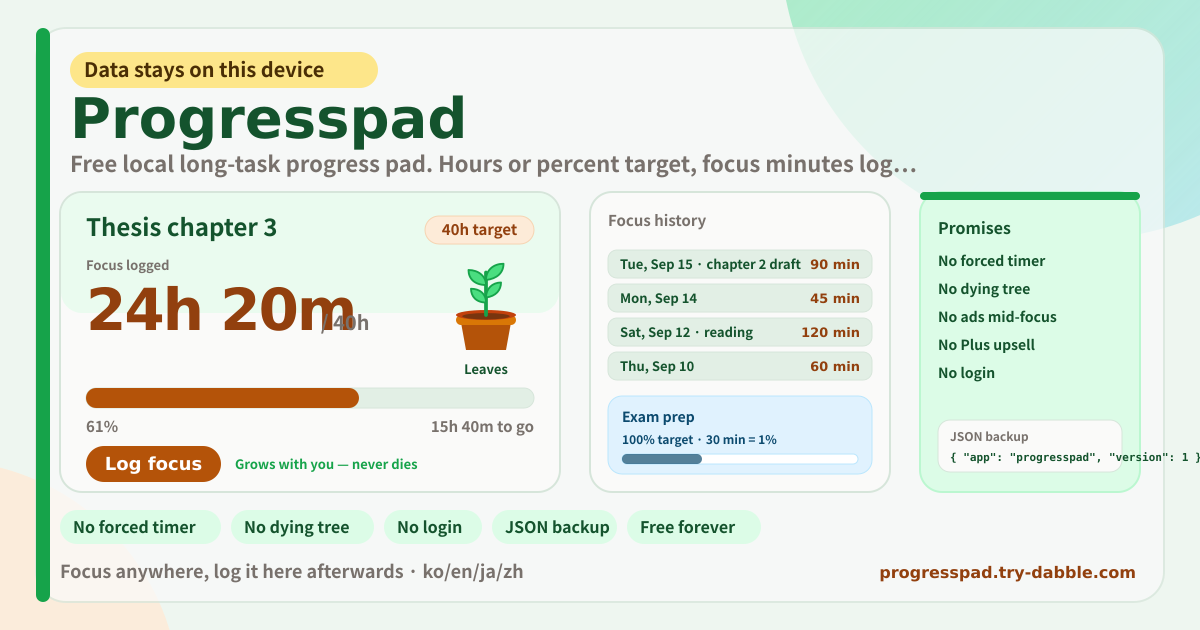
You can create as many tasks as you like and switch between them with the chips at the top. The task card shows the title, target, progress bar, progress percentage and the amount remaining; going over the target shows a notice but nothing disappears. The History tab is a per-date list you can edit or delete; editing recomputes progress immediately. The Backup tab exports every task and its logs as one JSON file and reads it back.
Notice banner, task chips, task card, log focus, stage, history, backup
- Amber notice banner: data stays on this device, no login, no ads, log by hand with no forced timer. It is at the top every time you open the app.
- Task chips: one per task; tap to open it. "+ New task" asks for a title and a target type (hours or percent).
- Task card: title, target badge, focus logged, progress bar, percentage, hours or percent remaining, the "Log focus" button, and Edit and Delete.
- Log focus dialog: minutes (e.g. 45), date (defaults to today, any past date allowed), optional note. Saving recomputes progress immediately.
- Stage: Plant (seed → sprout → leaves → bud → in bloom), Blocks (pixel fill), Off. Never goes backward.
- Timer (optional): tap Start to time a session; stopping offers to save the minutes to today. Skipping saves nothing and loses nothing.
- History tab: per-date list (date, minutes, note); edit or delete each entry.
- Backup tab: Export JSON, Import JSON, Delete everything.
- Promise chips: No forced timer · No dying tree · No ads mid-focus · No Plus upsell · No login · Stays on this device · JSON backup · Free forever · ko/en/ja/de.
- Footer: Privacy, Terms, Guide, try-dabble.com. The "Guide & Feedback" button at the bottom right opens this guide page in a new tab.
Where your data stays
Task titles, targets, logged minutes with their dates and notes, the stage setting and the minutes-per-percent setting live only in this browser on this device. Nothing is sent to a server and nothing is tied to an account. The only cookie remembers your language across try-dabble apps. Clearing site data or changing devices removes the records, so download a JSON from the Backup tab if you want to keep them.
Does it work on Android or a desktop browser?
Yes. It is a web app, so the same address opens on Android Chrome, Samsung Internet, desktop Chrome, Edge, Firefox and Safari, and iPhone Safari. It is not Apple-only. Add it to the home screen and it opens like an app, and after the first visit it works offline. Data is per browser, though, so to move between a phone and a PC use the JSON backup.
What is the difference between an hours target and a percent target?
An hours target suits tasks where the input time is the measure, such as a 40-hour thesis or 10 hours of reading. The target is reached when the sum of logged minutes equals the target hours. A percent target suits tasks where completeness feels more natural, such as "50% of this project done". A minutes-per-percent rate (default 30 min = 1%) converts logged minutes to percent; this rate is shared by all percent-target tasks. Both types compute from the sum of logged minutes; only the frame is different.
Can I log yesterday's focus today?
Yes. Change the date in the "Log focus" dialog to yesterday or any earlier day and enter the minutes. Future dates cannot be chosen. A wrong entry can be edited or deleted from the History tab, and progress recomputes right away.
Can the stage go backward or the task reset?
No. The stage grows with progress and never goes backward unless you delete logs and your progress falls. Missing a day does not change the stage or reduce progress. Going over 100% keeps the stage at its final step (in bloom or full blocks) with a message that says how much you exceeded the target; nothing resets.
Is it free? Any ads, account or subscription?
Everything is free. No task count, percent target, hours target, stage or JSON backup sits behind a payment, and there is no "upgrade to Pro". No ads, no account, no login. The tool page loads no ad script. If you have thoughts, use "Send feedback" on this page.