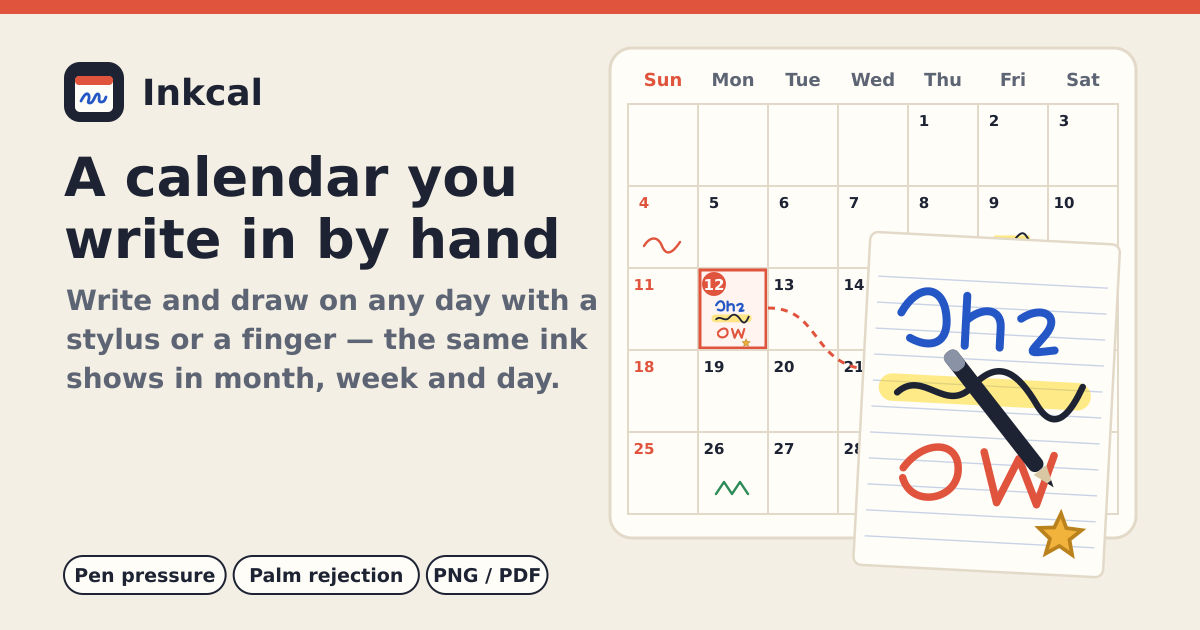
A handwritten calendar that knows its dates
PDF planner pages do not know their dates, and calendar apps have nowhere to write by hand. Inkcal keeps one page per date: the ink you write there with a pen or a finger shows small in the month, beside the day in the week and full size in the day view. Ink is stored as lines, not pictures, so it stays sharp at any zoom.
It is free, with no subscription, no account and no ads. It opens in the browser without installing anything, and after the first visit it opens offline too. Your ink stays in this browser on this device. It speaks Korean, English, Japanese and German.
1. Tap a day and write
- In the Month view, tap a date to open that day’s page (the Day view). Write right away with a pen, a finger or a mouse — no stylus needed.
- Title and Time above the page are optional; whatever you type shows next to the ink in the month and week views.
- Full screen makes the page as large as your screen for focused writing; Done brings you back.
2. Pen, highlighter, eraser and lasso
- Pen: 6 colours and 3 widths. With a pressure pen (Apple Pencil, S Pen and others) the line gets thicker the harder you press.
- Highlighter: translucent, and always under the ink, so it never covers what you wrote.
- Eraser: Whole stroke removes every line it touches; Rub out removes only the part you rub, splitting the line in two.
- Lasso: draw a loop around ink to select it, then drag inside the box to move it, or tap Delete selection.
- Undo and Redo are kept per page and survive switching tools. On a computer, Ctrl/⌘+Z works too.
3. Keep your palm off the page: Stylus only
The first time a pen is seen, Stylus only switches on by itself. From then on only the pen draws; a finger or palm scrolls the page or swipes to another day. Turn it off in the toolbar or in Settings to write with a finger again.
4. Month, week and day — and getting around
- Switch between Month, Week and Day. Today has a red outline. Move with the Previous / Next buttons or by swiping sideways, and Today brings you back.
- Use the date field to jump to any date. The first day of the week (Sunday or Monday) follows your language and can be changed in Settings.
5. Stickers and page styles
- In Stickers, pick an emoji and tap the page to place it. Drag a sticker to move it; tap it and use Delete sticker to remove it.
- Each page can be Blank, Lined or Dotted; the style for new pages is set in Settings.
6. See your other calendar beside the ink (.ics)
Export an .ics file from Google Calendar, Apple Calendar or Outlook, then use Calendar (.ics) › Choose .ics file… Events appear in the date cells and beside the handwriting in the day view, read-only. All-day and multi-day events, events past midnight and weekly repeats are included; other repeats (daily, monthly) show their first date only, and the app tells you so. There is no login and no connection — the file is read once, so pick it again when your calendar changes.
7. PNG / PDF export and backups
- In Export PNG / PDF, choose Month, Week or Day and tap Save PNG or Save PDF. The ink is redrawn at print size, so it stays sharp; PDF pages are A4.
- In Backup, Save backup (.json) puts all your ink in one file; Restore from backup… moves it to another device. A restore asks first and then replaces everything in one go.
- A damaged file, a file that is not an Inkcal backup, one made by a newer version or one that is far too big is refused with the reason, and your current ink is left as it was.
What it does not do
- No account, no sync, no sharing. Use a backup file to move to another device.
- No reminders, and imported events are never edited or written back to your calendar.
- It does not convert handwriting to text (no OCR).
Will an update wipe my handwriting?
No. The saved ink carries a version; a newer app keeps a copy of the original in this browser before converting an older format. If an older cached page meets ink saved by a newer version, it overwrites nothing and asks you to reload. Still, save a backup file now and then.
Do I need a stylus?
No. A finger or a mouse writes just the same. A pressure pen adds line width that follows how hard you press, and turns on Stylus only so your palm does not draw.