It started with a Reddit post: all the favourite time-blocking apps use AI now
In October 2026 someone wrote on r/ProductivityApps: “I am just so disappointed that all my fave time management/ time blocking apps use AI now! I am on the hunt for one that does not, it shouldn’t be this hard” They had used FlowSavvy for a long time and wanted something like FlowSavvy, Sunsama or Structured, only without the AI.
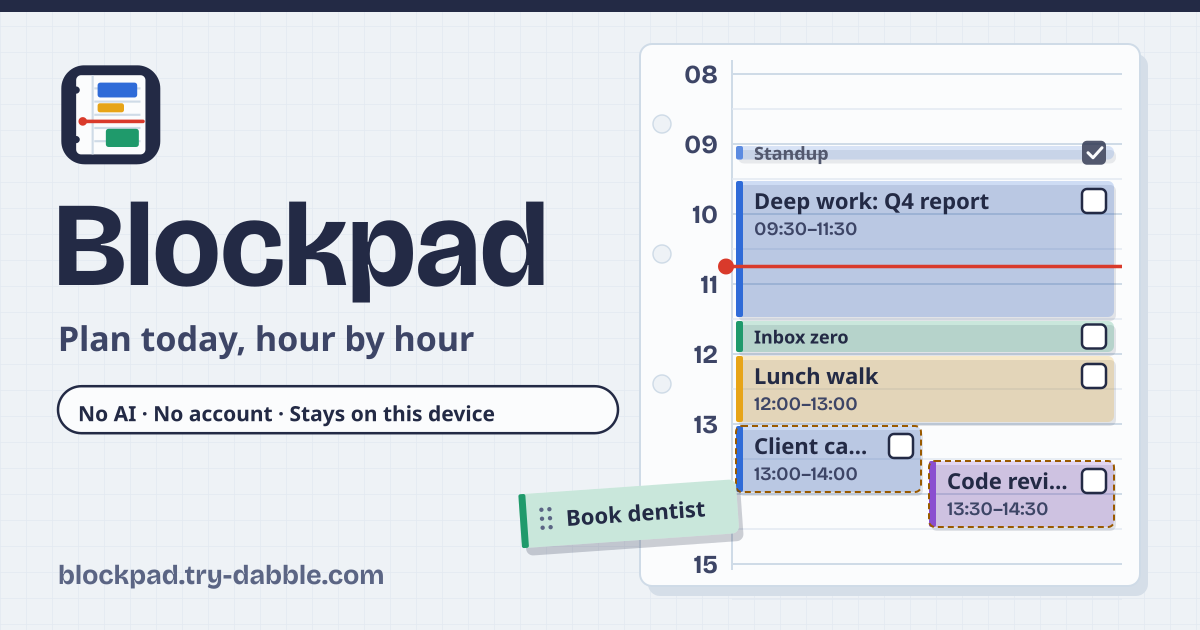
Blockpad answers exactly that. There is no AI: nothing plans for you, nothing auto-schedules, and no block ever moves on its own. You fill today’s vertical hour timeline with blocks you place yourself, and one button carries what you did not finish to tomorrow. It opens in the browser, has no account and no ads in the tool, and the plan stays on your device.
What you find elsewhere
There are plenty of time-blocking tools. What was hard to find was a web tool with no AI and no account that also speaks Korean, English, Japanese and German.
- Structured: popular apps, but the web version is English only, needs an email sign-in, and pushes AI features.
- Sunsama, FlowSavvy and Akiflow: paid, built around AI auto-scheduling, and mostly English.
- Web tools such as AnyTool, Executoday and Easy-Time-Blocking: local, but English only, and missing an inbox or recurring blocks, or adding an AI draft button.
- Tweek: multilingual, but a weekly to-do list with no hour timeline.
What Blockpad does
Right under the name it says: “No AI · No account · Stays on this device”. There are three tabs: “Day” (the date bar, Week at a glance, the inbox, the timeline and the day’s tally), “Routines” (recurring blocks and day templates) and “Settings & backup” (day window, clock, notifications, categories, backup).
The amber band at the top says it plainly too: No AI, and your blocks, tasks and routines live only in this browser on this device, so save a backup file regularly.
Making, moving and resizing blocks
Open https://blockpad.try-dabble.com and pick your language at the top. Nothing to install, no sign-up. Tap empty time on the timeline for a one-hour block, or sweep down across it for any length; a sheet opens for the title and category. Drag a block to move it, and pull the handle on its top or bottom edge to resize it. Everything snaps to 15, 30 or 60 minutes and stays inside the day window.
On a phone the timeline still has to scroll under your finger, so hold a block (or empty time) for a moment before you drag it; the block lifts off the page and then follows you. The handles need no hold. With a keyboard, use the “New block” button or press Enter on a block to type start and end times, and Alt + arrow up or down moves it by one snap.
Blocks that share time are never removed: they sit side by side with an “Overlap” badge and a warning above the timeline. On today a red Now line shows the time, and the page scrolls to it when it opens. The tick box on each block marks it done.
The inbox: write it down first, fit it in later
Use “Add task” for anything without a time yet, with an estimated time if you like. Drag a task onto the timeline (on a phone, hold it first), or tap it and use “Schedule at the next free slot” or “Pick a time”. A task with no estimate becomes a one-hour block. A block goes back with “Back to the inbox” in its sheet, keeping its length as the estimate.
Carry unfinished to tomorrow: nothing is deleted
Press “Carry unfinished to tomorrow” under the timeline and choose whether blocks you did not tick go “into tomorrow’s inbox” or “to the same time tomorrow”. Unfinished tasks in that day’s inbox move along too. Done blocks stay where they are, and recurring blocks stay on their own days. Changed your mind? “Undo” in the message puts everything back.
Recurring blocks and day templates
Pick weekdays under “Repeat every week on” in a block’s sheet to make it a recurring block, like a 09:00 standup Monday to Friday. Open one day of it and choose “Save for this day only”, “Save for every day”, “Skip this day” or “Stop repeating from this day”. Changing one day leaves the series alone, and a skipped day comes back with “Put back” above the timeline.
In “Routines”, save a day you like as a template, open another day and press “Add to …”: its blocks are added as new ones, and what is already there stays.
Moving between days, the week at a glance and the day’s tally
The arrows on the date bar go to the previous and next day, “Today” comes back, and the calendar icon opens any date. “Week at a glance” shows seven small columns with each day’s blocks as strips of colour; tap one to open that day. The tally under the timeline shows planned and free hours inside the day window (overlaps counted once), done time and blocks, and minutes per category. On the day the clocks change for daylight saving time it counts the time that really passes.
Notifications only while it is open
Switch on “Notify me when a block starts” in “Settings & backup” and the browser asks for permission at that moment. Notifications only fire while Blockpad is open in a tab or as an installed app; when it is closed nothing reminds you, so keep a phone alarm for anything you must not miss. You can also add the .ics file to a calendar app and use its reminders.
Export, print and backup
“Export” under the timeline has “Day for a calendar (.ics)”, “Week for a calendar (.ics)”, “Picture of the day (.png)” and “Print the day”. The .ics file carries exact times worked out in your device’s time zone, so Google Calendar, Apple Calendar and Outlook show the blocks at the right hour. In “Settings & backup”, “Save backup (.json)” writes every block, task, routine, template and setting to one file, and “Restore from a file…” brings it back with “Merge with what is here” or “Replace everything here”. A file that is not a Blockpad backup is refused.
The Guide & Feedback button in the tool opens this guide in a new tab.
What it does not do
There is no AI: no auto-scheduling, no task ranking, no summaries. There is no account and no sync, so to use it on another device you move a backup file. It does not read your calendar account; it only exports .ics. Weekly hour budgets per goal with a timer belong to Goalpad, focus and workout timers to Timerpad, and a handwritten calendar to Inkcal.
Is there really no AI at all?
Yes. Blockpad sends your plan nowhere and never suggests, sorts or auto-schedules anything. Every block on the timeline is one you placed, and it stays put until you move it.
Do I get reminders when the page is closed?
No. Block-start notifications only come while Blockpad is open in a tab or as an installed app. If you need reminders while it is closed, export the day or week as .ics and use your calendar app’s reminders.
Does it work offline?
Yes. It works offline after the first visit, and your plan is saved on this device. Add it to your home screen to open it like an app.
Is there an account or a paid tier?
No. Every feature is free, there is no sign-up, and there are no ads in the tool.
How do I move my plan to a new phone?
On the old device press “Save backup (.json)”, move that file to the new one and open it with “Restore from a file…” in Blockpad. The backup file is yours to keep; we have no copy.