It started with “voice-to-text is going to be the easiest way” on Reddit
On 15 October 2026, someone wrote on Reddit, in r/fossdroid: “I want to record: Date Event Source reference(s) AND, possibly generate a pdf timeline graph... I would like it to be very easy to enter text as I have essential tremors and find cursor movement difficult. Voice-to-text is going to be the easiest way to enter text.” The wish is clear: one line per event with its date and where it came from, a timeline you can print, and a way to fill it in without fine cursor work.
Look around and this is what you find. PlotPast (plotpast.com) builds a timeline with sources in the browser and exports JSON and a print-to-PDF page, but it is in English only. Boromlia (boromlia.com) is a research timeline with a source on each event and a PDF, but it needs an account, its free tier stops at 20 events, and it is in English. TimeJot on Android logs moments but has no PDF timeline and is not built around sources. Each has its reasons, but a timeline that opens with no sign-up, lets you speak every field and points out entries with no source was hard to find.
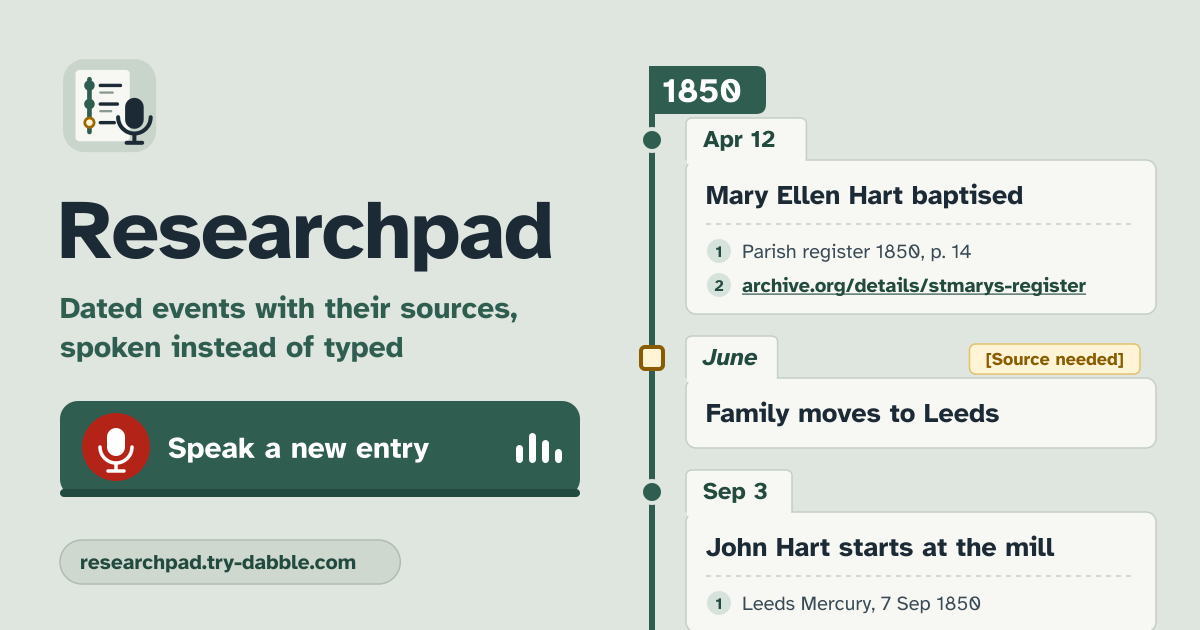
Researchpad fills that gap. One event is one entry: the date, what happened and where you read it, each spoken in with a big “Speak” button. Entries sit on a vertical timeline in date order, an entry with no source is marked “Source needed”, and the timeline prints or saves as a PDF. It opens in the browser, works without a connection after the first visit, has no account and no ads in the tool, and the log stays in this browser on this device.
What Researchpad does
- The big button at the top is “Speak a new entry”. It opens a new entry and starts dictation into “What happened” right away. Next to it are “Type a new entry”, “PDF timeline” and “Backup & settings”.
- An entry is a date, “What happened”, “Sources” (one or more; “Add another source” adds a line) and “Notes (optional)”. “Save entry” puts it on the timeline; “Edit” on the timeline opens it again, and “Delete entry” removes it. A deleted entry comes back with “Undo” in the short message that follows.
- An amber band at the top says it plainly: the entries live only in this browser on this device, so save a backup file regularly.
- Open https://researchpad.try-dabble.com and pick your language at the top. Nothing to install, nothing to sign up for; add it to your home screen from the browser menu if you like, and it opens like an app. The Guide & Feedback button at the bottom right of the app opens this guide in a new tab.
Speaking instead of typing, made for shaky hands
- Every field has a big “Speak” button. One tap starts listening and one tap on “Stop” ends it. There is nothing to hold down and no moment to hit, and it keeps listening through pauses until you stop it.
- The words appear in the field as you speak. If it misheard, “Remove last phrase” takes out only the last dictated phrase, and “Clear” empties the field. You never have to put the cursor in the middle of a sentence.
- Each source line has a “Paste” button that drops in the web address you copied, in one tap, with no long-press menu. If the browser blocks it, Researchpad tells you to long-press in the field and choose Paste instead.
- The buttons are large and spaced apart, and opening an entry does not pop up the keyboard. “Dictation language” in “Backup & settings” can differ from the app’s language, so the screen can be in German while you speak English.
- To be honest about it: dictation is the browser’s own speech recognition. Depending on the browser, the sound may go to its maker’s speech service while it becomes text (Google for Chrome, Apple for Safari, Microsoft for Edge). Researchpad never receives the sound; it only puts the text it gets back into the field.
- Firefox has no dictation, so a note shows instead of the “Speak” buttons; use the microphone key on your phone’s keyboard there. There are no spoken punctuation commands, so check names, numbers and years before you save.
Dates: today, a year only, or a month
- A new entry is dated today; “Today” brings it back after you change it. “Previous day” and “Next day” move it one day at a time.
- “Year” takes a number typed in or the − and + buttons (“One year back”, “One year on”), and “Month” and “Day” are lists. If you only know the year, pick “No month”; if you know the month but not the day, pick “No day”. On the timeline a less precise date comes before the dates inside it: 1850, then April 1850, then 12 April 1850.
Sources, and the “Source needed” flag
- A source is a web address or free text such as “Parish register 1850, p. 14”. An entry can carry several, and a web address opens in a new tab only when you tap it on the timeline.
- You can save without a source: Researchpad warns but never blocks, and the entry shows “Source needed” until you add one. A button above the timeline such as Only “Source needed” (3) shows just the entries still waiting for a source.
- The “Source” list shows only the entries that cite one source. Web addresses are grouped by website, so many pages from the same archive show as one choice. “All sources” goes back.
Timeline, search and order
- Entries sit on a vertical timeline in date order, with a year marker where the year changes. “Order” switches between “Oldest first” and “Newest first”, and your choice stays for next time.
- The search box (“Search events, sources and notes”) looks in dates, events, sources and notes at once and keeps only entries that contain every word you typed. A line above the timeline counts the entries and those marked “Source needed”.
Making a PDF timeline
- In “PDF timeline”, type a “Title on the PDF”, choose all entries or only what is shown now (when a search or filter is on), and switch “Include notes” on or off. Then press “Print or save as PDF”.
- The browser’s print window opens. Print on paper, or choose “Save as PDF” as the printer to get a PDF file. The PDF is made by the browser on the device, sent nowhere, and works offline too. It ends with the number of entries, how many have no source, and the date it was made.
Backup, JSON and CSV
- “Backup & settings” has two files. “Save backup (.json)” holds everything, settings included, and Researchpad can read it back; “Export CSV” opens in any spreadsheet, with an entry’s sources in one cell, one per line.
- “Choose a file…” takes a Researchpad backup (.json) or a CSV with an Event column; Date, Sources and Notes columns are read when they are there. Sources one per line in one cell are read, and so are separate “Source 1”, “Source 2” columns. Files separated by commas, semicolons or tabs all work.
- Importing adds new entries, updates matching ones, and treats an entry with the same date and event as already there, so importing the same CSV twice adds nothing. “Delete everything” removes every entry from this browser and offers “Save backup first” before it does.
Privacy: your log never leaves the device
Dates, events, sources, notes and settings are stored only in this browser on this device and are never uploaded or sent anywhere. There is no account and no login. Dictation is the browser’s own speech recognition, so depending on the browser the sound may go to its maker’s speech service (Google for Chrome, Apple for Safari, Microsoft for Edge), but Researchpad never receives the sound. Source addresses open only when you tap them, and “Paste” reads the clipboard only when you tap it. The PDF is made by the browser’s print on the device, JSON and CSV files are made on the device, and files you pick are read on the device only.
What it does not do
- It does not sync between devices by itself; to move the log, save a backup file and import it on the other one. There are no photos or attachments in this first version.
- It does not fetch or check sources: it never looks up whether an address still works or says what you noted, it just keeps what you wrote. It is not a citation manager like Zotero either, and makes no bibliography styles.
- Not a baby diary — Babypad does that. For notes per person and when you last spoke, Kinlog is the one; for a memo calendar that shows the same date across the years, Ondaypad; for hours spent on a task, Progresspad.
Does it work offline?
Yes. It works offline after the first visit: the browser keeps a copy of the app on the device, so it opens without a connection. Writing, editing, searching and saving the PDF all work offline. Dictation belongs to the browser, though, and some browsers need a connection for it; Researchpad tells you when that happens, and typing always works.
Is there an account or a paid tier?
No. Everything is free, with no account, and the app sets no cap on the number of entries. The PDF and the exports are free too. There are no ads in the tool.
How do I move my log to a new phone?
On the old device press “Save backup (.json)” in “Backup & settings”, move the file to the new one and import it with “Choose a file…”. Importing adds new entries, updates matching ones and leaves the rest as they are.
Which browsers can dictate?
Browsers with built-in speech recognition, such as Chrome, Edge and Safari, show the “Speak” buttons. Firefox has no dictation, so a note shows instead: use the microphone key on your phone’s keyboard, or open Researchpad in Chrome, Edge or Safari. The first time you speak, the browser asks to allow the microphone; if it is blocked, Researchpad tells you to allow it for this site in the browser’s settings.