It started with “is there an app to write formulas on an e-ink tablet?”
The question came from an e-ink forum. Someone with a BOOX wanted to write math and chemistry formulas with the pen and asked whether any app got the details right: subscripts and superscripts, fractions, roots, Greek letters, and for chemistry the subscripts and charges. The answers were a web app that recognises handwriting and turns it into formulas, a handwriting math app from the store, and a store app for drawing chemical structures.
Look at those tools and a pattern repeats. The web app is English-only, and because recognition is the whole idea, a misread symbol costs time to fix. The store apps want an install and an account first, some keep the export or the saving behind a subscription, and their animated screens are heavy on an e-ink display that refreshes slowly. Almost none of them keep chemistry and math on the same page.
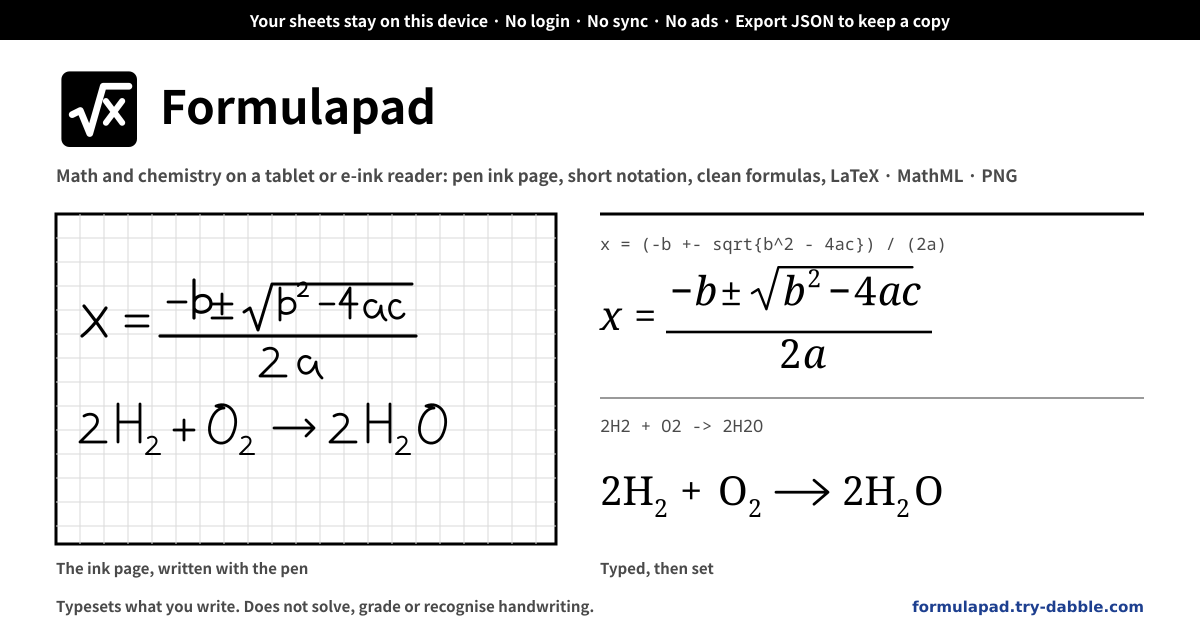
Formulapad answers that question differently. What you write with the pen stays ink on an ink page, and the result you want clean is typeset from a short typed notation or from tapped symbols. There is no handwriting recognition, so there is nothing to misread. Math lines and chemistry lines share one sheet, everything leaves as LaTeX, MathML or PNG, the screen speaks Korean, English, Japanese and German, and nothing leaves this browser. Black on white, big targets and nothing that moves: the screen was made for e-ink first.
What Formulapad does
A sheet is one ink page plus a list of notation lines. The ink page is a canvas with a graph-paper grid. The pen leaves strokes whose width follows the pressure, the eraser removes a whole stroke it touches, there is undo and redo, you zoom with the buttons or two fingers and move the page with a finger or the Move tool. The grid moves with the ink.
The first time a pen touches the screen, “Pen only” switches on. From then on only the pen draws, fingers pan or pinch, and a palm resting on the glass draws nothing. Turn the switch off to draw with a finger. Everything also works with a mouse or the keyboard alone.
Notation lines come in two kinds. A math line takes a short notation: (a+b)/(c+d) is a fraction, x^2 and a_n are scripts, sqrt{x} and sqrt[3]{x} are roots, alpha or α is a Greek letter, sum_{i=1}^n, int_0^1 and lim_{x->0} are big operators with limits, pmatrix{a & b \\ c & d} is a matrix. LaTeX with backslashes pastes in as it is. A chem line is typed the way you would in a chat: H2O, Ca(OH)2, SO4^2-, Fe3+, 2H2 + O2 -> 2H2O, NaCl(aq), ^{14}_{6}C. Digits after an element are subscripts, ^ starts a charge, -> and <=> are arrows, a state in parentheses sits small after the formula. The typeset result appears under the line as you type.
If you would rather not type, tap the symbol palette. It has tabs for structures (fraction, root, scripts, matrix, sum, integral), Greek, operators, relations, arrows and chemistry (arrows, equilibrium, charge, states, common ions), and a tap inserts at the caret of the line you edited last. Templates with a slot, like the fraction, wrap whatever you had selected. A stylus alone is enough to build a whole line.
There are three ways out. On each line, “LaTeX”, “MathML” and “Text” copy that line alone; under Export, one button copies every line at once. The LaTeX is plain LaTeX that uses only amsmath, so it pastes into any editor, Markdown or notes app without mhchem or any other package. The MathML is MathML Core, which browsers and word processors read as they are. “Save PNG” makes a picture of the ink and the typeset lines together, or either alone, at twice the screen resolution.
How to use it
- Open the app. The first sheet comes with one math line and one chem line as examples, so you see both notations typeset at once; delete them or type over them. “New sheet” adds more, the pencil renames the current one, and the list at the top switches between them.
- Write on the “Ink” page with the pen. The moment it touches, “Pen only” turns on and the palm is ignored. The tools are Pen, Eraser (removes the whole stroke it touches) and Move; next to them undo and redo, zoom out, the current zoom, zoom in and fit-to-ink, three pen widths and clear ink. If the page is too short, “Taller page”. On a keyboard, Ctrl+Z / Ctrl+Y, + and -, and P, E, M do the same jobs.
- Under “Notation”, set a line to “Math” or “Chem” and type the notation; the typeset result appears underneath. Anything the app could not read is shown as typed with a dotted underline, and a small count appears beside the line, so you fix just that spot. Lines move up and down, duplicate and delete.
- Tap symbols in the “Symbols” palette. The tabs follow the kind of the current line: structures, Greek, operators, relations and arrows for a math line; chemistry and Greek for a chem line. A tapped symbol lands at the caret of the line you edited last.
- To take a result with you, press “LaTeX”, “MathML” or “Text” on the line, or “Copy all” under Export, or “Save PNG”. Two checkboxes decide whether the ink, the formulas or both go into the PNG. The two A buttons pick one of four formula sizes, and the PNG uses the same size.
- Now and then, press “Export JSON” under “Backup” to keep a copy of every sheet. On a new device or another browser, “Import JSON” brings them back. Importing merges: a sheet you already have keeps whichever copy is newer, and sheets you do not have are added.
- Pick the language with ?lang=ko, ?lang=en, ?lang=ja or ?lang=de on the address, or with the selector at the top; the choice sticks for next time. Add it to the home screen and it installs as a PWA on Android, e-ink readers and any browser, and it opens offline.
The notation at a glance
A math line has only a few rules. Spaces are ignored; a multi-letter word is used as a name when the app knows it (alpha, sqrt, sum, sin) and read letter by letter as variables when it does not, so 2xy is 2·x·y. A slash makes a fraction of its two neighbours and drops the parentheses around a group. ^ and _ take the next single letter, a whole number or {…}, and a leading sign travels with it, as in x^-1. A backslash before a name is optional. Letters outside the Latin alphabet (Hangul, kana and so on) come out as text.
A chem line has short rules too. One capital letter plus up to one lowercase letter is an element, and the digits after it are a subscript. ^ starts a charge (SO4^2-), and digits with a sign after a single element are a charge as well (Fe3+ is Fe³⁺, NH4+ is NH₄⁺). A plus with spaces around it, or followed straight by the next formula, separates species. A leading number is a coefficient (2H2O, 1/2 O2); ->, <-, <-> and <=> are arrows, and [text] right after an arrow sits above it. (aq) (g) (l) (s) are states, ^{14}_{6}C is an isotope, the dot in CuSO4.5H2O is a hydrate dot, and lowercase words (heat, cat.) come out as text. Inside a math line, ce{H2O} embeds a formula.
The “Shorthand cheat sheet” at the bottom of the app lists all of this with examples and their typeset results. There is nothing to memorise: type something and look at what appears underneath.
Where the sheets live, and backups
Every sheet, every stroke and every line sits in this browser on this device and nowhere else. There is no account, no server of ours and no sync; the app never contacts a server with your sheets. The notice at the top of the screen keeps that promise in writing.
“Export JSON” writes every sheet — title, ink, lines, zoom position — into one file that is made on this device and leaves only as a download. “Import JSON” merges rather than replaces: a sheet with the same id keeps the newer copy, unknown sheets are added. An older or hand-edited file is read as far as it can be, never rejected on a version number.
A new version never shows an “update required” wall and never wipes the sheets. Deleting a sheet or clearing the ink asks first and reminds you there is no copy anywhere else. If the browser’s storage fills up, the app says right away that the last change could not be saved; export JSON and delete an old sheet.
Does it turn my handwriting into formulas?
No, and that is a choice. Recognition is convenient when it works and slow when it does not: you hunt for the misread symbol and fix it, and on an e-ink screen that refreshes slowly this is slower still. In Formulapad, ink stays ink. Write the working by hand, then type or tap in only the result you want clean. What you get is always exactly what you typed, and nothing is sent to a server to read it.
Does it solve problems or check answers?
No. Formulapad typesets what you write. It does not calculate, it does not balance a reaction, it does not grade, and a formula that renders nicely is not a formula that is correct. The notice on screen says so. Solving stays with you, your textbook and your teacher.
Which tablets and browsers does it work on? Any tips for e-ink?
On any current browser that supports pointer events: the built-in browser or Chrome on an Android e-ink reader such as a BOOX, Safari on an iPad, a Galaxy Tab, a Surface, or a PC with only a mouse. Formulas are drawn with ordinary HTML and CSS rather than the browser’s MathML support, so scripts and fractions render the same in an older WebView. On e-ink, zoom with the buttons instead of pinching, and keep “Pen only” on so the palm can rest on the glass. Saving a PNG needs the browser to draw the formulas into a picture; on a very old browser or some Safari versions the app saves the ink alone and tells you to copy the formulas as LaTeX or MathML instead.
How is it different from SumIt, MyScript Math and KingDraw?
SumIt is a web app that recognises handwriting and turns it into formulas; its interface is English (UK) only, and chemistry is typed in SumIt too. Formulapad puts ink and a short notation side by side instead of recognition, speaks Korean, English, Japanese and German, and keeps math and chemistry on one sheet. MyScript Math (Calculator, Nebo) is a store app with excellent recognition, but it wants an install and an account first, charges for some features, and cannot be opened in an e-ink browser. KingDraw is a store app for drawing chemical structures — benzene rings, bonds. Formulapad does not draw structures; it stops at typesetting formulas, reactions, ions and isotopes. If you need a structure, a tool like KingDraw is the right one.
Can I paste LaTeX I already have? Where does the LaTeX it makes paste into?
Yes. Common commands such as \frac{a}{b}, \alpha, \sqrt[3]{x}, \sum_{i=1}^{n}, \begin{pmatrix} … \end{pmatrix}, \left( … \right), \text{…} and \mathrm{…} are read as they are, and a command the app does not know is kept visible as typed so you can fix it. The LaTeX it produces is plain LaTeX with amsmath only. Chemistry comes out as \mathrm{H_{2}O}, \mathrm{SO_{4}^{2-}} or \xrightarrow{\Delta}, so it pastes without mhchem into Overleaf, MathJax or KaTeX in Markdown, Obsidian, Notion and the equation editors of word processors.
Is it free? What about ads, accounts and purchases?
It is free. No account, no login, no subscription, no in-app purchase, and no ads on the tool UI. There is nowhere to pay for more sheets, more lines, the export or the PNG resolution — nothing is locked behind a tier, and there is no plan to make it so. Other pages on this site may carry ads; the tool itself does not. The “Guide & Feedback” button is the place to ask or report anything.