It started with “I only need to change the format”
A shop will not take WebP, a form only accepts .jpg, or a few dozen screenshots need to be made lighter before sending. All you want is to change the format, and it turns out to be more fiddly than it should be.
Desktop converters need an install first and often look dated. A big image editor is overkill for changing one format. Many web converters upload your files to a server to do the work, and some of the tidy modern tools are in English only.
Convertpad does that one job. It opens in a browser; drop images, pick a format, and they are converted right here on this device, with no file sent anywhere. It works in any current browser on Mac, Windows, Linux or a phone and installs like an app. There is no account and no watermark, and the interface is in Korean, English, Japanese and German.
What Convertpad does
- Three ways in → drop, choose or paste. Drop images anywhere on the page, choose several with Choose images, or paste one with Ctrl/⌘+V. JPEG, PNG, WebP, AVIF, GIF (first frame), BMP, ICO and SVG open in every current browser; HEIC and TIFF open only where the browser can open them (Safari). Anything that is not an image is skipped, with “N file(s) skipped: not an image”.
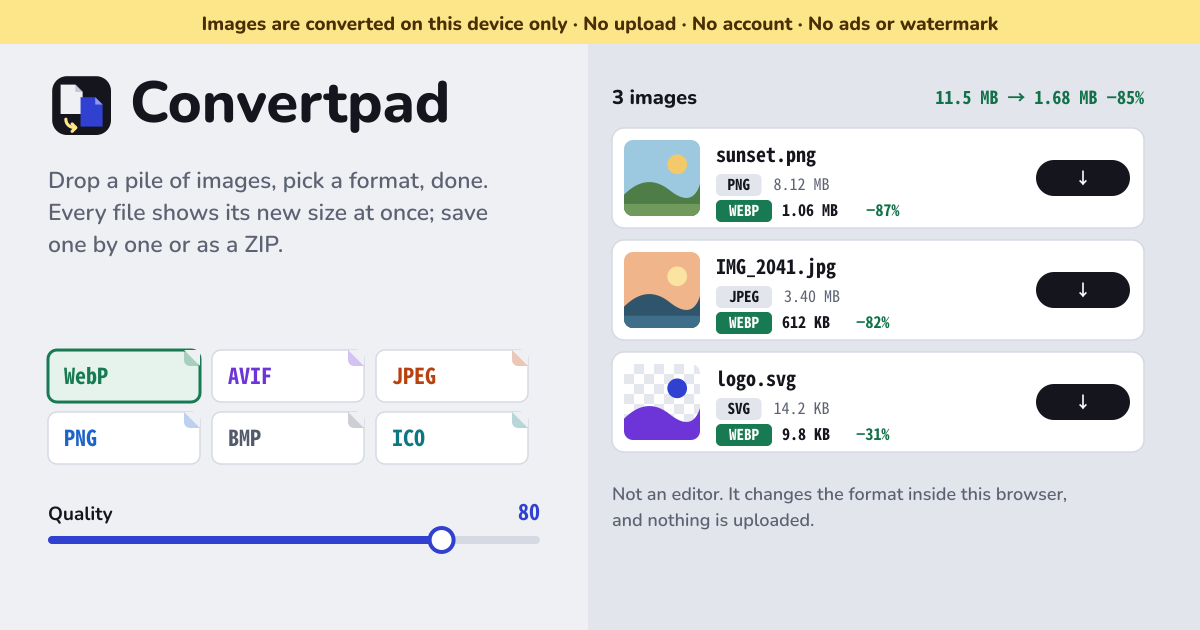
- Six formats out → each with a one-line note. WebP “Small, opens everywhere”, AVIF “Smallest, newer apps”, JPEG “Photos, every app”, PNG “Lossless, transparency”, BMP “Plain pixels, old software”, ICO “Windows icon, ≤ 256 px”. It starts on WebP at quality 80.
- Quality per format → a 1–100 slider, and lossless. JPEG, WebP and AVIF have a quality slider, remembered separately for each (starting at JPEG 85, WebP 80, AVIF 60). For WebP and AVIF, Lossless keeps every pixel exactly and hides the slider.
- Formats without transparency → a background colour. JPEG and BMP cannot be see-through, so Background for transparent areas (white to start with) is the colour see-through pixels are laid on.
- Shrink if you want → Fit inside a maximum size. Set Max width × Max height (presets 3840 / 2560 / 1920 / 1280 / 800) and only larger pictures are shrunk, keeping their shape; nothing is enlarged. ICO is always capped at 256 px, AVIF at 8192 px a side and any picture at about 16 megapixels (the browser's canvas limit); when that happens the row says “Shrunk to W × H, the most FORMAT or this browser allows.”
- The result shows at once → new size and change on every row. Any change of setting re-converts everything, and each row in the Images list shows a thumbnail, the file name, the original format, dimensions and size, then the new format, dimensions and size and the change (such as −87%, green when smaller, red when larger). The header shows the before → after totals, and “Converting N of M…” while it works.
- Check it by eye → Compare. Compare on a row opens the original and the result stacked; move the slider and the dividing line shifts, with the original on the left and the result on the right. Both sizes are shown underneath.
- Same name → new extension. IMG_0001.HEIC becomes IMG_0001.jpg. Download saves one file; from two images up, Download all as ZIP saves a single convertpad-YYYYMMDD-HHMM.zip, and names that clash inside it become “name (2).webp”.
Your first conversion, step by step
- Drop images anywhere on the page. Or choose several with Choose images, or paste a copied picture with Ctrl/⌘+V. There is no cap on count or size.
- Under Output, tap a format tile. If unsure, leave it on WebP, which is picked to start with.
- Move the quality slider and watch each row's new size and change. For most photos, 75–85 looks the same as the original.
- Press Compare on a row you want to check, and slide the line across the original and the result. Zoom in on detail with the browser.
- Save each with Download, or all at once with Download all as ZIP at the top. Remove a row with ×; Clear the list empties the lot after a confirmation.
Which format?
- For the web, a chat or a shop listing → WebP. It is small and every current browser and phone opens it.
- Smallest of all → AVIF, when the place it goes accepts it. Older Windows viewers may not open it.
- An old app, a printer kiosk or a form that asks for .jpg → JPEG.
- Screenshots, logos and anything with transparency → PNG, or lossless WebP for smaller.
- iPhone HEIC photos → open Convertpad in Safari on the iPhone or Mac and convert them to JPEG there. HEIC only opens in a browser that can read it.
- A Windows icon → ICO. It holds one picture of at most 256 × 256; larger ones are shrunk to fit.
What it deliberately does not do
- It uploads nothing. Conversion happens in the browser on this device, never on a server.
- It is not an editor. No crop, filters, retouching, upscaling or rename rules; apart from an optional shrink, the picture carries over as it is.
- It cannot bring back lost detail. What a JPEG has already thrown away does not return, and every lossy re-save loses a little more.
- It does not carry over EXIF, GPS or camera data. Photos are turned upright first, and colours are saved in sRGB.
- It does not keep animation. Animated GIF and WebP come out as their first frame.
- It adds no watermark, and there is no account, no in-app purchase and no ads on the tool.
What stays on the device
Settings such as format, quality, background colour and maximum size are remembered in this browser. Images are not kept: the ones you add and the converted files live only in the page's memory and are gone when the tab closes or the list is cleared. Files you have already downloaded stay where you saved them.
JPEG and PNG, and WebP where the browser supports it, are written by the browser's own encoders. AVIF and lossless WebP (and WebP in browsers that cannot write it, such as Safari) use libavif and libwebp compiled to WebAssembly, served from Convertpad's own address and fetched in the background about four seconds after the first load, then cached, so they work offline from then on. BMP (24-bit) and ICO (one PNG inside) are written in the page itself. AVIF of a large photo can take several seconds.
Is there an account or a paid tier?
No. There is no sign-up screen, no payment screen and no in-app purchase, no cap on count or size, and no watermark. There are no ads on the tool either.
Are my pictures sent anywhere?
No. Conversion happens in the browser on this device and no file is uploaded anywhere. The encoders are just code fetched from Convertpad's own address; there is nowhere images are sent. Images are not stored either, so they are gone when you close the tab.
My iPhone HEIC photos will not open
HEIC and TIFF open only where the browser can open them, which today means Safari. Open Convertpad in Safari on the iPhone or Mac, add the HEIC files and convert them to JPEG there. In other browsers the row says this browser cannot open the file.
Does converting lower the quality? What about photo data?
Lossy JPEG, WebP and AVIF lose a little detail, and a little more with each re-save. For most photos quality 75–85 looks the same as the original, so check with Compare. To lose nothing, pick PNG or lossless WebP or AVIF. EXIF, GPS and camera data are not carried into the result; photos are turned upright first and saved in sRGB colour.
Does it work offline, and can I install it on a computer? Where do I send feedback?
Once it has been opened, it works with no internet at all (the AVIF and WebP encoders are fetched in the background shortly after the first load). “Install” or “Add to Home Screen” puts it on a Mac, Windows, Linux or a phone as an icon, and installed from Chrome or Edge on a desktop it appears under “Open with” for images. The interface is in Korean, English, Japanese and German. The “Guide & Feedback” button in the bottom corner and Guide in the footer are links that open this guide in a new tab, and feedback is left on this guide page.