What Huepad is
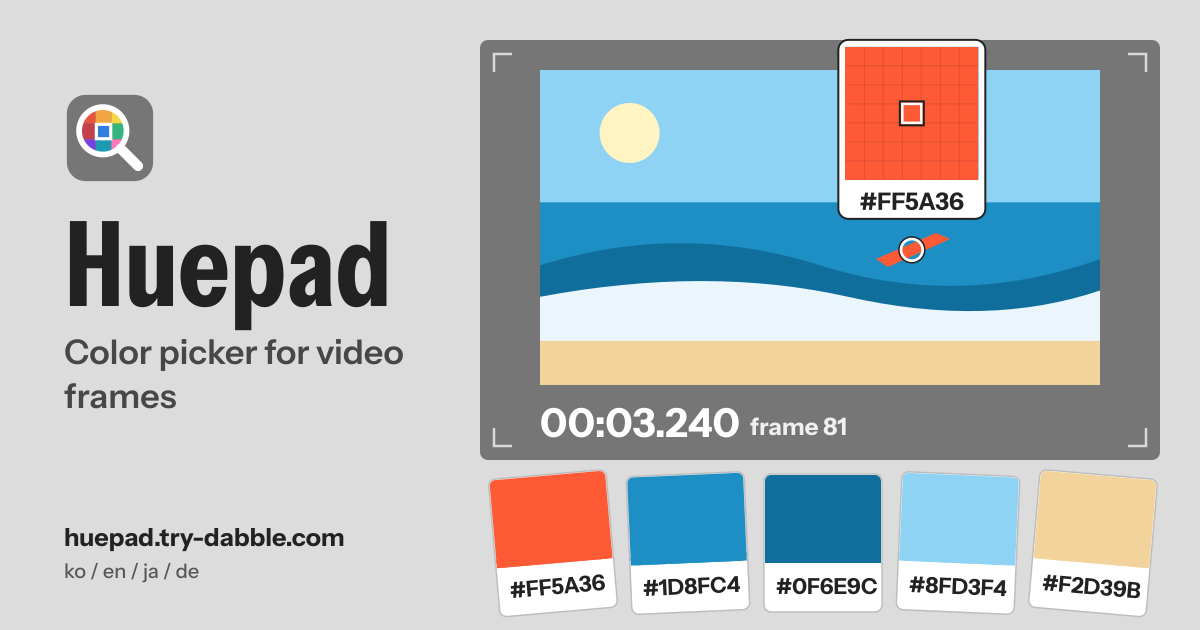
Huepad is a color picker (eyedropper) for video frames and images. Open a clip, stop on the exact frame you need and pick a pixel with a magnifier loupe: you get the value as HEX, RGB, HSL, OKLCH and CMYK, ready to copy into a design file, a stylesheet or a grading note. Saved colors keep the file name and the frame time, so later you still know where each one came from.
Everything happens on this device: the video or image is read in this browser and nothing is uploaded. There is nothing to install and no account, it is free, and there are no ads in the tool. It speaks Korean, English, Japanese and German, and it never uses the camera.
Open a video
Tap “Choose a video or image”, drop a file anywhere on the page, or paste one (a copied file or a screenshot). “Open another file” brings in the next one.
- Videos: MP4 (H.264), WebM and MOV, or any other format this browser plays. Images: PNG, JPG, WebP and GIF (the first frame of an animated GIF).
- If a video won’t play, this browser doesn’t support its format or codec. HEVC (H.265) and some MOV files fail on some browsers. Convert the file to MP4 (H.264), or try another browser such as Safari or Chrome.
- On iPhone a tap may be needed before the first frame shows: tap “Tap to show the first frame”.
Scrub and step frame by frame
- “Play” and “Pause”, the scrubber to jump anywhere, and the “Previous frame” and “Next frame” buttons to move exactly one frame.
- The frame rate is learned from the video while it plays; until it is known, a step is 1/30 s.
- The time is shown as mm:ss.mmm (minutes, seconds, milliseconds) with the frame number, so you can find the same frame again.
Pick a pixel with the loupe
- On a computer, click a pixel; hovering over the picture shows the loupe first.
- On a phone, touch and drag: the loupe floats above your finger so it doesn’t hide the pixel, and lifting your finger picks it. Two fingers zoom and move the picture.
- The zoom buttons enlarge the picture, and “Fit” shows the whole frame again.
- Keyboard: arrow keys move one pixel, Shift + arrow ten, and Enter saves the color.
Color values and copying
“Picked color” shows the value in five formats: HEX, RGB, HSL, OKLCH and CMYK. Tap a row to copy that value. An approximate color name is shown as a hint, not as a standard.
Your saved colors
- “Save color” adds the picked color to “Your colors on this device”. Each chip keeps the file name and, for a video, the frame time.
- “Copy all HEX” copies every saved HEX value at once.
- Delete one color with its ×, or all of them with “Clear all”; both show “Undo” for a moment.
- The list holds up to 2,000 colors.
Frame palette
“Colors in this frame” finds the main colors of the current frame with median cut. Set “How many colors” from 5 to 15 (8 at first); each color shows its share of the frame. Tap one to see its values, or tap “Save all to my colors” to keep the whole palette.
Export: CSS, Tailwind, JSON, PNG
“Export…” turns your saved colors into one of four formats: “CSS variables”, “Tailwind config”, “JSON” or “PNG swatch strip”. “Copy” puts the text on the clipboard and “Download” saves it as a file.
Image files
Screenshots, photos and exported design images open the same way: the same “Choose a video or image” picker, a drop or a paste. An image has no frame buttons; the loupe, values, palette and export work just the same. An animated GIF shows its first frame.
Contrast (WCAG)
“Contrast (WCAG)” shows the picked color’s contrast ratio on white and on black, with the level it reaches: AA needs 4.5 for normal text, AAA needs 7, and “AA large text” (3 or more) is enough only for text from 24 px (19 px bold).
Why values can differ: color space and HDR
- Values are what this browser decoded, in sRGB. HDR, wide-gamut (P3), 10-bit and log footage is tone-mapped by the browser, so a value can differ from your editor or the original file.
- Lossy video (most MP4 and WebM files) shifts colors slightly near edges; pick from a flat area a few pixels away from an edge.
- Colors are read from the frame at its native resolution, not from the scaled preview on screen.
- Very large pictures, above 4096 × 4096 pixels (about 16.8 million pixels), are read from a reduced copy, the most this browser can hold safely, and the screen says so.
Backup file and restore
- Saved colors live only in this browser on this device. “Save backup file” saves them as a file, and “Restore from file…” brings them back on this or another device, either added to your colors (the same colors are kept once) or replacing them.
- A broken file or a palette export changes nothing. After 10 changes, or 7 days with changes not yet backed up, Huepad reminds you to save a backup.
Privacy: your video stays on this device
The video or image is opened as a file on this device and read only in this browser. It is never uploaded, copied anywhere or stored; close the tab and it is gone.
Only the colors you save stay in this browser on this device: the HEX value, when it was saved, whether it was a pick or from a palette, the file name and the frame time and number, plus your palette size, language and backup reminder dates. There is no account, and the page keeps the camera, microphone and location switched off.
How it differs from Framepad
Framepad is a live-camera coach for photo composition: it watches the camera picture and tells you how to level, frame and light the shot. Huepad never uses the camera. It reads colors from video files you have already recorded and from images, frame by frame.
Why is the color different from my editor?
Values are what this browser decoded in sRGB, so HDR, P3, 10-bit and log footage is tone-mapped and can differ from your editor. Lossy video wobbles near edges, so pick from a flat area.
Is my video uploaded?
No. Videos and images are read only in this browser and are never uploaded or stored. Only the colors you save, with their file name and frame time, are kept.
How do I move my colors to another device?
Tap “Save backup file”, move the file across (email, a cloud drive, a cable) and use “Restore from file…” in Huepad on the other device. Clearing browser data erases your saved colors, so save a backup now and then.