A camera that tells you one thing at a time
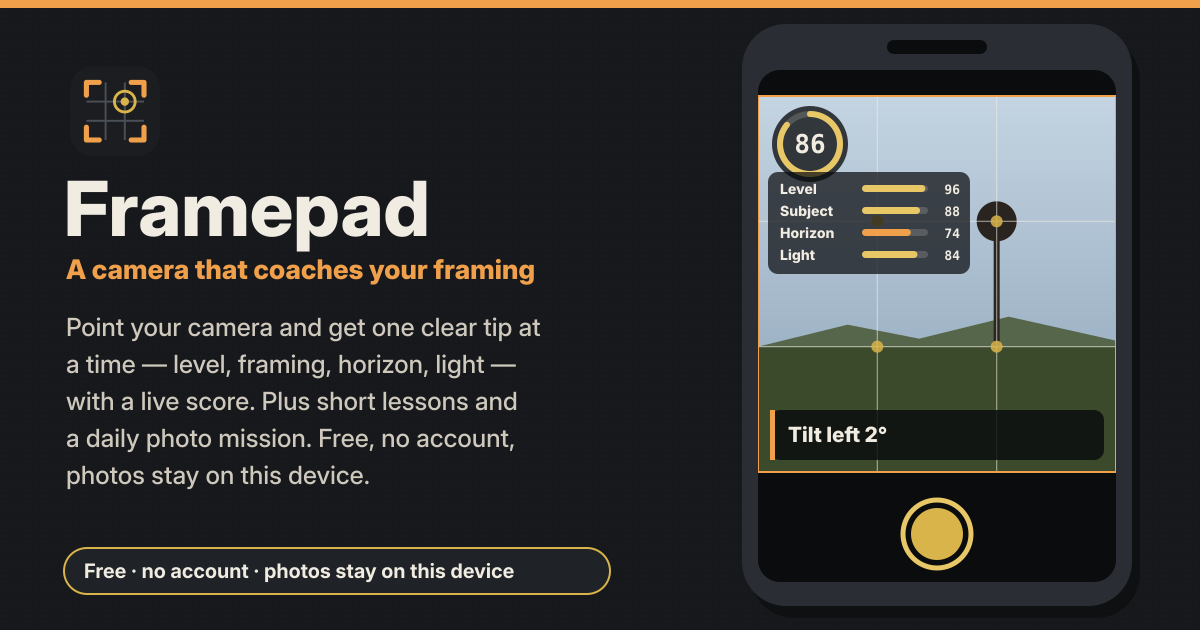
Point your camera and get one clear tip at a time — level, framing, horizon or light, whichever needs it most — with the number it actually measured and a live 0–100 frame score. Plus short lessons and a daily photo mission. Free, no account, and your photos stay on this device.
No ads, no account, no paywall and no trial. It speaks Korean, English, Japanese and German, and you move between four tabs at the bottom: “Camera / Learn / Gallery / Settings”. “Check a photo” is there from the camera, Learn and the gallery.
1. Open the camera
- Tap “Open the camera” and allow the camera. It opens full screen.
- On iPhone, tap “Turn on the level” once and allow motion access so the level can work.
- Follow the one tip, and shoot when the shutter turns gold (a score of 80 or more).
2. Guides
- Pick “Thirds / Golden ratio / Golden spiral / Centre / Diagonals / Leading lines / Off”. The subject is then measured against that guide’s strong points.
- The golden spiral can be turned and mirrored to fit the scene with “Rotate the spiral” and “Flip the spiral”.
3. The frame score
- The “Frame score” runs from 0 to 100. Its bars are Level, Subject, Horizon (scene) or Framing (portrait), and Light.
- The weights are level 25 %, subject 30 %, horizon or framing 20 %, and light 25 %.
- Anything that can’t be measured right now — the level with no motion sensor and no horizon line, a subject when nothing stands out, framing when there is no face — is marked “skipped” and left out, and the rest are scaled up. It never counts as 0.
- The score is smoothed over less than a second, so a small shake of the hand doesn’t make it jump.
4. One tip at a time
- The tip comes from the weakest measured part and carries the number, for example “Tilt left 3°”, “Move the horizon to the lower third (now 50% from the top)”, “Too dark — face the light (brightness 12%)” or “Move the subject to the left third (18% away)”.
- A tip stays for at least 1.5 seconds, so it never changes before you can read it.
- Tap “Show the details” to see every bar and its number.
5. Level
- The level comes from the phone’s motion sensor.
- With no sensor, or if you said no, it uses the horizon line when one is visible. If neither is there, the level is skipped.
6. The light check
- It looks at brightness, blown-out highlights, pure black, backlight (bright behind a darker subject) and flat light (low contrast).
- For example “Backlit — step to the side”. If highlights are blown out, it tells you to tap the bright part to expose for it.
7. Coaching: Auto / Scene / Portrait
- “Scene” checks that the horizon sits on a third and where the main subject is.
- “Portrait” reads the face: eyes on the upper third, space above the head, and distance. The small face model loads from Framepad’s own site only when you turn Portrait on, and it runs on this device.
- “Auto” (the default) coaches a scene; once the face model has been loaded through Portrait, it switches to portrait tips whenever it sees a face.
8. Crop, zoom, focus and voice tips
- “Crop”: 4:5, 1:1, 9:16, 3:4 or Original. The score and the guides are measured inside the crop you chose.
- “Zoom”: the camera’s own zoom where the phone offers it, otherwise a digital zoom that crops the picture.
- Tap the picture to set focus and exposure there, where the phone supports it; otherwise a note says it isn’t supported.
- “Voice tips” (off at first): a tip is spoken when it changes, in the language of the app, with the phone’s own voices.
9. After every shot
- Every shot shows its score, one “Strength”, one thing “To improve” (with its measured number) and what was “Measured”.
10. Learn: 15 short lessons
- The lessons come in four stages: “Fundamentals / Composition / Light / People and story”. All of them are free.
- Each lesson has one goal and passes with a single shot that reaches it, for example Level 90 or Subject 80.
- Tap “Try it” and the camera opens with the guide and coaching that lesson needs.
11. Today’s mission
- “Today’s mission” gives you one photo prompt a day; it changes at midnight your time.
- A streak counts the days in a row, and “Past missions” lists earlier missions with their scores.
12. Gallery
- Your photos are kept in the gallery on this device, each with its score.
- “Save / share” opens the share sheet, so on iPhone you can choose “Save Image” to put it in Photos; where there is no share sheet it downloads the file. There are also “Download” and “Delete”.
13. Check a photo
- With “Check a photo”, pick a photo taken with your phone’s own camera app and get the same score and tips. That gives the best quality.
- A picked photo has no motion sensor reading, so its level comes from the horizon line only.
- The camera inside the browser can give lower quality than your phone’s camera app on some phones: Chrome on Android takes full-resolution photos, but Safari on iPhone saves a frame of the preview. When quality matters, shoot with the camera app and use “Check a photo”.
14. Backup
- “Download backup” in Settings makes one file with your photos (when “Include the photos” is ticked), scores, lessons, missions and settings.
- “Restore from backup” only adds and updates; it never deletes, and restoring the same file twice changes nothing.
15. Everything stays on this device
- The camera picture is analysed on this device and never sent anywhere. Photos, scores, lessons and settings stay in the browser’s storage on this device. No upload, no account, no ads.
- On iPhone/iPad, use Safari’s Share button → Add to Home Screen and open it from there: Safari may clear website data after 7 days without a visit. Download a backup file now and then too.
- To start over, “Delete everything” in Settings removes all of Framepad’s photos and records from this device.
Posing a person, or want a film-roll feel?
Posing a person? Try Poseguide. Want the feel of a film roll you can’t peek into? Try Slowroll.
Not planned for now
If you would like something, tell us with the Guide & Feedback button at the bottom of the screen.
- AI photo editing
- Cloud sync
- Accounts
- A sharing feed
How is the score calculated?
Level 25 %, subject 30 %, horizon (scene) or framing (portrait) 20 % and light 25 % are added up. A part that can’t be measured right now is left out rather than counted as 0, and the others are scaled up. At 80 or more the shutter turns gold. “How the score works” in Settings says the same.
Does it send my camera picture anywhere?
No. The camera picture is analysed on this device and never sent anywhere, and your photos stay on this device too. The face model for Portrait coaching is loaded from Framepad’s own site and runs on this device; it never receives your camera picture.
Why does the level not work?
On iPhone, tap “Turn on the level” in the camera and allow motion access. Devices without a motion sensor, such as laptops, use the horizon line when one is visible. If neither is there, the level is skipped — it doesn’t count as 0.
Why is the photo quality lower than my camera app?
Browsers use the camera differently on different phones: Chrome on Android takes full-resolution photos, while Safari on iPhone saves a frame of the preview. For the best quality, shoot with your phone’s camera app and pick the photo in “Check a photo” — you get the same score and tips.
How do I move to a new phone?
On the old phone, tick “Include the photos” and tap “Download backup”. On the new phone, open Framepad and pick that file with “Restore from backup”. Your photos, scores, lessons, missions and settings move over, and nothing already on the new phone is deleted.