Cull RAW on an iPad, nothing to install
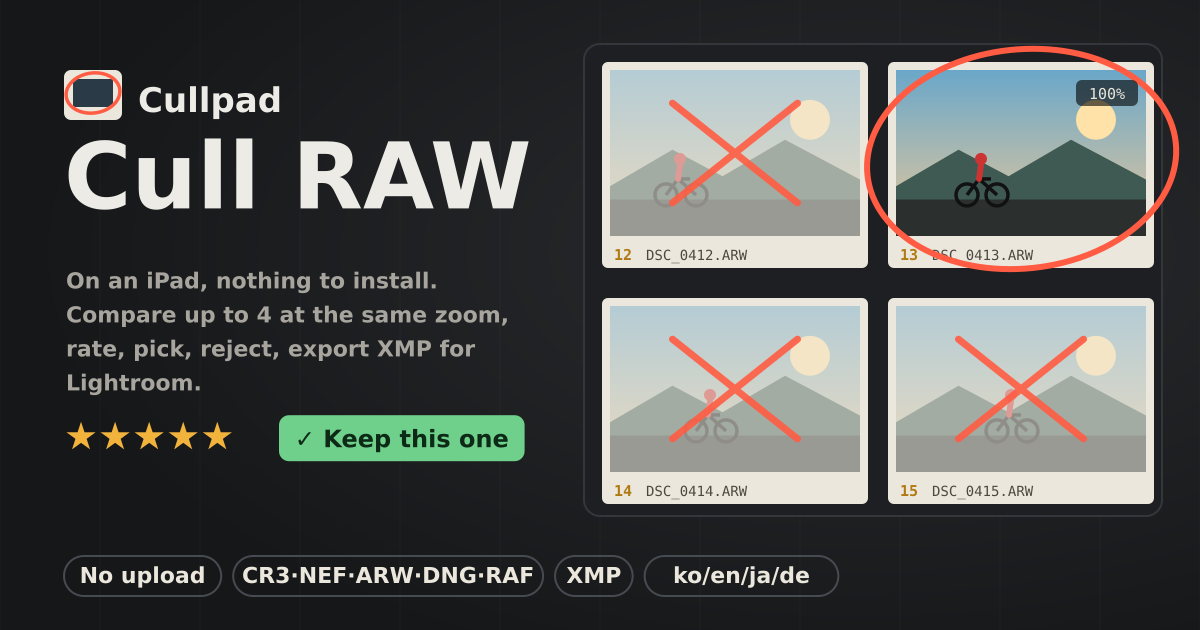
After a shoot you have dozens of near-identical frames. Cullpad opens them right in the browser, puts up to four side by side at the same zoom so you can compare focus and expressions, and lets you rate, pick or reject. The decisions go to Lightroom as XMP files.
It is free, with no account and no ads. Photos are never uploaded; they open on this device only. It speaks Korean, English, Japanese and German.
1. Open your photos
- Tap Open photos and choose many at once from the Files app, a card reader or your photo library. In Chrome and Edge, Open folder takes a whole folder; on a computer you can also drop files onto the page.
- RAW: CR3, CR2, NEF, ARW, DNG, RAF, ORF, RW2, PEF and more. A RAW file is shown through the JPEG preview the camera stored inside it, so even 50-megapixel files open quickly. JPEG, PNG and WebP open too, and HEIC, AVIF and TIFF wherever the browser can show them (HEIC and TIFF in Safari). A RAW that was cut off while copying never shows its half-black big preview: you get a complete smaller one from the same file, marked “Incomplete?”, or “No preview — file may be incomplete”.
- A RAW + JPEG pair with the same name (IMG_0001.CR3 and IMG_0001.JPG) counts as one frame. The rating belongs to the RAW; the camera JPEG is what you see.
2. Scan the grid
- Frames sit like slide mounts in capture-time order (or by file name), with their stars and pick or reject marks on top.
- Filter with All / Picks / Rejects / Unrated / Keepers and “★ n+”. Turn on Group bursts to group frames shot within 2 seconds; Compare burst puts that burst straight into compare.
- Tap the circle at the top left of a frame to select it for compare (up to 4).
3. Rate in the loupe
- Tap a frame to open it full screen. Use the bar underneath: stars 1–5, ✓ Pick, ✕ Reject and Clear. Tapping the lit top star again clears the stars.
- Pinch or double-tap to zoom to 1:1 (one photo pixel per screen pixel) and drag to pan. The zoom and position stay when you move to the next frame, so you keep looking at the same eye.
- Swipe left or right at fit, use the side arrows or the filmstrip to move on. Turn on Auto-advance to jump to the next frame after every rating.
4. Compare up to four side by side
- Select 2–4 frames and tap Compare, or use Compare burst, or Compare with next in the loupe. Two frames sit side by side (stacked on a portrait screen); three or four go 2×2.
- Zoom or pan on any frame and every frame follows exactly, so you compare focus or closed eyes at the same spot.
- Rate each frame with its own bar, or tap Keep this one on the best frame: it becomes a pick and the others are rejected. If that was a mistake, tap Undo on the message that appears. The × button takes one frame out of the comparison.
5. Keyboard shortcuts
- 1–5 stars, 0 clears stars and flag, P pick, X reject, U unflag.
- ← → previous / next (in compare: the active frame), Z 1:1 / fit, + − zoom, Enter loupe, C compare, Esc grid, Ctrl/⌘ + Z undo.
6. Export to Lightroom
- Export makes a .xmp sidecar with the same name for every rated frame (IMG_0001.xmp). Stars go into xmp:Rating, a reject is rating −1, and picks and rejects get a colour label (Green and Red by default). When photos share a name, the RAW keeps IMG_0001.xmp, the others take their full name (IMG_0001.jpg.xmp), and a second file with the very same name from another folder gets IMG_0001 (2).xmp.
- Chrome and Edge: Save into a folder… and choose the folder with the RAW files; each sidecar lands next to its photo. An existing .xmp may hold edits from other software, so it is skipped unless you tick the replace option.
- Safari on the iPad: Download ZIP, unzip it next to your RAW files, then in Lightroom Classic select the photos and choose Metadata › Read Metadata from Files.
- You also get a keepers list (cullpad-keepers.csv: file name, rating, flag, capture time) and, if you like, a rejects list (cullpad-rejects.csv). Choose what counts as a keeper: picks plus frames with at least n stars. Lightroom ignores sidecars for JPEG, HEIC and PNG, so use the lists for those.
What it does not do
- No RAW development. You see the preview the camera embedded, so colours match the camera screen and can differ from Lightroom’s rendering.
- It never changes, moves or deletes your photo files. No editing, no cloud sync, no account.
- If you would like something, tell us with the Guide & Feedback button at the bottom of the screen.
Are my photos uploaded anywhere?
No. Photos are read only inside the browser on this device. Stars, picks and rejects are saved only in this browser on this device, per file name, size and date. “Forget saved ratings” at the bottom of the page deletes them any time.
Are my ratings still there after I close the tab?
Yes. Open the same files again (same name, size and date) and their ratings come back. You only pick the files once more.
Some RAW previews look small or soft.
Cullpad uses the largest preview the camera embedded. Most recent cameras store a full-size JPEG, but some older models or settings keep only a small one, which makes judging focus at 1:1 harder.
My HEIC photos show no preview.
HEIC opens only where the browser itself can show it. Safari on the iPad and iPhone can; in Chrome and others the frame says “No preview in this browser”, though you can still rate it.
Lightroom does not show my ratings.
The .xmp file must sit in the same folder as the RAW with the same name. For photos already imported, run Metadata › Read Metadata from Files once. Colour labels only show when they match Lightroom’s label names; if yours differ, set the labels to None in Export.